Creating Sandbox Workspace
- Basic Details
- Workspace Schema
- Data Sourcing
- Metadata Sourcing
- Validate
- Summary Basic Details.
To create a basic details of the production workspace, follow these steps:
-
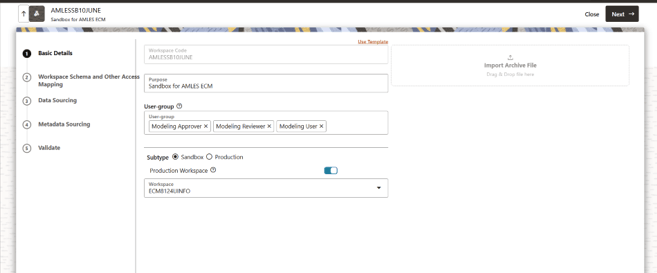
- Enter the Workspace Code and Purpose of the workspace.
- From the drop-down list, select the User-group.
- Select the subtype as Sandbox.
- Select the workspace created in AML Event Production Workspace from the Production Workspace drop-down.
- Click Next.
Figure 5-73 Basic Details
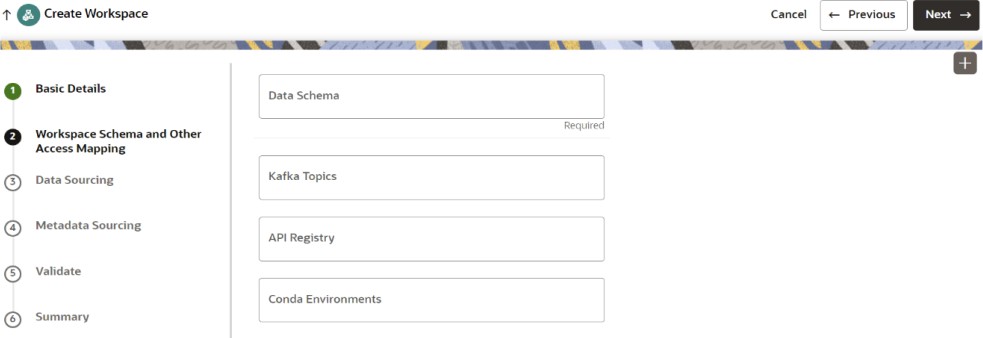
To create the workspace schema, follow these steps:Data Sourcing- Select the Data Schema as ECM Schema alias name.
Note:
Leave the Kafka Topics and API Configurations fields as blank.For more information about creating Data Store, see How to Create Data Store.
- Select the following Conda Environments:
- default_8.1.3.1.0
- ml4aml_8.1.3.1.0
- Click Next.
To select Database objects from the data stores, perform the following steps:Metadata Sourcing- From the Source Data Schema drop-down list, select the Data Store. For more information about creating Data Store, see How to Create Data Store.
- From the Object Type drop-down list, select the following tables from the sanction production data store where sufficient historical data is present:
- FCC_DM_GATHER_STAT_CONFIG
- FCC_DM_EXEC_LOG
- FCC_DM_DEPENDENT_TABLE
- FCC_BATCH_DATAORIGIN
- FCC_DM_ERROR_DETAILS
- FCC_DM_AUDIT
- FCC_DM_FIELD_MAPPING
- Click Next to navigate to the Metadata Sourcing tab.
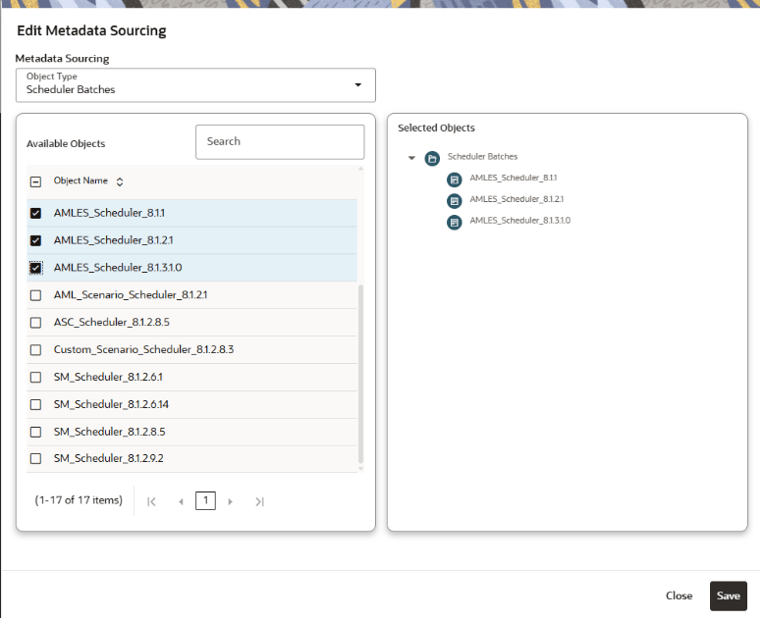
To select available objects from the Metadata Sourcing, follow these steps:Validate Workspace- From the Object Type drop-down list, select AMLES related Scheduler batches.
- In the Available Objects, select AMLES_Scheduler_8.1.3.1.0 and AMLES_Scheduler_8.1.2.1.
- Click Next.
Figure 5-75 Metadata Sourcing
You can validate the Basic details, Workspace schema, Data Sourcing and Metadata sourcing before you physicalize the workspace.
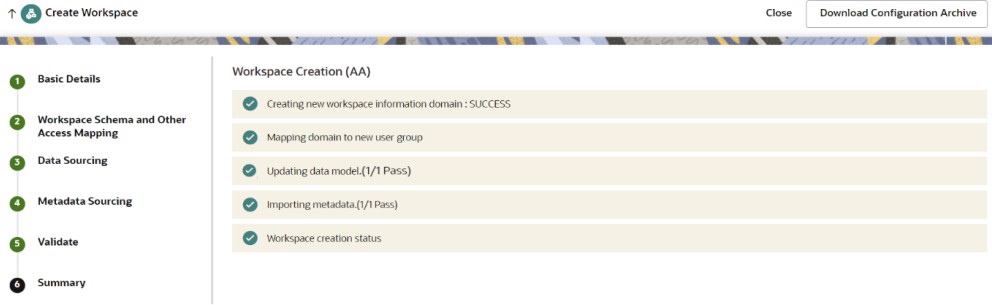
To Physicalize the workspace, Click Finish and then select Physicalize Workspace.SummaryFigure 5-76 Physicalize Workspace
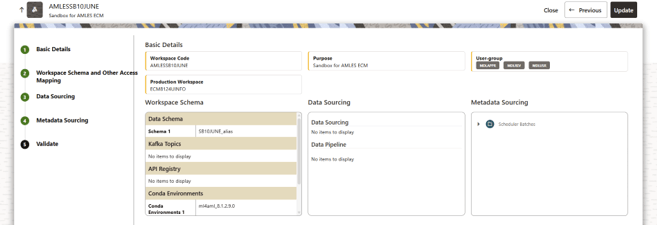 You can view summary of the created workspace.
Creating Additional Tables in the Sandbox Schema
If the sandbox schema and the ECM atomic schema are on the same data base, create additional supporting tables by using the following script:
BEGIN DBMS_METADATA.SET_TRANSFORM_PARAM(DBMS_METADATA.SESSION_TRANSFORM,'SQLTERMINATOR',FALSE);
DBMS_METADATA.SET_TRANSFORM_PARAM(DBMS_METADATA.SESSION_TRANSFORM,'EMIT_SCHEMA',FALSE);
DBMS_METADATA.SET_TRANSFORM_PARAM(DBMS_METADATA.SESSION_TRANSFORM,'SEGMENT_ATTRIBUTES', FALSE);
END;
/

DECLARE
    v_ddl   CLOB;
    v_pos   NUMBER := 1;
    v_chunk NUMBER := 32000; -- max DBMS_OUTPUT chunk
BEGIN
    -------------------- FCC_DM_CONN_CONF --------------------
    v_ddl := DBMS_METADATA.GET_DDL('TABLE', 'FCC_DM_CONN_CONF', '##SCHEMA_ USERNAME##');

    execute immediate v_ddl;

    v_pos := 1;  -- Reset position

    -------------------- FCC_DM_EXEC_STATUS --------------------
    v_ddl := DBMS_METADATA.GET_DDL('TABLE', 'FCC_DM_EXEC_STATUS', '##SCHEMA_USERNAME##');
    execute immediate v_ddl;

END;
/
Note:
If the sandbox schema and the ECM atomic schema are on the same data base then replace the ##SCHEMA_USERNAME## placeholder with the sandbox .
If the sandbox schema and the ECM atomic schema are on the different database, use the IMPDP/EXPDP approach to create FCC_DM_CONN_CONF and FCC_DM_EXEC_STATUS table structure.
Create the PKG_FCC_DM_FTP and PKG_FCC_DM package on the BD_ATOMIC_SCHEMA schema
BD_ATOMIC_SCHEMA schema for transferring PKG_FCC_DM_FTP and then PKG_FCC_DM by using the following process:
- Provide grants to the production users via the respective SYS user.
GRANT READ, WRITE ON DIRECTORY data_pump_dir TO <USER>; - Log in as a database user in the source database.
- Navigate to
DATA_PUMP_DIR. - Replace the
##PACKAGE_NAME##placeholder with the appropriate package name (PKG_FCC_DM_FTPand thenPKG_FCC_DM) and run the commands.expdp <user>/<pwd>@<db_service_name> \ directory=DATA_PUMP_DIR \ dumpfile=<dump_name>.dmp \ logfile=<log_name>.log \ content=METADATA_ONLY INCLUDE=PACKAGE:\"=\'##PACKAGE_NAME##\'\" - Transfer the
DMPandLOGfile for the packages to theDATA_PUMP_DIRlocation of the target database.scp <dump_name>.dmp <log_name>.log <unix_user>@<server>:<target_location> - Log in as a database user in target the database, and then navigate to
DATA_PUMP_DIRand open another Unix terminal. - Run the following command to import the packages by using the
DMPandLOGfiles.impdp <TGT_SCHEMA>/<pwd>@<db_service_name> \ directory=DATA_PUMP_DIR \ dumpfile=<dump_name>.dmp \ logfile=<log_name>.log \ remap_schema=SRC_SCHEMA:TGT_SCHEMA