6.4.3 Execute the Schema Creator Utility while Installing Subsequent Applications Pack
When executing the Schema Creator Utility during the installation of a subsequent Applications Pack, you can choose to install the pack either on the same Information Domain or Atomic Schema of the existing application pack or on a new Information Domain or Atomic Schema. You can execute the schema creator utility either in Online or Offline Mode.
To execute the schema creator utility while installing OFS CRA Application Pack over an existing Application Pack, follow these steps:
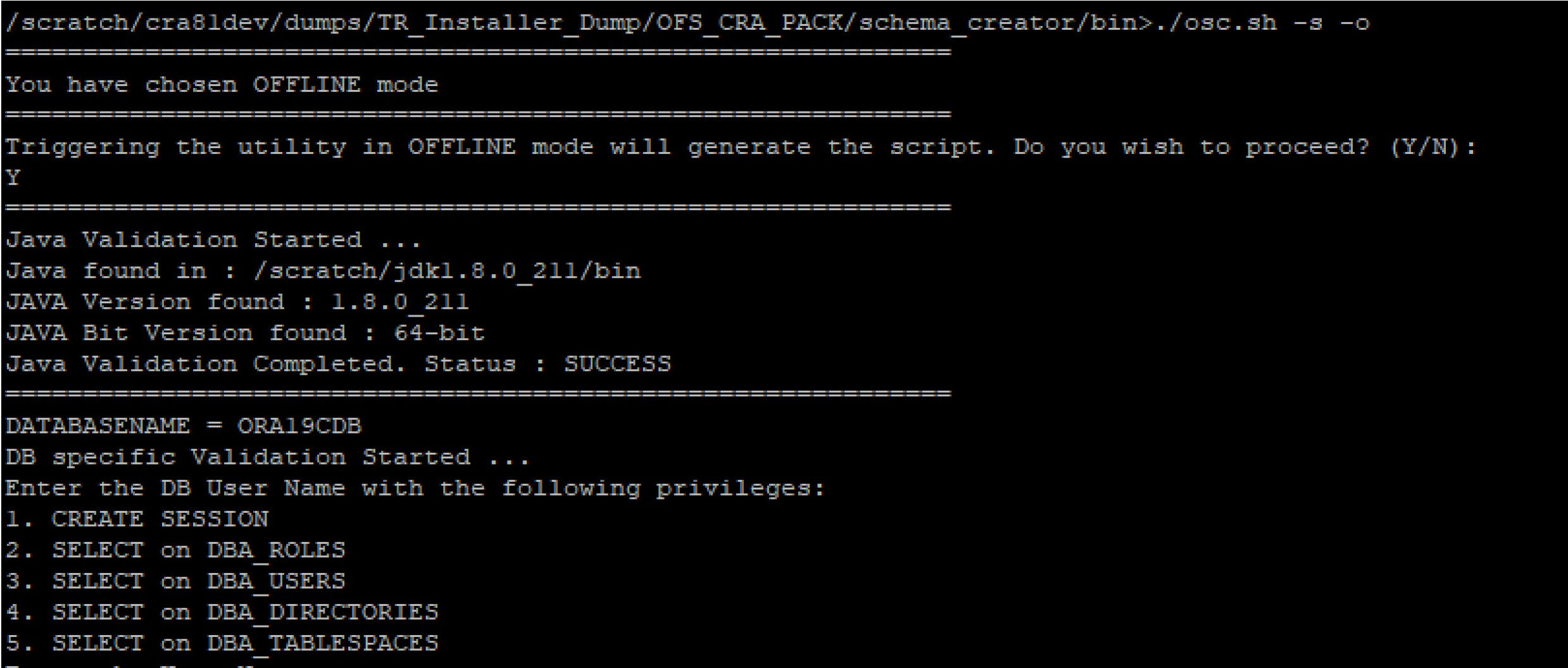
- Execute the utility with -s option. For Example: ./osc.sh –s -o
Figure 6-11 Execute the Schema Creator Utility to Install Subsequent Applications Pack
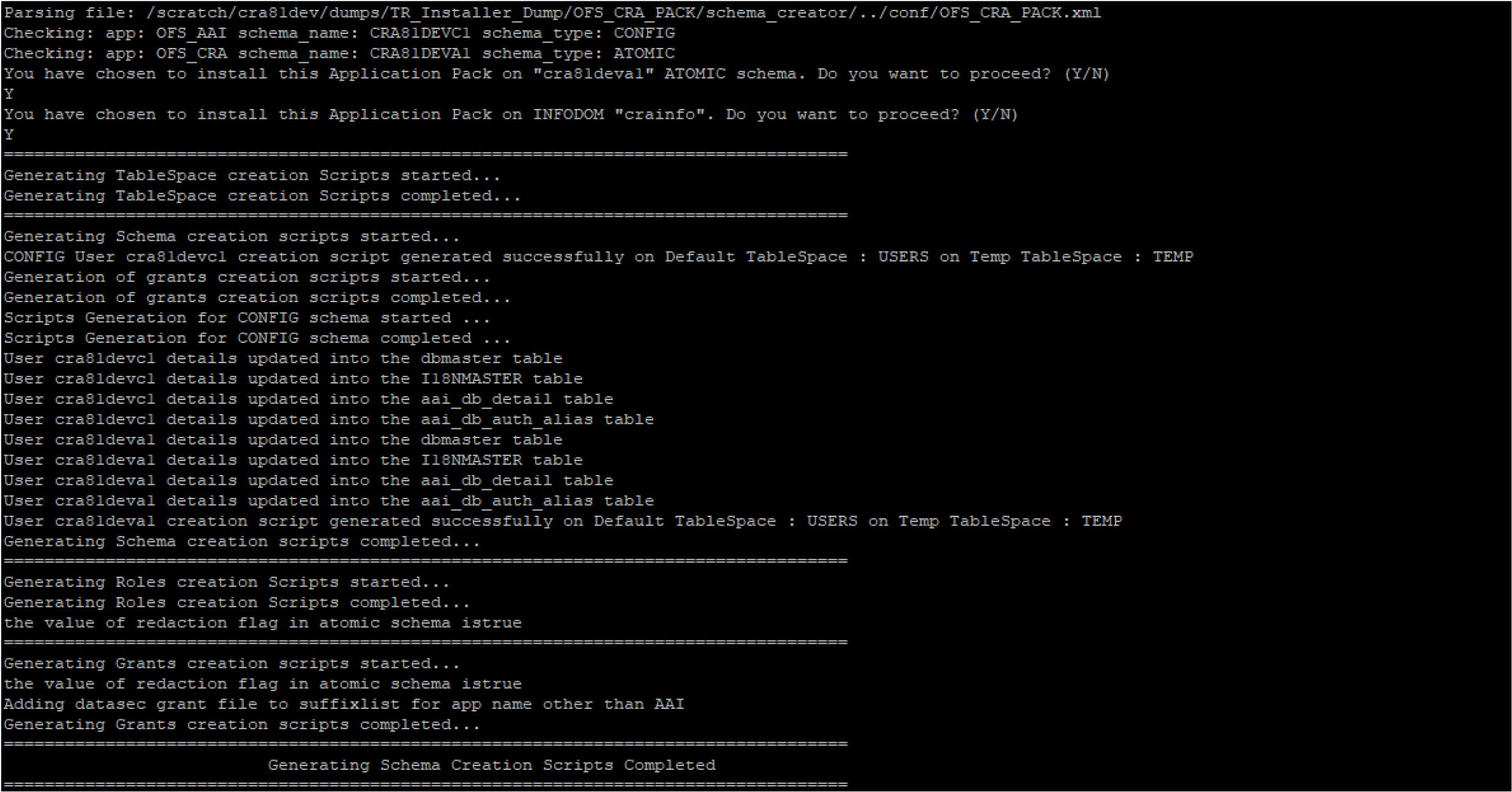
After successful schema creation, execute the sysdba_output_scripts.sql file.
Figure 6-12 Install Subsequent Applications Pack– Execute sysdba_output_scripts.sql
Note:
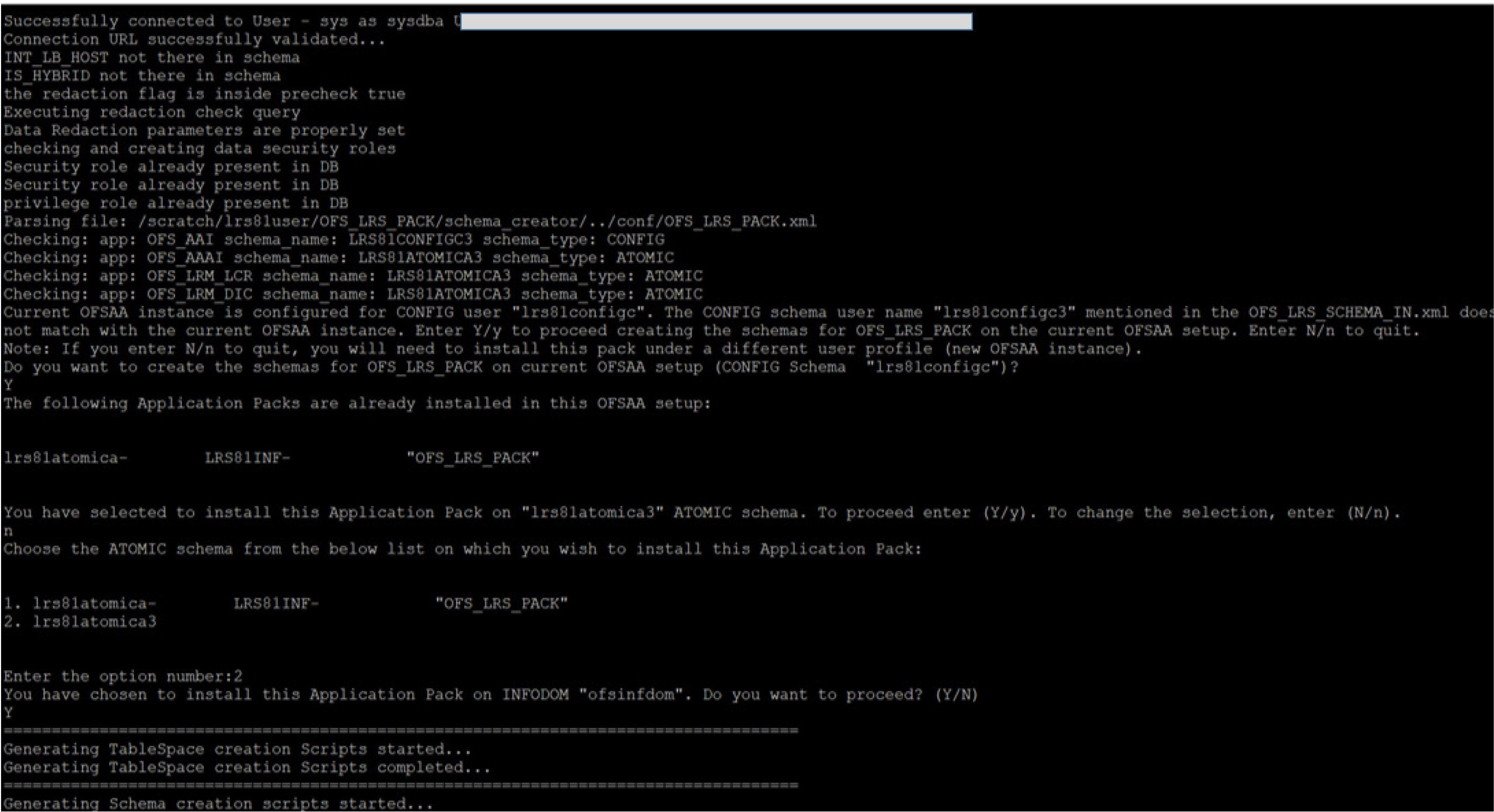
You must use the same Config Schema User Name as the previous application pack. - The utility identifies the application packs that are already installed on the current OFSAA Setup and displays the following on the console:
- Atomic schema of the existing Application Pack
- Information Domain Name of the existing pack
- List of installed Application Packs
Figure 6-13 Install Subsequent Applications Pack– Select Atomic Schema and Infodom
- Make a TNS entry for the new users created. For details, see Add TNS entries in the tnsnames.ora File
Figure 6-14 Install Subsequent Applications Pack– Select Atomic Schema and Infodom
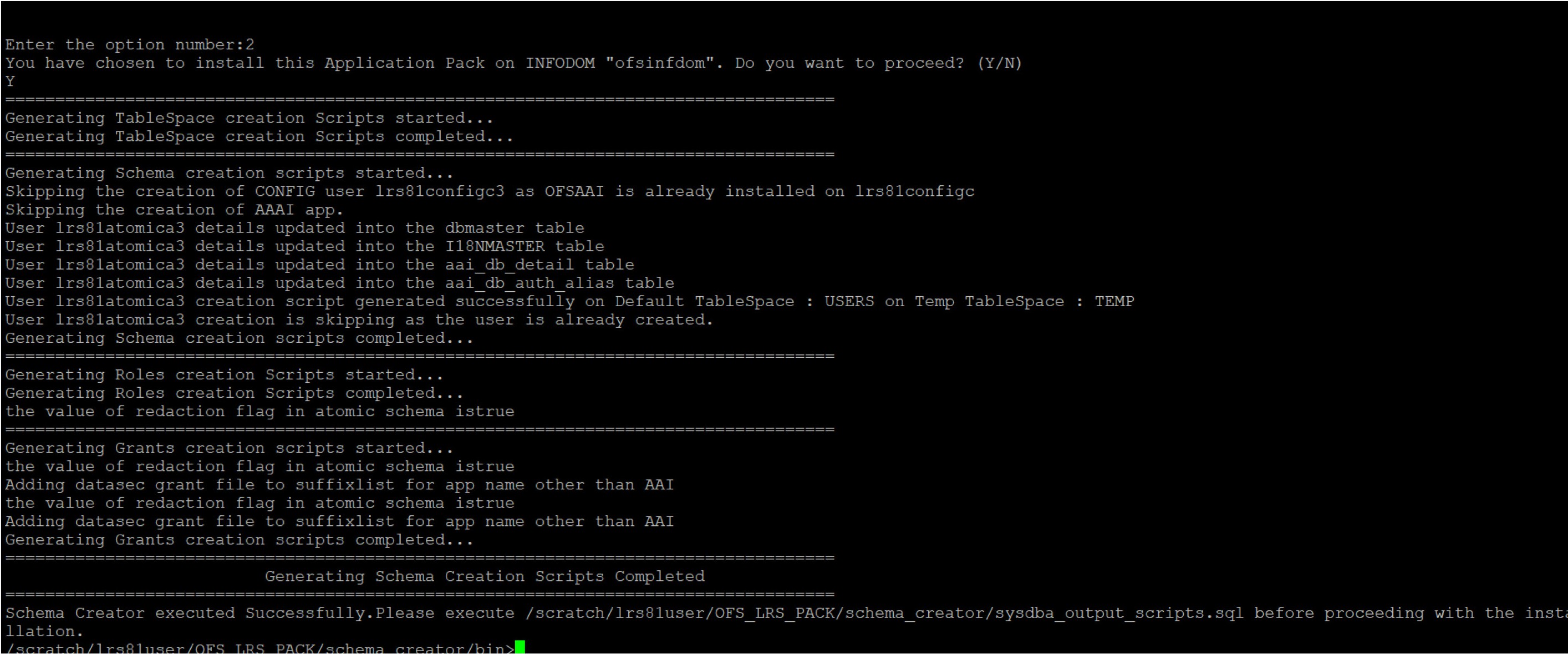
On successful execution of Schema Creator Utility, the console displays the following status message:
Success. Please proceed with the installation.
Note:
- See the log file in the OFS_CRA_PACK/schema_creator/logs directory for the execution status.
- See the log file sysdba_output_scripts.log for the execution status if executed in offline mode. The log will be empty if there are no errors in the execution.
- If there are any errors, contact My Oracle Support.