How to Customize the Batch Task for the AML Event Scoring Data
- From the Compliance Studio Modeling sub-menu, click Pipelines, and then on the Model Pipelines page, navigate to AMLES Batch Framework.
- Click Add, and then click Objective from the drop-down list to create a new objective , for example, Segment Update. Within this objective, create a new notebook , for example, Segment Update Notebook.
This notebook, created via the Model Pipelines page, AMLES Batch Framework folder, with the objective, for example Segment Update, and then the notebook, for example Segment Update Notebook, will internally have the required Python code to invoke an SQL query on the connected Data Source.
- This SQL query will be responsible for updating the V_SEGMENT_CODE column in the FSI_ES_EVENT_INPUT table.
The SQL query has to be designed with respect to the custom logic at the users side so that it can fetch the desired segment information wherever it is available and then update the V_SEGMENT_CODE column in the FSI_ES_EVENT_INPUT table.
- The new notebook must be published and sent through an Approval process so that it is available in the CHAMPION state in both the Sandbox and Production workspaces.
- For the historic event batch changes, perform the following steps:
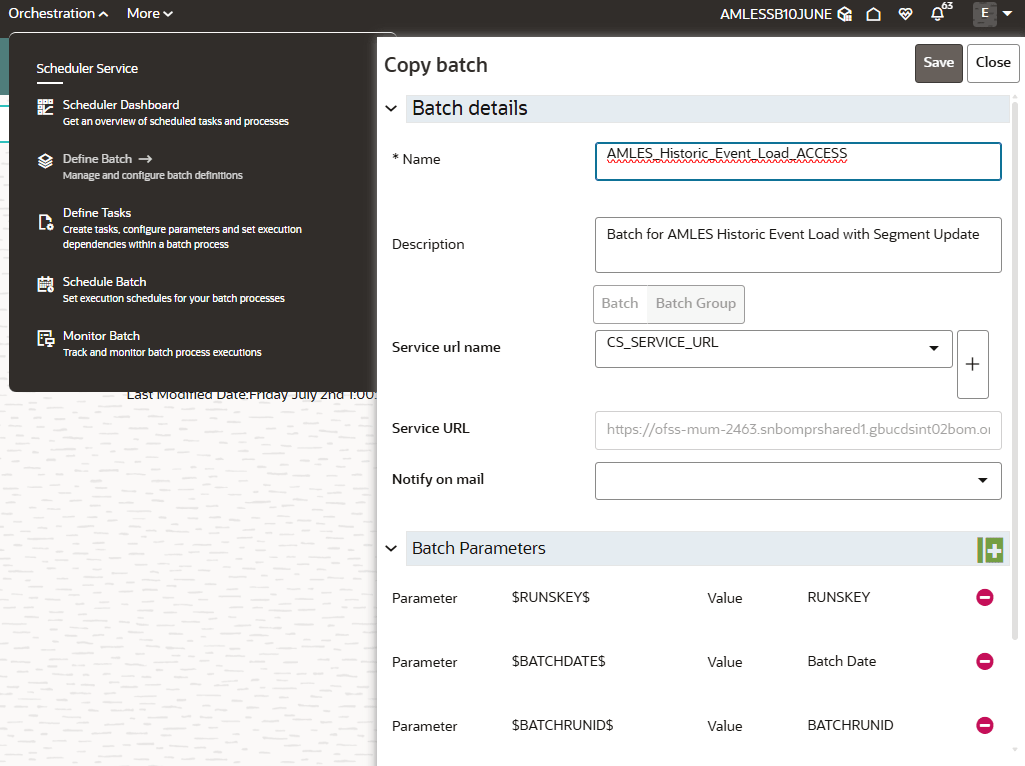
- In the Compliance Studio Orchestration sub-menu, select Define Batch to open the Define Batch page. On this page, click the Copy Batch icon to clone the existing AMLES_Historic_Event_Load batch.
The batches must to be cloned with a new name so that the original batches are not changed as part of any product level upgrade in the future.
Figure A-36 The Copy Batch Window
- Select the Orchestration sub-menu, and then click Define Task to open the Define Task page. On this page, click the Create Task icon to create an additional task in the AMLES_Historic_Event_Load batch.
Figure A-37 The Create Task Window
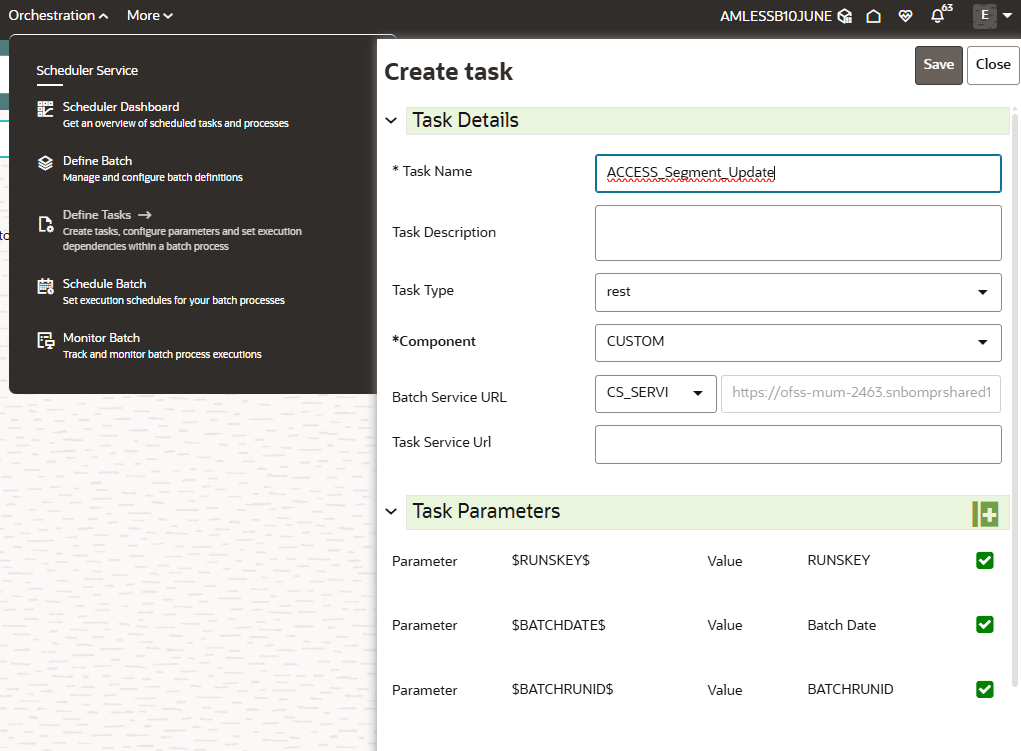 This task will have the following parameters :
Table A-17 Task Parameters
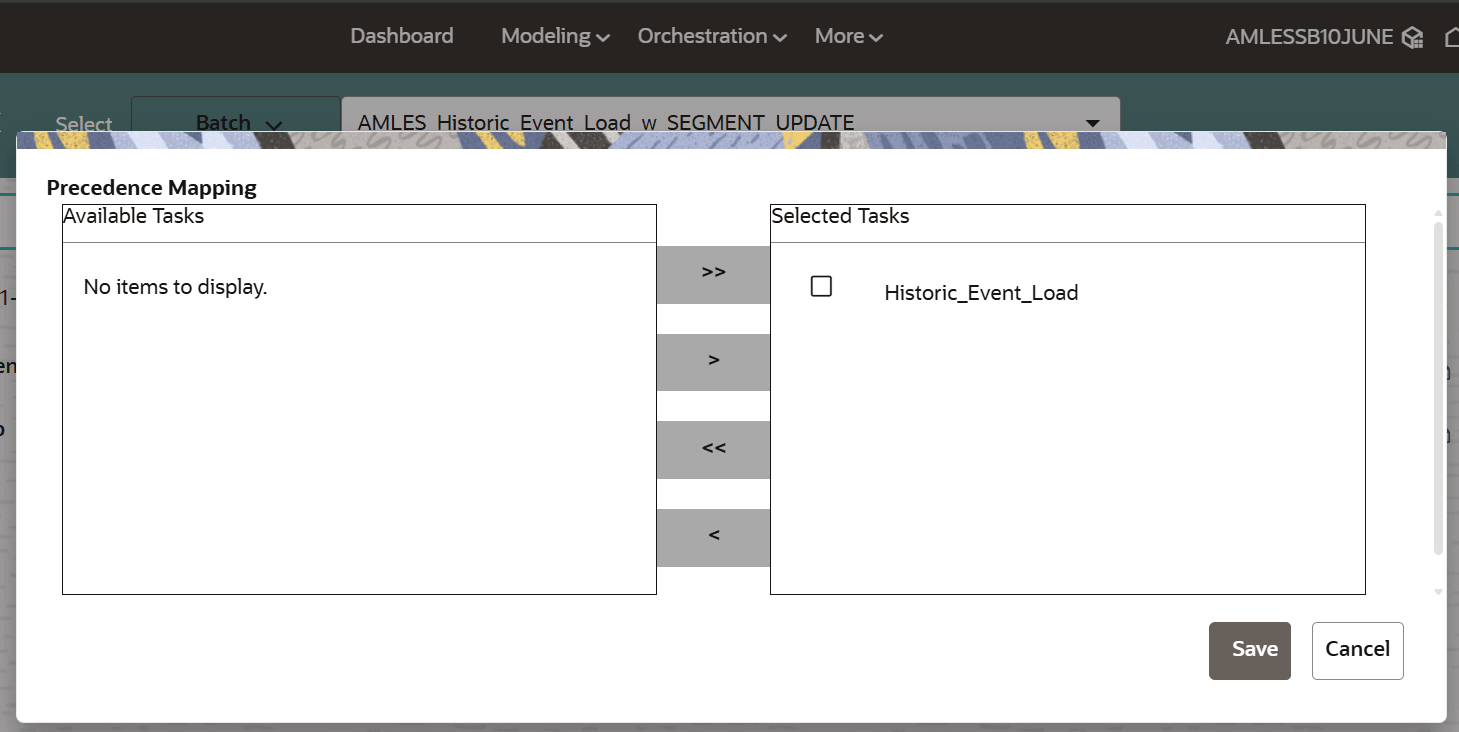
Task Parameter Value Component MODEL Objective Objective of the New Champion notebook Model CHAMPION Synchronous Execution YES - After successfully creating the task, the precedence must be set by clicking the Menu icon that corresponds to the desired task in the following way:
In the AMLES_Historic_Event_Load batch, the new task should be positioned to run after the Historic_Event_Load task.
Figure A-38 Precedence Mapping Window
- In the Compliance Studio Orchestration sub-menu, select Define Batch to open the Define Batch page. On this page, click the Copy Batch icon to clone the existing AMLES_Historic_Event_Load batch.
- For the ECM scoring batch changes, perform the following steps:
- Refer to the ECM Administration and Configuration Guide to configure the ECM batch to point to Compliance Studio.
- Clone the existing BD_ML process for the ECM batch execution.
- Edit the process/task and then include the new champion and set the precedence.
- Remove the older BD_ML process and include the new cloned process, BD_ML_ACCESS, from the main ECM Scoring batch.