4.4.1.5.3 DJW List Reference Mapper Feed Configuration
- Go to the
{domain_name}/config/fmwconfig/edq/oedq.local.home/commandareafolder and perform the following steps:- Open the
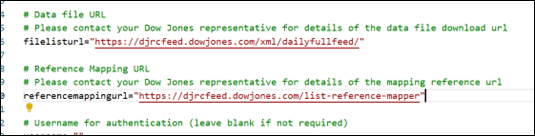
download-djw.batfile.- Replace the existing Reference Mapping URL with the following URL: https://djrcfeed.dowjones.com/list-reference-mapper
- Save and close the file.
Figure 4-10 The download-djw.sh file
- Open the
- In the same file, go to the downloading full reference mapping data, replace
djrc_wlrm_xmlwithdjrc_listreferencemapper_xml, refer to the below image.Figure 4-11 Downloading full reference mapping data

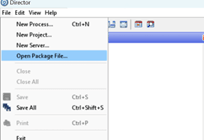
- In the Director landing page, click
File > Open Package File. The Open window appears.Figure 4-12 The Director landing page
- Navigate to the
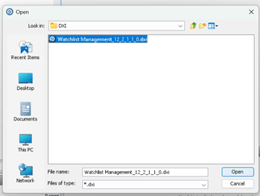
<Patch _Extracted_Path>\DXIfolder, select theWatchlist Management_12_2_1_1_0.dxifile and click Open.Figure 4-13 The Open Window
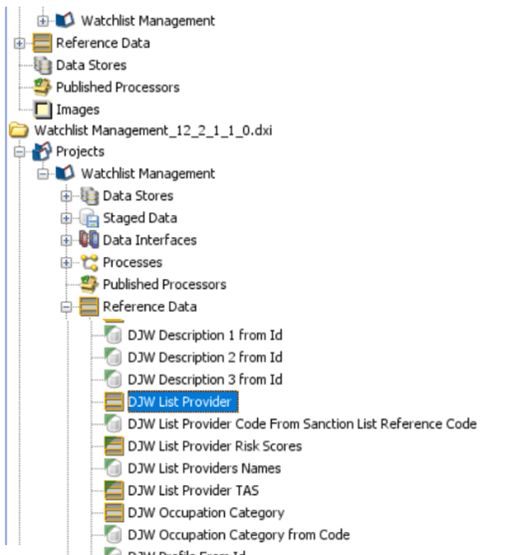
- Expand the Reference Data node and perform the following steps:
- Copy the DJW List Provider reference data and paste it into your Watchlist Management Project.
Figure 4-14 The Project Browser Pane
- When the pop-up appears, select the Overwrite check box and click OK.
- Copy the DJW List Provider Static reference data and paste it into your Watchlist Management Project.
Figure 4-15 The Reference Data list
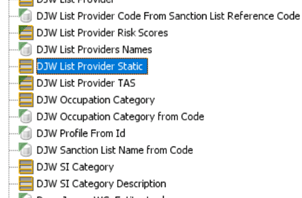
- When the pop-up appears, select the Overwrite check box and click OK.
- Copy the DJW_List_Provider_Region reference data and paste it into your Watchlist Management Project.
Figure 4-16 The Project Browser Pane
- When the pop-up appears, select the Overwrite check box and click OK.
- Copy the
DJW_List_Provider_Sanctionsreference data and paste it into your Watchlist Management Project.Figure 4-17 The Reference Data list
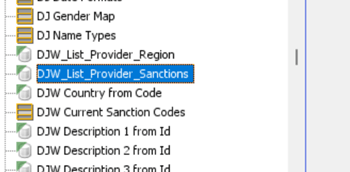
- When the pop-up appears, select the Overwrite check box and click OK.
- Copy the DJW_List_Provider_Sanctions reference data and paste it into your Watchlist Management Project.
Figure 4-18 The Reference Data list
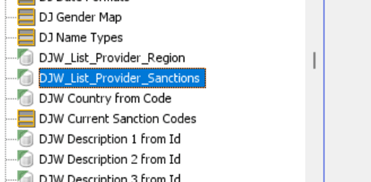
- When the pop-up appears, select the Overwrite check box and click OK.
- Copy the DJW List Provider reference data and paste it into your Watchlist Management Project.
- Expand the Staged Data node and perform the following steps:
- Copy the
DJW_Sanctions_List_Provider_Currentstaged data and paste it into your Watchlist Management Project.Figure 4-19 The Staged Data list

When the pop-up appears, select the Overwrite check box and click OK.
- Copy the
- Expand the Process node and perform the following steps:
- Copy the Stage DJW Sanction List References process and paste it into your Watchlist Management Project.
Figure 4-20 The Project Browser Pane
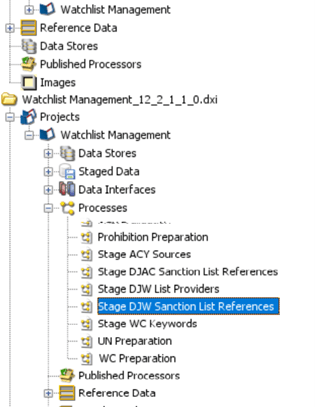
- Copy the
DJW_Sanction_List_Referencesprocess and paste it into your Watchlist Management Project.Figure 4-21 Process list
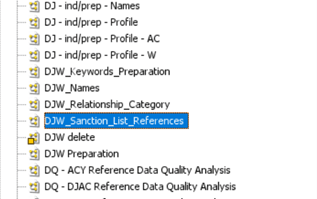
- Copy the
DJW_Keywords_Preparationprocess and paste it into your Watchlist Management Project.Figure 4-22 Process list
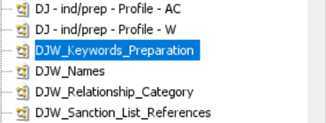
- Copy the Stage DJW Sanction List References process and paste it into your Watchlist Management Project.
- Expand Staged Data node and open the
DJW_Sanction_List_Referencesstage data. The Setup Snapshot window appears.Figure 4-23 The Setup Snapshot window
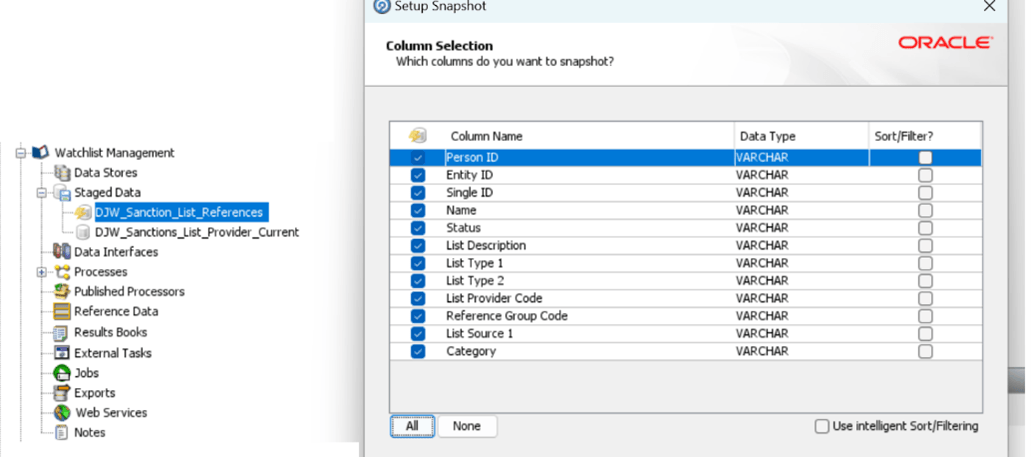
- On the Data Store page, select DJW and click Next.
- On the Table Selection page, select Sanction Preferences and click Next.
- On the Column Selection page, select the All Columns and click Next.
- Close the window.
- Create a new DJW - Sanction_List_Reference phase.
- Click the Create a New Phase

icon. The Job Phase pop-up appears.Figure 4-24 The Job Phase window
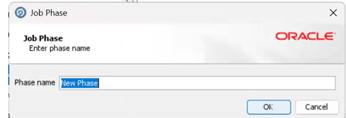
- Click the Create a New Phase
- Move the
DJW - Sanction_List_Referencephase below the DJW - Stage reference phase in the list.Figure 4-25 List of Phases
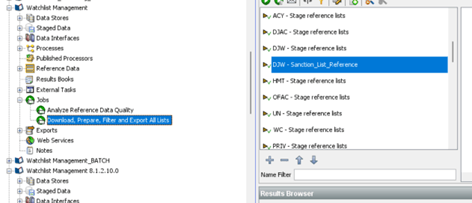
- Move the
DJW_Sanction_List_referencesstage data from theDJW - Stage reference listsphase toDJW - Sanction_List_Referencephase and linkStage DJW Sanction List ReferencesandDJW_Sanction_List_Referencesprocess.- In the Tool Palette window, search for
DJW - Sanction_List_Reference.Figure 4-26 The Tool Palette window
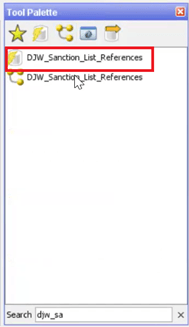
- Drag and drop the
DJW - Sanction_List_Referencestage data to theDJW - Sanction_List_Referencephase.Figure 4-27 The DJW - Sanction List Reference phase
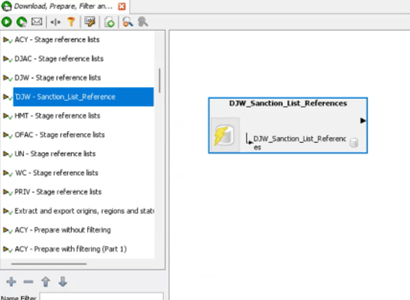
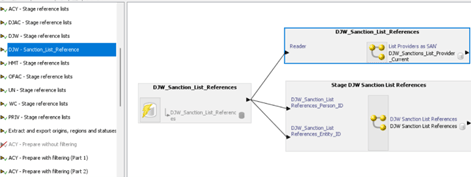
- From the Tool Palette window, drag and link the DJW_Sanction_List_References process to the DJW - Sanction_List_Reference stage data.
Figure 4-28 The Tool Palette window
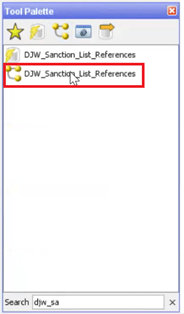
- Drag and link the Stage DJW Sanction List Referencesprocess to the DJW - Sanction_List_Reference stage data.
Figure 4-29 The DJW - Sanction List Reference phase
- In the Tool Palette window, search for
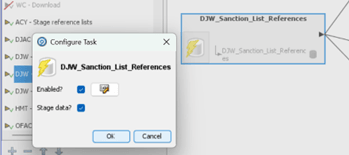
- On the Configure task pop-up, select both Enabled and Stage data check boxes and click OK.
Figure 4-30 The Configure Task pop-up
- Create a new DJW - Keywords_Preparation phase.
- Click the Create a New Phase
icon. The Job Phase pop-up appears.Figure 4-31 The Job Phase window
- Click the Create a New Phase
- Move the
DJW - Keywords_Preparationphase below theDJW - Sanction_List_Referencein the list.Figure 4-32 List of available phases
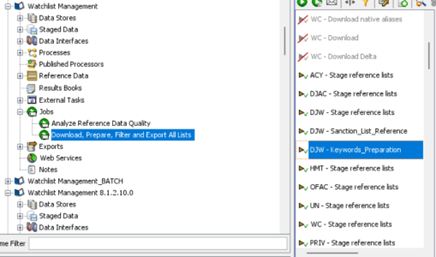
- Add the
DJW_List_Providersstage data to theDJW - Keywords_Preparationphase and linkDJW_Keywords_Preparationprocess.- Drag and link the DJW_Keywords_Preparation process to the DJW_List_Providers stage data.
Figure 4-33 The DJW - Keywords Preparation phase
- Drag and link the DJW_Keywords_Preparation process to the DJW_List_Providers stage data.
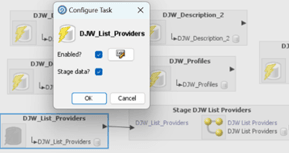
- On the Configure task pop-up, select Enabled? and Stage data? check boxes and click OK.
Figure 4-34 The Configure Task pop-up
- Go to the
{domain_name}/config/fmwconfig/edq/oedq.local.home/runprofilesfolder and perform the following steps.- Open the watchlist-management - TF.properties file.
- Navigate to the DJW setup section add the following commands.
ii. Save and close the file.phase.DJW\ -\ Sanction_List_Reference.enabled = Y phase.DJW\ -\ Keywords_Preparation.enabled = YFigure 4-35 The watchlist-management.properties file
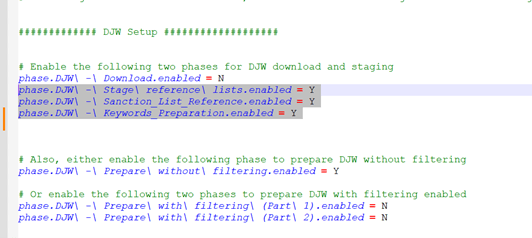
- Navigate to the DJW setup section add the following commands.
- Open the watchlist-management - TF.properties file.