8.2.9.1 Data Sourcing Analysis Dashboard
The Data Sourcing Dashboard is similar to the Use Case Analysis, but with an added feature that includes a consolidated view of the data elements that have already been irrigated into DFCS. When working with a new use case, the dashboard shows what additional data needs to be sourced for that specific use case. This is particularly helpful when a customer has already integrated part of the data into DFCS.
To access the dashboard:
- Navigate to the Catalog menu from the Oracle Analytics home page, and click on the Shared Folders tab.
- Navigate to Data Foundation Reports.
- Locate the Use Case Analysis folder in the list and click Data Sourcing Summary.
Note:
In some cases, irrigated attributes may not appear in the Data Sourcing Summary Report after a Reporting Object refresh. This occurs when the dataset is using Automatic Cache, which may not immediately reflect the latest updates.To ensure all irrigated attributes are displayed correctly, change the dataset Data Access setting from Automatic Cache to Live Access.
Follow the steps below to update the report and view the latest irrigated attributes.
- Open the Data Sourcing Report.
- Click Edit to open the workbook in edit mode.
- Navigate to the Data tab.
- Select the relevant Dataset and click Edit.
- Click Edit Definition.
- Expand the right-hand panel.
- Under Data Access, change the value from Automatic Cache to Live Access.
- Click Save, then OK.
- Save the report.
- Data Sourcing for Use Cases
- Sourced Data Per Entity
- Use Case Data
- Entities Sourced for Use Case
- Data for Entities Attributes – Use Case Tagging
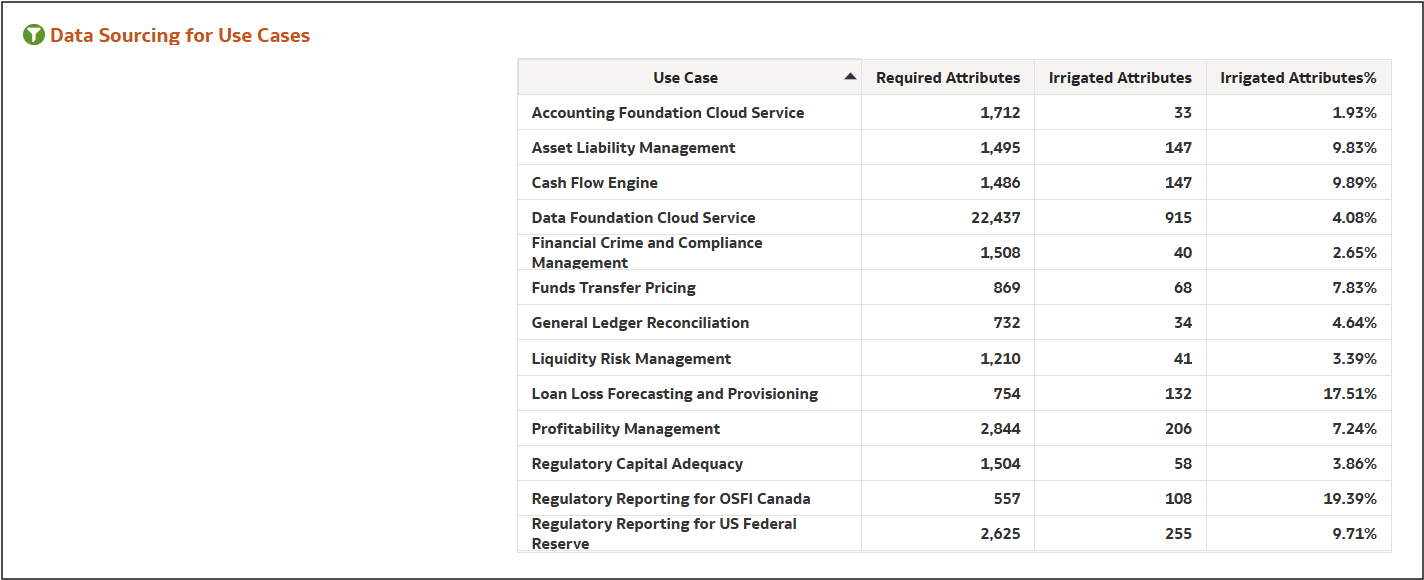
Data Sourcing for Use Cases
This report highlights the total number of attributes tagged or required for each use case or application.
It displays the number of attributes required, and the number attributes for which data has already been loaded, presented both as absolute figures and as a percentage of the total required attributes. This enables users to assess data readiness for each use case or application, supporting improved tracking and management of data coverage.- Use Case: Indicates the use case the attribute data is being sourced for.
- Required Attributes: Indicates the attributes that are required for the report.
- Irrigated Attributes: Denotes whether the attribute is irrigated or not. Irrigation refers to data that is automatically sourced or fed into the system.
Figure 8-138 Data Sourcing for Use Cases Summary
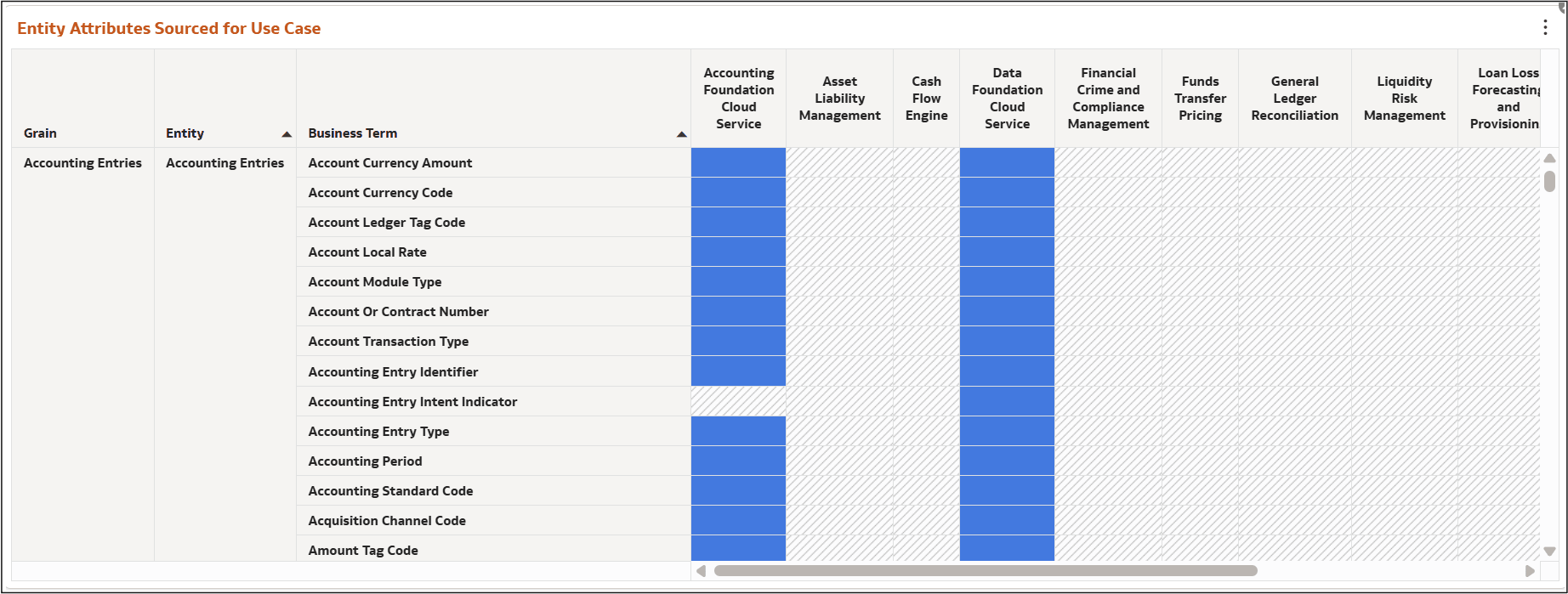
Entity Attributes Sourced for Use Case
This report illustrates the entity attributes that are sourced for each specific use case.
Key Features:
- The table displays each business term and whether the corresponding attribute is sourced from the relevant data source.
- Irrigated Attributes: This visual representation indicates whether an attribute is irrigated or not across various use cases.
Figure 8-139 Entity Attributes Sourced for Use Case
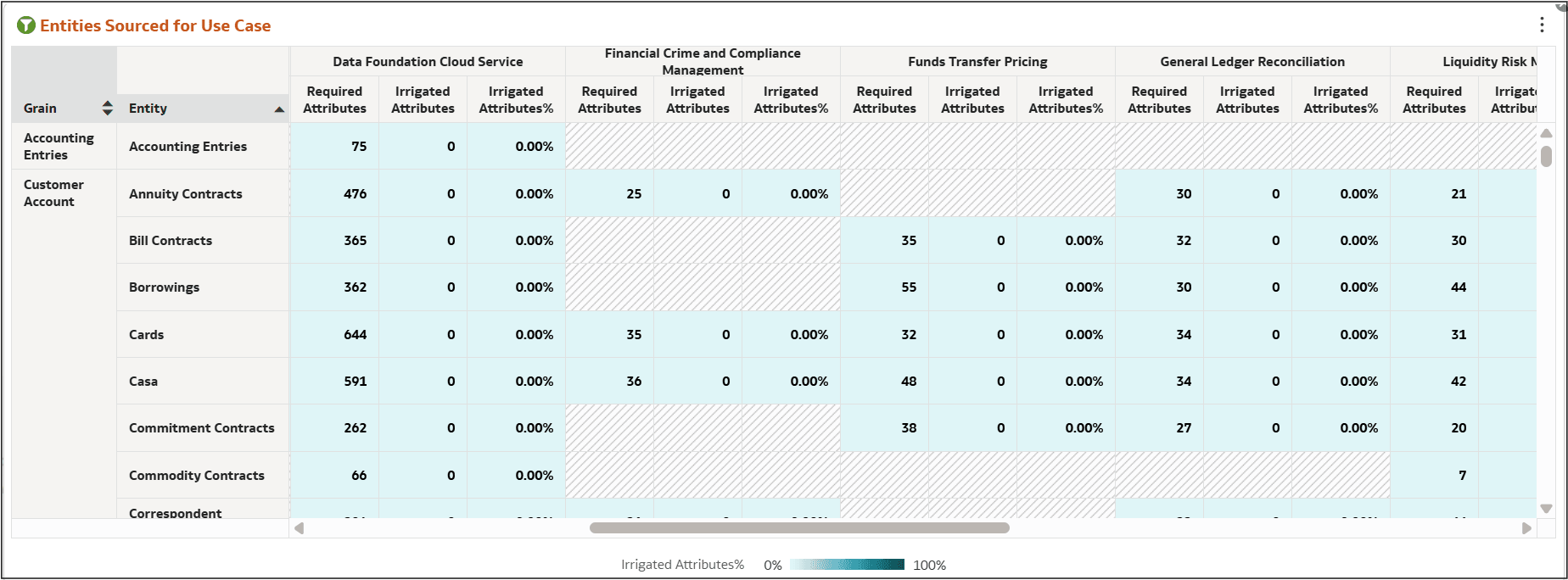
Entity Attributes for Use Case
This report provides an overview of the entities that have been sourced for each use case.
Key Features:
- Shows a breakdown of the required attributes versus the irrigated attributes for different entities.
- Helps users track which entities are fully or partially sourced.
Figure 8-140 Entity Attributes for Use Case
Data for Entities Attributes – Use Case Tagging
This report provides an overview of the total attributes required and how many have been irrigated for each use case. It also calculates the percentage of irrigated attributes.
Key Features:
- Helps track overall progress for each use case.
- Provides key metrics for regulatory and financial use cases, helping monitor compliance and data sourcing activities.
Figure 8-141 Data for Entities Attributes – Use Case Tagging
