3.8.5 Rules Framework using Batch Process

You can perform Business Rules using the Scheduler Services. The steps below use the BUSINESS_RULE component, which does not require a Service URL selection.

To run the Business Rules using Batch Process, follow these steps:

  1. With the Define Batch feature, it is possible to create new batches and review existing ones. Navigate to the Scheduler Service and click Define Batch.
  2. Click + to create a new batch.
  3. In the Create Batch screen, enter the following values:
    1. Code - Enter a unique code. Spaces are not allowed.
    2. Batch Name - Enter a name for the batch.
    3. Click Save.

    Note:

    The Service Url Name field in the Create Batch screen does not require a selection when using the GL RECON component. Leave it blank.
  4. In the Define Task screen, you can define the tasks related to a specific batch.
    1. Navigate to Define Task.
    2. Select the name of the batch that has been created for this task.
  5. Click + to create a new task.
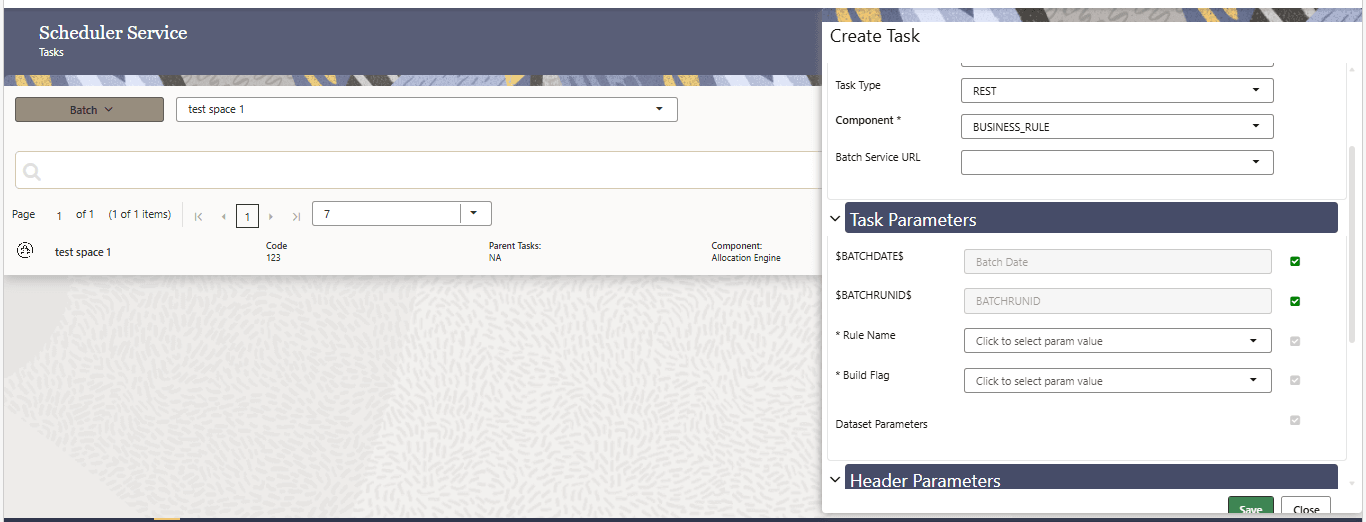
  6. In the Create Task screen, enter the following values:
    1. Task Code (Spaces are not allowed in the code section). b.
    2. Task Name.
    3. Select the task type as REST.
    4. Select the Component as BUSINESS_RULE..
    5. Click Save.

    Note:

    When the BUSINESS_RULE. component is selected, the Batch Service URL field is not displayed and does not require configuration.

    Figure 3-71 Define Task


    Define Task

  7. In the Task Parameter section, enter the following values:
    1. Rule Name — Select the Business Rule that must be executed.
    2. Build Flag — Select whether the Business Rule must be built or compiled before execution.
    3. Dataset Parameters — Enter or review the dataset-specific parameters required to execute the selected Business Rule.

    Figure 3-72 Define Task


    Define Task

  8. Schedule the batch using the Schedule Batch screen.
    1. Navigate to Schedule Batch.
    2. Select the Name of the batch created in Step 1.
    3. Use the Edit Parameters option to review the batch parameters and make any necessary adjustments before execution.
    4. Verify the following before executing:
      • The correct Rule Name is selected.
      • The Build Flag value is correct.
      • All required Dataset Parameters are entered correctly for the selected Business Rule.
    5. Click Execute to run the batch, or click Save to save the batch definition without running it.
      • Clicking Save saves the batch definition without executing the batch.
      • Clicking Execute submits the batch for execution. An Execute Status dialog is displayed confirming the batch has been submitted.
  9. Monitor the Batch:
    1. Navigate to Monitor Batch.
    2. Select the batch name and MIS Date, then check the Batch Status.
    3. After the batch completes successfully, verify the Business Rule execution results in the applicable module or output location.