4.6.1.1 Search Database View
Prerequisites: Predefined Database View
To search for a database view:
- Enter the View Name or Pinned Objects in Search Criteria and click the Search icon.
- Rows that contain the string you are searching for are fetched and displayed in the Database View Summary.
The Database View Summary displays the following information:
- Add: Click the Add button on the page header to create a new database view.
- Actions: Enables you to perform the following tasks.
- Refresh: Retains the selected filters and refreshes the summary page with the latest status.
- Reset: Clears the selected filters and refreshes the summary page.
- Help: Redirects you to the latest documentation.
- Delete: Enables you to select and delete one or more views in the table simultaneously.
- Pin/Unpin: Enables you to pin/unpin the selected view.
- Export: Enables you to download the summary page details in .CSV format.
- Columns: Allows you to view the summary page data using a customized list of columns.
Figure 4-48 Database View Summary Screen
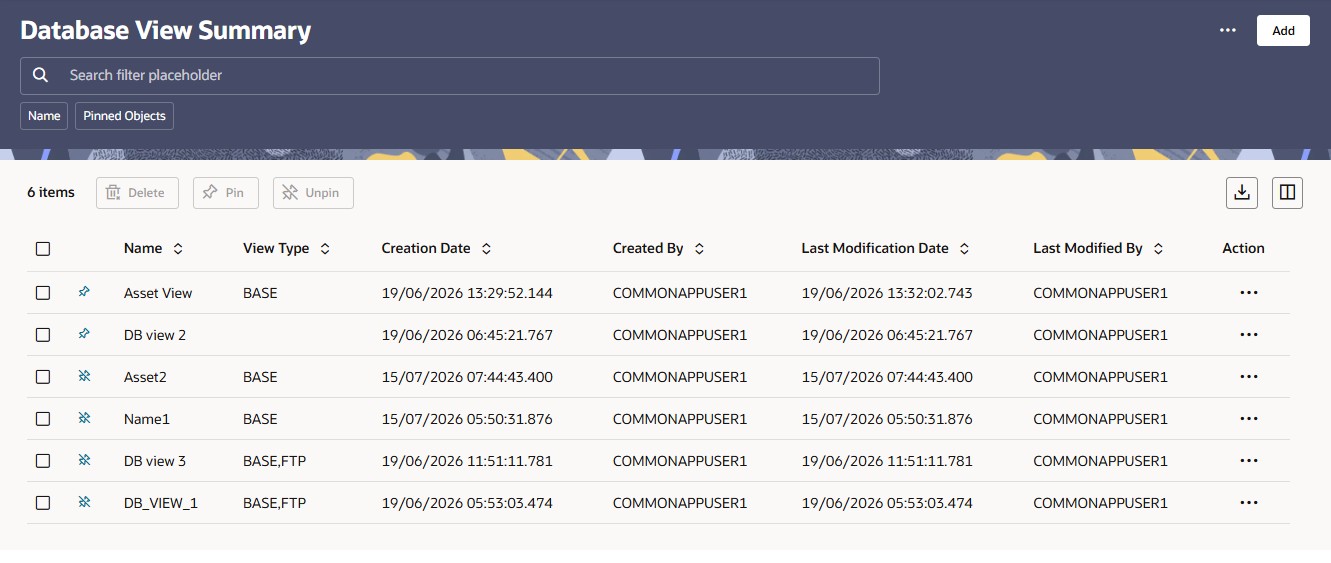
The Database View Summary table displays the following columns:
Table 4-19 Database View Summary
| Column | Description |
|---|---|
| Name | The database view name. All views created through this page are prefixed with PBSM_View. |
| View Type |
Indicates whether the view is classified. View Type is derived from the Register View and Primary Classification settings used when the view was created:
|
| Creation Date | The date and time when the view was created. |
| Created By | Displays the name of the user who created the view. |
| Last Modification Date | The date and time when the view was last modified. |
| Last Modified By | Displays the name of the user who last modified the view. |
| Action | Click this icon to view a list of actions that you can perform on the view: View, Edit, Save As, Delete, Dependency Information. |