2 Python Configuration
Configure Python 3.14.7 and the third-party packages required for this release. Perform the operating system package installation as a superuser; build and configure Python using the application user account.
Pre-installation Check
Ensure that the following libraries are available before building Python:
| Required library | Required library |
|---|---|
| libffi.i686 | libffi.x86_64 |
| libffi-devel.i686 | libffi-devel.x86_64 |
| bzip2-devel | xz-devel |
| openssl | openssl-devel |
| freetype-devel | gcc-c++ |
| sqlite-devel |
Note:
These libraries support Python and its packages. Install them before building Python to avoid rebuilding it later. Additional dependencies may be identified during make or package installation; install any missing dependencies and rebuild Python as required.
Verify installed packages, for example:
yum list installed | grep libffiIf a required library is missing, install it using a superuser login. For example:
yum install libffi.i686
yum install libffi.x86_64
yum install libffi-devel.i686
yum install libffi-devel.x86_64
yum install bzip2-devel xz-devel openssl openssl-devel
yum install freetype-devel gcc-c++ sqlite-devel
Note:
If a proxy is required, configure /etc/yum.conf and the system proxy settings. Exit the superuser session and log in using the application user credentials before continuing. For issues related to yum on Oracle Linux, contact My Oracle Support.
Python Installation
The following steps apply to Oracle Enterprise Linux and use the bash shell. For other supported platforms, use the equivalent platform-specific commands.
1. Log on to the server using the application user credentials.
2. Ensure that the server operating system supports Python 3.14.7. Check the applicable technology matrix for platform requirements.
3. Download one of the Python 3.14.7 source archives:
wget https://www.python.org/ftp/python/3.14.7/Python-3.14.7.tgz
# Or:
wget https://www.python.org/ftp/python/3.14.7/Python-3.14.7.tar.xz
Note:
If a proxy is required, set the environment variables to the values for your network:
export http_proxy=http://<proxy.server>:<port>
export https_proxy=http://<proxy.server>:<port>
4. Extract the downloaded archive using the command for its file type:
| File type | Command |
|---|---|
| .tgz |
tar -zxvf Python-3.14.7.tgz
|
| .tar.xz |
tar -xvf Python-3.14.7.tar.xz
|
5. Navigate to the extracted source directory and configure the installation prefix. Use a custom folder accessible to the application user:
cd Python-3.14.7
./configure --prefix=<custom_folder> --enable-optimizations
For example:
./configure --prefix=$HOME/Python-3.14.7 --enable-optimizations6. Build Python:
makeNote:
If the build fails, run make clean and retry. If the system does not support --enable-optimizations, reconfigure without that option:
./configure --prefix=<custom_folder>
make clean
make
7. Install Python in the configured custom folder:
make install8. Edit .profile and define PYTHON_HOME as the custom installation directory. For example:
export PYTHON_HOME=$HOME/Python-3.14.7Figure 1: Python Directory

9. After defining PYTHON_HOME, add its bin directory to PATH. Reload the profile and verify the path:
export PATH=$PYTHON_HOME/bin:$PATH
. $HOME/.profile
echo $PATH
Figure 2: Python Path

10. Navigate to the installation bin directory and verify the installed interpreter:
cd "$PYTHON_HOME/bin"
./python3.14 --version
The reported version must be Python 3.14.7.
11. Confirm that python3 resolves to this installation. If its link is missing, complete step 13 before continuing. Invoke Python and verify that it reports Python 3.14.7:
command -v python3
python3
Figure 3: Python Prompt
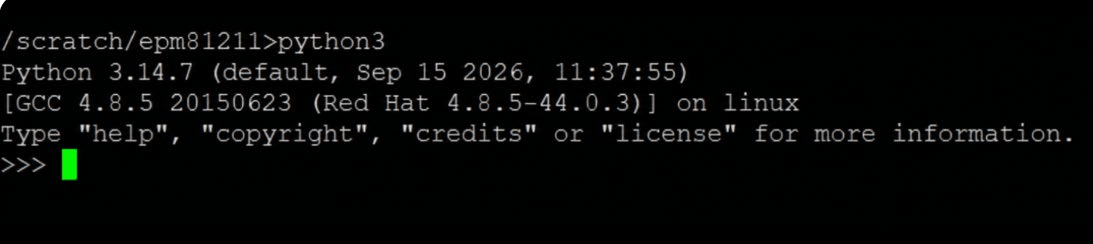
Exit the Python prompt with exit(). The screenshots illustrate a custom installation path; use the path configured for your environment.
12. Verify that pip is available for this interpreter:
python3 -m pip --versionThe reported pip location must belong to the Python 3.14 installation. Use the interpreter-qualified pip commands in this guide to install packages. If pip is unavailable, run python3 -m ensurepip --upgrade, then verify it again.
13. If the python3 link is missing from the custom installation bin directory, create it there. Do not replace the operating system Python executable:
cd "$PYTHON_HOME/bin"
ln -s python3.14 python3
Run this link command only if the link is absent. If python3 resolves to another installation, correct PATH and reload .profile before continuing. Use python3 -m pip to select the pip associated with the configured interpreter.
Python Packages Installation
Perform the following steps using the application user account:
1. If it is not already present, add $HOME/.local/bin to PATH in .profile:
export PATH=$HOME/.local/bin:$PATH
. $HOME/.profile
2. Verify the active interpreter and its pip installation:
python3 --version
python3 -m pip --version
Note:
The Oracle database driver entry below, cx_oracle==26.0.1, is retained from the supplied ALM package baseline. Confirm its distribution name and FTP compatibility with My Oracle Support before executing that entry. Do not substitute the distinct oracledb distribution without confirming application compatibility.
3. Install the following package versions. Execute the Oracle database driver entry only after the confirmation described above:
python3 -m pip install --user seaborn==0.13.2
python3 -m pip install --user numpy==2.5.3
python3 -m pip install --user pandas==3.0.6
python3 -m pip install --user scikit-learn==1.9.1
python3 -m pip install --user scipy==1.18.1
python3 -m pip install --user statsmodels==0.15.0
python3 -m pip install --user matplotlib==3.11.2
python3 -m pip install --user imbalanced-learn==0.14.2
python3 -m pip install --user cx_oracle==26.0.1
python3 -m pip install --user sqlalchemy==2.0.54
python3 -m pip install --user pmdarima==2.1.1
python3 -m pip install --user arch==8.0.0
Note:
Ensure that the proxy is configured for package installation when required by your network. Set the environment variables before running the package-installation commands:
export https_proxy=http://<proxy.server>:<port>
export http_proxy=http://<proxy.server>:<port>
Verify the Installation
Verify both the installed package versions and the ability to import the packages using the configured Python interpreter.
1. Confirm that Python reports version 3.14.7, then list the installed packages:
python3 --version
python3 -m pip freeze
Compare the installed versions with the package versions listed in this chapter.
2. Check package dependency consistency:
python3 -m pip checkResolve any missing or incompatible dependencies before using the application.
3. Start Python and import the packages. For example:
python3
>>> import numpy
>>> import pandas
>>> import seaborn
>>> import sklearn
>>> import scipy
>>> import statsmodels
>>> import matplotlib
>>> import imblearn
>>> import sqlalchemy
>>> import pmdarima
>>> import arch
>>> exit()
Also verify that the confirmed Oracle database driver imports successfully using its supported module name. A successful package listing alone does not verify that a package can be imported.
Note:
If package installation or an import fails, retain the error output and contact My Oracle Support. Confirm the package distribution, version, operating system, and Python interpreter before changing the prescribed package baseline.