8.5 Adding a Custom Task to a Run

When a Run is defined from LRS Run Management window, it is also registered in the Run window of Rules Framework under the Oracle Financial Services Analytical Applications Infrastructure window.

To add a task to a Run, follow these steps:

  1. On the Oracle Financial Services Analytical Applications Infrastructure home screen,select Liquidity Risk Management select Manage LRM Rules then select Run on the LHS menu.

    Note:

    For Deposit Insurance Calculation, navigate to Liquidity Risk Management select Manage DIC Rules then select Run on the LHS menu.

    On the RHS menu, you can view all the processes which are used and the tasks in the process. You can decide which process needs an additional custom task.

    Figure 8-30 Processes Used
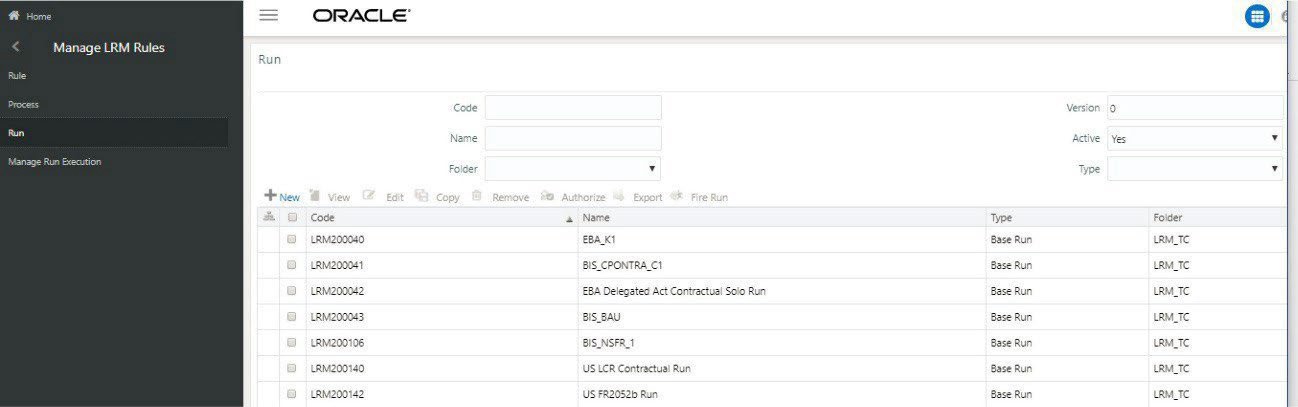

    Displays the list of processes currently used in the defined Run, accessible through the Manage LRM Rules section. Users can view or modify process configurations and add custom tasks before execution of the Run

  2. Select Manage LRM Rules and then select Process on the LHS menu.

    Figure 8-31 Process Selection
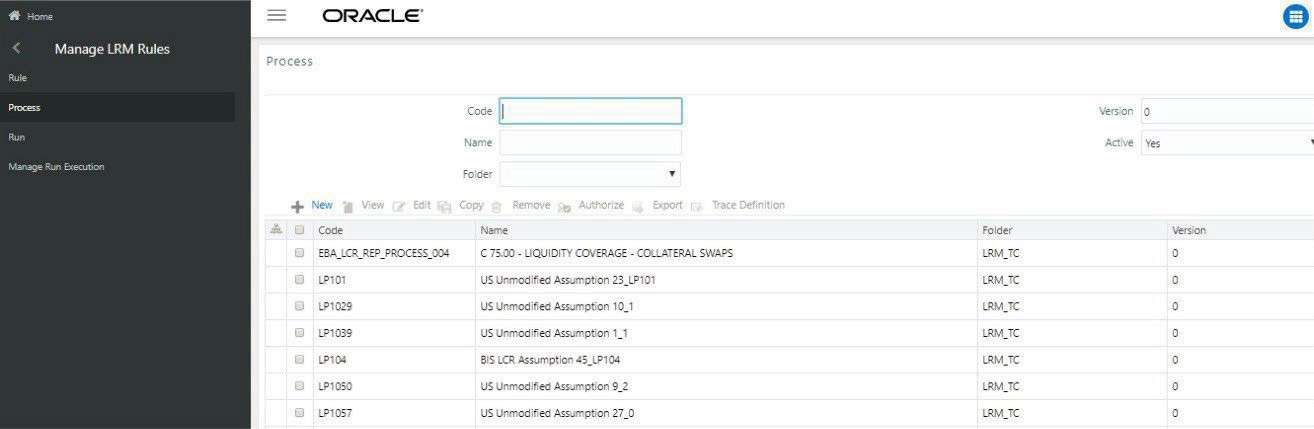

    Illustrates the Process Selection window used to choose a process from the list of defined processes in the LRM system. Users can select and edit processes to customize execution tasks for a Run before approval and execution

  3. Click the Select icon next to the process you wish to edit and then click Edit icon. The Process window is displayed.

    Figure 8-32 Process Window
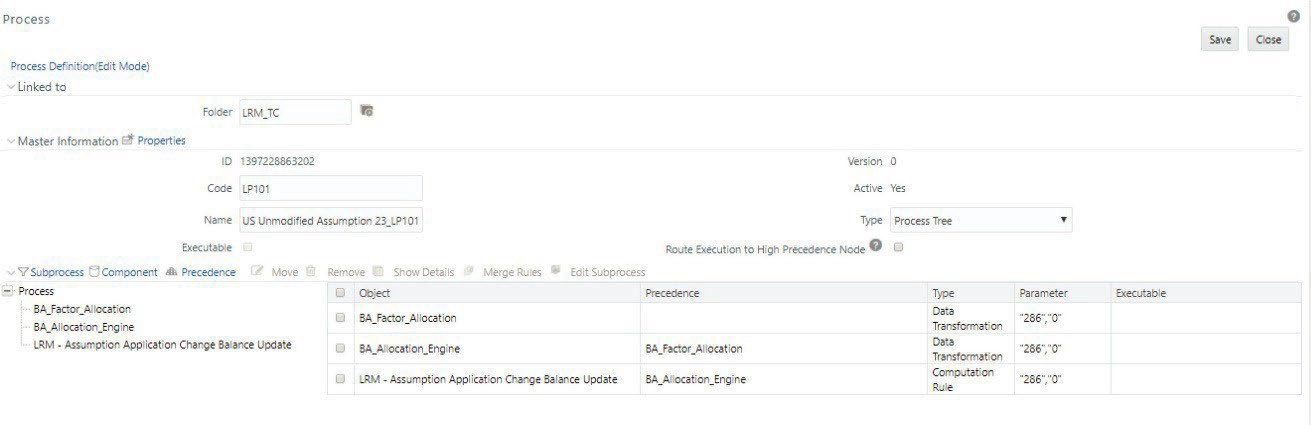

    Shows the Process Window interface, where users can view and edit the selected process within the Manage LRM Rules section. This screen allows modification of process details and custom tasks for execution, with changes potentially overwritten by future patches

  4. In the Process window, you can add a Custom Task . For more information on how to add a task to the process, see the Edit Process Definition section in the OFSAAI User Guide.
  5. Click Save . You must save it to the existing version.

    Note:

    • Only Process can be edited and this is a custom change that may get overwritten when subsequent product patches are applied. Run must not be edited from the RRF window if it is created through the OFS LRS Run Management window.
    • You can make the required edits to additionally include custom tasks. For more information, see the OFSAAI User Guide.
    • To execute this Run, you must go to the Run Management window of LRM. The Run must be approved before execution.