7.8.2 Approving a business assumption definition
To approve a business assumption, follow these steps:
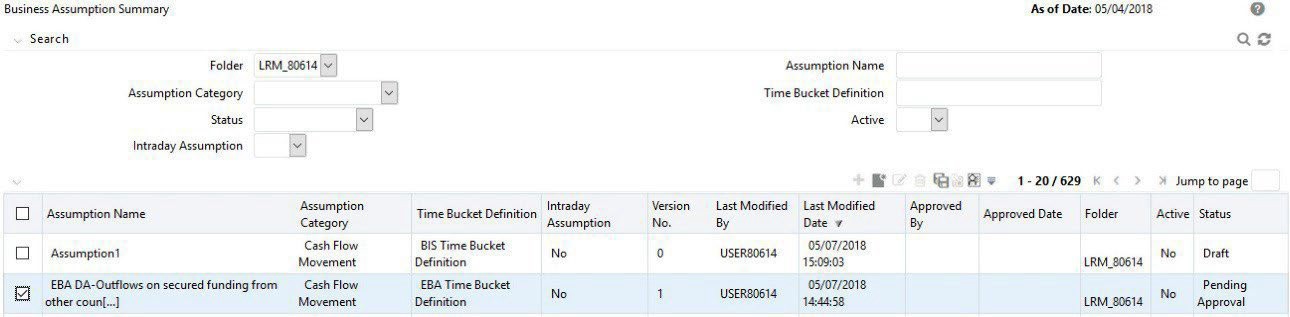
- Click the icon to select a definition with the status Pending Approval from the list of business assumptions and then click the icon.
Figure 7-78 Business Assumption Summary – Pending Approval
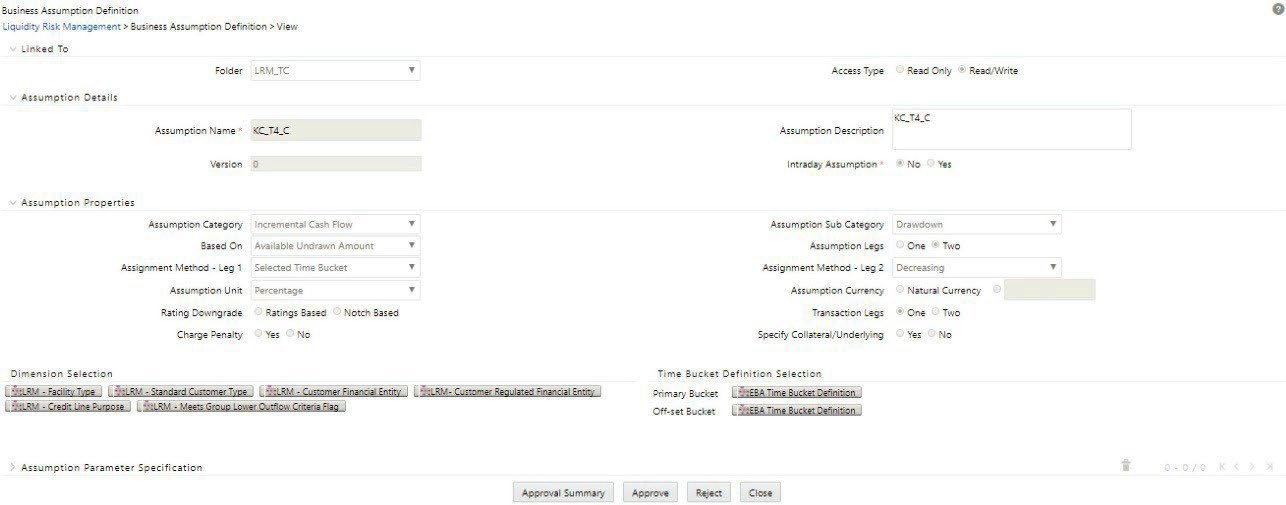
The Business Assumption Definition window is displayed with all the parameters defined.
Figure 7-79 Figure 29 Business Assumption Definition – Approve/Reject
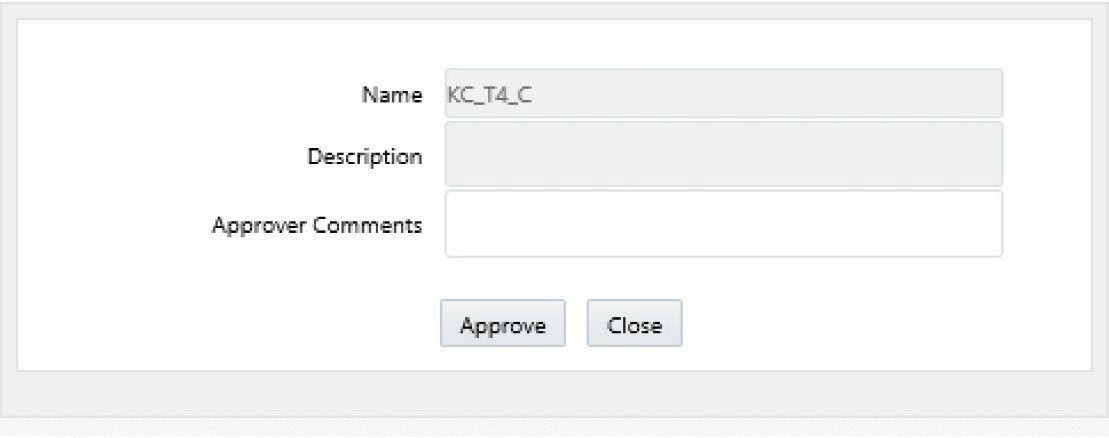
- To approve the definition that is sent for authorization, click Approve .
The Approve dialog box is displayed with the assumption name and description.
Figure 7-80 Business Assumptions - Approve
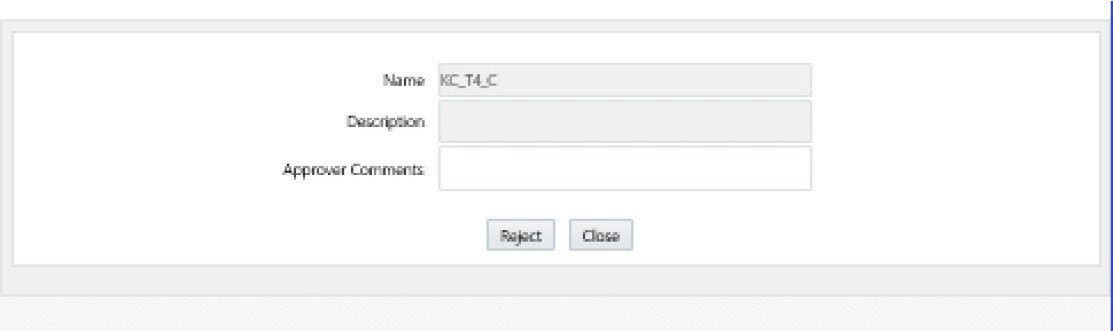
- To reject the definition that is sent for authorization, click Reject .
The Reject dialog box is displayed with the assumption name and description.
Figure 7-81 Business Assumptions - Reject
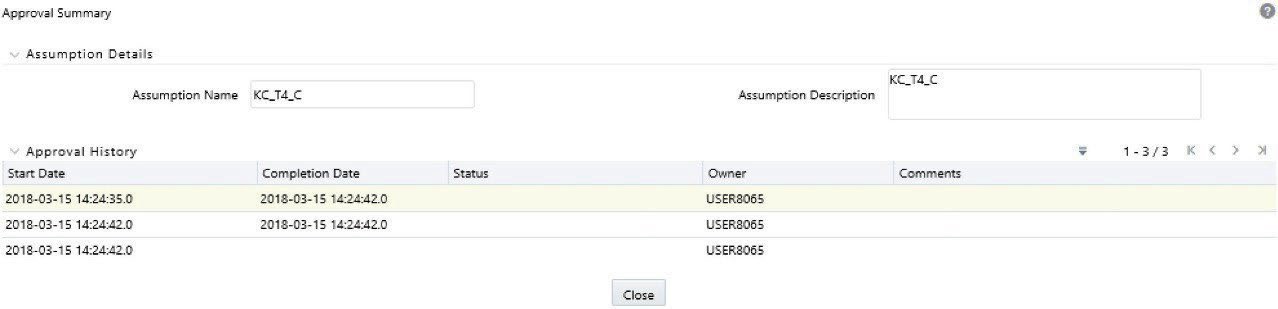
- Click the workflow summary icon to view the summary of the entire approval workflow. It displays approval history showing the start date, completion date, status owner, and comments if any.
Figure 7-82 Business Assumptions – Approval Summary
Note:
- The Approve or Reject buttons are present only for the users who have the right to approve or reject the definition.
- If the definition is rejected, it changes back to ‘Open’ status. When the definition is in open status, click View to view the definition. You cannot edit the values in the View window.