8.3.2 Defining a Business-As-Usual (BAU) Run
The Run Definition window in the LRS application allows you to define a new Run.
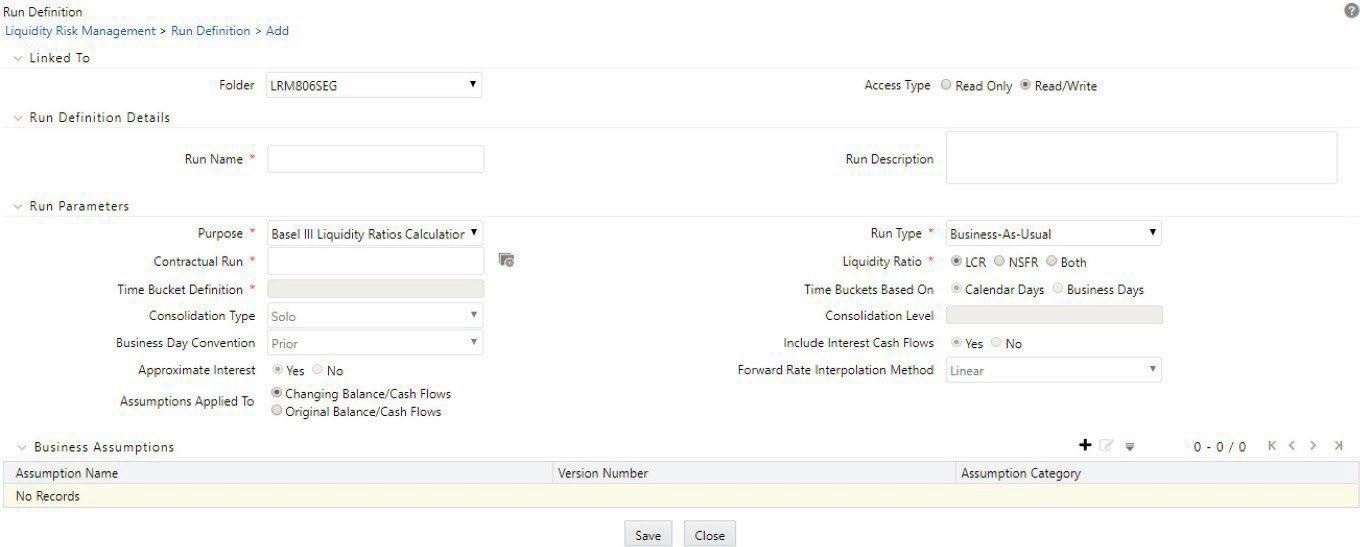
Figure 8-21 Run Definition - Business-As-Usual Run
To define a BAU Run, follow these steps:
- Click the Add icon on the Run Management window. The Run Definition window is displayed where you can define a BAU Run.
- In the Linked To section, follow these steps:
- Select the Folder from the drop-down list, which is specific to the Run definition. The Run definitions are linked to a segment.
- Select Access Type . It is either Read/Write or Read Only option
- In Run Definition Details section, follow these steps:
- Enter the Run Name which is unique across infodoms.
- Enter the Run Description .
Note:
Both the Run Name and Run Description fields allow special characters. - In Run Parameters section, select the Purpose from the drop-down list. The drop-down list displays the following:
- Basel III Liquidity Ratios Calculation
- EBA Delegated Act Liquidity Ratio Calculation
- FR 2052a Report Generation
- FR 2052b Report Generation
- Intra-Day Metrics Calculation
- Long Term Gap Calculation
- RBI Basel III Liquidity Ratio Calculation
- RBI Short-Term Dynamic Liquidity Report Generation
- RBI Structural Liquidity Report Generation
- Regulation YY Liquidity Risk Calculation
- U.S Fed Liquidity Ratio Calculation
- BOT Liquidity Ratio Calculation
- BNM Liquidity Ratio Calculation
- MAS Liquidity Ratio Calculation
- HKMA Liquidity Ratios for Category 1 Institutions
- HKMA Liquidity Ratios for Category 2 Institutions
Note:
Run purposes for the SKUs licensed only, will be displayed.
- Select the Run Type as Business-As-Usual from the drop-down list. The drop-down list displays the following:
- Contractual
- Business-As-Usual
- Hybrid
- Home Host Treatment
- When the Run type is selected as Business-As-Usual and the purpose is selected as Basel III Liquidity Ratios Calculation or Long Term Gap Calculation or RBI Basel III Liquidity Ratio Calculation or Regulation YY Liquidity Risk Calculation or U.S Fed Liquidity Ratio Calculation , BOT Liquidity Ratio Calculation , BNM Liquidity Ratio Calculation , or MAS Liquidity Ratio Calculation , follow these steps:
- In the Contractual Run field, click the icon to select from the list of contractual Runs available in the contractual Run browser.
- When the Purpose is selected as Basel III Liquidity Ratios Calculation , RBI Basel III Liquidity Ratio Calculation, BOT Liquidity Ratio Calculation, BNM Liquidity Ratio Calculation, or MAS Liquidity Ratio Calculation, the ‘Liquidity Ratio’ field is enabled. This field has three options: LCR, NSFR, Both.
- When the LCR option is selected, the Run computes the Liquidity Coverage ratio only.
- When the NSFR option is selected, the Run computes the Net Stable Funding ratioonly
- When Both is selected, the Run computes both ratios that is, Liquidity Coverage Ratio and Net Stable Funding Ratio.
Note:
- All other fields in the Run parameters section are consistent with the parameters specified as part of the selected Contractual Run. These fields are in un-editable form based on the Contractual Run selected.
- For details on how to add a new custom Run Purpose, and enable NSFR, see Adding a Custom Run Purpose.
- Select the Assumptions Applied To. It is either Changing Balance/Cash Flows or Original balance/Cash Flows. This field is applicable only when the Run type is selected as BAU.
- For information on Changing Balance/Cash Flows or Original balance/Cash Flows, see the Business Assumptions Supported section.
- When the Purpose is selected as HKMA Liquidity Ratios for Category 2 Institutions the ‘ Liquidity Ratio ’ field is enabled, with LMR option
- In the Business Assumptions section, click the Add icon. The Business Assumptions browser is displayed. All the approved business assumptions with the latest record indicator Y are listed. These have a time bucket definition that corresponds to the definition selected as part of the Run Parameters section.
- Click the Move icon to select one or click Move All icon to select multiple business assumptions that you want to apply to the contractual cash flows and move them to the Selected Members section.
- Using up or down arrows, you can view the sequencing of assumptions.
Figure 8-22 Run Definition – Business Assumption window
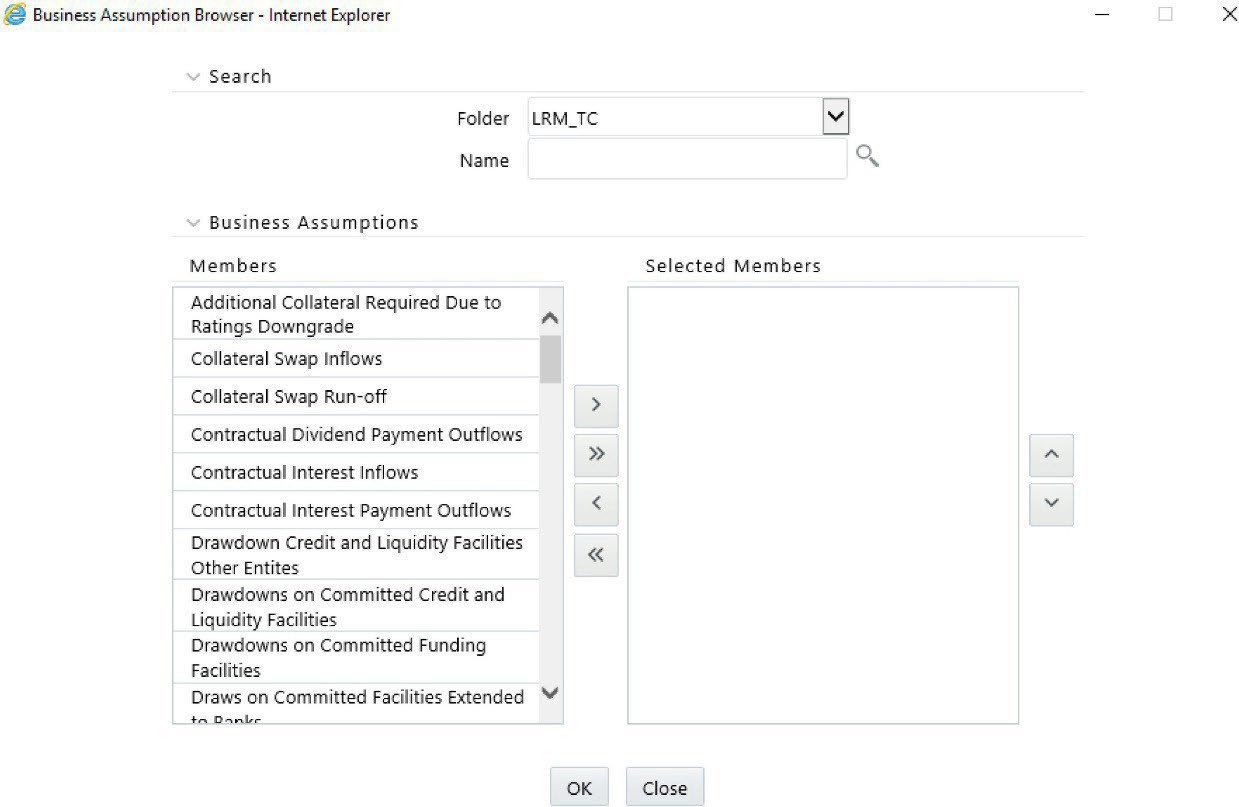
The application saves the assumptions on the BAU Run definition window.
- If you wish to add or edit the business assumptions click Edit icon . If you do not wish to save the assumption, click Close .
- The details are displayed under the Business Assumption section for each selected business assumption as follows:
- Assumption Name
- Version Number
- Assumption Category
Note:
- Only the approved business assumptions appear in the list.
- For information on Assumption Category, refer section Assumption Category.
- The assumptions are executed as per the sequence in which they are selected in the Run Definition screen. This sequence is stored for the purpose of reporting.
- Click Save . The Run is saved in the Run Framework of Oracle Financial Services Analytical Applications Infrastructure. A Run is available for execution only after it has been approved. Once approved, Run parameters cannot be edited.
- Select a Run Definition from the Run Management Summary section and then click the Edit icon.
The Edit page is displayed.
- In the Run Process Selection section, all the run processes are selected by default.
You can select or unselect the Run Processes listed in the Run Process Selection only before sending the Run Definition for Approval.
If the F_MANDATORY_FLAG is updated to Y in the FSI_LRM_PROCESS_PURPOSE_MAP table for a given process, then the process is selected by default in the Run Process Selection section on the UI.
Note:
A Run is available for execution only after it has been approved. Once approved, you cannot edit the Run parameters.