7.7 Defining a New Business Assumption
The Business Assumption Definition window allows you to define a new assumption definition in the LRM Application. See the Business Assumptions Supported section for a detailed explanation and calculations.
Figure 7-68 Business Assumption Definition
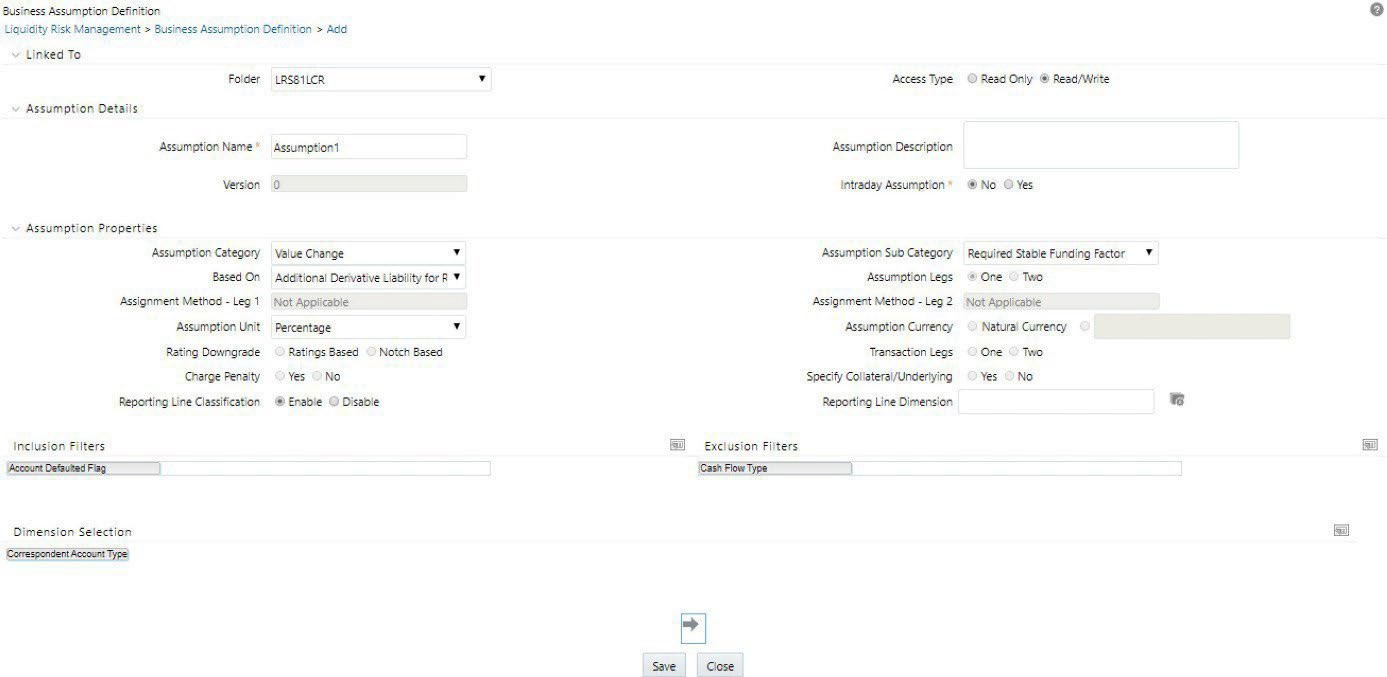
The assumption parameters enabled are specific to each assumption category and sub-category. To create a new business assumption, follow these steps:
- The Business Assumption Definition window is displayed where you can define new business assumption definitions. See the following table for field details.
Figure 7-69 Business Assumption Definition
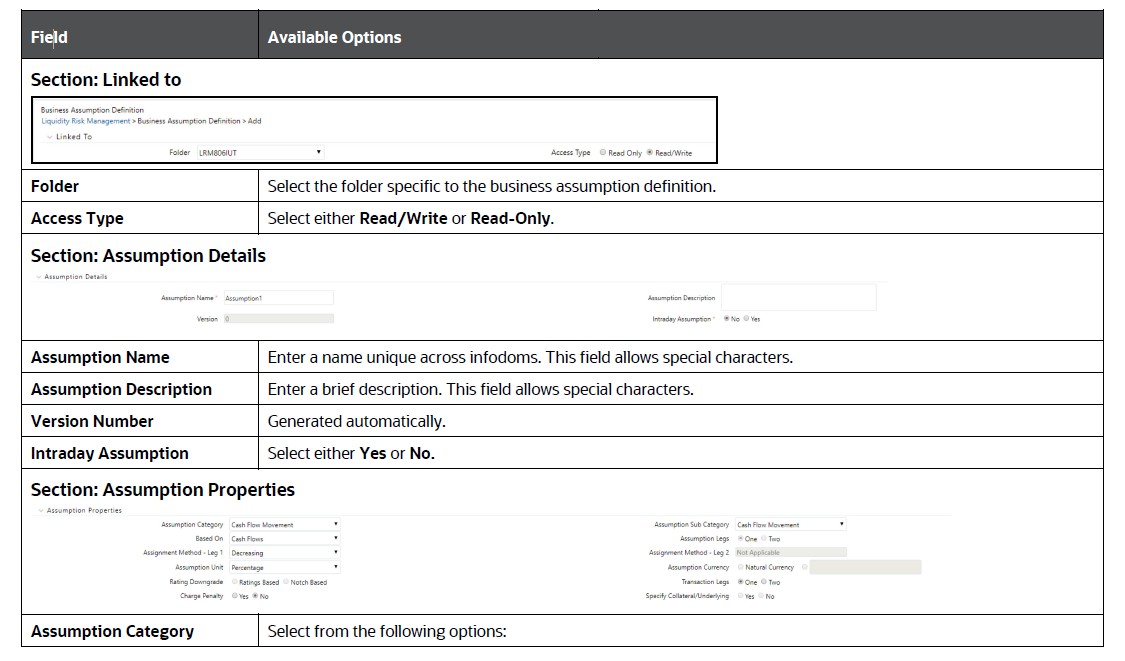
Table 7-99 Business Assumption Definition
Field Available Options Assumption Category Select from the following options: - Cash Flow Movement
- Incremental Cash Flow
- Encumbrance
- Value Change
Assumption Sub-Category Based on the Assumption category selected, the following options are displayed: Note:
If Intraday Assumption is selected as Yes, then intraday specific categories and sub-categories are displayed. See Assumption Intraday Sub-Category for details.Assumption Category Assumption Sub-Category Cash Flow Movement - Cash Flow Movement •
- Asset Sale
- Cash Flow Delay
- Delinquency
- Prepayment
- Recovery
- Rollover
- Run-off
Encumbrance - Encumbrance
- Ratings Downgrade
- Valuation Changes
Incremental Cash Flow - Incremental Cash Flow •
- Drawdown
- Liability Run-off
- New Business
- Ratings Downgrade
- Run-off
- Secured Funding/Financing
- Valuation Changes
Value Change - Available Stable Funding Factor
- Haircut
- Required Stable Funding Factor
Based On Choose the based on measure to which the assumption parameter values are applied for cash flows calculation. See Based On for details. Assumption Legs Select the number of Assumption Legs to specify the assumption parameter values, as either: - One
- Two
Note:
This field is not available for all assumption sub-categories. When One is selected as assumption leg, in assumption specification only a column is displayed to add the primary assumption value. See Assumption Legs for details.Assignment Method – Leg 1 Select from the following options: - Selected Time Bucket
- Increasing
- Decreasing
- Equal
- Proportionate
See Assignment Method Leg 1, for details about the specific methods in which the assumption value can be assigned across multiple buckets.
Assignment Method – Leg 2 Select from one of the following options: - Selected Time Bucket
- Increasing
- Decreasing
- Equal
- Proportionate
See Assignment Method leg 2, for details about the specific methods in which the assumption value can be assigned across multiple buckets.
Assumption Unit Select from one of the following options: - Amount
- Percentage
- Unit: Applicable when Sale is specified.
See Assumption Unit for details. This parameter is the unit based on which the assumption values are specified.
Assumption Currency This option is enabled only when you select the assumption unit as Amount. See Assumption Currencyfor details. You can either select the option as Natural Currency, or choose any other currency from the drop-down list, which is required as part of the definition. Note:
- If you select Natural Currency, ensure that the currency is selected as part of dimension selection.
- Assumption Category - Incremental Cash Flow, sub-category - Liability Run Off is the only assumption where a currency is specified, even when the unit is specified as percentage. The assumption currency is required for specifying the minimum Balance.
Rating Downgrade Select from one of the following options: - Notch Based
- Ratings Based
This is applicable only when you select the sub-category Encumbrance and Ratings Downgrade, for assumption categories Incremental Cash Flow or Encumbrance. See Ratings Downgrade for details.
Transaction Leg Select from one of the following options: - One
- Two
See Transaction Legs, for details.
Charge Penalty Select from one of the following options: - Yes (For this option, an additional column in the assumption value grid is added to specify penalty)
- No
See Charge Penalty for details.
Specify Collateral/Underlying Select from one of the following options: - Yes
- No
This parameter determines if the existing unencumbered assets are required to be posted as collateral or underlying that is, if there are secured funding and repo transactions. See Specify Collateral/Underlying for details.
Sale Specification By This field is available only when you select Cash Flow Movement as the Assumption Category and Asset Sale as the Sub-Category. Select from one of the following options to specify a sale:- Individual Assets
- Dimensions
If you select Individual Assets follow these steps:
- In the Asset Browser Selection, click the Select Assests icon. The Asset Browser window appears.
- Select the Asset Type, enter Name and Account ID.
- Select one or more members from a list of members displayed.
- Click the icon to move the selected members to Selected Members section or click the icon to select all members.
- Click OK.
If you select Dimensions, follow the steps in Dimension Selection.
See Sale Specification By for details.
Reporting Line Classification Select Enable or Disable for the field Reporting Line Classification. If you select Enable, the field Reporting Line Dimension is displayed. Click the icon to view the hierarchy browser. All the dimensions in the FSI_LRM_REP_LINE_ATTR_DETAILS table are displayed.
Click the icon to move the selected dimensions to the Selected Members section.
Section: Inclusion Filters/Exclusion Filters Inclusion Filters This field is available only for specific Assumption categories and sub-categories. See Filter Selection for details. To add Inclusion Filters/Exclusion Filters, follow these steps: - Click the corresponding icon . The Liquidity Risk Business Definition browser window appears.
- Select one or more (maximum of 7) dimensions.
- Click the icon to move the selected dimensions, or all dimensions respectively, to the Selected Members section.
- Click OK. The selected dimensions are displayed in the Inclusion Filters section..
- Click the selected dimension member. The Hierarchy Browser window appears.
- Select one or multiple members from the list of dimensions displayed in the Hierarchy browser. Click or to move the selected or all dimensions respectively to the Selected Members section.
- Click OK.
Exclusion Filters Section: Dimension Selection Dimension To add a dimension, follow these steps: - Click the icon corresponding to Dimension Selection. The Liquidity Risk Business Definition browser window appears.
- Select one or more (maximum of 7) dimensions.
- Click the icon to move the selected dimensions, or all dimensions respectively, to the Selected Members section.
- Click OK. The selected dimensions are displayed in the Selected Members section.
- Click the selected dimension member. The Hierarchy Browser window appears.
- Select one or more members from the list of hierarchies displayed in the Hierarchy browser. Click or to move the selected or all hierarchies respectively, to the Selected Members section.
- Click OK.
Note:
- You can add a maximum of seven dimensions, one source or actual time bucket, and optionally a revised time bucket.
- For the Intraday assumption category Incremental Cash Flow, sub-category Large Unexpected Payments, LRM - Intraday - Payment Settlement Systems dimension is selected by default.
- See Dimension Selection for details.
Section: Time Bucket Definition Selection Time Bucket Definition To add a time bucket definition, follow these steps: - Click the icon to select a Time Bucket Definition. The Time Bucket Definition Browser window appears.
- Select time bucket definitions from a list of definitions displayed in the time bucket definition browser. Here it is a single selection. Only one time bucket can be selected. The values which are defined in the Time Bucket definition window are displayed here. 3.
- Click OK. The selected time bucket definition is displayed in the time bucket definition selection against both <Time Bucket 1> Selection, and <Time Bucket 2> Selection.
- Click the BIS Time Bucket Definition icon corresponding to <Time Bucket 1> Selection and then <Time Bucket 2> Selection to define the time buckets. You can select one or multiple time buckets from the given time bucket definition. The selected time buckets are displayed as row items in the Assumption Specification table. The name of this parameter changes depending on the assumption category selected as per the following mapping.
Note:
- For category Incremental Cash Flow, subcategory Liability Run-off, the selected time bucket definition is displayed in the time bucket definition selection against both Inaccessibility End Bucket selection, and Restoration End Bucket selection.
- For Inaccessibility End Bucket, click the selected time bucket icon.
- One or multiple time buckets from the given time bucket definition can be selected as part of Inaccessibility End Bucket selection. The selected time buckets are displayed as row items in the assumption specification table.
- For Restoration End Bucket, click the selected time bucket icon.
- A single selection of a time bucket greater than the Inaccessibility End Bucket can be selected as part of Restoration End Bucket selection. The time buckets selected are displayed as drop-down values in the Off-set Bucket column in each row of the assumption specification table.
Assumption Category <Time Bucket 1> Selection <Time Bucket 2> Selection Cash Flow Movement From Bucket Selection To Bucket Selection Incremental Cash Flows Primary Bucket Selection Off-set Bucket Selection Encumbrance From Bucket Selection To Bucket Selection Value Change Not Applicable Not Applicable Note:
- When the Intraday Assumption is selected as Yes in the Business Assumption Definition window, only the Intraday Time Buckets are displayed in this section.
- This field is available only for specific Assumption categories and sub-categories. See Time Bucket Definition for details.
- For Category Encumbrance, sub-category Ratings Downgrade, category Value Change, sub-category – Available Stable Funding Factor, the time bucket selection is not required as they are not determined, and these factors are applied to balances and market values of assets and liabilities.
- For Category Value Change, sub-category – Haircut, the time bucket selection is not required as they are not determined. These haircut values are further used in the Run for the calculation of stock of HQLA.
- For Category Incremental Cash Flow, sub-category Incremental Cash Flow and Liability Run off, if you have selected Assumptions Legs as One, in Time Bucket Definition Selection only Off-set Bucket is displayed. Whereas, if you have selected Assumptions Legs as Two, in Time Bucket Definition Selection both Primary Bucket and Off-set Bucket is displayed.
Section: Cash flow Interval Selection Cash Flow Interval Selection To select a cash flow interval, follow these steps: - Click corresponding to Cash Flow Interval Selection. The Cash Flow Interval Selection browser window is displayed.
- Select a defined cash flow interval displayed in the browser.
- Click OK. The selected Cash Flow Interval is displayed in the Cash Flow Interval selection section.
- Click the selected dimension member. The Hierarchy Browser window appears.
- Select one or multiple members from a list of hierarchies and click or to move the selected member or all the members, respectively, to the Selected Members section.
- Click OK.
Note:
- This field is available only for specific Assumption categories and sub-categories. See Cash Flow Interval Selection for details.
- For category Value Change, sub-category Available Stable Funding Factor, this selection is enabled only when you select the Based On measure as Cash Flows, Less Stable Cash Flows, Non-operational Cash Flow, Operational Cash Flow or Stable Cash Flow.
- Click the Grid Right icon . The Assumption Parameter Specification table is generated with the selected dimensions as column values and dimension members as row values. Additionally, depending on your selection, one or two time bucket columns are displayed.
Figure 7-70 Assumption Parameter Specification

The names of these columns change based on the assumption category selected as follows:
Table 7-100 Assumption Parameter Specification
Assumption Category <Time Bucket 1> <Time Bucket 1> Cash Flow Movement From Bucket To Bucket Incremental Cash Flows Primary Bucket Off-set Bucket Encumbrance From Bucket To Bucket Value Change Not Applicable Not Applicable The unique combinations of selected dimension members and the From buckets are displayed as rows.
If you have enabled Reporting Line Classification, then the Reporting Line column is displayed. Click the icon to view the hierarchy browser. Select the reporting line item from the list. Click OK.
The names of these columns change based on the assumption category selected as follows:
Table 7-101 Reporting Line Classification
Assumption Category Assumption Sub- Category Columns Displayed in Assumption Parameter Specification Cash Flow Movement Cash Flow Movement Business Assumptions
- Each selected dimension
- From Bucket
- To Bucket
- Assumption Value – Leg 1 (if Transaction Legs is one)
- Assumption Value – Leg 2 (if Transaction Legs is two)
- Penalty (if charge penalty is yes)
Run-Off - Each selected dimension
- From Bucket
- To Bucket
- Run-off
Prepayment - Each selected dimension
- From Bucket
- To Bucket
- Prepayment Value
- Penalty (if charge penalty is yes)
Cash Flow Delay - Each selected dimension
- From Bucket
- To Bucket
- Assumption Value
- Penalty (if charge penalty is yes)
Delinquency - Each selected dimension
- From Bucket
- Delinquent Value
Recovery - Each selected dimension
- To Bucket
- Recovery Value
Rollover - Each selected dimension
- From Bucket
- To Bucket
- Rollover Value – Leg 1 (if Transaction Legs is One)
- Rollover Value – Leg 2 (if Transaction Legs is Two)
Asset Sale - Each selected dimension (if Sale Specification by is Dimensions)
- Each selected asset (if Sale Specification by is Individual Assets)
- Sale Bucket
- Sale Value
- Haircut (in %)
Encumbrance Encumbrance - Each selected dimension
- Downgrade Impact
Ratings Downgrade - Each selected dimension
- Downgrade Impact
Valuation Changes - Each selected dimension
- Valuation Change Impact
Incremental Cash Flow Incremental Cash Flow - Each selected dimension
- Primary Bucket (if Assumption Legs is Two)
- Incremental Value – Leg 1 (if Transaction Legs is One)
- Incremental Value – Leg 2 (if Transaction Legs is Two)
- Off-set Bucket
- Off-set Value – Leg 1 (if Transaction Legs is One)
- Off-set Value – Leg 2 (if Transaction Legs is Two)
- Collateral/Underlying (if Specify Collateral/Underlying is yes)
- Encumbered Value (if Specify Collateral/Underlying is yes)
Run-Off - Each selected dimension
- Time Bucket
- Run-off
Drawdown - Each selected dimension
- Primary Bucket
- Downgrade Value – Leg 1
- Off-set Bucket
- Off-set Value – Leg 1
Liability Run-Off - Each selected dimension
- Inaccessibility End Bucket:
New Business - Each selected dimension
- Primary Bucket
- Growth Value – Leg 1 (if Transaction Legs is 1)
- Growth Value – Leg 2 (if Transaction Legs is 2)
- Off-set Bucket
- Off-set Value – Leg 1 (if Transaction Legs is1)
- Off-set Value – Leg 2 (if Transaction Legs is 2)
Ratings Downgrade - Each selected dimension
- Time Bucket
- Downgrade Impact
Secured Funding/Financing - Each selected dimension
- Each selected dimension
- Primary Bucket
- Primary Value – Leg 1
- Primary Value – Leg 2 (if Transaction Legs is Two)
- Off-Set Bucket
- Off-Set Value – Leg 1
- Off-Set Value – Leg 2 (if Transaction Legs is Two)
- Collateral/Underlying
- Encumbered Value
Valuation Changes - Each selected dimension
- Time Bucket
- Downgrade Impact
Value Change Available Stable Funding Factor - Each selected dimension
- ASF Factor
Haircut - Each selected dimension
- Haircut (%)
Required Stable Funding Factor - Each selected dimension
- RSF Factor
Intraday Assumption Category Cash Flow Movement Time Shift in Payments - Each selected dimension
- From Bucket
- To Bucket
- Assumption Value
Payments Default - From Bucket
- Residual Bucket
- Assumption Value
Encumbrance Withdrawal of Credit Lines - Each selected dimension
- Assumption Value
Incremental Cash Flow Intraday Drawdown - Each selected dimension
- Primary Bucket
- Off-Set Bucket
- Downgrade Value
- Off-Set Value
Large Unexpected Payments - Each selected dimension
- Time Bucket
- Assumption Value
Note:
The unique combinations of selected dimension members and the from buckets are displayed as rows. An additional text field "Transaction Amount" is displayed where you can enter the amount value.
Value Change Intraday Valuation Changes - Each selected dimension
- Assumption Value
Only for an assumption category and sub-category which support Rating Downgrade, the Downgrade Specification table is generated with the selected dimensions as column values and dimension members as row values. The Downgrade Specification table has the following columns:
Table 7-102 Downgrade Specification
Assumption Category Assumption Sub- Category Columns Displayed in Assumption Parameter Specification Encumbrance Ratings Downgrade - Each selected dimension
Encumbrance - Rating Type
Incremental Cash Flow Ratings Downgrade - Rating Source
- Downgrade
Note:
- You can sort and filter on each dimension column.
- The dimensions columns are re-arranged based on drag and drop enabled in the Dimension Selection section.
- To delete a table row in the Assumption Specification table, select a row and then click the icon.
- To add a sub row to each row, for instance, to specify multiple <Time Bucket 2>, select a row and then click the icon.
- To delete sub rows, right-click on the sub row to delete.
- To enable Collateral Posting, select a row, and then click the icon. The Asset Browser window with only unencumbered assets is displayed. This icon is enabled only when the Post Collateral parameter is selected as Yes.
- The assets that are unencumbered during the selected period are displayed even if they are encumbered currently. These are allowed to be posted as collateral for the unencumbered period.
- After selecting the members, click to move the selected member, or click to move all the members, to the Selected Members section, and click OK.
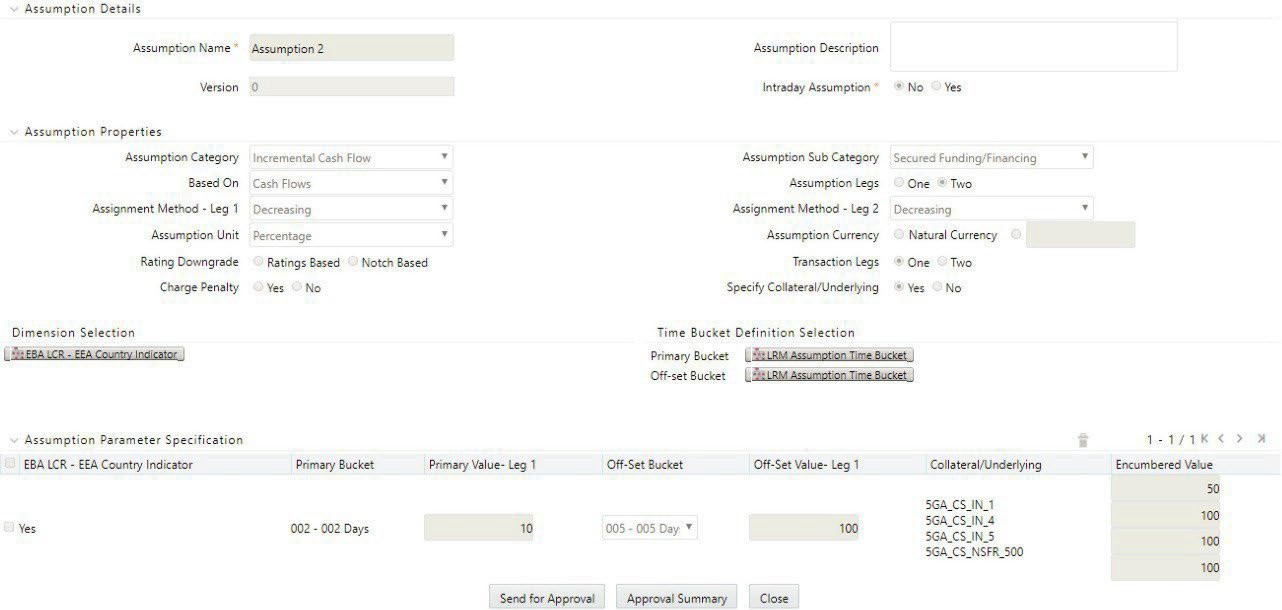
- The selected collateral is displayed in the respective row in Assumption Specification. Encumbrance value can be specified as a percentage against each collateral. This column enables the specification of partial encumbrance. You can select one or multiple members for each selected dimension. These are displayed as sub rows against the dimensional combination row for which this is being specified in the Assumption Specification table.
- Follow these steps to add values to Collateral/Underlying , and Encumbered value columns for assumption category - Incremental Cash Flow, sub-category - SecuredFunding/Financing:
- Click the check box on the left of the dimensional combination. Once the dimensional
combination is chosen in the grid, click the Add Assets icon. The Add Assets icon allows you to add as many assets as needed for the particular row in the grid.
Figure 7-71 Assumption Parameter specification

- Once the Add Assets icon is clicked, enter values in the following screen.
Figure 7-72 Add Assets
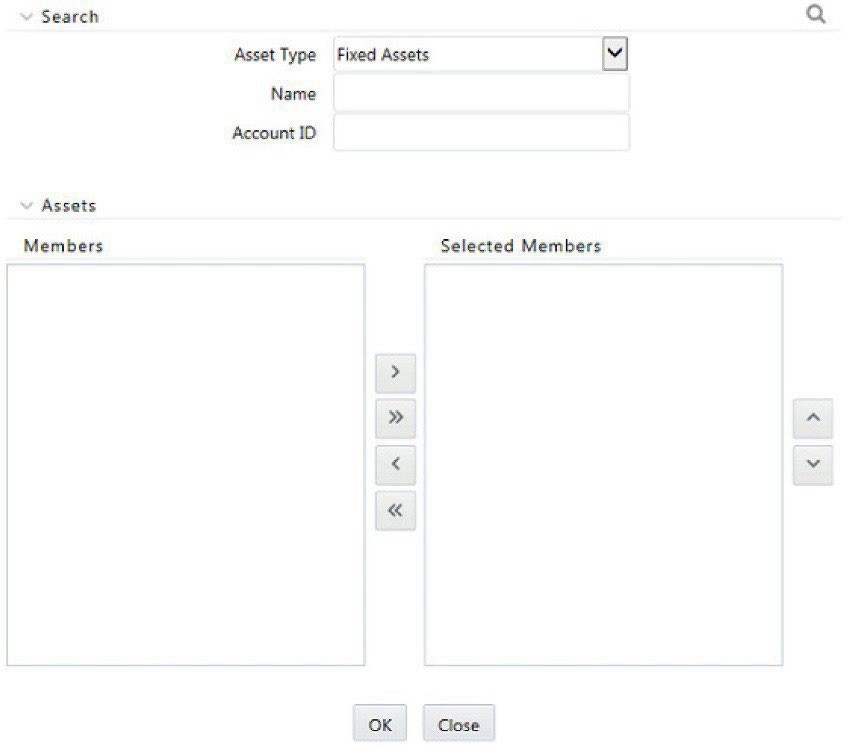
The business assumption definition after collateral and encumbered value is specified are displayed as follows.
Figure 7-73 business assumption definition
- Click the check box on the left of the dimensional combination. Once the dimensional