7.6 Understanding Business Assumption Summary
Note:
Time bucket definitions must be created before defining a new business assumption. Refer to the Time Buckets section for more information.In the Oracle Financial Services Analytical Applications Infrastructure home screen, select Financial Services Liquidity Risk Management.
To open the Business Assumptions window, select Liquidity Risk Management then select Business Assumptions on the Left-Hand Side (LHS) menu.
Figure 7-60 Business Assumption Summary
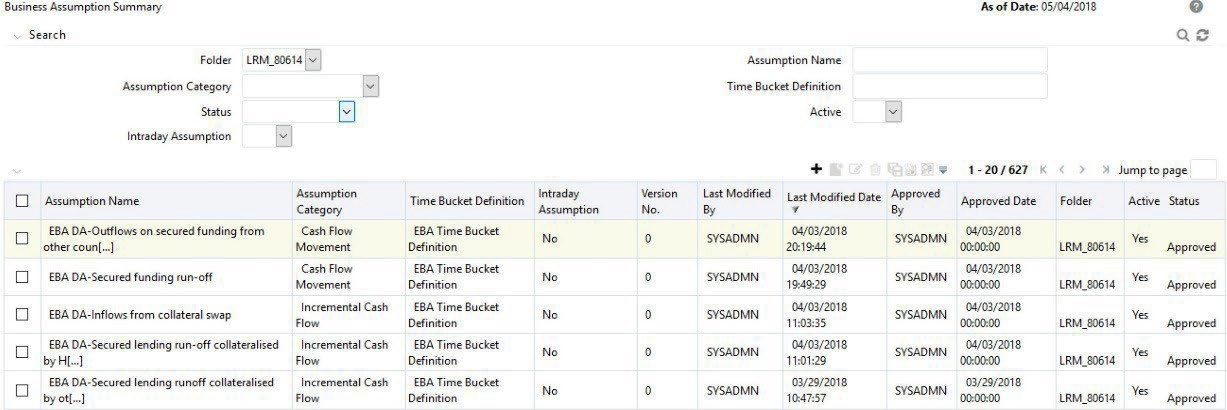
The definitions based on the search criteria are listed under List of Business Assumptions.
This is the search section which contains multiple parameters. You can specify one or multiple search criteria in this section. When you click Search, depending upon the search criteria, this filters and displays the relevant search combination parameters under the Business Assumption Summary as a list.
The Business Assumption Summary window displays the following fields.
Table 7-97 Business Assumptions – Fields and Descriptions
| Search Field or Icon | Description |
|---|---|
| Search | This icon allows you to search the Assumption based on the search criteria specified. Search criteria include a combination of Folder, Assumption Name, Assumption Category, Time Bucket Definition, Status, and Active Status. The business assumptions displayed in the List of Business Assumptions table are filtered based on the search criteria specified when clicking this icon. |
| Reset | This icon allows you to reset the search section to its default state that is, without any selections. Resetting the search section displays all the existing business assumption definitions in the List of Business Assumptions table. |
| Folder | This field allows you to search for the pre-defined business assumption definitions based on the selected folder. This field displays a list of folders that you have access to as a drop-down list. The selection of a folder from the drop-down list displays only those business assumptions that have been defined within the selected folder/segment in the List of Business Assumption table. |
| Assumption Name | This field allows you to search the pre-defined business assumption definitions based on the assumption name. Enter the assumption name. |
| Assumption Category | This field allows you to search the pre-defined business assumption definitions based on the assumption category. This field displays a list of categories that you have access to as a drop- down list. The selection of an assumption category from the drop-down list displays only those business assumptions that have been defined within the selected assumption category in the List of Business Assumptiontable. |
| Inclusion Filters | This field allows you to specify the Inclusion filters. |
| Exclusion Filters | This field allows you to specify the Exclusion filters. |
| Time Bucket Definition | This field allows you to search the pre-defined business assumption definitions based on the Time Bucket Definition. Enter the time bucket definition which was defined in the Time Bucket Definition window. |
| Status | This field allows you to search the pre-defined business assumption definitions based on approval status. This field displays a list of statuses that you have access to as a drop-down list, that is, Approved, Draft, In Review, Open, Pending Approval or Retired. Click the drop-down list to select Approved or Rejected status. The selection of a status from the drop-down list displays only those business assumptions that have been defined within the selected status in the List of Business Assumption table. |
| Active | This field allows you to search the pre-defined business assumption definitions based on active status. This field displays a status that you have access to as a drop- down list, that is, Yes or No. The selection of a status from the drop-down list displays only those business assumptions that have been defined within the selected status in the List of Business Assumption table. |
| Intraday Assumption | This field allows you to search the Intraday business assumption defined. This field displays options in the drop-down list, Yes or No. Selection of a Yes from the drop- down list displays only those intraday business assumptions that have been defined in the List of Business Assumption table. Selection of a No from the drop-down list displays only those business assumptions apart from intraday assumptions that have been defined in the List of Business Assumption table. |
Table 7-98 Business Assumptions Summary
| Business Assumptions Icon Name | Icon | Description |
|---|---|---|
| Add |
Figure 7-61 Add icon  |
This icon allows you to define a new assumption. |
| View |
Figure 7-62 View icon  |
This icon allows you to view the selected assumption. |
| Edit |
Figure 7-63 Edit icon  |
This icon allows you to edit the selected assumption. |
| Delete |
Figure 7-64 Delete icon  |
This icon allows you to delete the selected assumption. |
| Copy |
Figure 7-65 Copy icon  |
The icon allows a definition to be copied and resaved as a new definition. |
| Make Active |
Figure 7-66 Make Active icon  |
This icon allows activating the selected version of the assumption. The active version of the assumption is considered for Run definition. |
| Workflow Summary |
Figure 7-67 Workflow Summary icon  |
The icon displays the approval summary for the definition. |