8.8.1 Executing a Contractual Run
To execute a Contractual Run, follow these steps:
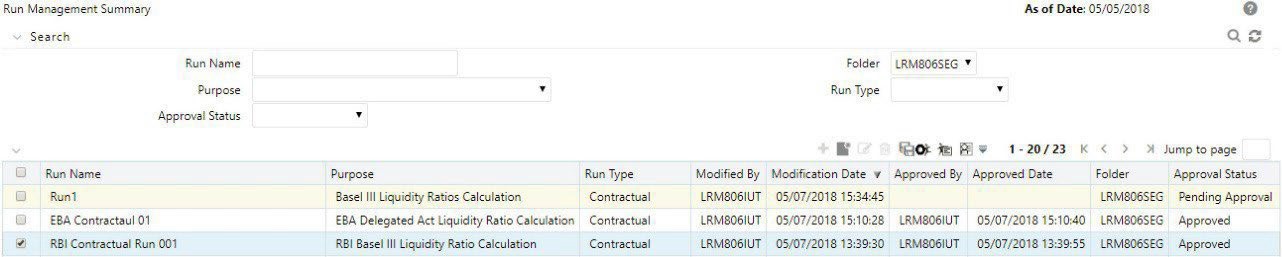
- Click the Select icon to select a contractual Run from the list of Runs and click the Run Execution Parameters icon.
Figure 8-34 Run Management Summary
Note:
All fields except for Run execution parameters are noneditable fields for the selected Run.Figure 8-35 Run Execution Parameters
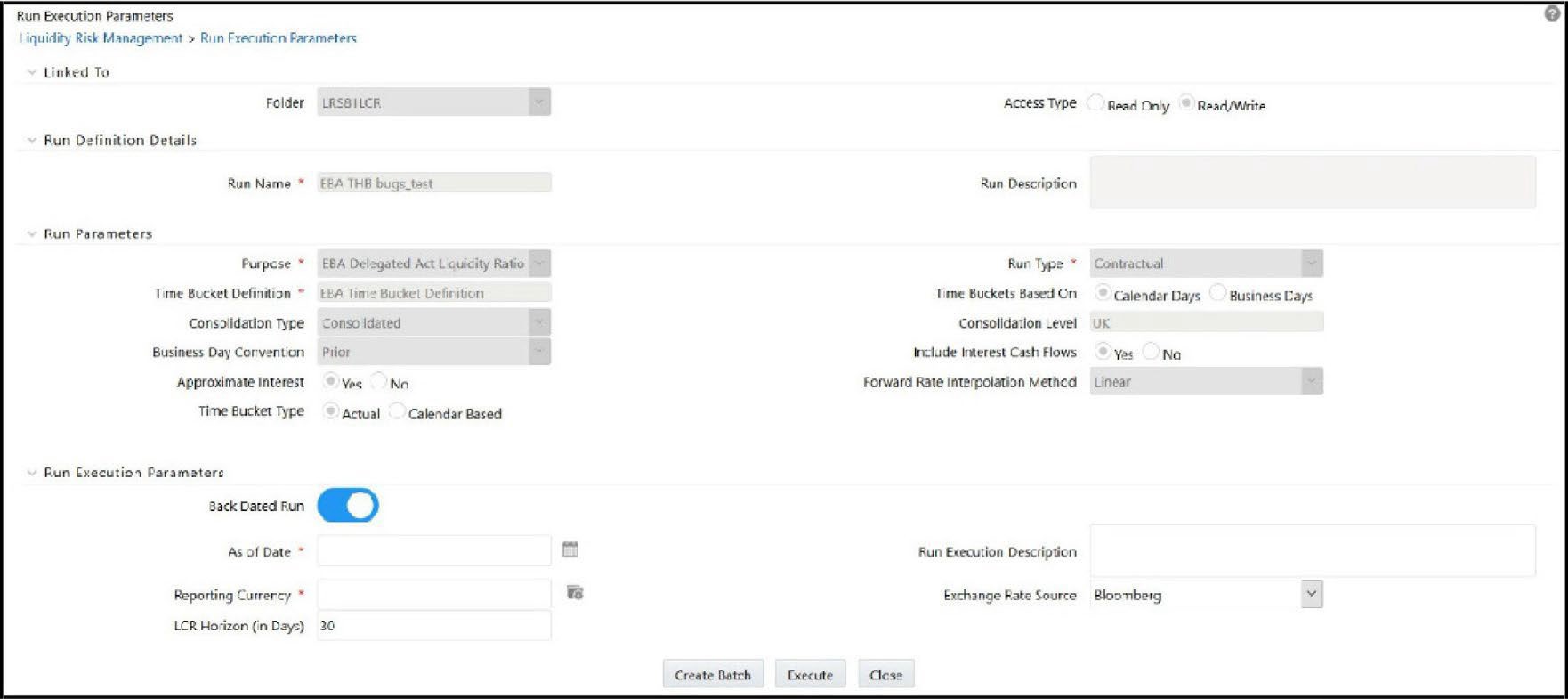
- When the Run type is selected as Contractual and the purpose is selected as Basel III Liquidity Ratios Calculation or Long Term Gap Calculation or U.S Fed Liquidity Ratio Calculation , EBA Delegated Act Liquidity Ratio Calculation , RBI Basel III Liquidity Ratio Calculation , BOT Liquidity Ratio Calculation , BNM Liquidity Ratio Calculation , MAS Liquidity Ratio Calculation in the Run Execution Parameters section, follow these steps:
- The Back Dated Run toggle field allows you to select toggle On or toggle Off only when the Purpose is selected as EBA Delegated Act Liquidity Ratio Calculation , RBI Basel III Liquidity Ratio Calculation, Deposit Insurance Calculation (available only for FDIC) and U.S Fed Liquidity Ratio Calculation. For U.S Fed Liquidity Ratio Calculation run, the Back Dated Run Toggle field is enabled or disabled based on the selected Deposit Insurance Calculation Run. For example, if the selected Deposit Insurance Calculation Run is Back Dated, then the respective US FED LCR run will be considered for backdated execution (the Back Dated Run toggle field is disabled for user selection).
- Click the Calendar icon to select the As of Date .
- Enter the Run Execution Description .
- Enter details in the fields Deposit Insurance Run and Deposit Insurance Execution ID . This is applicable only if selected run purpose is U.S Fed Liquidity Ratio Calculation , BNM Liquidity Ratio Calculation , or MAS Liquidity Ratio Calculation.
Figure 8-36 Run Execution Parameters – Deposit Insurance

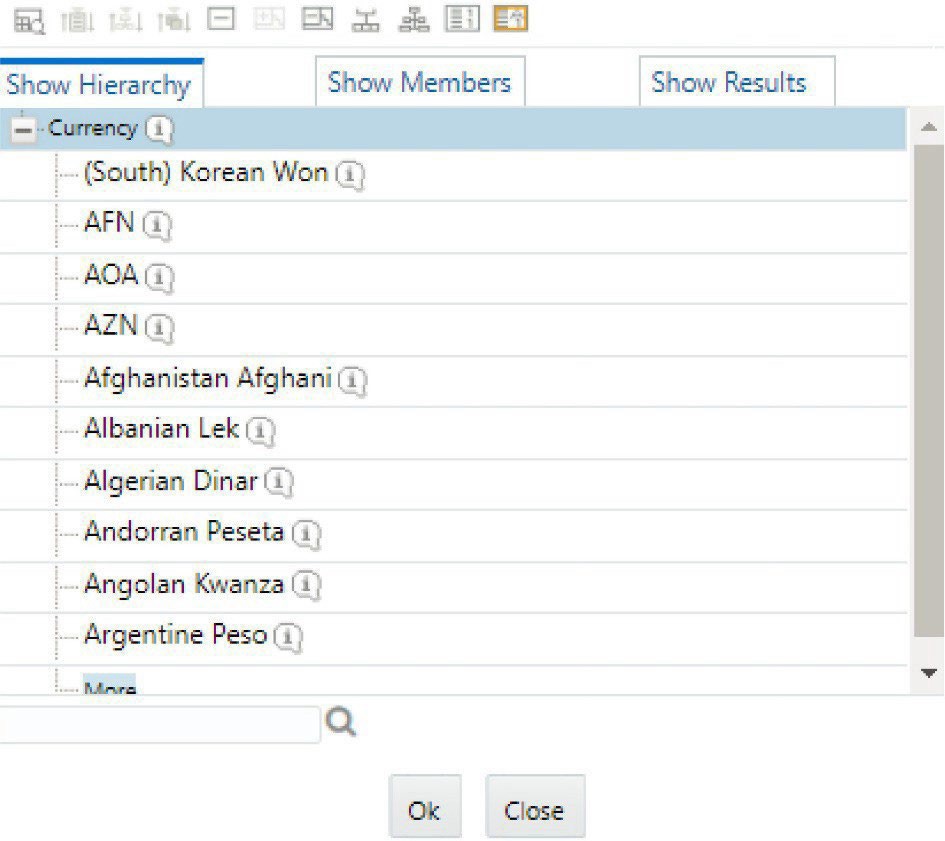
- Click the icon to select the Reporting Currency from the Hierarchy window and then click OK . Only a single selection is allowed here.
Figure 8-37 Run Definition – Hierarchy Browser
- Select the Exchange Rate Source from the drop-down list.
- Enter the LCR Horizon (in days). The default value is 30 . This applies only when the purpose is selected as Basel III Liquidity Ratios Calculation or U.S Fed Liquidity Ratio Calculation .
- When the Run type is selected as Contractual and the purpose is selected as FR 2052a Report Generation or FR 2052b Report Generation, in the Run Execution Parameters section, follow these steps:
- Click Calendar icon the to select the As of Date.
- Enter the Run Execution Description.
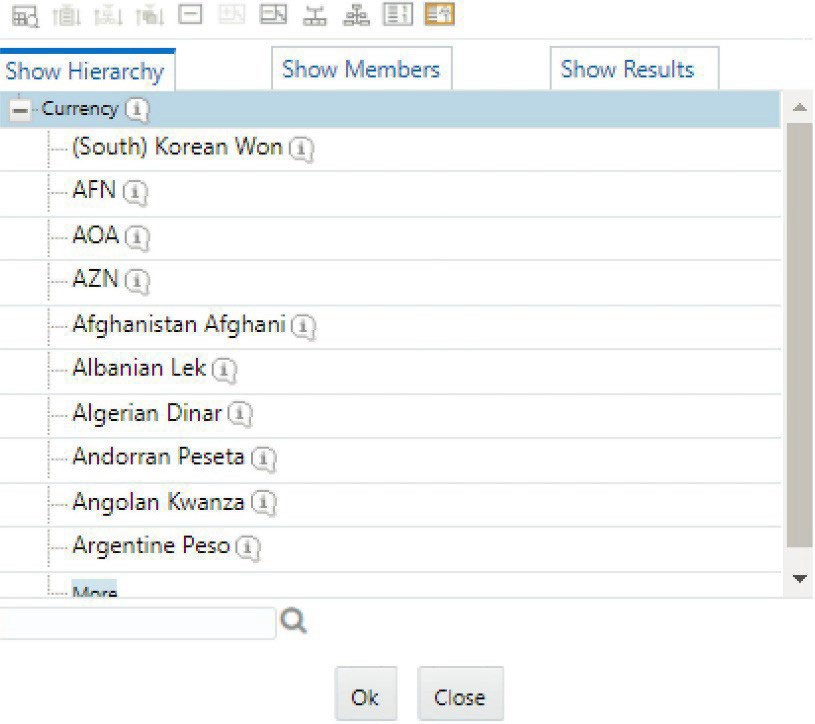
- Click the Copy Attribute icon to select the Reporting Currency from the Hierarchy window and then click OK.
Figure 8-38 Currency Hierarchy Browser
- Select the Exchange Rate Source from the drop-down list.
- When the Run type is selected as Contractual and the purpose is selected as Intra-Day Metrics Calculation , in the Run Execution Parameters section, follow these steps:
Figure 8-39 Run Execution Parameters – Intra-day Metrics Calculation
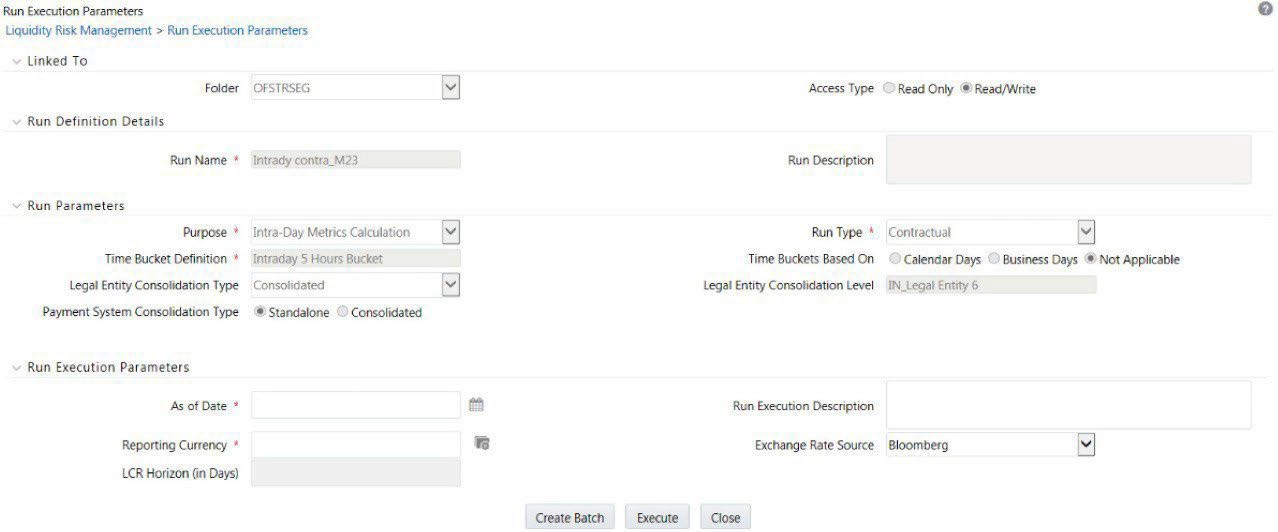
- Click the Calendar icon to select the As of Date .
- Enter the Run Execution Description .
- Click the Copy Attribute icon to select the Reporting Currency from the Hierarchy window and then click OK.
Figure 8-40 Currency Dimension – Hierarchy Selection
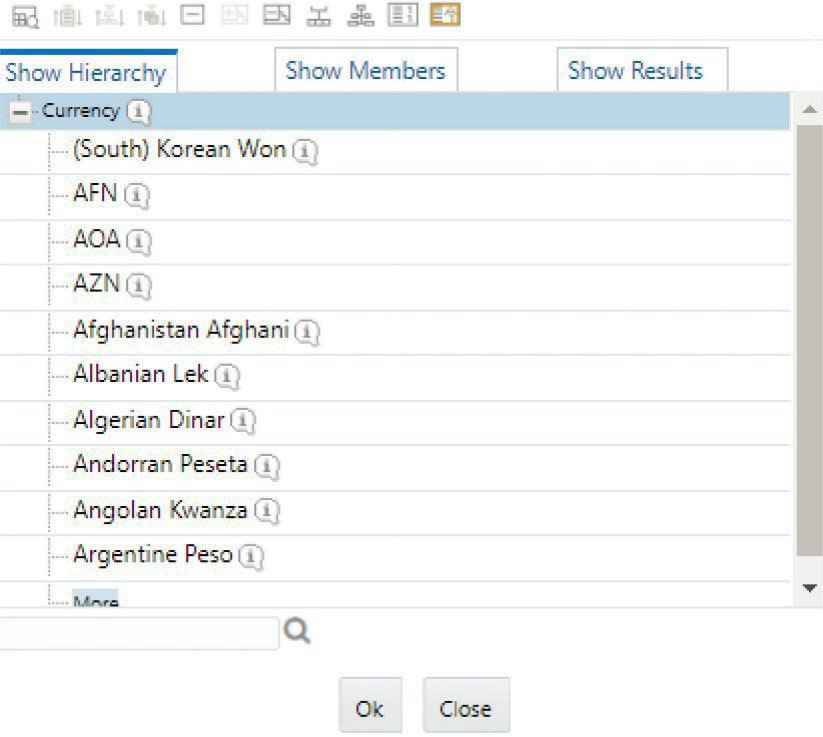
- Select the Exchange Rate Source from the drop-down list.
- When the Run type is selected as Contractual and the purpose is selected as Regulation YY Liquidity Risk Calculation , in the Run Execution Parameters section, follow these steps:
Figure 8-41 Run Execution Parameters – Regulation YY Liquidity Risk Calculation
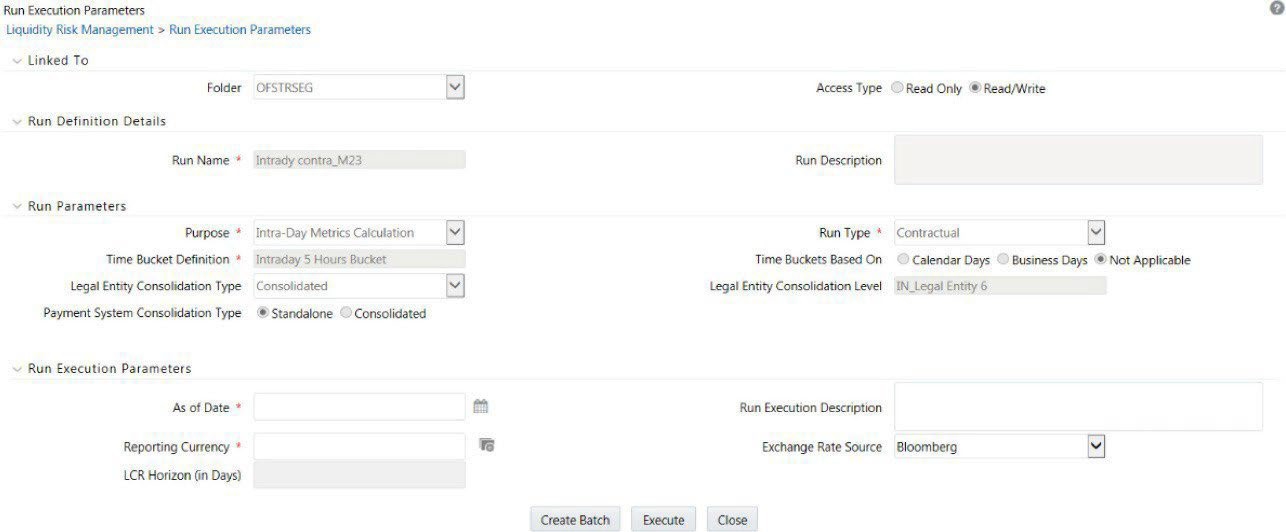
- Click the Calendar icon to select the As of Date.
- Enter the Run Execution Description .
- Click the Copy Attribute icon to select the Reporting Currency from the Hierarchy window and then click OK .p
Figure 8-42 Currency Hierarchy Browser – Selection Window
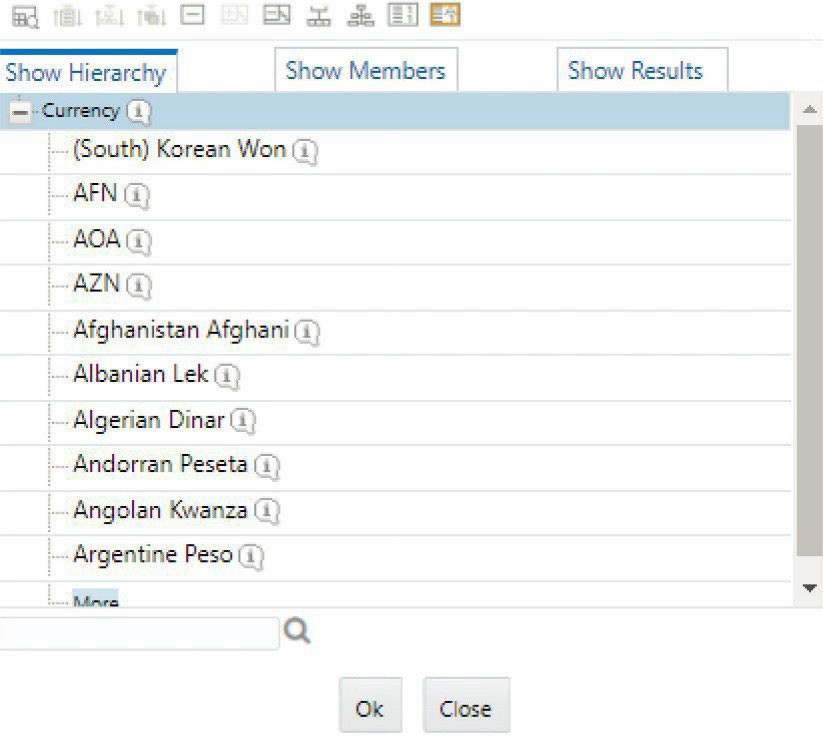
- Select the Exchange Rate Source from the drop-down list.
- Enter the Buffer Horizon value in days.
- Enter the Stress Horizon value or click the Sort Descending icon to select from the available options.
This field allows you to specify the value in terms of days and allows multiple horizons to be provided as an input.