8.8.2 Executing a BAU Run
To execute a BAU Run, follow these steps:
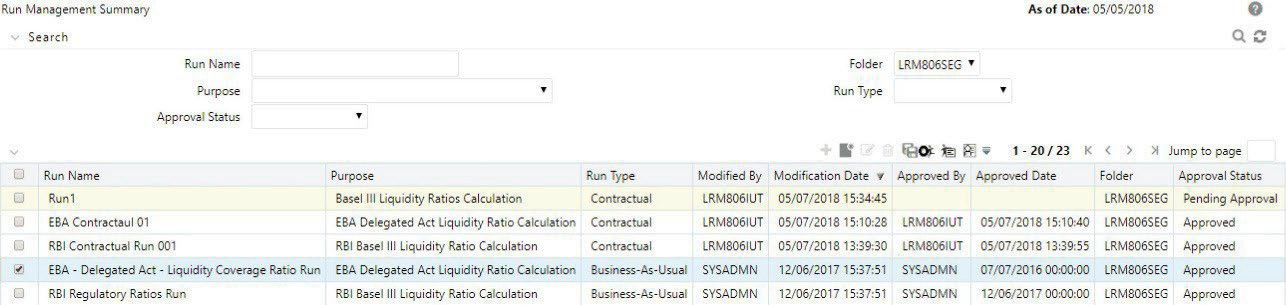
- Click the Select icon to select a BAU Run from the list of Runs and click the Run Execution Parameters icon.
Figure 8-43 Run Management Summary – Run Selection View image278
The Run Execution Parameters window appears. Here, the parameters of the Run are displayed in an un-editable form and the execution parameters are allowed to be specified for the selected Run.
Figure 8-44 Run Definition – Run Execution Parameters
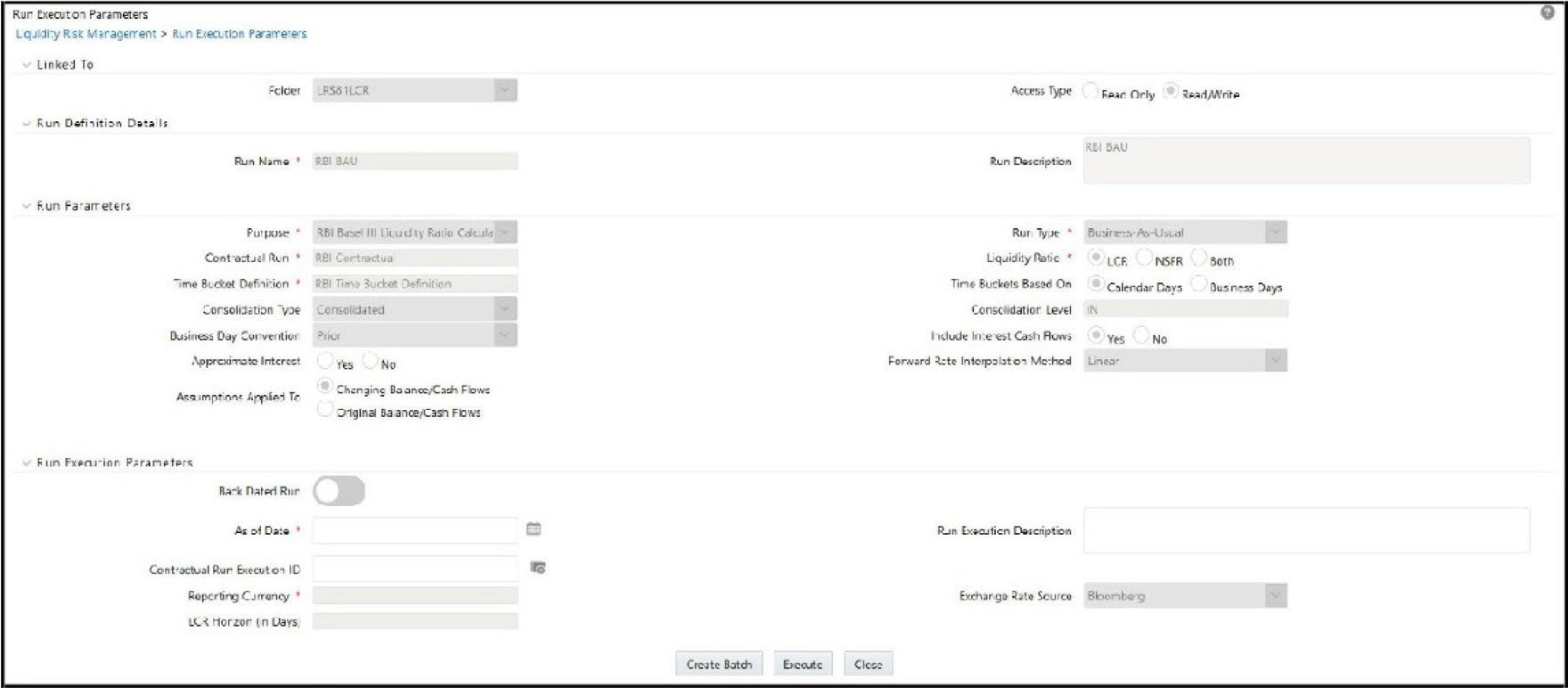
- When the Run type is selected as Business-As-Usual and the purposeis selected as Basel III Liquidity Ratios Calculation or Long Term Gap Calculation or U.S Fed Liquidity Ratio Calculation , EBA Delegated Act Liquidity Ratio Calculation, RBI Basel III Liquidity Ratio Calculation , BOT Liquidity Ratio Calculation , in the Run Execution Parameters section.
Note:
The Back Dated Run toggle field, is enabled to select toggle On or toggle Off only when the selected Contractual Run is Back Dated enabled. It is available only when the Purpose is selected as EBA Delegated Act Liquidity Ratio Calculation, RBI Basel III Liquidity Ratio Calculation, and U.S Fed Liquidity Ratio Calculation. For example, if the selected Contractual Run is Back Dated, then the respective BAU run will be considered for backdated execution (the Back Dated Run toggle field is disabled for user selection).- Click the Calendar icon to select the As of Date.
- Enter the Run Execution Description.
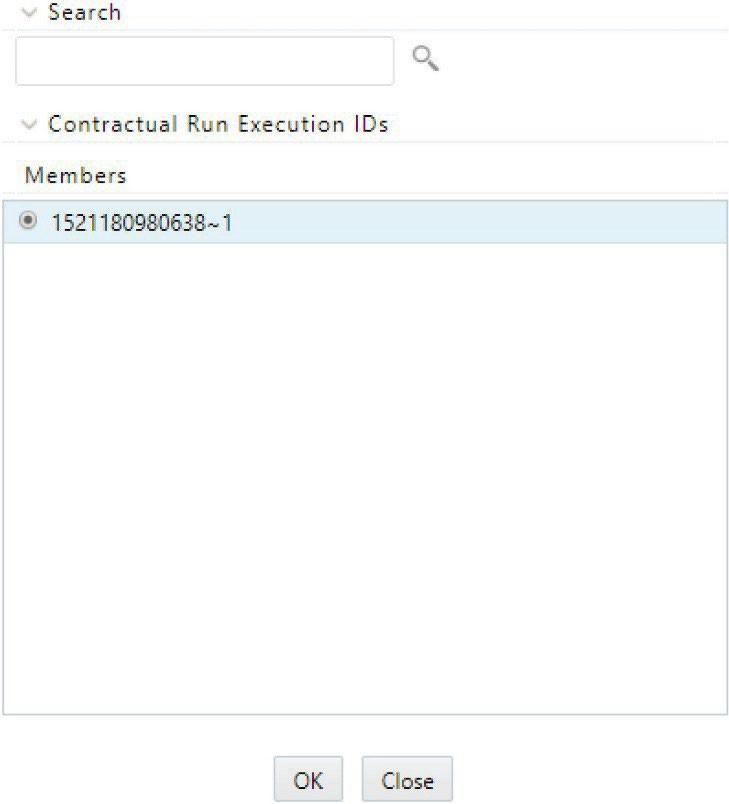
- Click the Copy Attribute icon to select the Contractual Run Execution ID from the window and then click OK . This is the execution ID of the underlying Contractual Run.
Figure 8-45 Contractual Run Execution ID Browser
Reporting Currency, Exchange Rate Source, and LCR Horizon fields are disabled and display the values which are selected as part of the contractual Run execution.
Note:
- Except for business assumptions that are selected as part of the Run parameters all other Run parameters are displayed.
- Run Execution Parameter Definition does not have an approval process.