8.4.1 Sending Run definitions for approval

To send a definition for approval, follow these steps:

  1. Click Run Management on the LHS menu of the LRS application to open the Run Management Summary window.

    Note:

    Run definitions in the following stages can be sent for approval:
    • A new definition which in Draft status.
    • A version of a definition that is rejected and is in “Open” status.
  2. Click the Select icon to select a definition with the status Draft , Open from the list of business assumptions and then click the Edit icon .

    Figure 8-23 Run Management Summary – Draft Status


    The image shows the Run Management Summary window displaying a run definition in Draft status. This interface allows users to select and review draft definitions before submitting them for approval within the liquidity risk framework

    Figure 8-24 Run Management Summary – Open Status
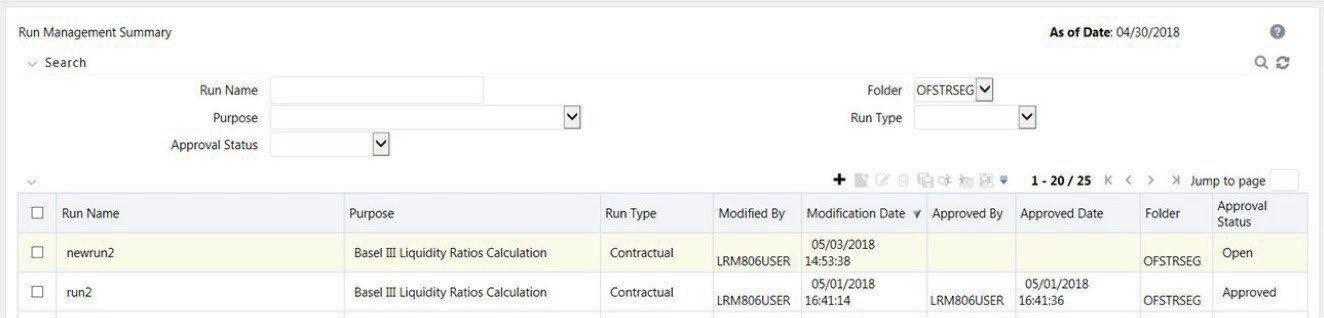

    The image displays the Run Management Summary window with a run definition in Open status. This view allows users to review and make corrections to definitions that were previously rejected before resubmitting them for approval

    The Run Definition window is displayed with all the parameters defined.

  3. To send a definition for authorization, click Send for Approval . This changes the status of the definition to Pending Approval. The definition is successfully sent for approval and the status changes to Pending Approval.