8.4.2 Approving Run definitions

To approve a Run definition, follow these steps:
  1. Click Run Management on the LHS menu of the LRS application to open the Run Management Summary window. Only definitions that are in Pending Approval status can be approved or rejected by the approver.
  2. Click the Select icon to select a definition with the status Pending Approval from the list of Run definitions and then click the Edit icon.
  3. To view the definition in the approval summary window, click Approval Summary. You can view the status changes for the definition created.

    Figure 8-25 Run Management Summary – Pending Approval
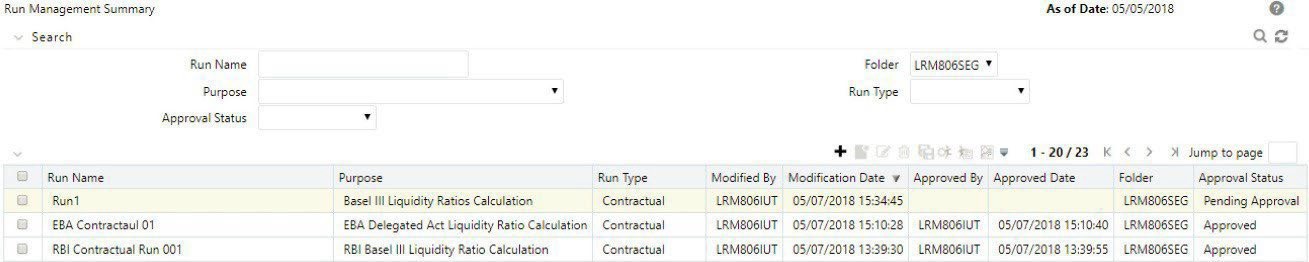

    The image displays the Run Management Summary window showing a run definition in Pending Approval status. This interface allows approvers to view run details, initiate the approval process, or reject the definition, with edit options disabled during this stage

    You cannot edit the values in the view window.

  4. To approve the definition that is sent for authorization, click Approve .

    The Approve dialog box is displayed with the assumption name and description.

    Figure 8-26 Run Definition - Approve
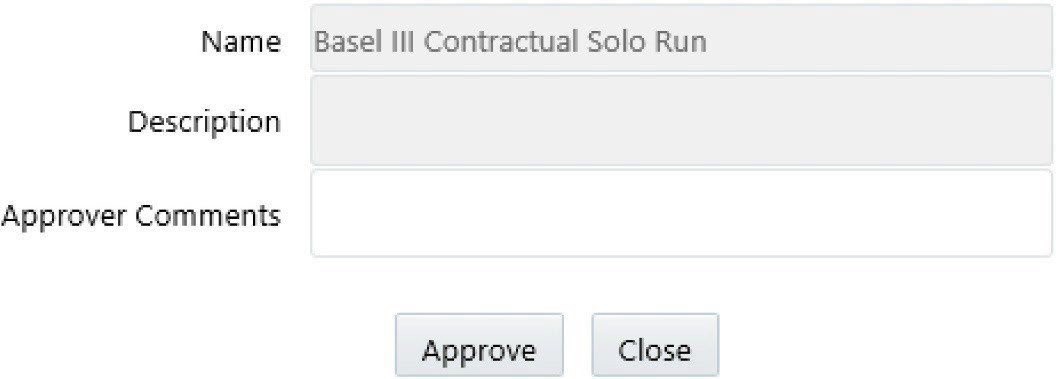

    The image shows the Approve dialog box used to authorize a run definition that is in Pending Approval status. Approvers can review the run’s name and description, enter comments, and formally approve it, after which the definition becomes locked for editing

  5. Enter Approver Comments and then click Approve .
  6. To reject the definition that is sent for authorization, click Reject .

    The Reject dialog box is displayed with the assumption name and description.

    Figure 8-27 Run Definition - Reject
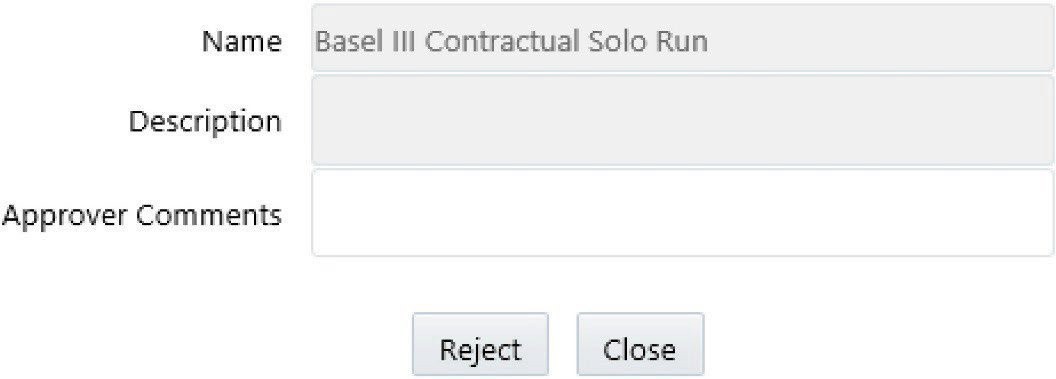

    The image displays the Reject dialog box used to reject a run definition that is pending approval. Approvers can add comments explaining the rejection, after which the definition status changes back to Open for further updates

  7. Enter Approver Comments and then click Reject .
  8. Click to Workflow Summary icon view the summary of the entire approval workflow. It displays approval history showing the start date, completion date, status owner, and comments if any.

    Figure 8-28 Run Management – Approval Summary
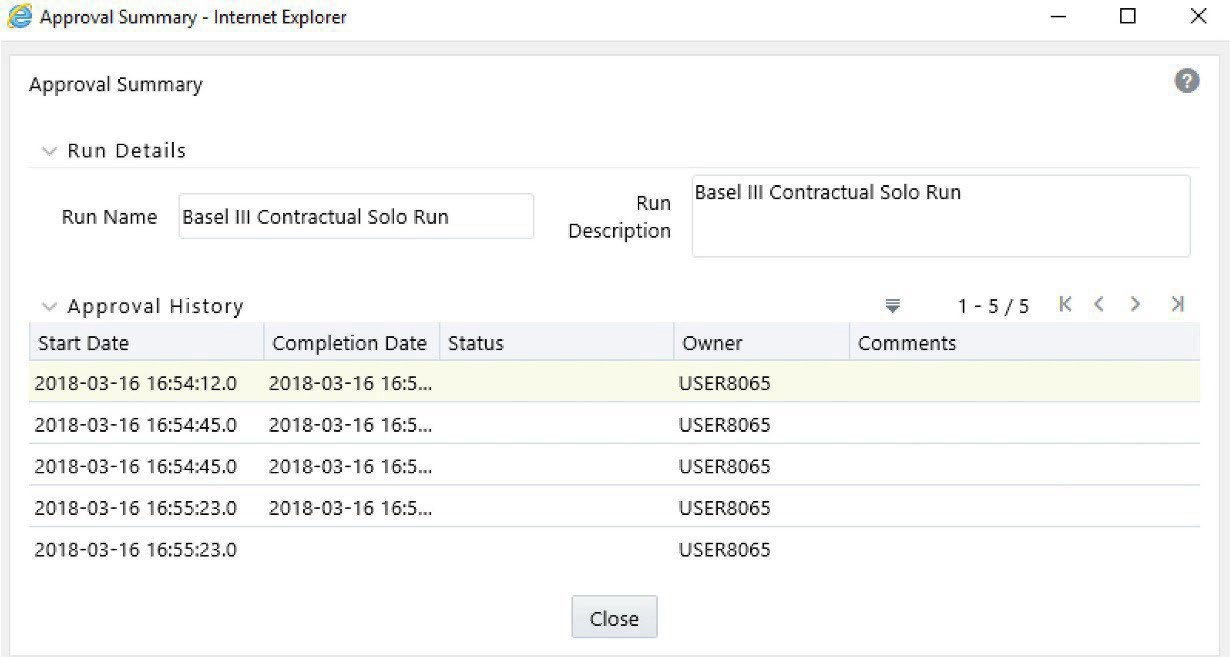

    Displays the Approval Summary window showing the complete approval workflow of a run definition. It includes information such as status changes, start and end dates, approver details, and comments for audit and traceability purposes

    Note:

    • The Approve or Reject buttons are present only for the users who have the right to approve or reject the definition.
    • If the definition is rejected, it changes back to ‘Open’ status. When the definition is in open status, click View to view the definition. You cannot edit the values in the view window.
    • Once the definition is approved, it cannot be edited in the case of Run definitions.