Add a Model Catalog

To add a Model Catalog:
  1. In the Model Catalog Summary screen, click Add.
    The Add Model Catalog screen is displayed.

    Figure 11-47 Add Model Catalog
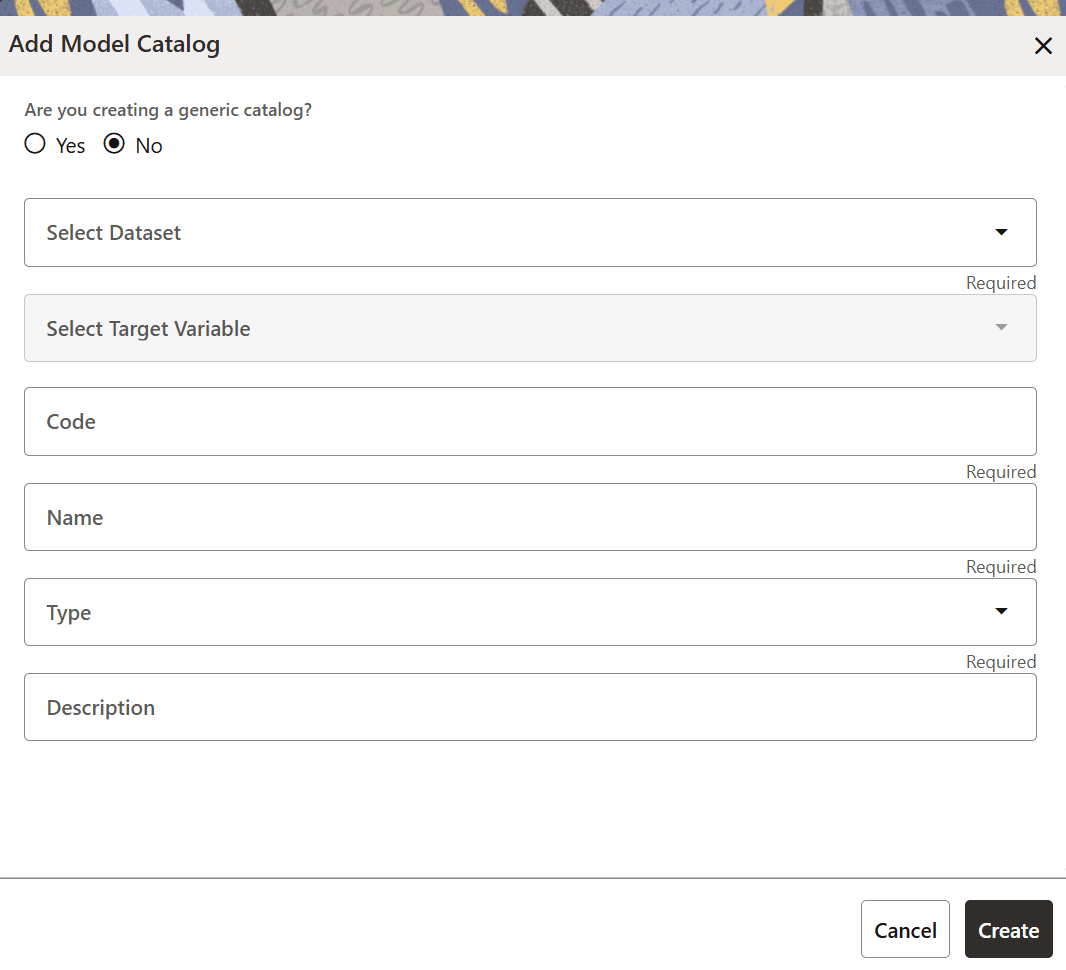

    Add Model Catalog

  2. Select either Yes or No in the Are you creating a generic catalog? section. By default, the No option is selected on this window. If you select Yes, the following options appears:

    Figure 11-48 Add Model Catalog Window with the Yes Option Selected
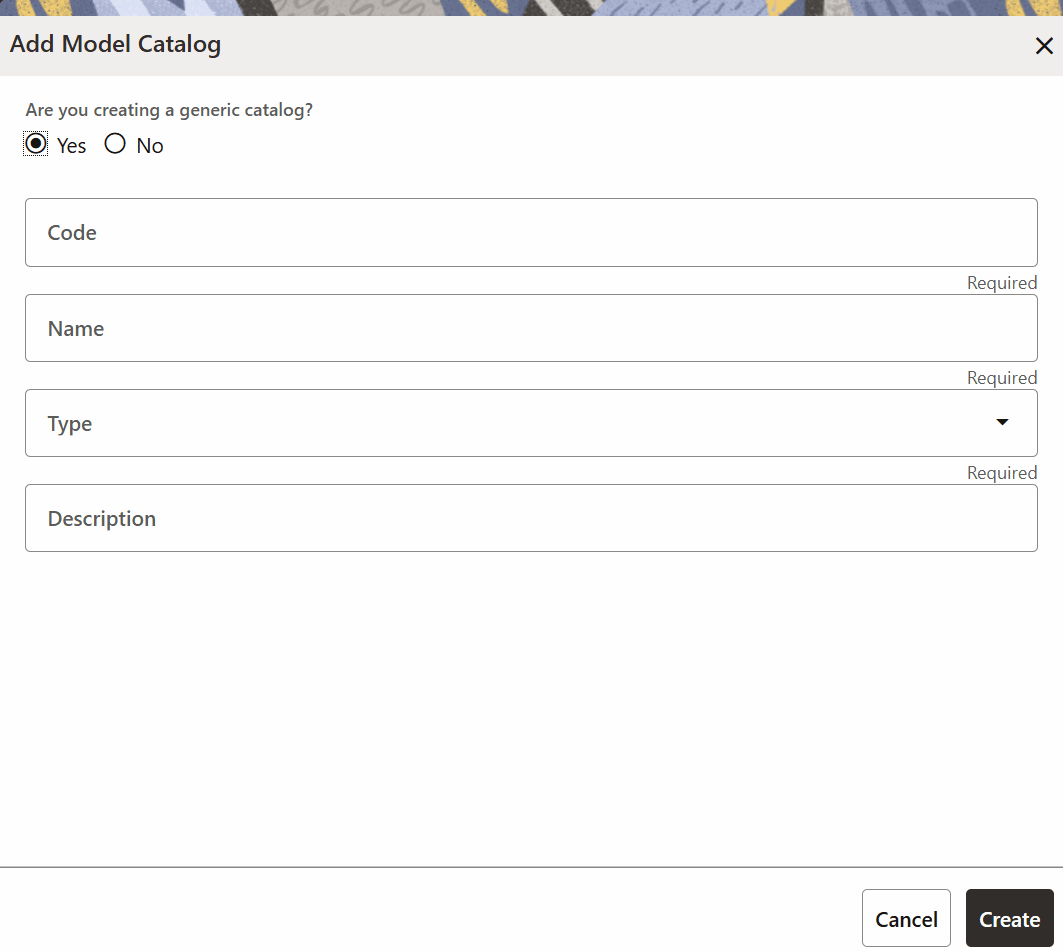

    Add Model Catalog Window with the Yes Option Selected

  3. Select the desired dataset from the Select Dataset drop-down list. This option is only available if No is the selected option in the Are you creating a generic catalog? section.
    For more details on datasets, see Dataset section.
  4. In the Select Target Variable field, select one of the column/feature as the target variable for the models that needs to be trained/uploaded. This option is only available if No is the selected option in the Are you creating a generic catalog? section.
  5. Enter a code for the model catalog in the Code field.
    The code should be unique for each model catalog.
  6. Enter a name in the Name field.
  7. Select the type from the Type drop-down list. The available options are:
    Classification: Classification is the process of finding a function that helps in dividing the dataset into classes based on different parameters. The task of the classification algorithm is to find the mapping function to map the input(x) to the discrete output(y).
    Regression: Regression is the process of finding the correlations between dependent and independent variables. The task of the regression algorithm is to find the mapping function to map the input variable(x) to the continuous output variable(y).
    Others:If the type in this field is not Classification or Regression, then select this option.
  8. Enter the description in the Description field.
  9. Click Create.
    The Model Catalog is created and displayed in the Model Catalog Summary screen.