Upload a Model

To upload a model:
  1. In the View Model Objectivepage, click Add and then select Upload Model.
    The Upload Model page is displayed.

    Figure 11-51 Upload Model Drawer
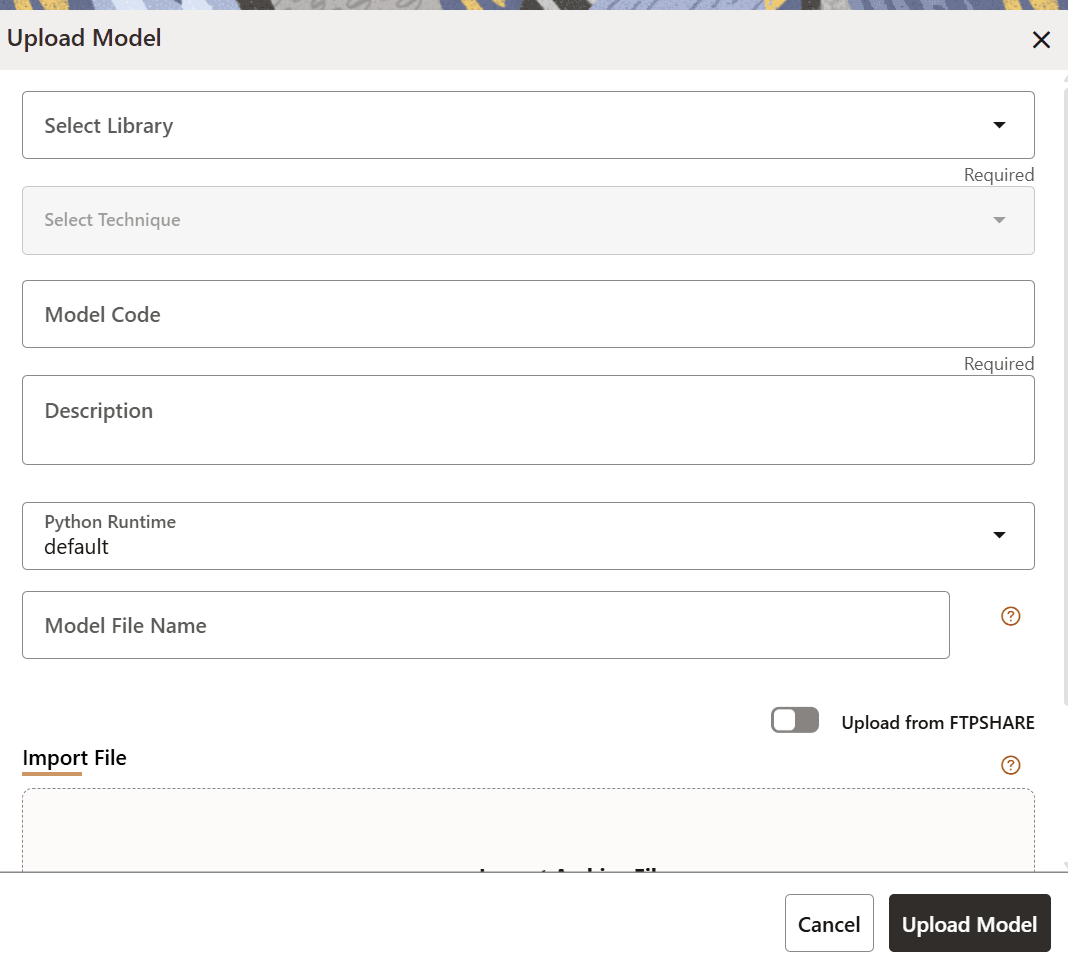

    Upload Model Drawer

  2. Select a library from the Select Library drop-down list. When a library is selected, the Select Technique drop-down list appears
    For more details on the model library, see the Model Libraries section.
  3. Select the required technique from the Select Technique drop-down list.
    For more details on the model technique, see the Model Technique section.
  4. Enter the model code and description for the model catalog in the Model Code and Description fields.
  5. Select a python runtime from the Python Runtime drop-down list.
  6. Enter the name of model file with the extension in the Model File Name field.
  7. Import the model by using the Import Archive Fileoption. The file format must be in be a zip format.
    OR
    Enable the Upload from FTPSHARE option to import the model. The file path that is entered is the zip file path that is present on the server relative to ftpshare path, including the file.

    For example: <installation path>/temp/models/model.zip

  8. Click Upload Model.
    The model is uploaded successfully.