Conda Environments
Note:
The supported version of Conda is 3.9.x.PATH=/scratch/ofsaadb/miniconda3/bin:$PATH
For proxy support, you need to manually configure the .condarc file present in the root directory.
Limitation: Conda support currently does not include linking externally created environments to the application.
To configure:
Add the below in the .condarc file.
http: http://www-proxy.idc.oracle.com:80https: http://www-proxy.idc.oracle.com:80
Note:
- Conda package search is restricted only to the package name and does not include versions.
- Python version displayed in the Register Conda UI.
Click Conda Environments to navigate to Environment Summary page from any other window in the application. You can register and manage Conda environments from this page.
Figure 8-6 Environment Summary page
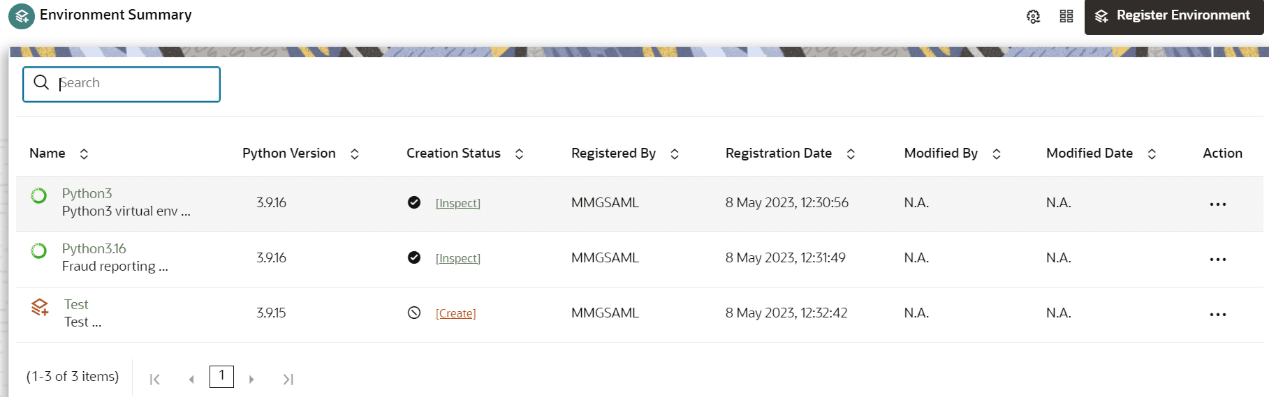
The following table provides descriptions for the fields and icons on the Environment Summarypage.
Table 8-2 Fields and icons on the Sandbox Summary page
| Field or Icon | Description |
|---|---|
| Search | The field to search for a Conda environment.
Enter specific terms in the field for which you want to search, and press Enter on the keyboard to display the results. NOTE: Conda package search is restricted only to the package name and does not include versions. |
| Name | The name of the Conda environment. |
| Python Version | The python library version of the Conda environment. |
| Creation Status | The status of the Conda environment. The folloing are the available status that appear in this column:
|
| Registered By | The User Id of the User who registered the Conda environment. |
| Registration Date | The date on which the Conda environment has been registered. |
| Modified By | The ID of the Last Modified by user who has modified the Conda environment. |
| Modified Date | The date on which the Conda environment was modified. |
| Register Environment | Click to register a new Conda environment. |
| Conda Settings | Click to add or modify the Conda components settings. |
| Conda Properties | Click to view the Conda properties. |
| Action | Click the three dots to perform Create/
Import/Edit/View/Inspect/Clone/Export/Remove/Deregister functions on
selected Conda environment.
The functions might vary based on the selected Conda environment. |