Register a Conda Environment
To register a Conda environment:
- In the Environment Summary screen, click
Register Environment.The Register Environment page is displayed.
Figure 8-7 Register Environment Window
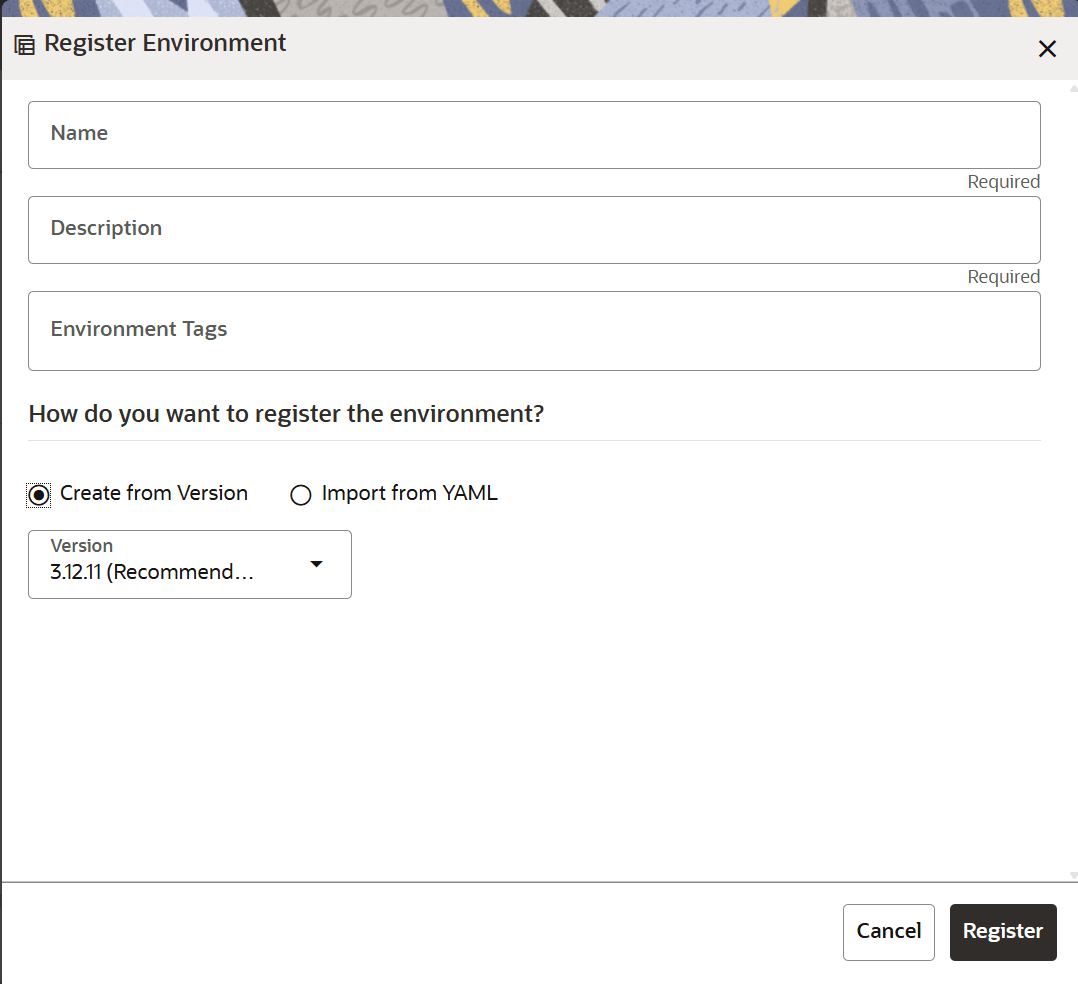
- From the How do you want to register the environment? section, select either of the following options:
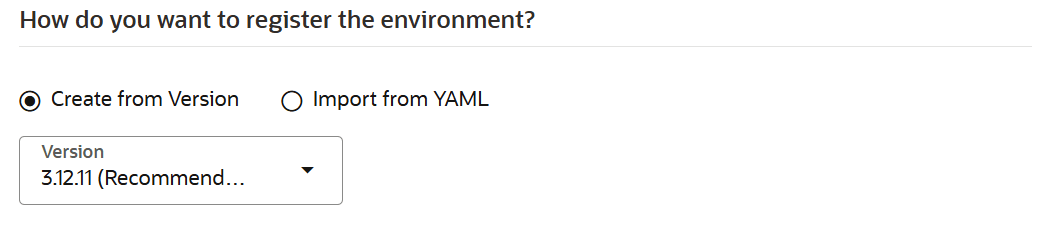
- Create from Version: This option is selected by default. Select a Python version number from the Version drop-down list.
If this option is selected and the Register button is clicked, then the creation operation is performed asynchronously in the background. This enables you to interact with other UI features in the application as the screen is not locked. Real-time status updates, operation histories, and context-specific actions are now provided. An operation status or progress area is available, where each in-progress action is listed with states such as Queued, In Progress, Completed, or Failed. Once this operation is completed, the status is updated on the Environment Summary page. The following are the status that are displayed in the Creation Status column adjacent to an environment:
- Inspect: Click this link to view the environment details. For more information, see the Inspect a Conda Environment. Note that you cannot view the log information from this option. If you select the View Logs button from the Action icon, the Environment Logs window appears, informing you that the logs are not available for successfully created environments.
- Failed: This status appears for failed operations. Click this link to open the What’s Next? window.
Figure 8-8 What's Next? Window
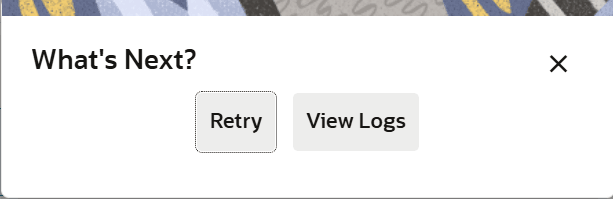
The available options in this window are:
- Retry: Click this button to open the Create Environment window. Click the Create button to retry the operation.
- View Logs: Click this button to open the Environment Logs window and view the log information.
Multiple environment creation tasks can be started in parallel and each task is tracked individually in the status or progress panel. This enables you to receive further details about the operation.Note:
The following are the known issues and limitations of this feature:- The log information is only available for failures. For successful operations, the Inspect option allows you to view the summary details.
- When multiple creation operations run in parallel, there may be a delay or omission in the live status updates for a few entries until the UI is manually refreshed. This is a known issue.
Figure 8-9 Create from Version Option
- Import from YAML: Select this option if you want to import the metadata from a YAML file. Click Import Archive File or drag and drop the desired
.yml/.yamlfile from your local system into the Import Archive File section. You must ensure that the Python version is included in the.yml/.yamlfile.Figure 8-10 Import form YAML Option
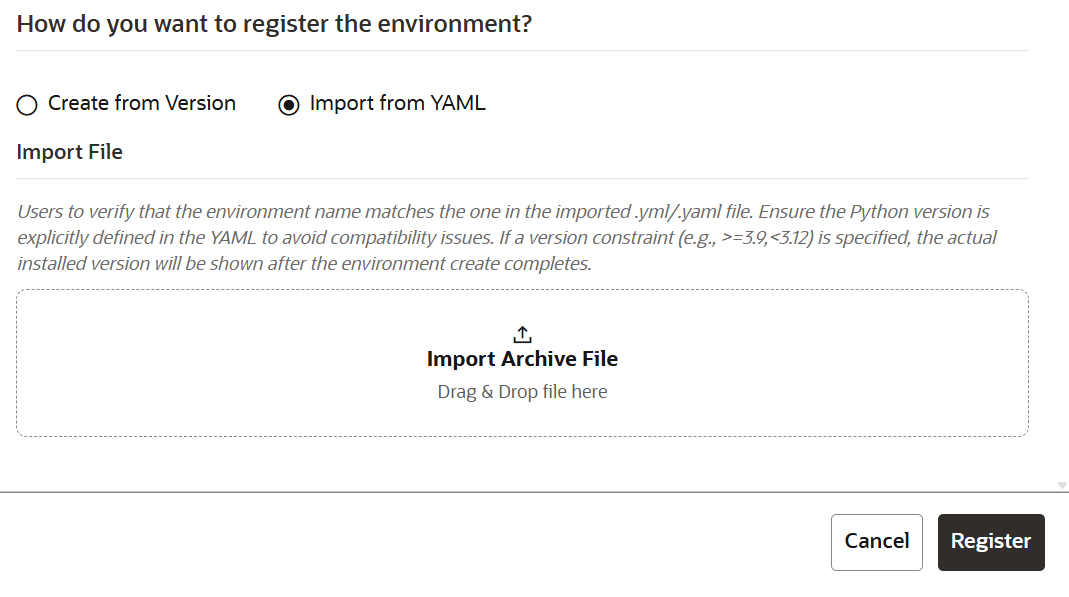 After attaching the
.yml/.yamlfile in the registration dialog, the.yml/.yamlfile content is displayed in a read-only, scrollable preview area labeled as File Details along with the file name and size. This preview allows you to fully inspect the uploaded environment specification before submission. If the attached file is removed or replaced, the preview disappears or updates automatically to reflect the new file. You cannot modify the content of the file in this preview area. Any desired modifications must be done in the file and then the modified file must be reattached.Note:
The following limitations are present in this version of the application for this feature:- Currently, this feature is only available during the registration process. This preview feature will be available in the View or Edit windows in future releases.
- In the Edit screen, the preview of the attached
.yml/.yamlfile is currently not displayed. Also note that if updates are made in any of the fields in the Edit window, then the changes can be saved without reuploading a new.yml/.yamlfile. The file preview and validation are known issues that will be fixed in future releases.
You must review the.yml/.yamlfile details in the File Details section to confirm that the required metadata, such as environment name and Python version, are present before registering the environment. Post-registering, the file content will not be displayed in the View and Edit windows. Hence, ensure that you keep your local copies of the uploaded files for audit.OFS MMG now processes Conda environment imports asynchronously in the background. When you begin an import operation, the Environment Summary page automatically displays the current status of the import. This allows you to continue using the application while your Conda environment is being imported.The Import status on the Environment Summary keeps you informed so that you do not have to wait or keep the page open.Until the environment is imported, the actions that you can perform in the Action icon on the Environment Summary page, such as Edit, View, and Deregister will be temporarily disabled.Note:
If you do not see the Creation Status on the Environment Summary page update automatically, you can refresh this page to view the latest status. - Create from Version: This option is selected by default. Select a Python version number from the Version drop-down list.