Access Model Pipelines
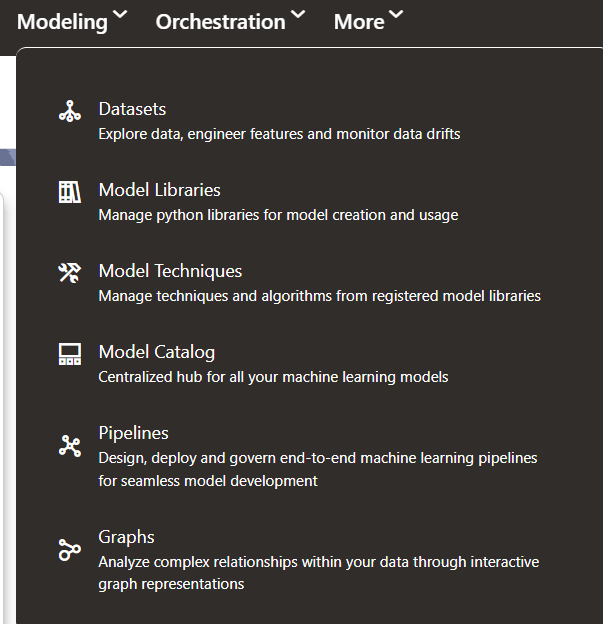
- Click the Modeling drop-down list at the top of the page
and then click Pipelines.
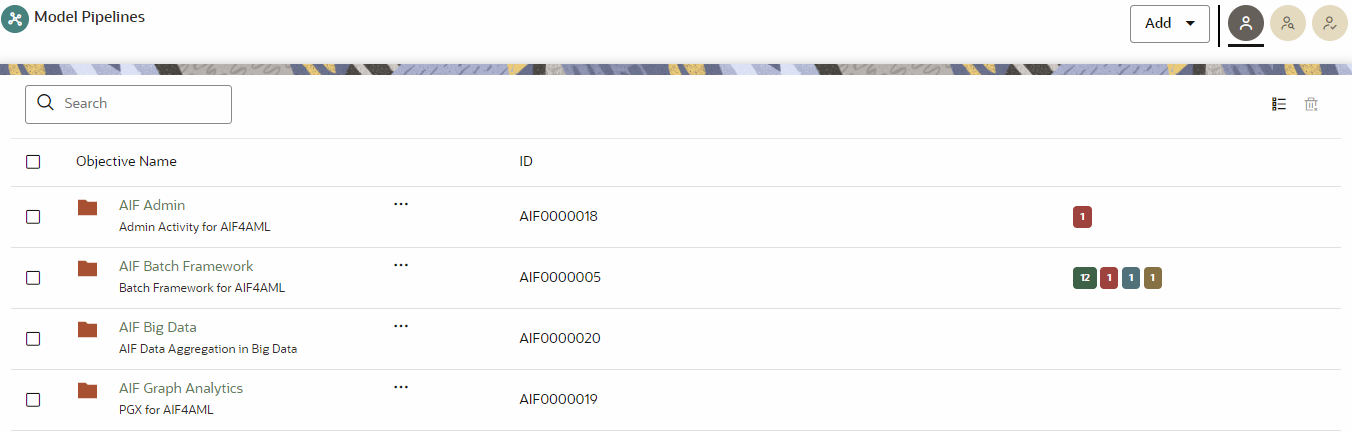
 The window displays objectives that contain drafts and models. When you hover over the count that are adjacent to the ID column, it displays the count of sub objectives, drafts, models, and champion, if available.
Figure 11-61 Model Pipelines page
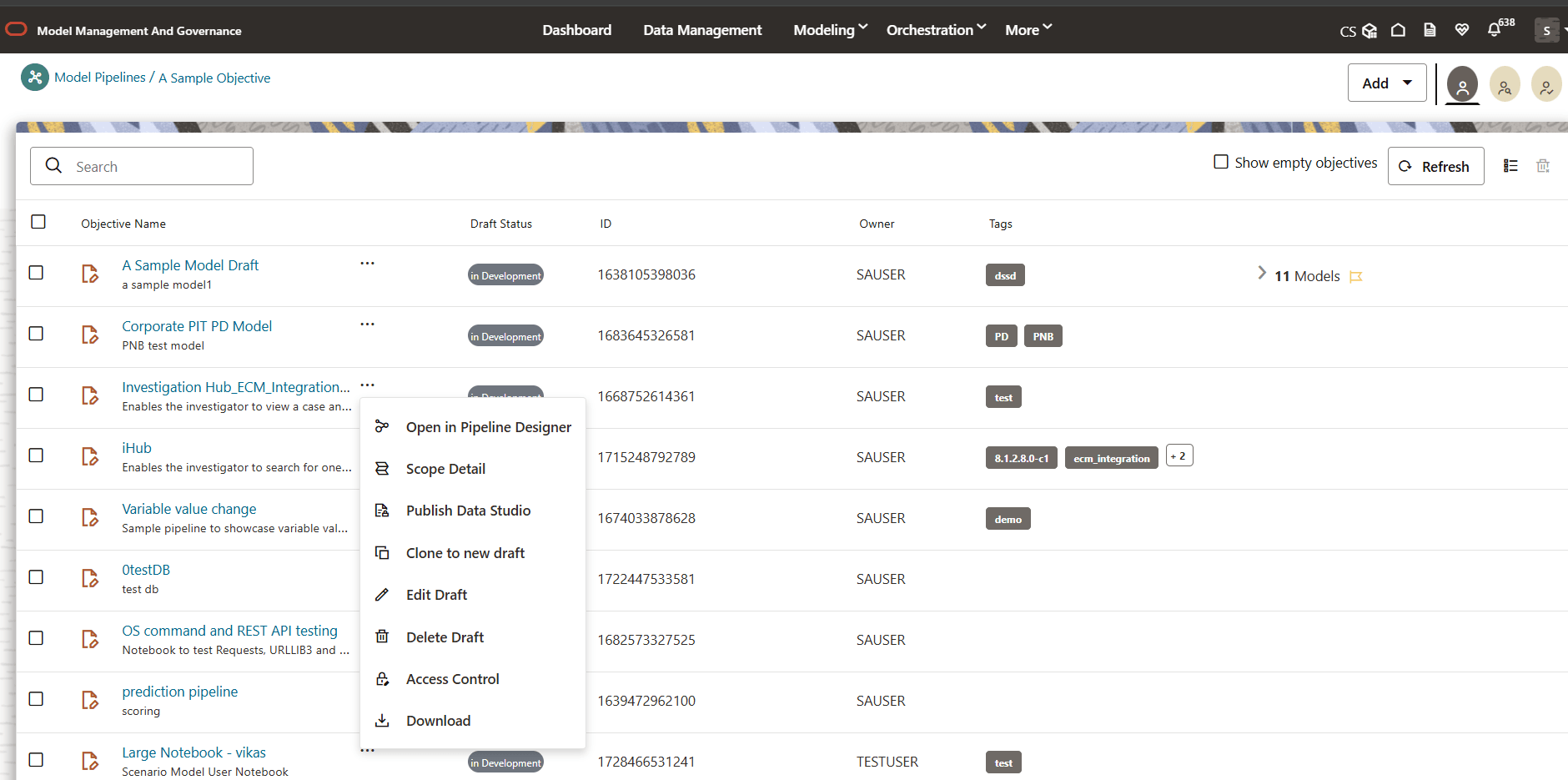
Click the More icon adjacent to an objective to view all the available actions.
Figure 11-62 Actions for an Objective
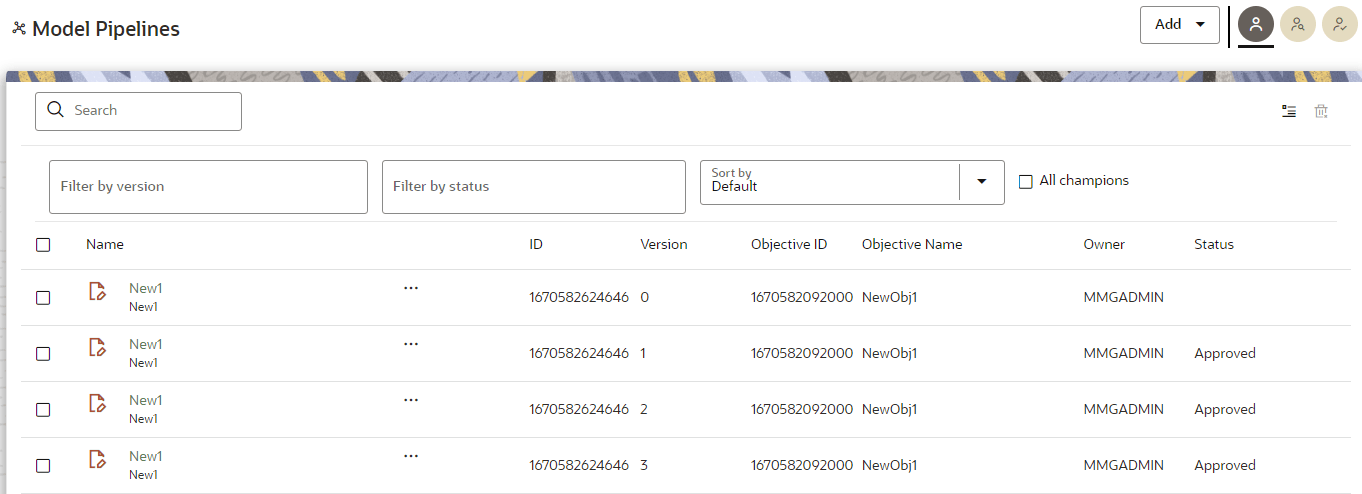
You can click the Flat List icon, adjacent to the Refresh button, to change the view. Flat list is the default view in the production workspace while hierarchical list is the default in the sandbox.
- Hierarchical: This option displays the hierarchical list of objectives. In the Hierarchical view, you can view the details of the objectives such as the objective name and ID.
- Flat List: This option displays the
flat list of all the models (published and drafts) by using the
Flat Listicon. Flat list is not
objective-specific. It displays the models across all the objectives.
You can search the models by using the Filter by
Version, Filter by Status,
Sort by, and All
champions. The Sort by onption
contains two sorting options; Default and
Latest first.
- In the flat list view of models, you can see the
details of the models such as the name, ID, version, objective
ID, objective name, owner, and status.
Figure 11-63 Model Pipelines
- In the flat list view of models, you can see the
details of the models such as the name, ID, version, objective
ID, objective name, owner, and status.
The following table provides descriptions for the fields and icons on the Model Pipeline page.Table 11-15 Fields and icons on the Model Pipeline page
Field or Icon Description Model Pipeline Page Header The header that follows the global header in the application. Breadcrumbs Indicates the position of the current page in the Model Management hierarchy. Use breadcrumbs locator links to navigate back to higher levels in the hierarchy after you have drilled down through levels of functions. Click to navigate to Model Summary page.
Click or to navigate back to Workspace Summary page.
Create Objectives and Models Select Add to display a list with the following options: - Draft
- Objective
- Seeded Models
When you are creating a Model by using the extraction widget, you might want to increase the ZEPPELIN_LIMIT_INTERPETER_OUTPUT in the Python Interpreter. For information on how to do this, see the question on how to increase the ZEPPELIN_LIMIT_INTERPETER_OUTPUT in the Python Interpreter in the Frequently Asked Questions topic of the OFS MMG Installation Guide.
However, if you want to know about the cycle of model creation, see the Manage Models section.
Requester Displays that the logged-in user has the requester privileges when the status is green. You can create a model. However, to approve and publish, the model must be reviewed by a user with reviewer privileges and approved by a user with approver privileges.
Reviewer Displays that the logged-in user has the reviewer privileges when the status is green. You can review models. However, to approve and publish, the model must be approved by a user with approver privileges.
Approver Displays that the logged-in user has the approver privileges when the status is green. You can approve models that are created and reviewed.
Model Pipeline Page Table The table displays the objective and model records on the page. Objective Name Displays the name and description of the objective ID Displays the ID of the objective. Owner Displays the owner who created the drafts. This information does not display for an objective.
Tags Displays the tags associated with the models or drafts. This information does not display for an objective.
Delete Objective Select to delete the model from the confirmation dialog box. Click Delete to process or click Cancel to cancel. This information is not displayed for an objective.
Edit Objective Select this option to edit the models in Data Studio. See the Edit Models section for more information. This information is not displayed for an objective.
Note:
When executing PGX, the user is unable to access the interpreter 'PGX-Java' for the Notebook type 'Jupyter'. The allowed interpreters are: Python and MD.However, when the user changes the notebook type from the Notebook interface, the user is able to access the PGX-Java.
Figure 11-64 Access Control Menu option
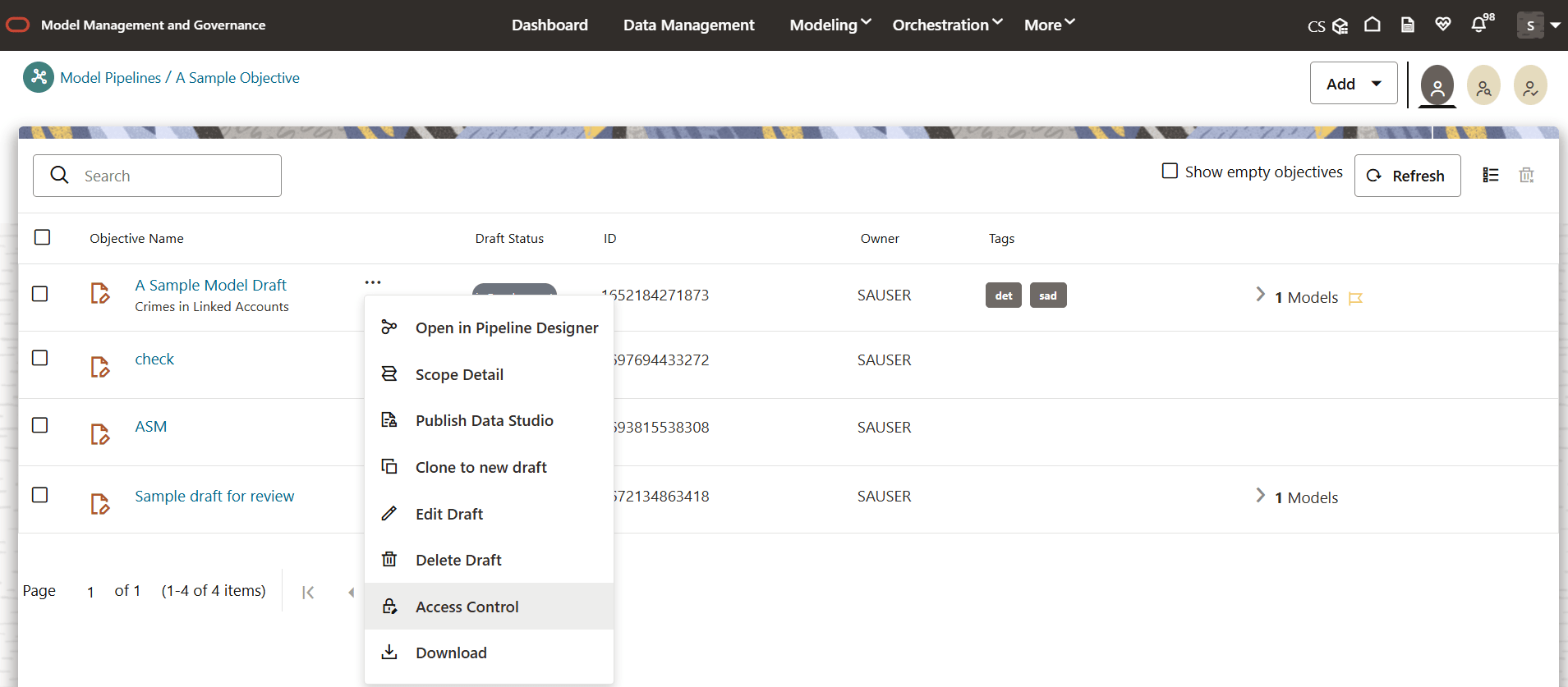 The Access Control window has two radio buttons: Public and Restricted.
Figure 11-65 Public Mode
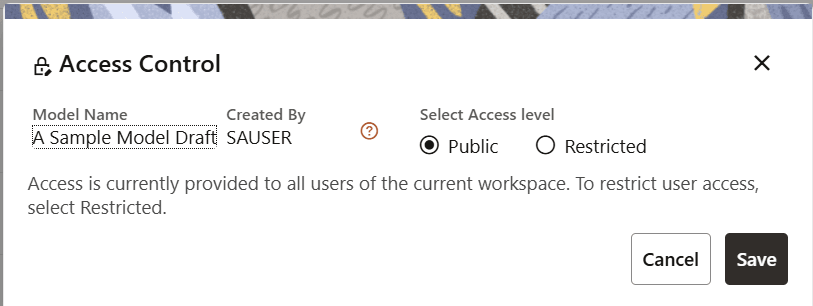
Figure 11-66 Restricted Mode
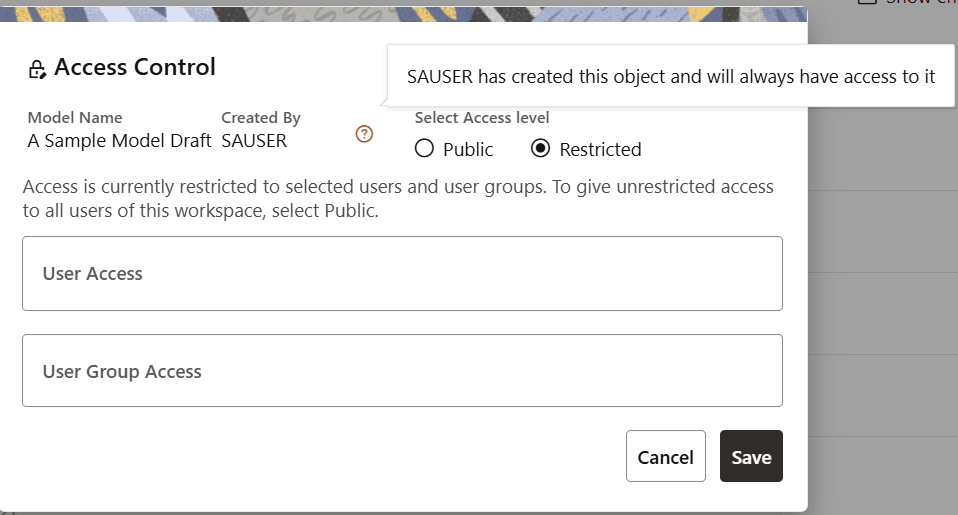 The Access Control window contains the following details:
- Model Name
- Created By
- Select Access level: Public and Restricted
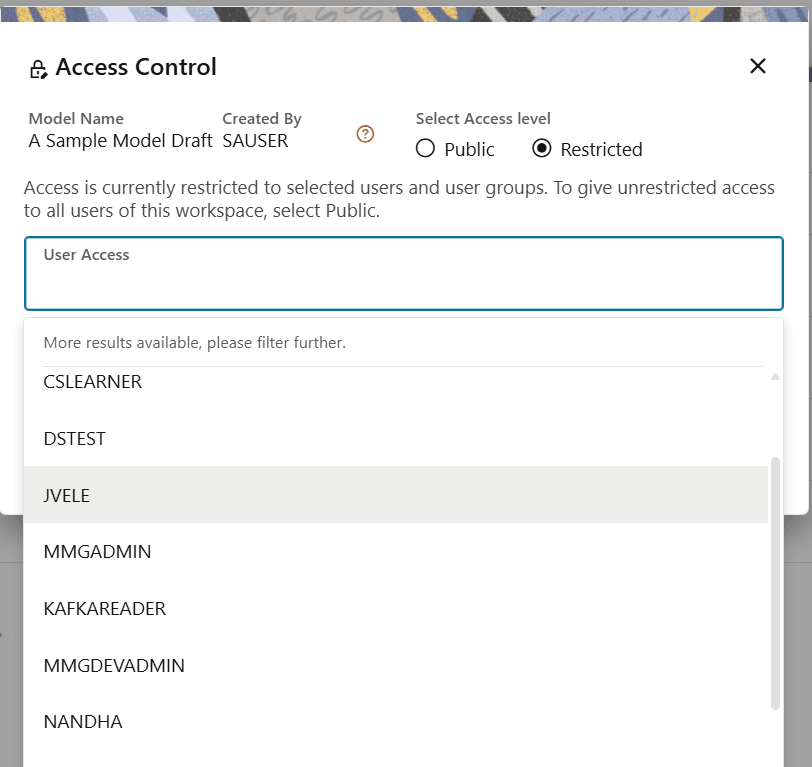
- User Access
(Restricted only): Select the users with
restricted access. This drop-down list fetches all the users present in
the Identity Management.
Figure 11-67 Access Control User Dropdown
- User Group Access
(Restricted only): Select the user groups
with restricted access. This drop-down list fetches all the user groups
present in the Identity Management.
Figure 11-68 Access Control User Dropdown
- Cancel
- Save
Note:
The new stage selector in theexecution drawer is added for executions from the pipeline canvas with the auto-populated option selected stage in the canvas. Users can now run independent stages from the pipeline canvas and even from the scheduler. The function of the stage remains the same as before as the stages are dynamic in nature. The executed stages are not shown in the execution history, instead the application follows the filtering of nodes to execute or nodes that have been executed at runtime.