6.6 Metrics
View and manage custom profitability metrics for Management Ledger and Instrument data from a single screen.
Use the Metrics screen to view and manage custom profitability metrics that are not available in the standard reports. Select the Ledger or Instrument tab to work with metrics for the corresponding data source.
The Metrics screen brings together the previously separate top-down(TD) and bottom-up(BU) metric workflows, with Ledger and Instrument tabs providing access to the respective metrics.
Note:
Before executing the corresponding runchart, configure any custom metrics required for reporting. Define their calculations, save the metrics, and review the configuration. For the complete preparation requirements, see Runchart Prerequisites.
To navigate to the Metric Generator – Summary screen, from the LHS Menu, select Maintenance, and then select Metrics.
Viewing Metrics
- Open the Metrics screen.
- Select the appropriate tab:
- Ledger: View metrics defined for Management Ledger data.
- Instrument: View metrics defined for Instrument data.
Figure 6-24 Metrics Summary Screen
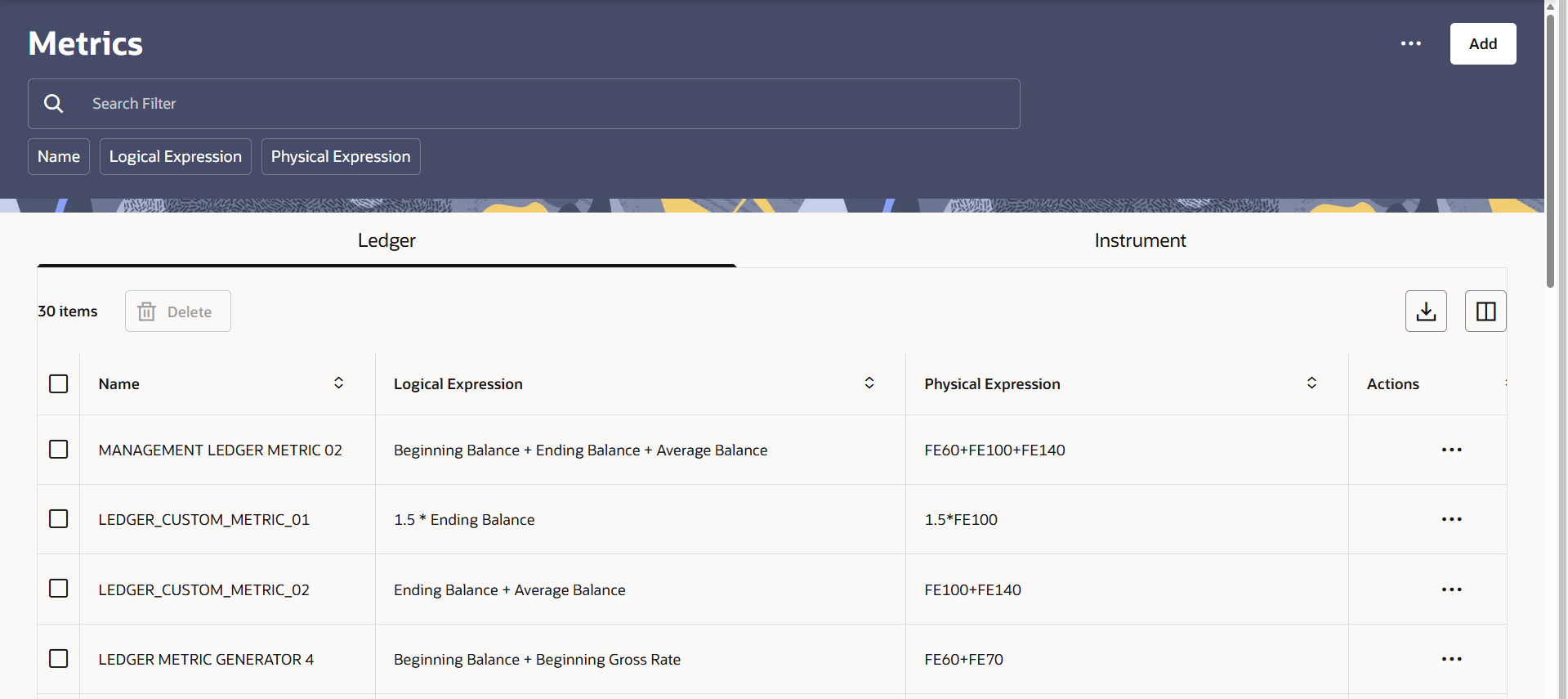
Table 6-3 Metrics Summary Details
| Column | Description |
|---|---|
| Name | Name of the metric. |
| Logical Expression | Calculation expressed using financial element or instrument attribute names. |
| Physical Expression | Calculation expressed using the corresponding financial element codes or instrument column names. |
| Actions | Actions available for the metric. |
Searching for a Metric
Use Search Filter to locate metrics by Name, Logical Expression, or Physical Expression. Select the appropriate Ledger or Instrument tab before searching.
Creating a Metric cross-reference
To create a metric, click Add. For instructions, see
Access to Custom Metric Report
To access the Custom Metric Report, click the  icon.
- Creating a Metric
Define a custom profitability metric using financial elements or instrument attributes and mathematical operators.
Parent topic: Maintenance