8.1 Pinned Objects
Pinning here refers to setting certain objects as favorites. Pinning is a user-specific action from Summary screens inside the application and hence this widget is user specific.
- Static Table Drivers
- Lookup Tables
- Lookup Table Drivers
- Allocation Rules
- Allocation Models.
The Pinned Objects widget describes the objects pinned by the user from the respective summary screens.
Figure 8-1 Pinned Objects
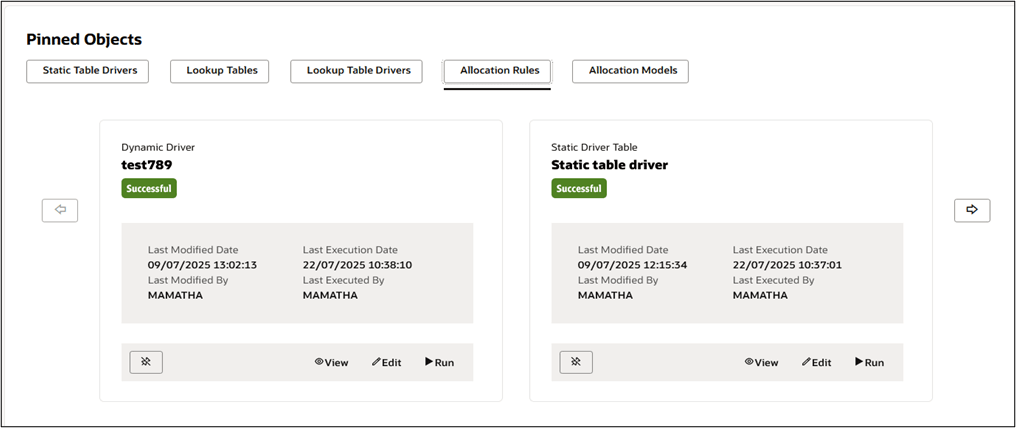
This widget is arranged in the form of tabs that describes each type of object pinned by the user. Each tab is laid in the form of a set of tiles, each tile representing an object. You can use the arrow buttons available on the left and the right hand side to horizontally move through the list of the pinned objects.
You can launch the pinned object Detail screen in either of View or Edit mode through the View and Edit buttons available at the bottom in these widgets. You can also execute the rules by clicking on the Run button. After you click Run, the Run Time window appears and the Run time parameters are to be picked from the user settings saved at the Preference level.
There are minor differences among the tabs. Edit is enabled for each tab except the Lookup Table tab as we cannot edit a lookup table once created. Similarly, Run is enabled only for Allocation Rules and Allocation Models as they are executables.
The tiles display the following details of the objects, as applicable for each different object type.
- Sub-type – for example, dynamic driver type is a sub-type of the object type ‘Allocation Rule’ •
- Object name – displays the logical name of the object • Execution status – displays the status as ‘Successful’ or ‘Failed’
- Creation Date – displays the Date and Time at which the rule was created
- Created By – displays the name of the user who created the rule
- Last Modified Date – displays the Date and Time of the latest modification of the rule
- Last Modified By – displays the name of the user who has done the latest modification in the rule
- Last Execution Date – displays the Date and Time of the latest execution of the rule
- Last Executed By – displays the name of the User who has done the latest execution of the rule
You can use this widget to unpin any object through the Unpin button available at the bottom left corner of the screen. Once unpinned, the object will be removed from the widget and the status of the object in application Summary screens will change to Unpinned.