8.2 Workflow Widget
The Workflow widget gives a quick glimpse of the workflows pending from the application users. This widget is user specific and displays only the objects that are residing with the ‘Pending Approval’ status.
- the first tab called ‘My Actions’ lists objects that are:
- Pending for current user’s approval/rejection (that is, objects submitted by other users and where the current user has the privilege to approve/reject)
- the second tab called 'Others' Actions' lists objects that are:
- Pending for other users' approval/rejection (that is, objects submitted by the current user and needing action from other users to approve/reject)
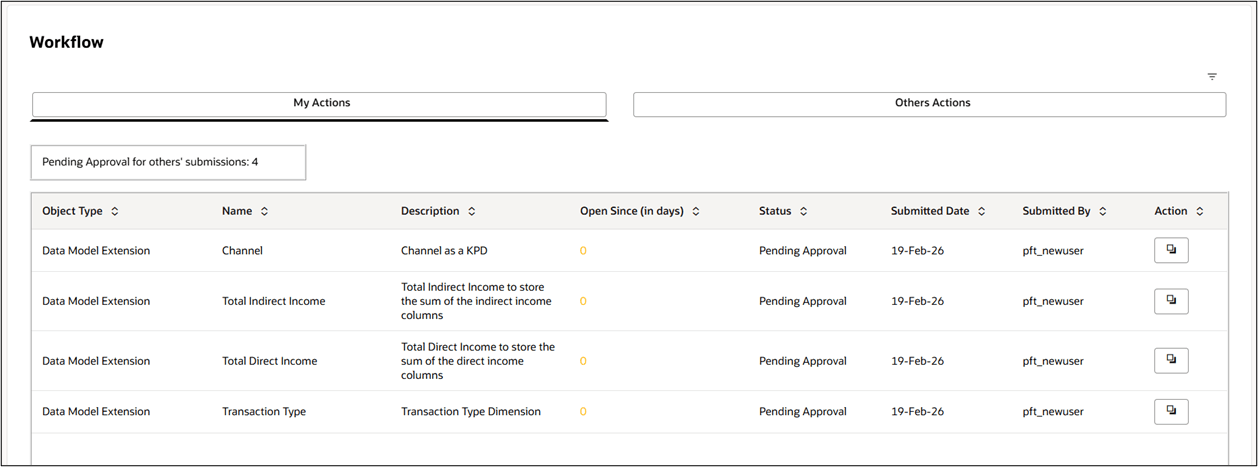
The first tab of the widget looks like the following:
Figure 8-2 My Actions Tab
The second tab of the widget looks like the following:
Figure 8-3 Others' Actions tab
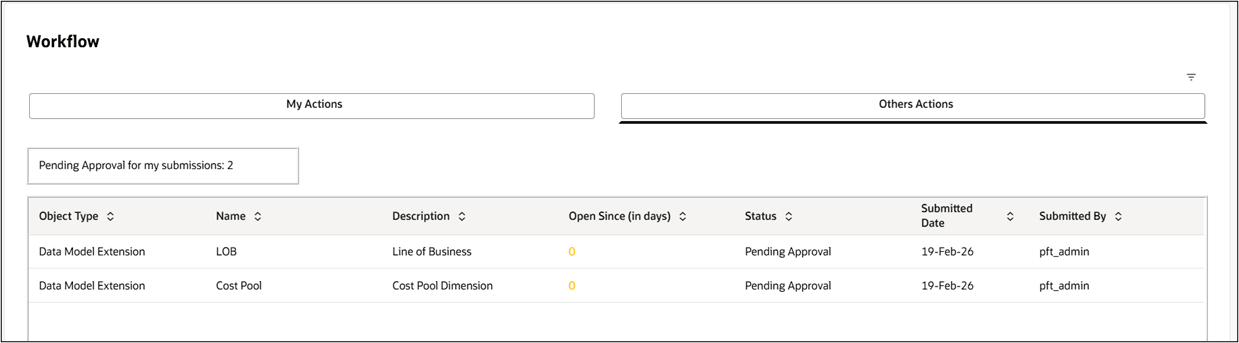
Each tab has a counter that lists the number of rows present in each tab. This counter in ‘My Actions’ tab is labelled as ‘Pending Approval for others' submissions’ and in ‘Others Actions’ tab is labelled as ‘Pending Approval for my submissions’.
The following are the fields present in both the tabs:
- Object Type – displays the name of the PFTCS module the object is part of. Currently, we support workflows only for the Data Model Extension module, hence this field always shows a value of Data Model Extension
- Name – displays the logical name of the object
- Description – displays the user-input description of the object
- Open Since (in days) – displays the number of days the object is pending from the user in the Pending Approval state
- Status – displays the current status of the object, currently this field always shows a value of Pending Approval
- Submitted Date – displays the Date at which the rule was submitted
- Submitted By – displays the name of the user who submitted the object creation
- Action – this column is applicable only for the My Actions
tab clicking which the user is taked to the main screen or the summary screen of the
selected object type.
For example, if you click Action for a object of type Data Model Extension, the Data Model Extension summary page is displayed for further user action.