4.4.2 Dashboard Components
The dashboard is divided into several visual panels. The sections below describe each panel and the data it presents.
Summary Metrics Bar
The top section of the screen presents a quick-view summary of the most important resource metrics:
- Database Details: Displays the currently allocated ECPU count (for example, 8 ECPU).
- User Storage Details: Shows user data storage consumed versus total available (e.g., 2.6 GB / 1.0 TB).
- Last Refreshed: Timestamp of the most recent batch execution.
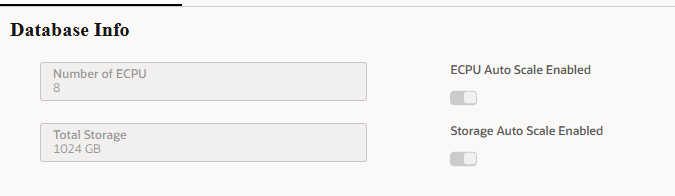
Database Info Panel
- Number of ECPU: Total Elastic Compute Units allocated to the tenant.
- Total Storage: Total allocated storage capacity in GB (for example., 1024 GB).
- ECPU Auto Scale Enabled: Toggle indicating whether ECPU auto-scaling is active.
- Storage Auto Scale Enabled: Toggle indicating whether storage auto-scaling is active.
Figure 4-42 Database Info Panel
Database Storage Details
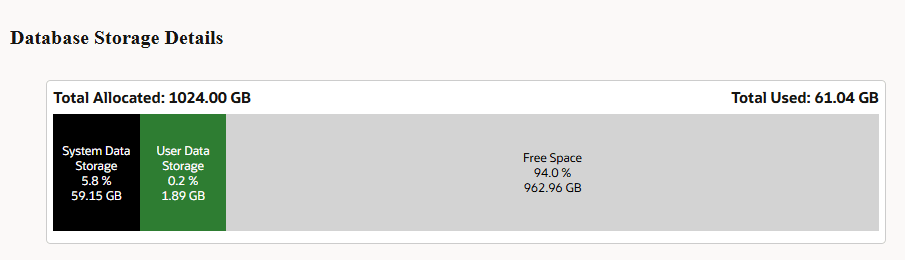
A horizontal bar chart visualizes storage distribution across the following segments:
Table 4-11 Database Storage Details
| Storage Segment | Description |
|---|---|
| Total Allocated | Total provisioned storage (for example, 1024.00 GB). |
| Total Used | Total storage currently consumed (for example, 89.09 GB). |
| System Data Storage | Storage used by tables not mapped to any user-defined category. Derived as: ADB Total Used minus User Data Storage. |
| User Data Storage | Sum of storage used by all tables assigned a category in TENANT_DASHBOARD_TABLE_CATEGORY. |
| Free Space | Remaining available storage. |
Note:
Each segment is labeled with its percentage share and absolute GB value for quick reference.Figure 4-43 Database Storage Details
Historical Storage Trend Chart
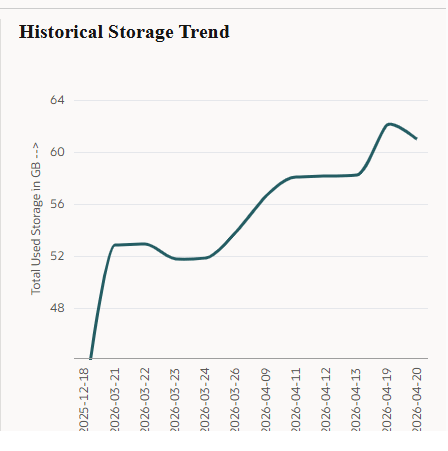
- Time Range: Last 6 months of collected data.
- X-Axis: Dates in chronological order.
- Y-Axis: Total Used Storage in GB.
Note:
The historical trend chart is only displayed when the scheduled batch has collected sufficient data. If fewer than 6 months of data is available, only the collected period is shown.Figure 4-44 Historical Storage Trend Chart
Action Menu
Click the Action menu in the top-right corner of the dashboard to access the following actions:
Table 4-12 Action Menu
| Action | Description |
|---|---|
| Gather Tenant Info | Triggers an on-demand batch execution to immediately refresh storage and ECPU statistics. Use this between scheduled runs when current data is needed. |
| Help | Opens the contextual help documentation for the Tenant DB Dashboard. |
| Refresh | Reloads the dashboard UI to display the latest gathered data without triggering a new batch run. |
| Execution Logs | Opens the execution logs and details of the last batch executions. |
User Storage Details Tab
Clicking the User Storage Details metric in the Summary Metrics Bar opens a detailed view of storage consumption broken down by table category.
This panel displays a tabular breakdown of user data storage across the following categories:
Table 4-13 Table Categories Panel
| Column | Description |
|---|---|
| Table Category | The logical grouping of tables (for example, Logs, Lookup, Processing, Dimensions, Staging). |
| Size | The storage size consumed by tables in that category, displayed in GB. |
| % of total User Data | A horizontal bar chart representing each category's proportional share of total user data storage. |
Storage Distribution Chart
A pie chart on the right side of the panel provides a visual summary of the percentage share of each table category relative to total user data storage. Each segment is labelled with its percentage value for quick reference.