Replacing, Deleting, or Upgrading Oracle Payments Order and Pay Devices
-
Clearing: Remove the device from service for the revenue center (or store) while still maintaining the workstation record.
-
Replacing: Replace an existing device with another device.
-
Deleting: Similar to the clearing operation, but delete the entire Castles device’s workstation record.
-
Upgrading: The point-of-sale (POS) version of the device is required to use the same version as the CAPS POS device it communicates with. If the CAPS POS version is upgraded, the device compares its POS version to the CAPS version and this triggers an automatic upgrade on the Oracle Payment Order and Pay device.
-
Downgrading: The POS version of the device is required to use the same version as the CAPS POS device it communicates with. If the CAPS POS version is downgraded, the device compares its POS version to the CAPS version and this triggers a downgrade on the Oracle Payment Order and Pay device. A user must first approve the downgrade process by selecting the Ok prompt to proceed.
Before You Begin
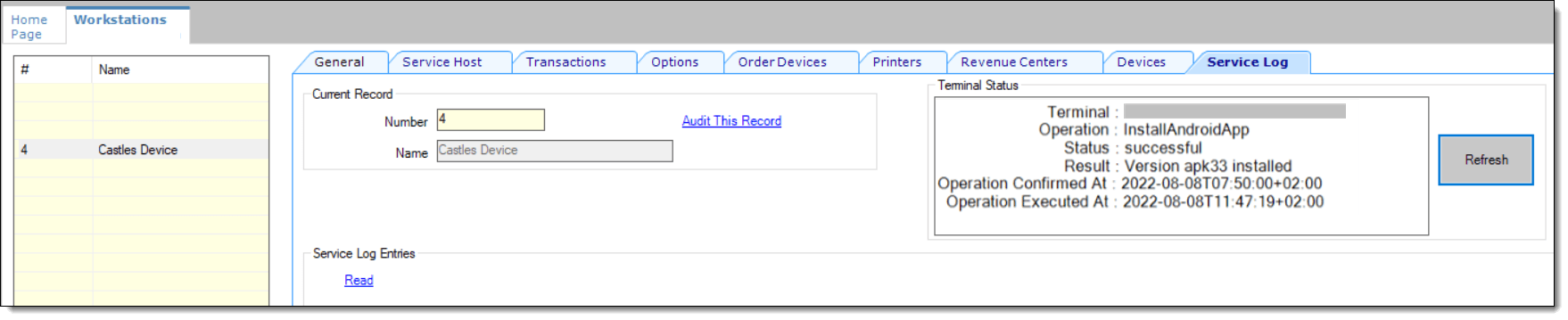
After successfully installing an Oracle Payment Order and Pay device, you can check the installation status of the device’s Simphony POS Android Package (APK) at any time by performing the following steps:
-
Select the property, click Setup, and then click Workstations.
-
Find the Oracle Payment Order and Pay device you want to check (search by Workstation ID), and double-click the record.
-
Click the Service Log tab and review the log entry in the Terminal Status window. You can update the Terminal Status information by clicking the Refresh button.
Figure 6-14 Workstations Service Log Tab
Important Prerequisite Recommendations
-
Ensure that Service Host or POS Operations is not running on the device.
-
Ensure that all transactions from the device have been tendered, closed, and posted to avoid possible revenue loss.
Replacing an Existing Oracle Payment Order and Pay Device
-
The device is returned to the inventory for the revenue center (or store).
-
The security certificate is uninstalled.
-
The POS APK is uninstalled.
-
The new device is assigned from the inventory to the revenue center (or store).
-
The security certificate is automatically installed.
-
The corresponding CAPS version of the POS APK is downloaded and installed.
-
Select the property, click Setup, and then click Workstations.
-
Find the original Oracle Payment Order and Pay device you want to replace (search by Workstation ID), and then double-click the record.
-
Enter the new device’s serial number in the Serial Number field.
-
Clear the following fields from the Service Host Fields section:
-
Address / Host Name
-
Subnet Mask
-
Default Gateway
-
-
Click Save.
-
After the POS APK is installed on the new Oracle Payment Order and Pay device, access the device, find its newly assigned IP Address, copy it to the Address / Host Name field in the workstation’s record, and then click Save.
-
Because the device’s serial number has changed, if an Oracle Payment Order and Pay printer is assigned to the device, the corresponding printer must be reassigned from the old device to the new one.
-
Select the property, click Setup, and then click Printers.
-
Find this device’s assigned printer record, and then double-click it.
-
In the Workstation drop-down list, select None.
-
Re-select the same Oracle Payment Order and Pay device, and then click Save. This creates a new association with the printer using the newly entered serial number of the Oracle Payment Order and Pay device.
-
Perform the same operations (steps 7-a through 7-c) for other printers you have assigned to the Oracle Payment Order and Pay device from the Workstation module’s Printer tab.
-
Clearing an Oracle Payment Order and Pay Device From Service
If an Oracle Payment Order and Pay device is damaged and needs to be temporarily removed from service, you can do so by clearing the Serial Number and Address/Host Name fields. The workstation record remains unchanged, but the device is taken out of service. Later, you can reconfigure these fields in the same record when the device is ready to be used again.
-
Select the property, click Setup, and then click Workstations.
-
Clear the existing serial number and in the Serial Number field, clear the IP Address from the Address / Host Name field, and then click Save.
Because the serial number of the Oracle Payment Order and Pay device has changed, Oracle Restaurants recommends that you either delete or update the printers previously linked to the cleared device.
-
Select the property, click Setup, and then click Printers.
-
Find this device’s assigned printer record, and then double-click it.
-
In the Workstation field drop-down list, select None.
-
Perform the same operations outlined above (steps 3-a through 3-b) for other printers you have assigned to the Oracle Payment Order and Pay device from the Workstation module’s Printer tab.
-
-
Click Save.
If the cleared device is repaired or replaced with a new device, follow the steps outlined in the Replacing an Existing Oracle Payment Order and Pay Device section above.
Deleting an Oracle Payment Order and Pay Device
If the device is damaged beyond repair, you will need to remove the entire workstation record from the EMC.
-
As noted previously, when deleting a workstation device, you must first deselect the assigned printers from the Workstations module’s Printer tab, and then click Save.
-
Select the property, click Setup, and then click Printers.
-
Find this device’s assigned printer record, and then double-click it.
-
Delete the assigned Oracle Payment Order and Pay Printer, and then click Save.
-
Select the property, click Setup, and then click Workstations.
-
Find the Oracle Payment Order and Pay device record, highlight it, click the Delete icon on the toolbar (
 ), and then click Save.
Upgrading Existing Oracle Payment Order and Pay Devices
As stated previously, if the CAPS POS version is upgraded, the Oracle Payment Order and Pay device compares its POS version to the CAPS version and this triggers an automatic upgrade on the Oracle Payment Order and Pay device. Similarly, if the CAPS POS version is earlier than the device’s POS version, this triggers a downgrade on the Oracle Payment Order and Pay device. If you are presented with a Service Host downgrade prompt on the device, this process can only be approved by clicking Ok to continue. After approval, the correct POS APK is downloaded and installed on the device.
Parent topic: Android Device Workstations