Configuring Location Access

Use People Management to override Employee Class settings for an individual operator at a location.

  1. In People Management, select the person to configure.
  2. Select the Point of Sale workspace, and then select the Locations tab.
  3. For the applicable location, click the Edit Operator record pencil icon.

    Figure 5-17 People Management operator advanced settings
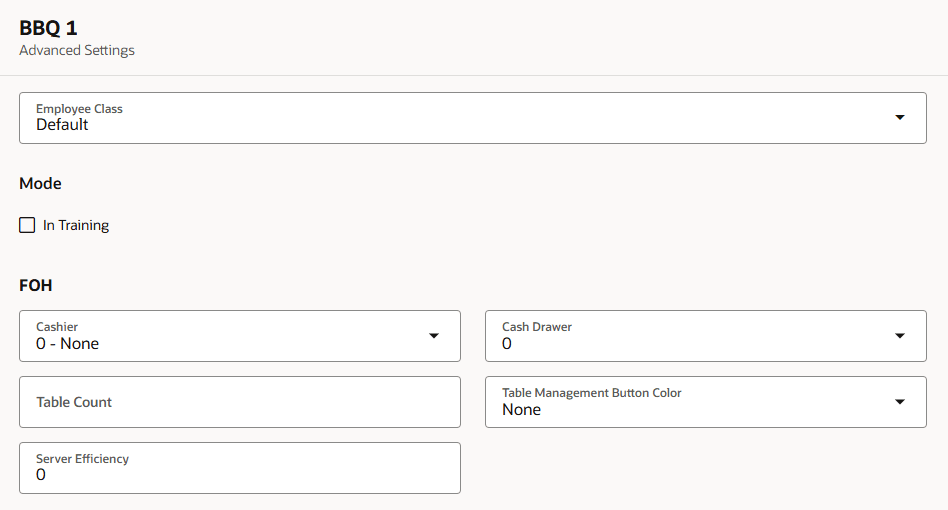

    People Management Advanced Settings page for an operator, showing Employee Class, In Training, Cashier, Cash Drawer, Table Count, Table Management Button Color, and Server Efficiency fields.
  4. Change the required operator settings.

    Table 5-23 Operator advanced settings

    Setting Description

    Employee Class

    Select the Employee Class that supplies the operator's default settings.

    In Training

    Indicate whether the operator is in training.

    Cashier

    Configure the operator's cashier setting for the location.

    Cash Drawer

    Select the cash drawer assigned to the operator. A value of 0 does not assign a drawer and prompts the operator.

    Table Count

    Set the operator's table count value for the location.

    Table Management Button Color

    Select the color used for the operator in Table Management.

    Server Efficiency

    Set the operator's server efficiency value for the location.

  5. Save the changes.