Configuring Nutrition Settings
To configure nutritional information for menu items:
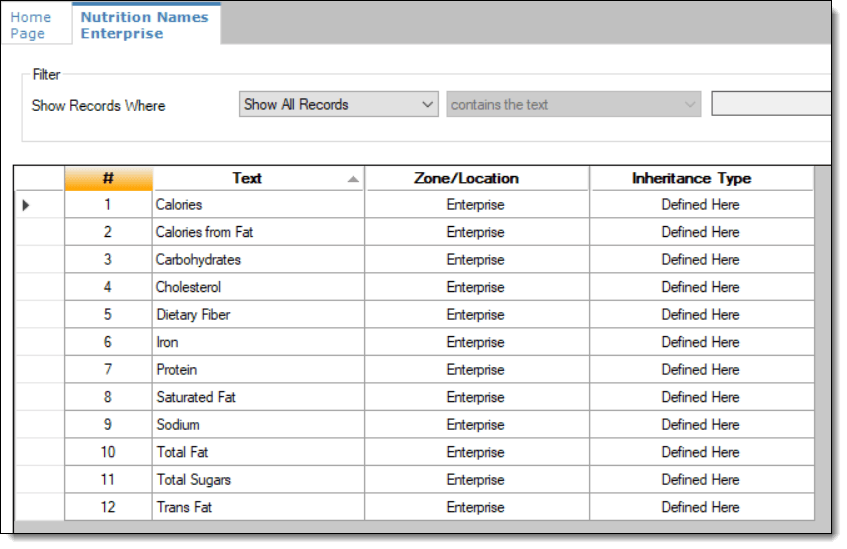
- Select the Enterprise, click Descriptors, and then click Nutrition Names.
Although the EMC shows a pre-configured list of nutrient records, you cannot add nutrient records. The existing nutrient names cannot be edited or deleted, but you can translate the nutrient names in the Text column. You can only specify calorie information for Uber Eats.
Figure 17-75 EMC Nutrition Names Module
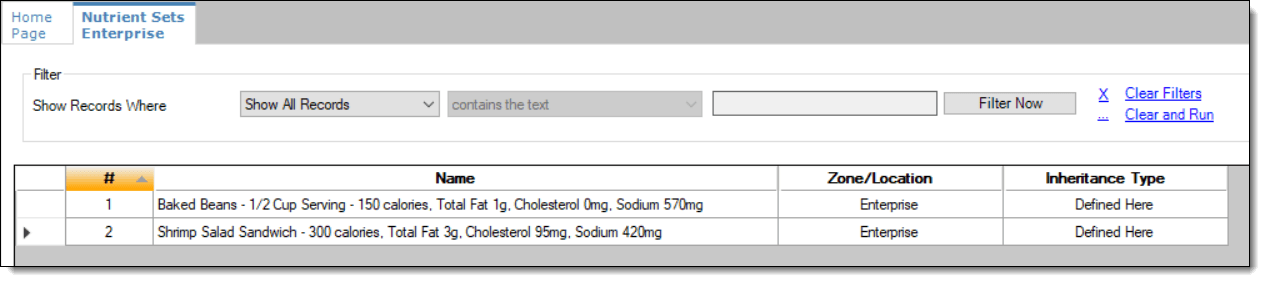
- To insert nutrient set records, click the insert icon
 on the toolbar.
Figure 17-76 Nutrient Sets - Table View
- Switch to form view by clicking the toggle icon on the
toolbar
 , or double-click
the record. In the Nutrients section, click Add to insert and configure nutritional information.
Figure 17-77 Nutrient Sets - Adding Nutrients
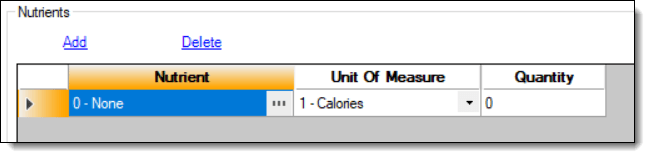
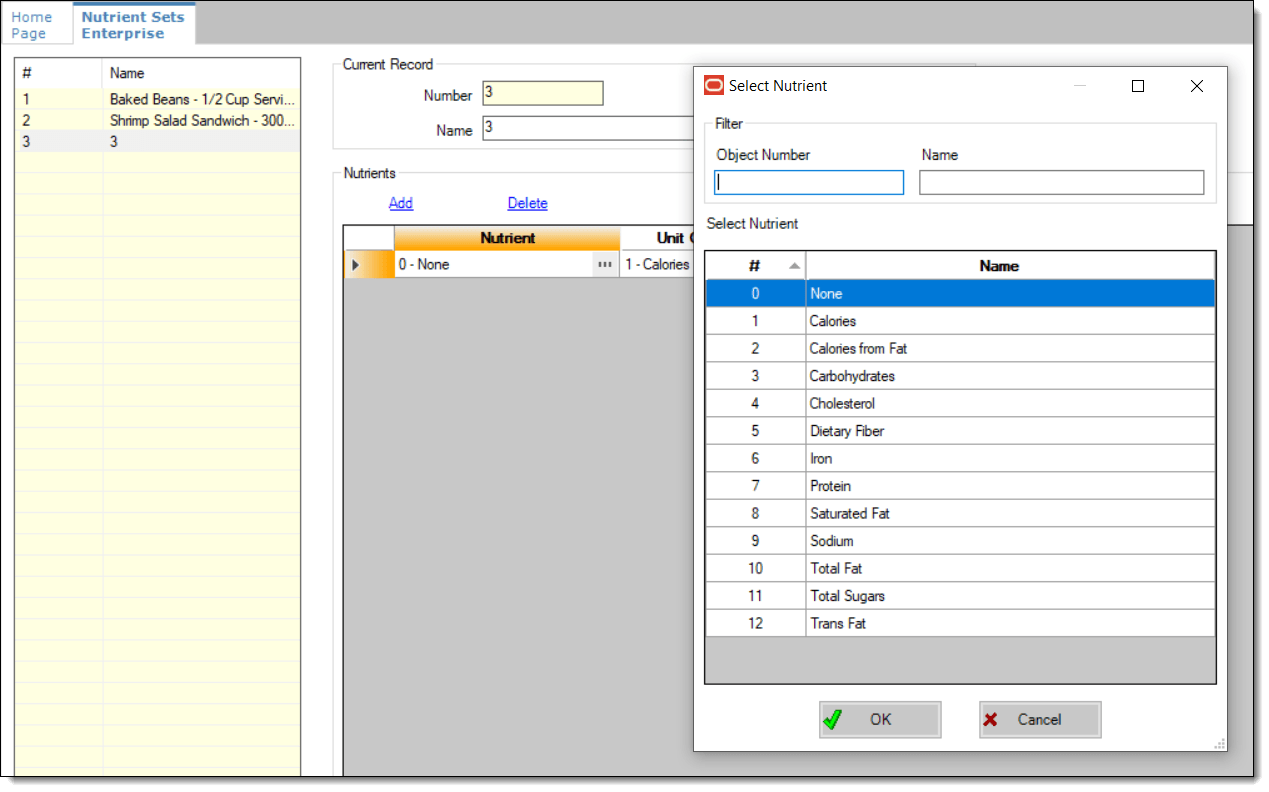
- In the Nutrient column, click the
ellipsis (…), select the nutrient type from
the drop-down list, and then click OK. Repeat
this step for each nutrient you add to the record.
Figure 17-78 Adding Items to Nutrient Sets
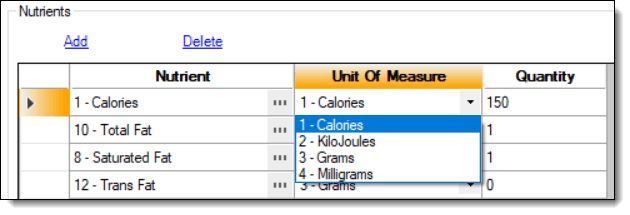
- In the Unit of Measure column, select
the appropriate measurable for each nutrient. The available units
are:
-
Calories
-
Kilojoules
-
Grams
-
Milligrams
Figure 17-79 Nutrient Sets - Unit Of Measure Column
-
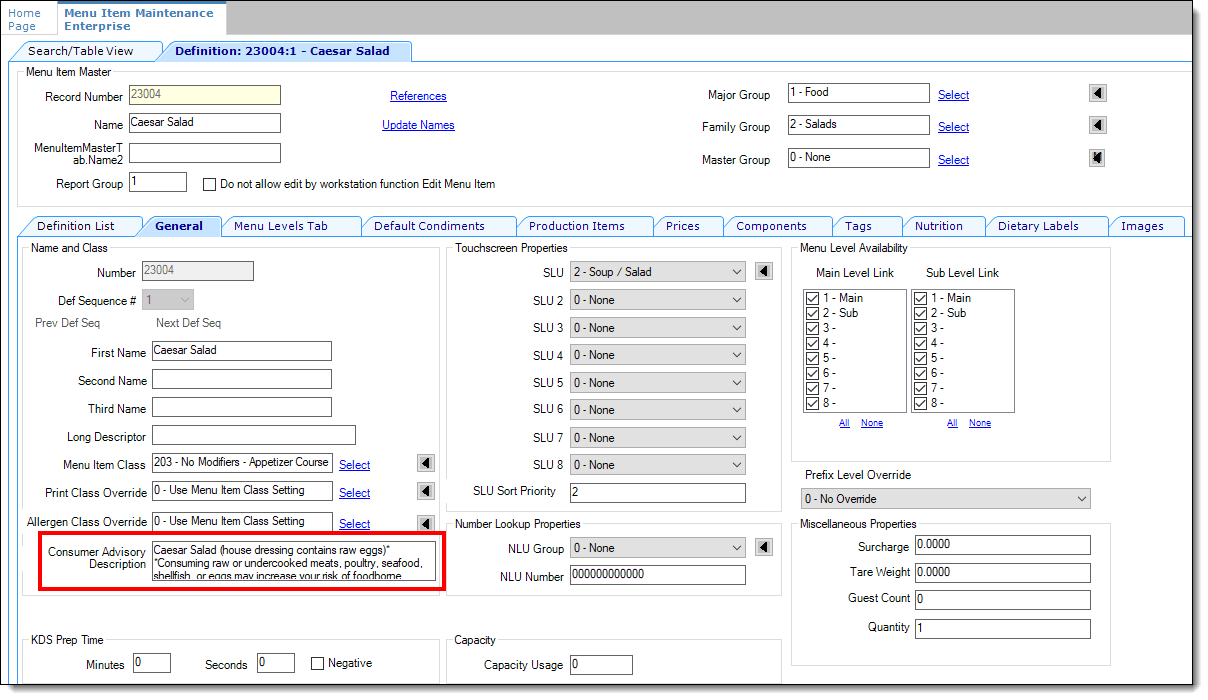
- (Optional) Open a menu item definition record and enter
text in the Consumer Advisory Description text
box.
The text shown in the following image contains the disclosure in the Consumer Advisory Description field. There is a limit of 128 characters for this field (which is translatable).
Figure 17-80 Menu Item Definition Record - Form View
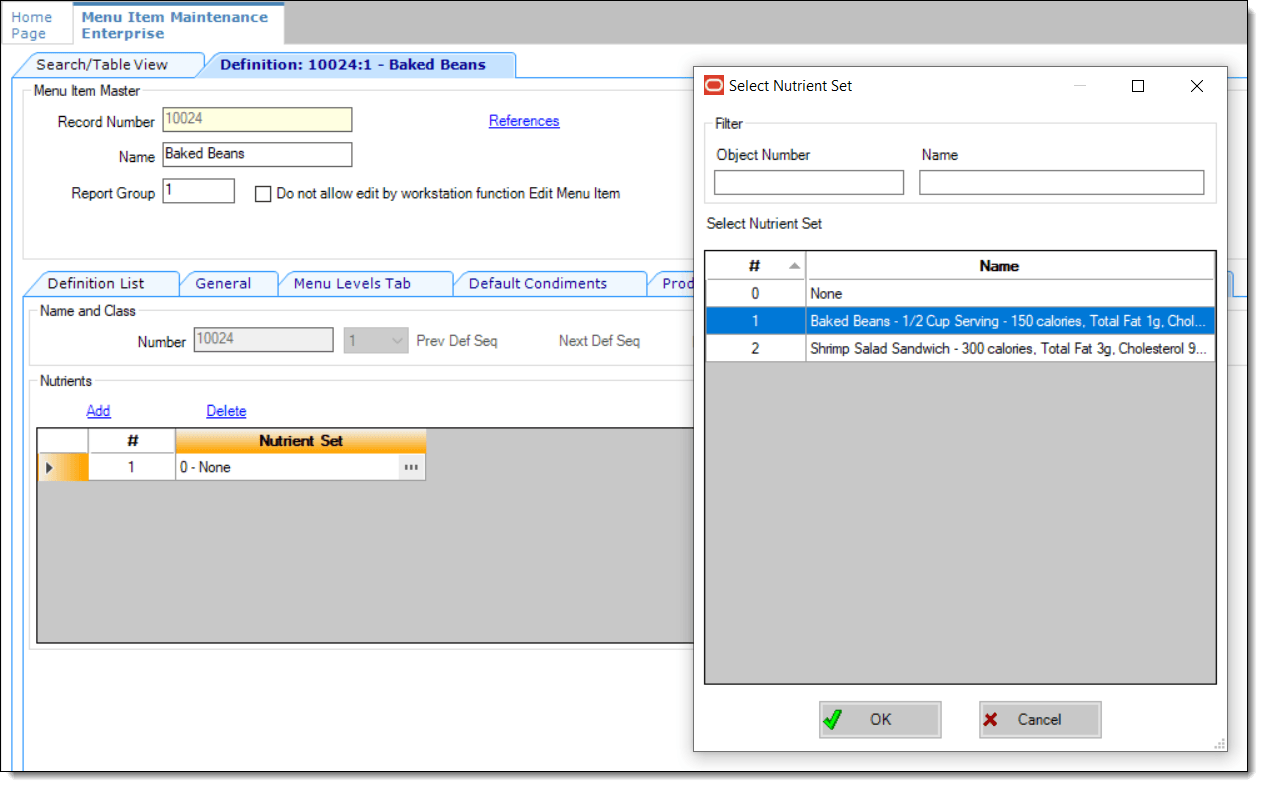
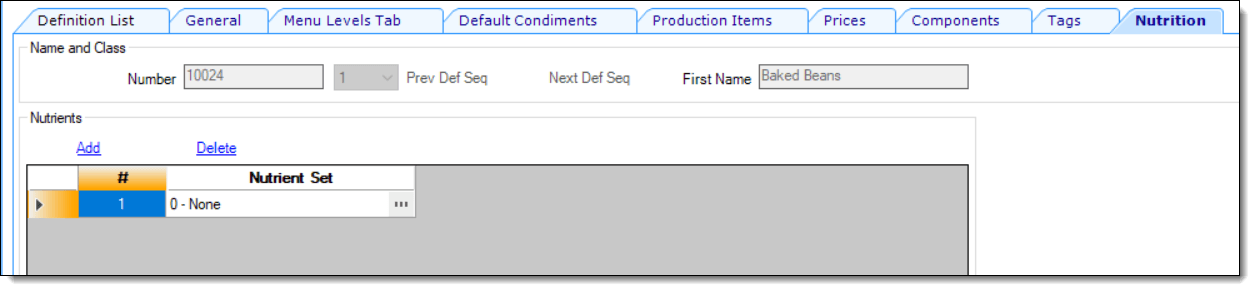
- In the Nutrients section, click
the Add link.
Figure 17-81 Menu Item Definition Record - Nutrition Tab
- In the Nutrient Set column, click
the ellipsis (…), select the nutrient set from
the drop-down list, and then click OK.
Figure 17-82 Adding Nutrient Sets to a Menu Item Definition Record