2 Verifone P630 Setup
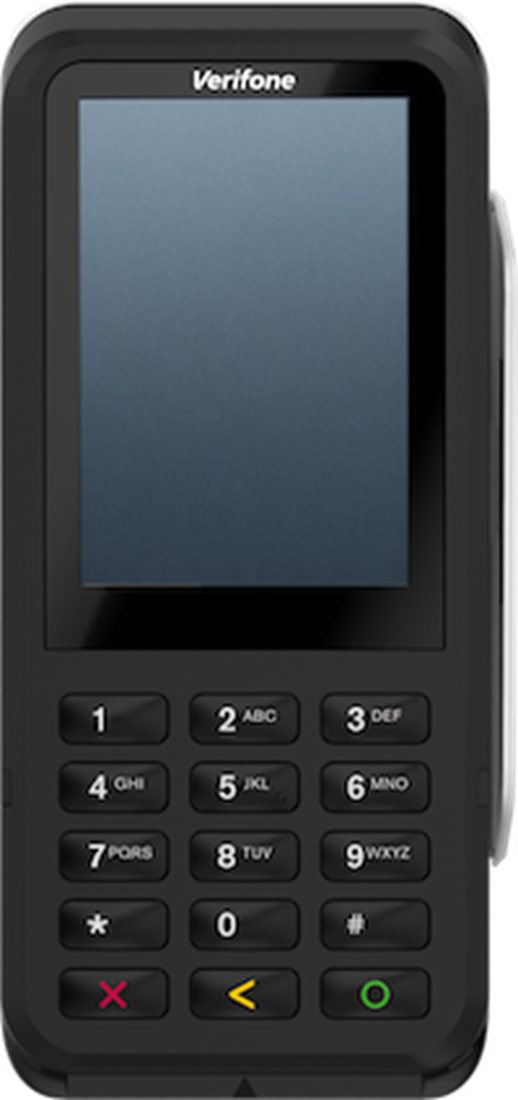
Table 2-1 Verifone P630 Function Keys
| Function Key | Description |
|---|---|
 |
Cancel |
 |
Clear |
 |
Confirm |
Inspect the Box
Verify that the box containing the terminal hasn't been opened and that the security seal is intact. The security seal is a label stuck across the lid of the box. If the security seal is not intact, do not unpack or use the terminal. Contact your Oracle representative for assistance.
Note:
The security seal on your box may differ from the image shown below.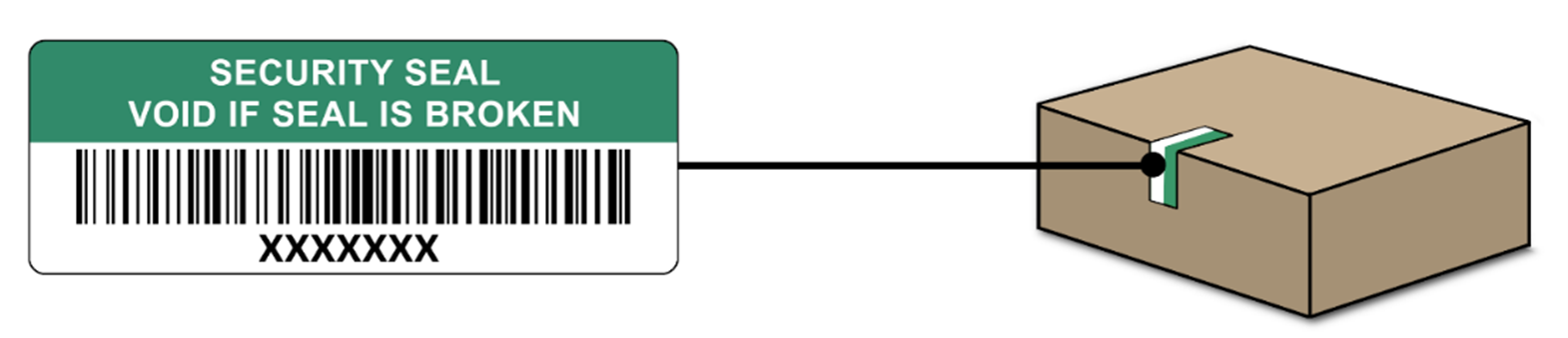
Unpack and Inspect the Terminal
-
Unpack the box and verify the serial number on the terminal is the same as the serial number on the box.
-
Inspect the terminal for tampering. Check for missing seals or screws, additional wires or labels, holes in the device, and anything inserted in or attached to any part of the terminal.
Note:
Connecting the wrong type of cable to the Ethernet port or connecting the Ethernet cable to the wrong port (for example, the RS232 port) may severely damage the terminal.Note:
To change the Wi-Fi network, navigate to the Admin menu, select Network, and then select Wi-Fi.Your payment terminals have a menu with options related to payments, and a menu with options related to configuration. Access to some menu options is protected by passcodes. You can get the passcodes from your company's admin user. For more information about passcodes, see https://docs.adyen.com/point-of-sale/managing-terminals/menu-access/?tab=manage_passcodes_in_the_customer_area_1&manage-passcodes.
Some menu icons may be disabled on the P630. If you see a gear icon or Settings, use those.
Accessing the terminal menus using the keypad
-
For the Settings menu, press 9,and then press Confirm
-
For the Transactions menu, press 8, and then press Confirm
Table 2-2 Options for Settings Menu and Transactions Menu
| Menu or Button | Description | Passcode |
|---|---|---|
|
Settings |
|
|
|
Transactions |
|
|
Device Info
To view information about the terminal:
-
Tap Settings.
The Device info screen shows:
-
Model, serial number, and IP address of the terminal.
-
Software version that the terminal currently uses.
-
The configuration version.
-
Merchant account that the terminal belongs to.
-
The store that the terminal is boarded to, and the store address.
-
A button to show a QR code with device info.