5 Verifone P400/P630 Power over Ethernet (PoE) Splitter
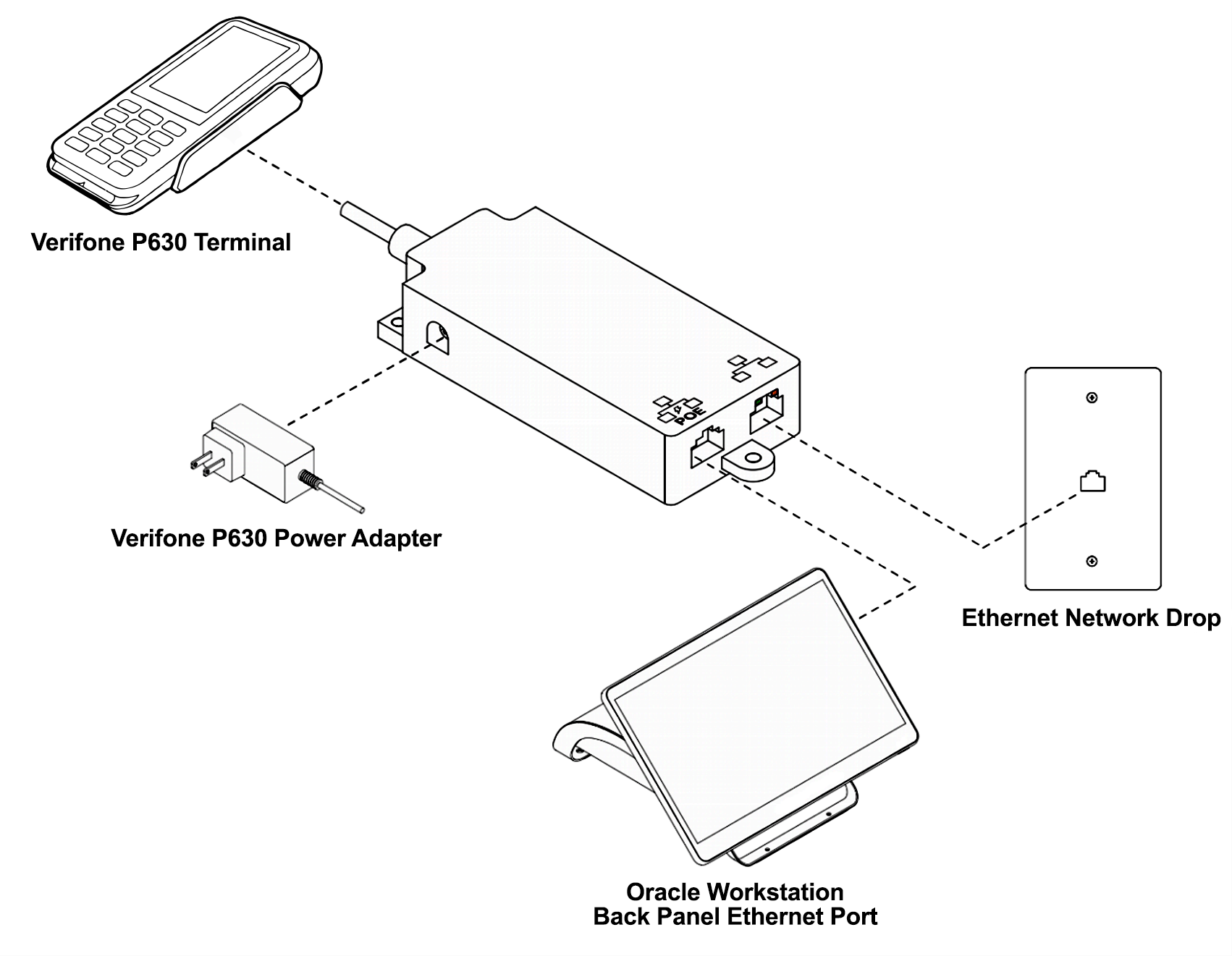
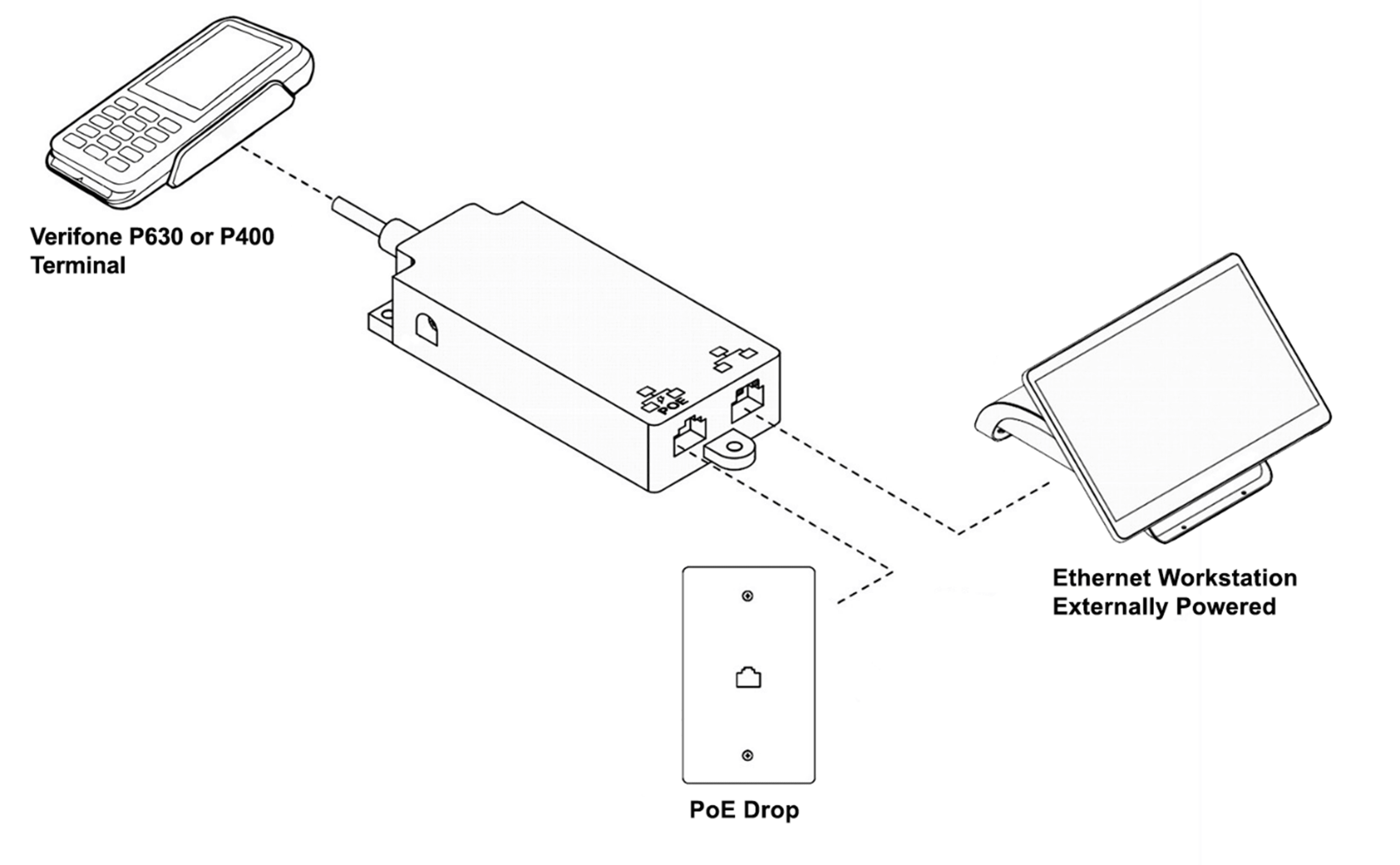
The Verifone P400/P630 PoE Splitter lets you use a single Ethernet data connection for boththe Oracle Workstation and the Verifone P630 payment terminal. If PoE is available, you can eliminate the need for an external power adapter. Without PoE, you can use the P400 power adapter as shown in the connection diagram.
Connection diagram without POE
Connection diagram with POE
Prerequisites
-
Verifone P630
-
Verifone P400/P630 PoE Splitter (Verifone P/N CBL435-011-01-B)
- Verifone P400 Power Adapter (When connecting w/o POE available)
-
2 Ethernet cables
-
Adyen Device Admin PIN
-
Oracle Simphony Workstation not on VPN
Install the Verifone P400/P630 PoE Splitter
-
Connect the payment terminal power supply to the Splitter, and then connect the power supply to an outlet.
-
Connect an Ethernet cable from the lightless PoE Ethernet port on the Splitter to the Ethernet port on an Oracle workstation.
-
Connect the Ethernet cable from the router/switch to the lighted Ethernet port on the Splitter.
-
On the payment terminal, press the 9 key and then the Confirm button to enter the Admin console.
-
Enter the admin PIN provided by the Oracle MICROS Payments team, and then press the Confirm button.
-
In the Admin menu, tap Network, and then tap 2. Ethernet.
-
Tap Static, scroll down and tap Apply, and then press the red X key on the payment terminal to go back to the network type selection screen.
-
Log in EMC Workstations, and then open Devices SPI Configuration.
-
Under Transport Service Properties, click the Primary Host field, and then add the payment terminal address in the following format: https://PinpadIPAddress:8443.
Note: Replace PinpadIPAddress with the actual IP address of your P630. To determine the correct IP address, press the 9 key, press the green 0 Confirm key, tap Network, and then tap USB ethernet. The IP address field at the top of the screen displays the IP address of the P630.
-
Under Security, click the Security Settings field, and then select Use Https with No Certificate Validation.