Configure MCP Client
Configure an approved AI client to access AI Agents for Research in Oracle Life Sciences AI Data Platform (AI Data Platform) through the Model Context Protocol (MCP).
MCP Client configuration can only be completed after Oracle Identity Cloud Service (IDCS) configuration. Currently, AI Agents for Research is available with Claude Enterprise and ChatGPT Business Account.
To configure Claude for AI Agents for Research:
- Sign in to Claude Enterprise as an authorized administrator.
- Select Settings.
- Select Connectors, then Add custom connector, and then enter the connector name and the provided AI Data Platform MCP web address. See the following example:
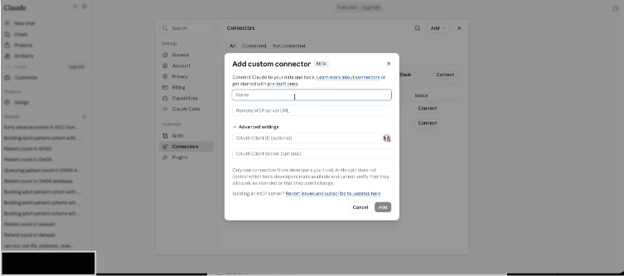
- Verify that the authorization server web address and token web address fields are populated in Advanced Settings.
- Select Add. You are prompted to authenticate through single sign-on (SSO) with IDCS.
- Authenticate with IDCS.
- Enter your assigned Tenant and select Continue
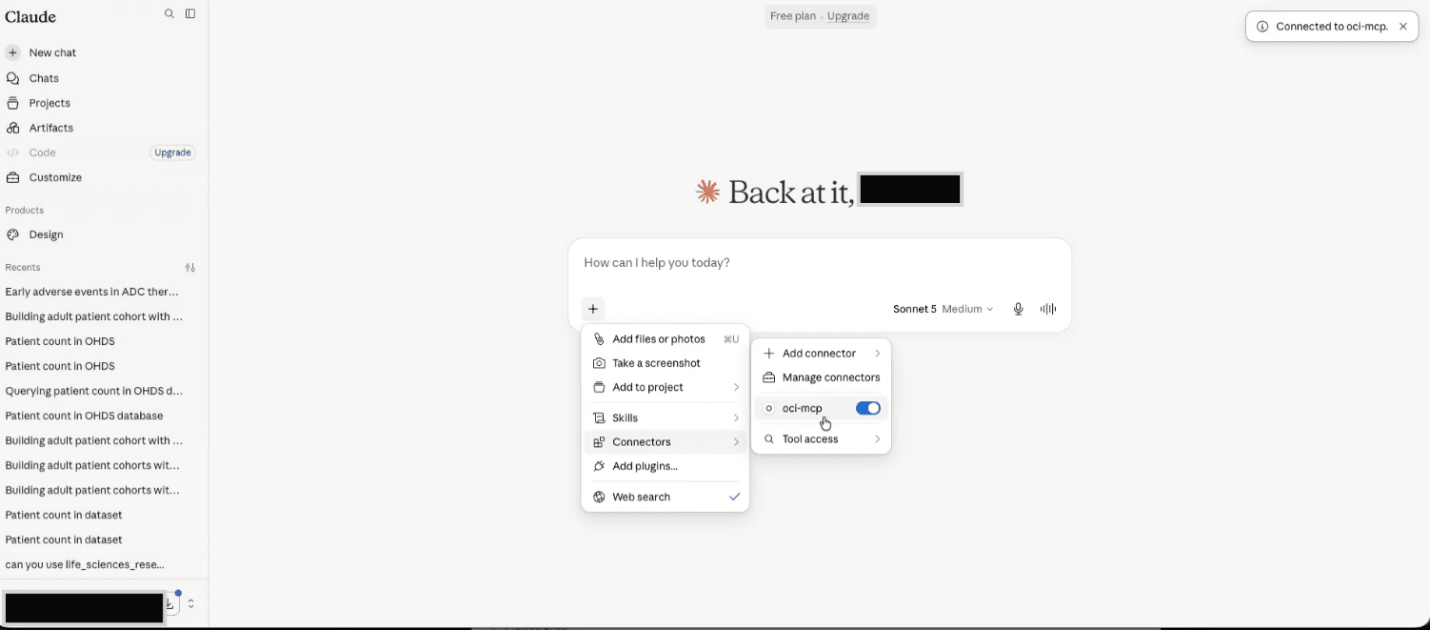
- Verify that plugin has been connected and that the end-user sees the AI Data Platform connector on the Claude connector screen. See the following example:
To configure ChatGPT for AI Agents for Research:
- Sign in to ChatGPT Business account as an authorized administrator.
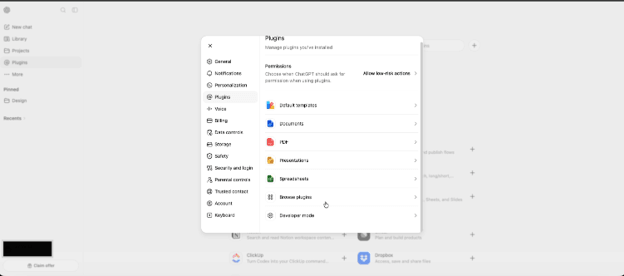
- Select Settings > Plugins > Browse Plugins. See the following example:
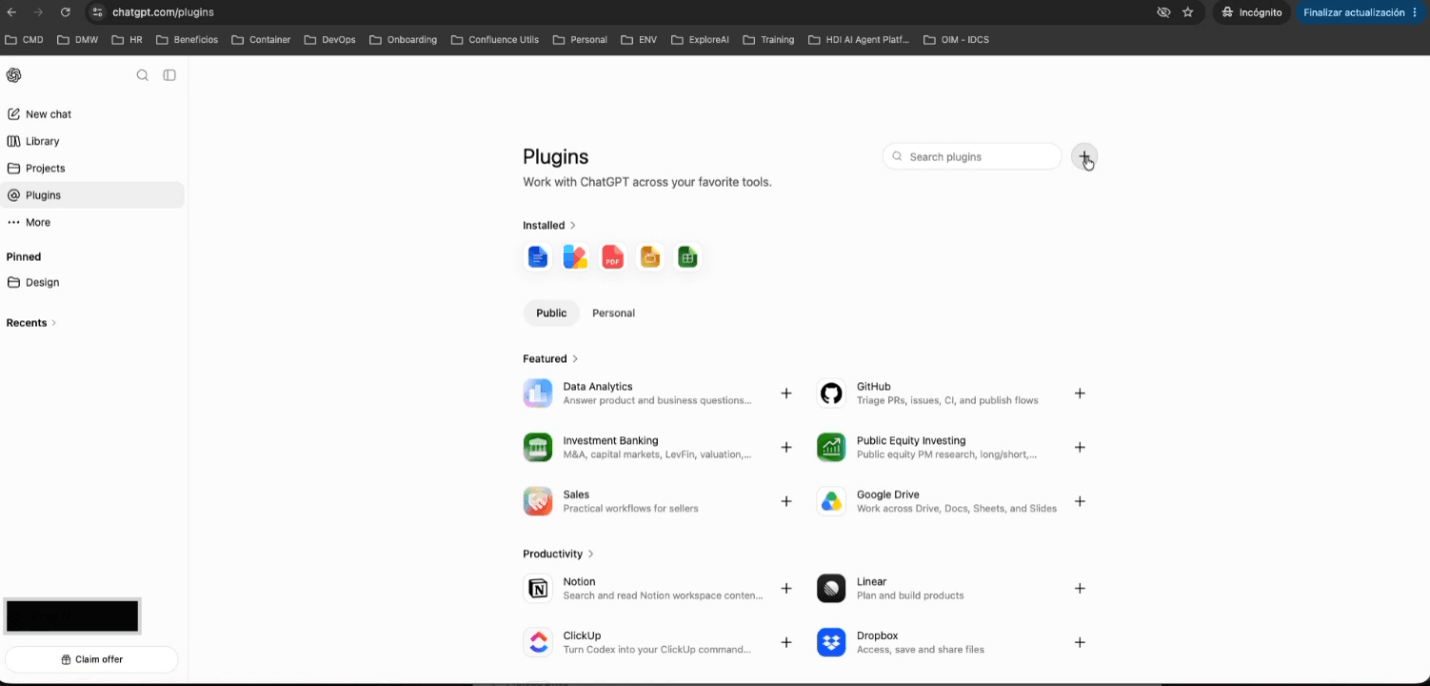
- Select the Add button (+). See the following example:
- Enter the plugin name and the provided AI Data Platform MCP web address.
- Select Create.
- Enter your assigned Tenant and select Continue. You are prompted to authenticate through single sign-on (SSO) with IDCS.
- Authenticate with IDCS.
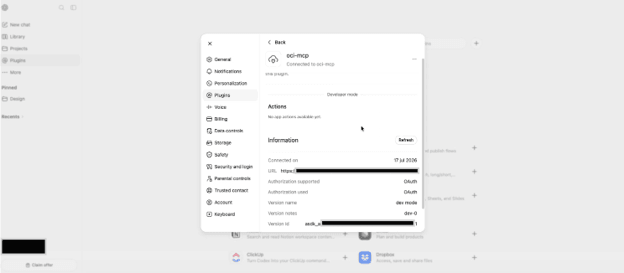
- Verify that plugin has been connected and that the user sees the AI Data Platform plugin on the ChatGPT plugin screen. See the following example:
Parent topic: Configure AI Agents for Research