Annotations Toolbar
You can overlay text, stamps, and shapes on images using Clinical Media in Oracle Health EHR.
| Button Name | Button Image | Action |
|---|---|---|
| Select | 
|
Select an annotation that is currently on the image to move or adjust. Also use Select when deleting an annotation. See the Delete row below. |
| Text |  |
Overlay text on the image. When you select this option, a toolbar containing standard text formatting options is displayed. Any effect that you select applies to all text in the selected overlay box. |
| Draw |  |
You have the following drawing options:
When you select a drawing option, further options are displayed to apply a color and change the width (thickness). |
| Stamp |  |
You can apply the following stamps to an image: 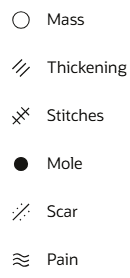 When you select a stamp, an option is displayed to apply a color. You can use the Select tool to select the stamp and resize it. |
| Delete |  |
Delete the selected annotation. You can also press Delete on the keyboard. |
| Undo |  |
Undo the last action. You can also press Ctrl+Z on the keyboard. |
| Redo |  |
Undo the last undo action. You can also press Ctrl+Y on the keyboard. |
| Zoom Out |  |
Zoom out. |
| Zoom In |  |
Zoom in. |
| Return to Original Size |  |
Reset any zoom actions to the original display size. |
| Fit Width |  |
Expand the image horizontally to fill the viewing area. |
| Fit Height |  |
Expand the image vertically to fill the viewing area. |
| Fit Original | |
Reset the image to its native size (that is, the size that it was captured by camera or similar device). |
| Rotate Left |  |
Rotate 90 degrees left. |
| Rotate Right |  |
Rotate 90 degrees right. |
| Close |  |
Discard changes. |
Parent topic: Add Annotations