Setting Up Simphony Server Connection
You must have an active connection to the Simphony Server before you can retrieve any of the data. The Simphony Database id (SID) needs to be listed in the tnsname.ora before adding the connection to SPMS Database Parameter.
-
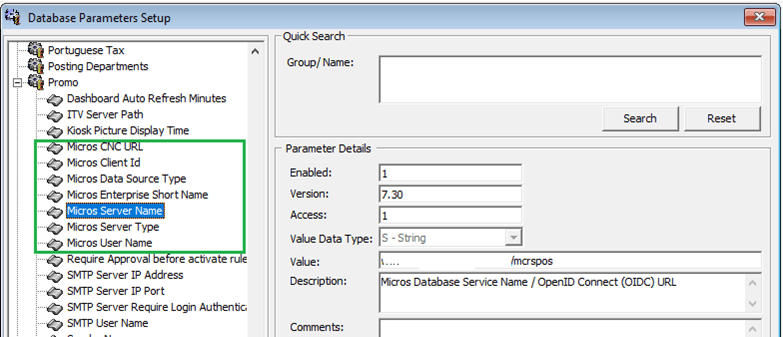
Log in to the Administration module, System Setup, Database Parameters Setup.
-
In the Database Parameters Setup window, expand the Promo group.
-
Enter these values in their respective parameter field:
- Micros CNC URL:URL of Simphony CNCAPI on cloud or premises
- Micros Client Id: CNCAPI Account’s property, for retrieval of authorized cookies, code and token
- Micros Data Source Type: 0 – Direct access Micros DB, 1-Simphony Cloud CNCAPI
- Micros Enterprise Short Name: Enterprise Short Name value in Simphony Cloud Welcome email
- Micros Server Name: Micros Database Service Name or OpenID Connect (OIDC) URL
- Micros Server Type: Set to ‘0’ for Oracle Server, 1-Microssoft SQL Server
- Micros User Name: Micros User Name or OIDC User Name
-
An error message, “MICROS Server is offline, MICROS setup will be disabled” appears when the parameter entered is incorrect.
-
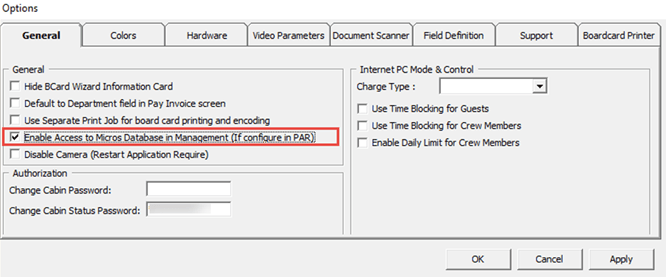
Log in to the Management module and select the Options, General tab.
-
Select Enable Access to Micros Database in Management.
-
Click Apply to save.