Profile Movement information
Once the People Movement process is completed, a sound will play if audio is configured in Cruise Shipboard Property Management System, Cruise Property Management, Administration, Enterprise, Gateway Security Audio. For Tender, If both Movement and Capacity sounds are configured, two sounds will play in sequence when a profile is successfully moved and a threshold or maximum capacity is reached. Otherwise, only a single sound will be played for Gangway or Tender operations.
- Green: Coming onboard
- Red: Going ashore
- Orange: Denied boarding or going ashore.
- The minor’s age is less than or equal to the value set in parameter General, Minor Max Age.
- The adult’s age is greater than or equal to the value set in the parameter General, Min Adult Age.
- A Young Adult’s age falls between the minor and adult age thresholds.
- Select the profile’s photo to view an enlarge photo of the profile.
- Select the
 icon at the top right of the profile’s photo to create/update the
profile’s photo.
icon at the top right of the profile’s photo to create/update the
profile’s photo.
- Select View More, you will see 4 menus – More
Details, Assign Special Need, Move Travelers and Movement History.
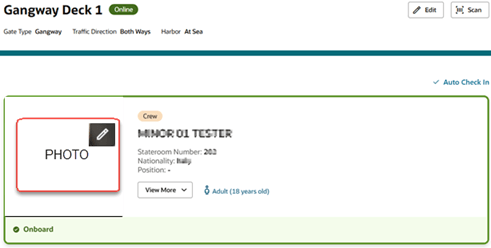
Changing Profile Photo
- On the card view, select the icon at the top right of the photo to activate the camera.
- In the Camera window, select the “Circle” icon.
- The system shows the person's picture. To retake the photo, select the Retake Photo button.
- Select the Save Photo button to save photo.
- To close this drawer and return to the previous screen, select the X icon.
Note:
While offline, taking a photo using the pencil icon is disabled.More Details
- On the card view, select the View More, More Details menu.
- A profile information drawer opens from the right.
- The profiles information, including special needs selection and remark,
people travelling with, guardian. people travelling with, guardian are show
if the profile is a guest or resident.
- In the crew profile information, you can view the passport number and travel document number if you have been granted Crew Handling, Profile, View Unmasked Crew Document Numbers access. To view the number, select the “eye” icon. If this access is not granted, you will see 8 dots shown and no eye icon.
- Select the profile’s photo to view an enlarge photo of the profile.
- To close this drawer and return to the previous screen, select the X icon.
Assign Special Need
- On the card view, select the View More, Assign Special Needs menu.
- A Special Needs drawer opens from the right.
- Enter a Code or Description in the search field, then move the focus away to allow the system to show results based on your search.
- Check or uncheck the special needs item from the special needs list.
- Edit the Remarks field, if needed.
- Once done, select:
- Select Update to save and close the drawer. This updates the count of the Special Needs link.
- Select Clear to clears the special needs selections and the remark.
- To close this drawer and return to the previous screen, select Cancel or X.
Note:
While offline, the Assign Special Needs menu is disabled.Move Travelers
Note:
To view the details in the Move Travelers drawer, the profile must have at least one traveler.- On the card view, select the View More, Move Travelers menu.
- A travelers drawer opens from the right.
- Select the profile’s photo to view an enlarge photo of the profile.
- Show all guest and resident profiles with the same booking number or stateroom number where the reservation status is ‘checked-in’ or ‘leaving today’.
- Select a record from below:
- Select a photo from a selected record: an enlarge photo is showed.
- Select a full name from a selected record: the profile’s information is showed.
- Select an onboard status from a selected record: a people movement process either going ashore or coming onboard is triggered for the selected record. Once the process completes, whether it is a success or not, a card view is showed in Gangway/Tender tab (See Card View for more information).
- To close this drawer and return to the previous screen, select the X icon.
Movement History
- On the card view, select the View More, Movement History menu.
- A profile’s movement history drawer opens from the right, showing today’s history for the profile.
- Select the profile’s photo to view an enlarge photo of the profile.
- Select the Start date and time value and End date and time value.
- Select Refresh to refresh the result.
- To close this drawer and return to the previous screen, select the X icon.
Note:
If you move a person while offline, the Workstation field on the history page shows empty. Once the data is synchronized to the server, the Workstation field shows the correct value, the same as in online mode.