Paying an Invoice by Cash

  1. Retrieve the guest account from the Search panel and then click the Pay Invoice button in the Guest Handling window.
  2. The payment department is defaulted to the payment method defined during check in. Select Payment Department from the drop-down list, either Cash or Foreign Currency.
  3. Select an invoice to apply the payment and the system then calculates the total amount due by the guest.
  4. Enter the amount to settle.
    • If “Change due enabled” is selected and the amount entered is more than the Current Balance, the system automatically calculates the change due amount and sets the invoice to zero balance. See Figure 10-57.
    • If the payment applied does not have “Change due enabled” selected, the system then posts the amount as a negative value in Due Balance, resembling a deposit posting. See Figure 10-58.
    • If the payment is an exact amount, the system posts the value as payment receipt. See Figure 10-59.

    Figure 10-57 Invoice Payment with Change Due
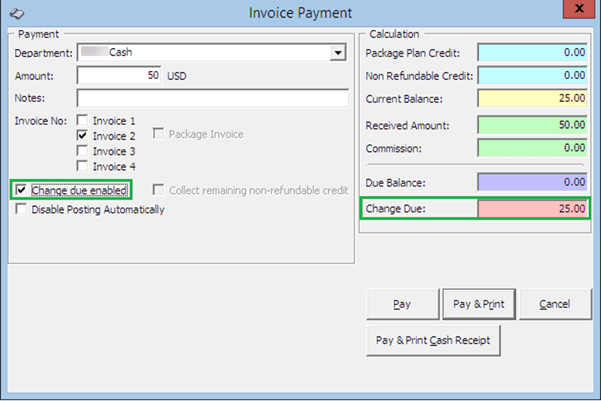

    This figure shows the Invoice Payment with Change Due

    Figure 10-58 Invoice Payment without Change Due


    This figure shows the Invoice Payment without Change Due

    Figure 10-59 Invoice Payment with Exact Amount


    This figure shows the Invoice Payment with Exact Amount
  5. Select either Pay, Pay & Print or Pay & Print Cash Receipt to complete the transaction. If Pay is selected, be sure to print a copy of the invoice for guest reference.