Credit Card Manual Entry
-
Using the OPERA Cloud Application.
Or
-
You can manually enter the details using the payment device.
For both methods, you need to notify your Payment Partner to make sure that they are informed of the requirement to support these transaction types.
In order to test the below scenarios, refer to the Booking a Reservation section of the OPERA Cloud user guide.
- See Credit Card Guarantee through the OPERA Cloud Application (Manual Entry – OPERA Pay for Tokenized Properties) for details.
- See Credit Card Guarantee through the OPERA Cloud Application (Manual Entry Into Payment Device for Tokenized Properties) for details.
- See Credit Card Guarantee through the OPERA Cloud Application (Card Present for Tokenized Properties) for details.
- See To View Token ID (Tokenized Properties) for details.
Non‑Tokenized Properties are OPERA Cloud properties that process credit‑card payments without using tokenization. They are not connected or integrated with a Payment Service Provider through OPI Cloud. As the OPI Cloud Token Proxy Service is not activated, payment‑card numbers (PANs) are not converted into tokens. Instead, credit‑card data is stored directly (typically masked) in OPERA Cloud’s card fields.
- See Credit Card Guarantee through the OPERA Cloud Application (Manual Entry for Non-Tokenized Properties )for details.
- See Credit Card Guarantee through the OPERA Cloud Application (Customer Provided Token Vault) for details.
Payment Instructions - Alternative User Workflow
Note:
-
From the Administration menu, select Enterprise, then select OPERA Controls.
-
Select the Cashiering group.
-
Click the edit icon in the Default Edit Screens setting. Search and select Payment Instruction checkbox and click Save to confirm selection.
-
If the Default Edit Screens OPERA Control setting is configured for Payment Instructions and the user is granted the edit Payment Instructions user task:
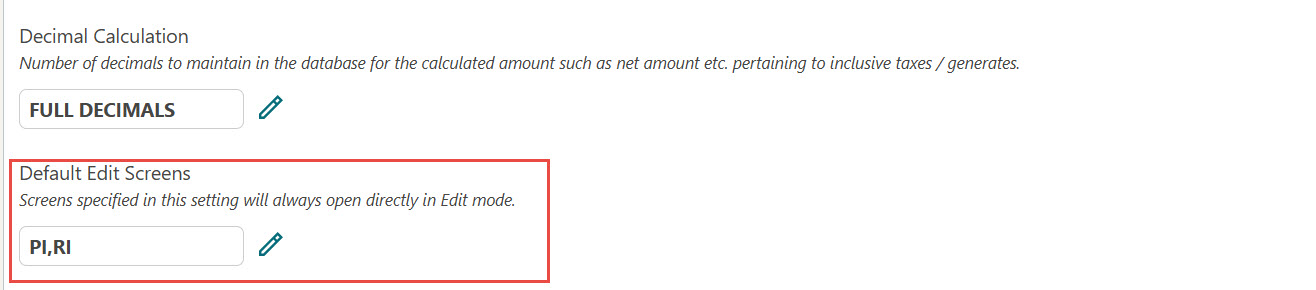
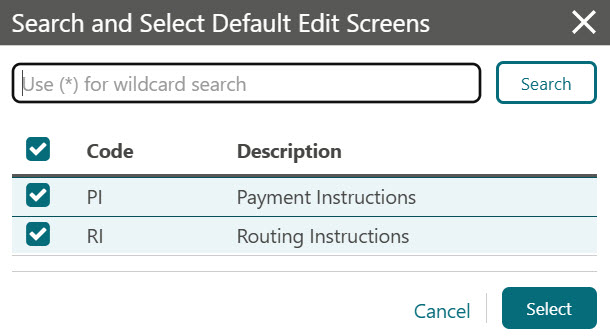
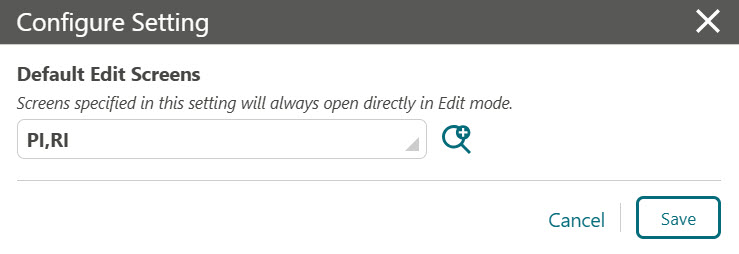
- The Payment Instructions screen always appears in Edit
mode for the following workflows:
- Access from the Reservation presentation screen.
- Access from the Check-in screen.
- Access from the Billing screen.
- Access from the Manage Reservations, Arrivals, In-House, and Departure search results in all the modes.
-
If the reservation is in Checked-out' status, the edit screen displays the payment details as non-editable, consistent with existing behavior.
-
If the reservation is in Cancelled or No Show status, the payment instructions screen always appears in non-editable mode.
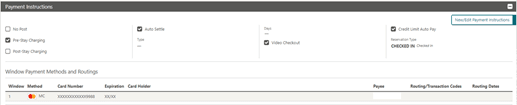
This image shows Payment Instructions screen in Edit mode.
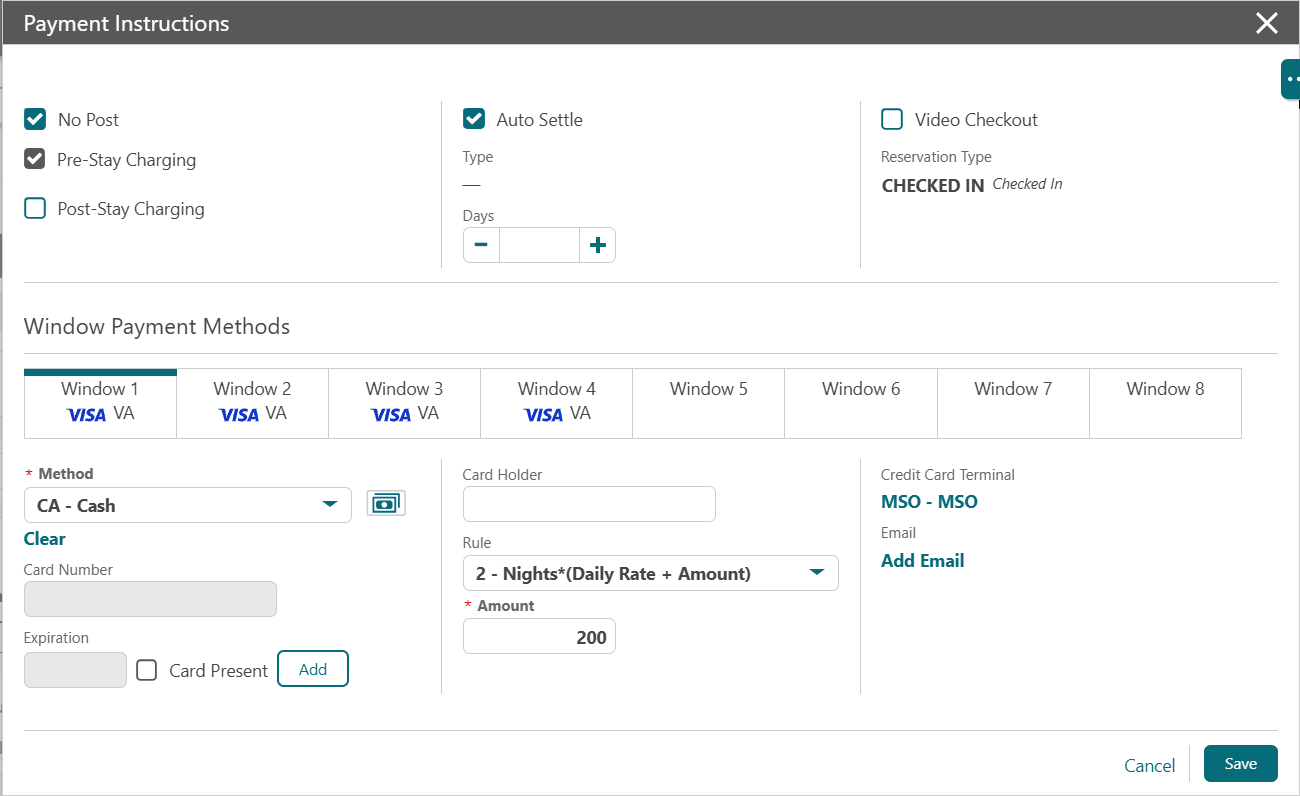
- The Payment Instructions screen always appears in Edit
mode for the following workflows:
-
If the user is not granted the Edit Payment Instructions user task, the existing non-editable Payment Instructions are displayed to the user.
-
If the Default Edit Screens OPERA Control setting is not configured for Payment Instructions and the user is not granted the edit Payment Instructions user task, the existing editable Payment Instructions are displayed to the user.
- Credit Card Guarantee through the OPERA Cloud Application (Manual Entry – OPERA Pay for Tokenized Properties)
- Credit Card Guarantee through the OPERA Cloud Application (Manual Entry Into Payment Device for Tokenized Properties)
- Credit Card Guarantee through the OPERA Cloud Application (Card Present for Tokenized Properties)
- To View Token ID (Tokenized Properties)
- Credit Card Guarantee through the OPERA Cloud Application (Manual Entry for Non-Tokenized Properties )
- Credit Card Guarantee through the OPERA Cloud Application (Customer Provided Token Vault)
Parent topic: Reservations