Compare the enrollment duration by country
You can view the enrollment duration by country for one trial plan, or you can compare the enrollment duration by country for two trial plans.
To view or compare the enrollment duration by country for one or two trial plans:
- In the Plan Recommendation page, select the tile for the plan or plans you want to view or compare the enrollment duration by country for. The tile or tiles you select are highlighted in blue and the comparison chart appears below the tiles. For example:
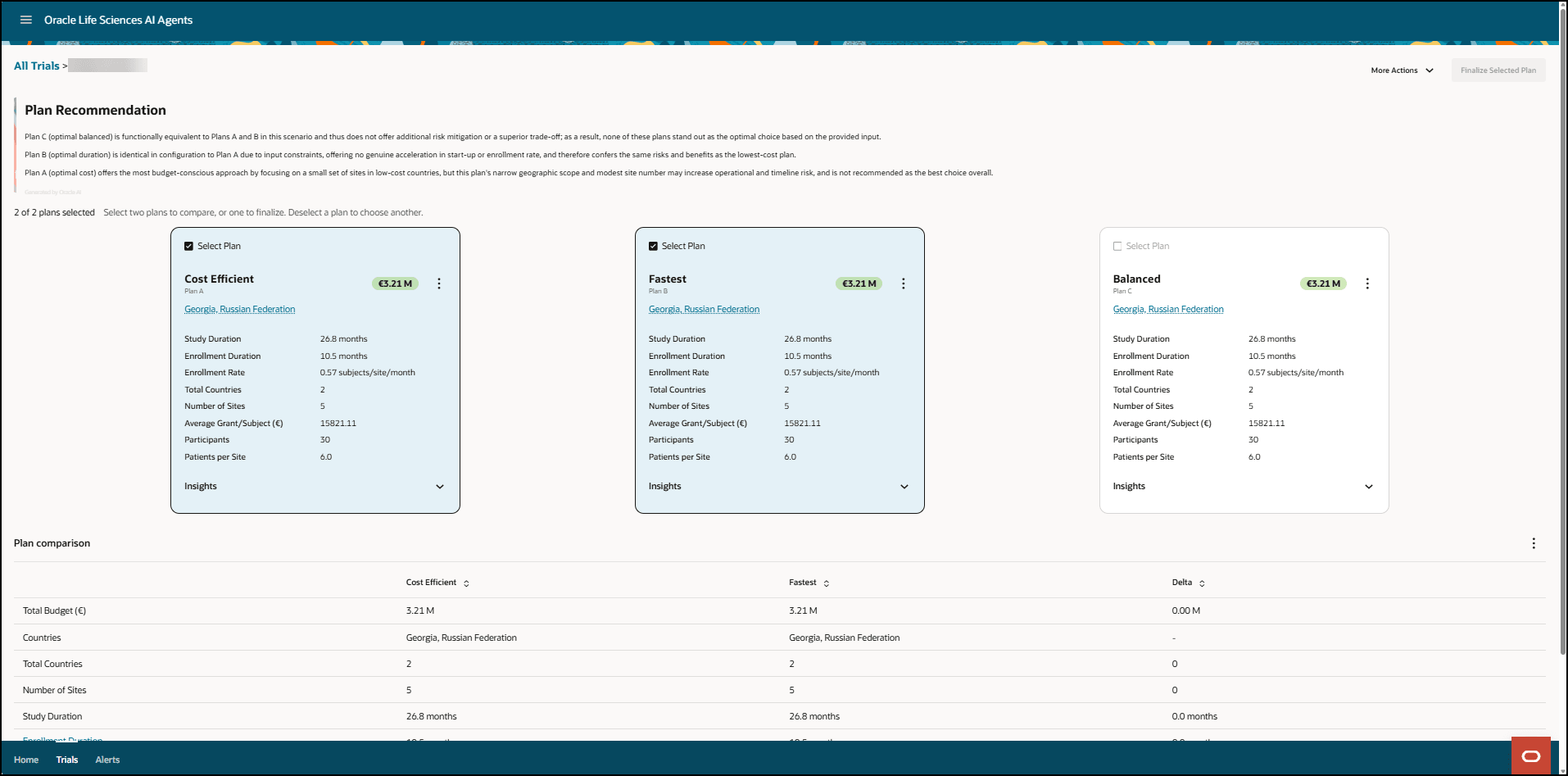
- The columns in the comparison chart appear in the order you select the tiles. To deselect a tile, select it again (the blue highlight is removed) and its data is removed from the comparison chart. You can select and deselect the trial plan tiles as often as you like.
- If you select two plans, the comparison chart includes a column with the delta for each parameter in the list.
- Scroll down as needed until you see the Enrollment Duration link in the first column in the comparison chart, and then select the link. The Plan comparison detail - Enrollment duration by country panel opens. For example:
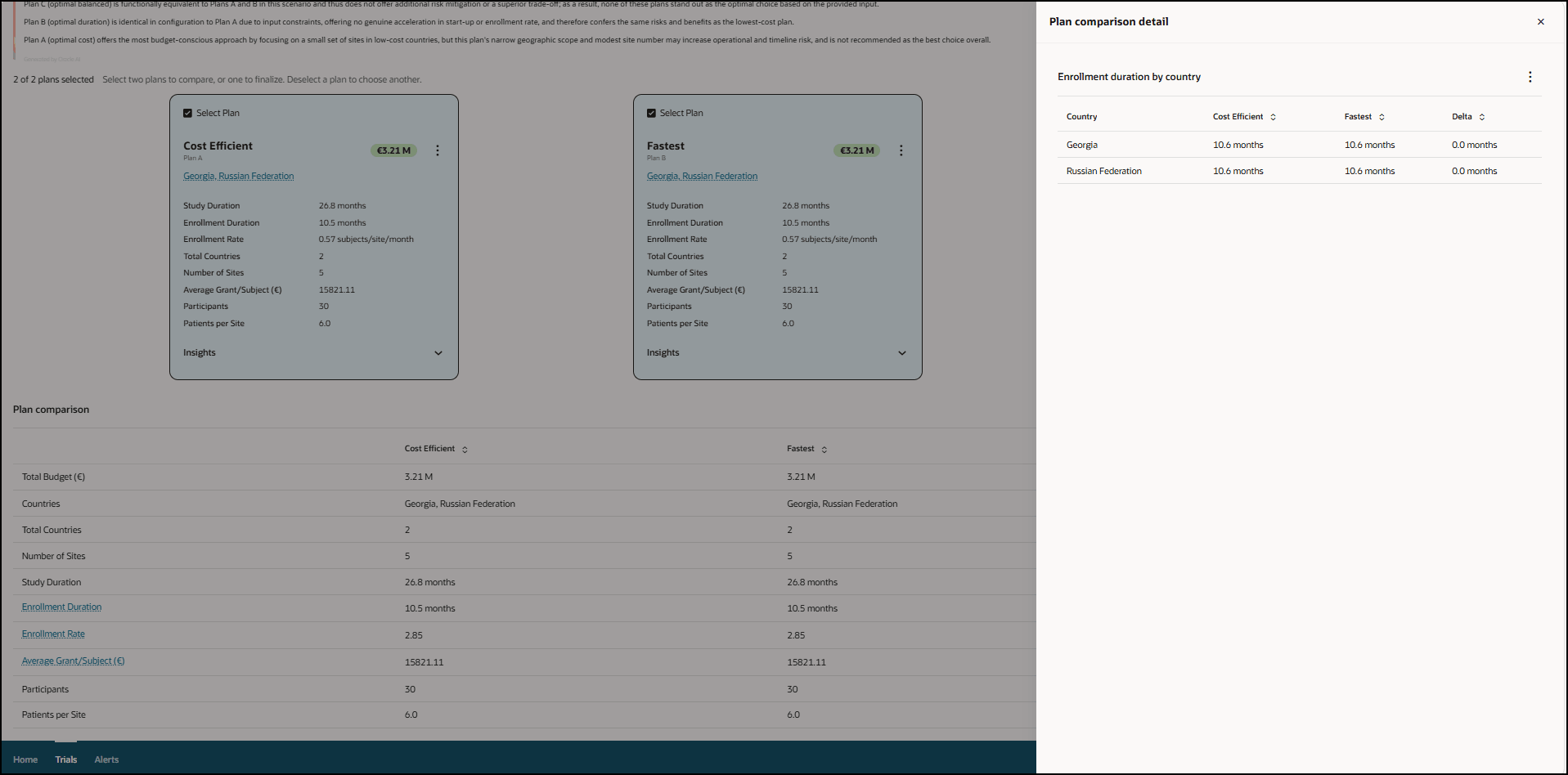
- To download the Enrollment duration by country plan comparison, select Download CSV from the vertical ellipsis menu (
 ) at the top right of the panel. The comparison plan is downloaded to your Downloads folder as plans_comparison_Enrollment_duration_by_country.csv.
Parent topic: Compare and download trial plans