Open the AI-generated trial plans
After Life Sciences AI Agents generates the trial plans, you can open, view, adjust, and compare the details for each plan as needed.
Each trial plan provides details including the total budget, study duration, enrollment duration and rates, total countries, number of sites, per patient cost, number of participants and patients per site.
To open the AI-generated trial plans:
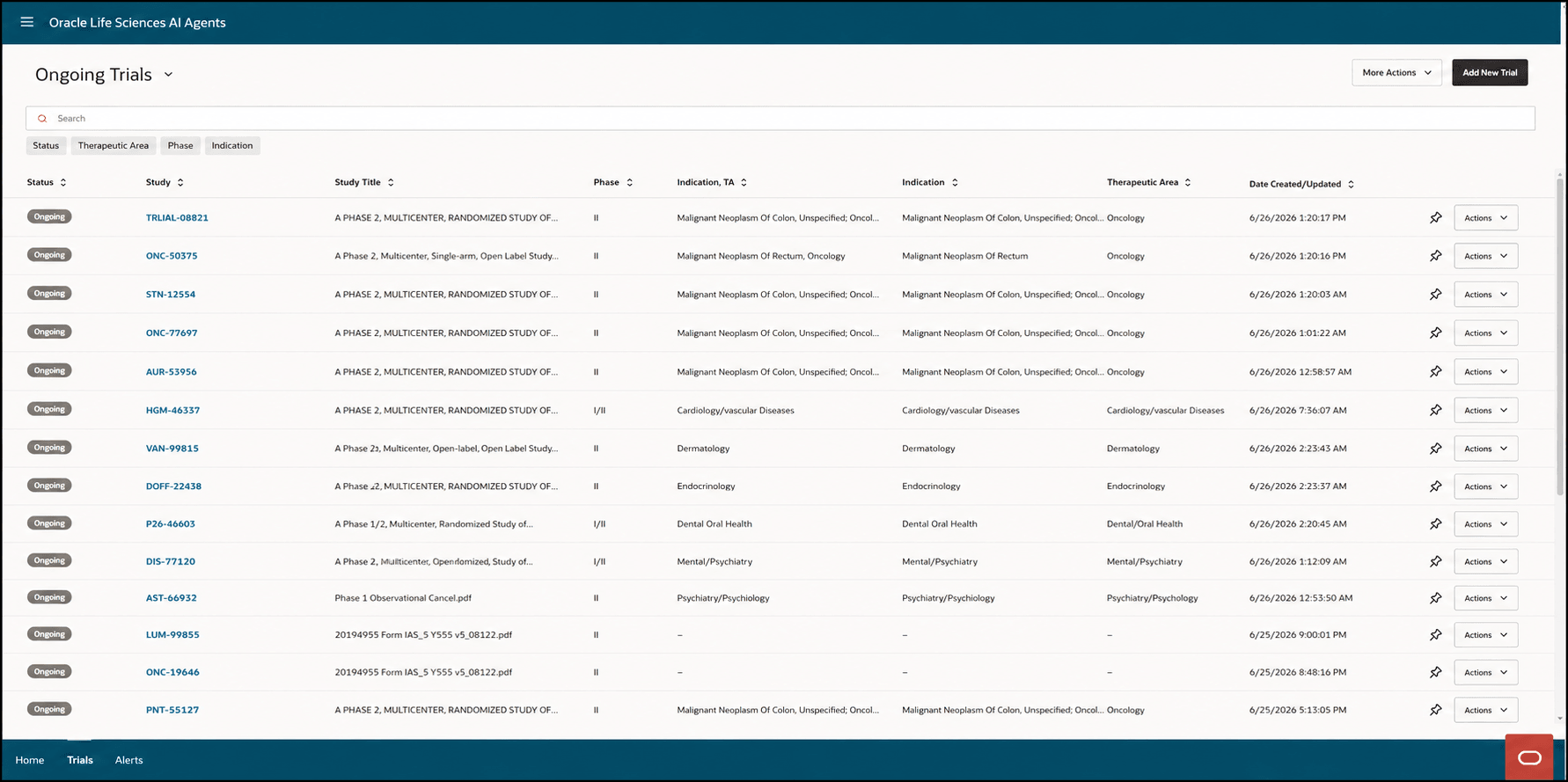
- Select the Trials tab at the bottom of the Life Sciences AI Agents Trials interface window. The Trials list opens. The last view you selected opens (All Trials, Ongoing Trials, or Trials in Planning). For example:
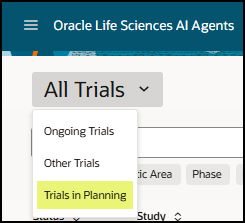
- If necessary, use the drop-down menu next to the page title to select Trials in Planning as highlighted in the following example:
If you do not have access to Trials in Planning, the option does not appear in the drop-down menu. After you select the Trials in Planning drop-down menu option, the Trials in Planning list view opens. For example:
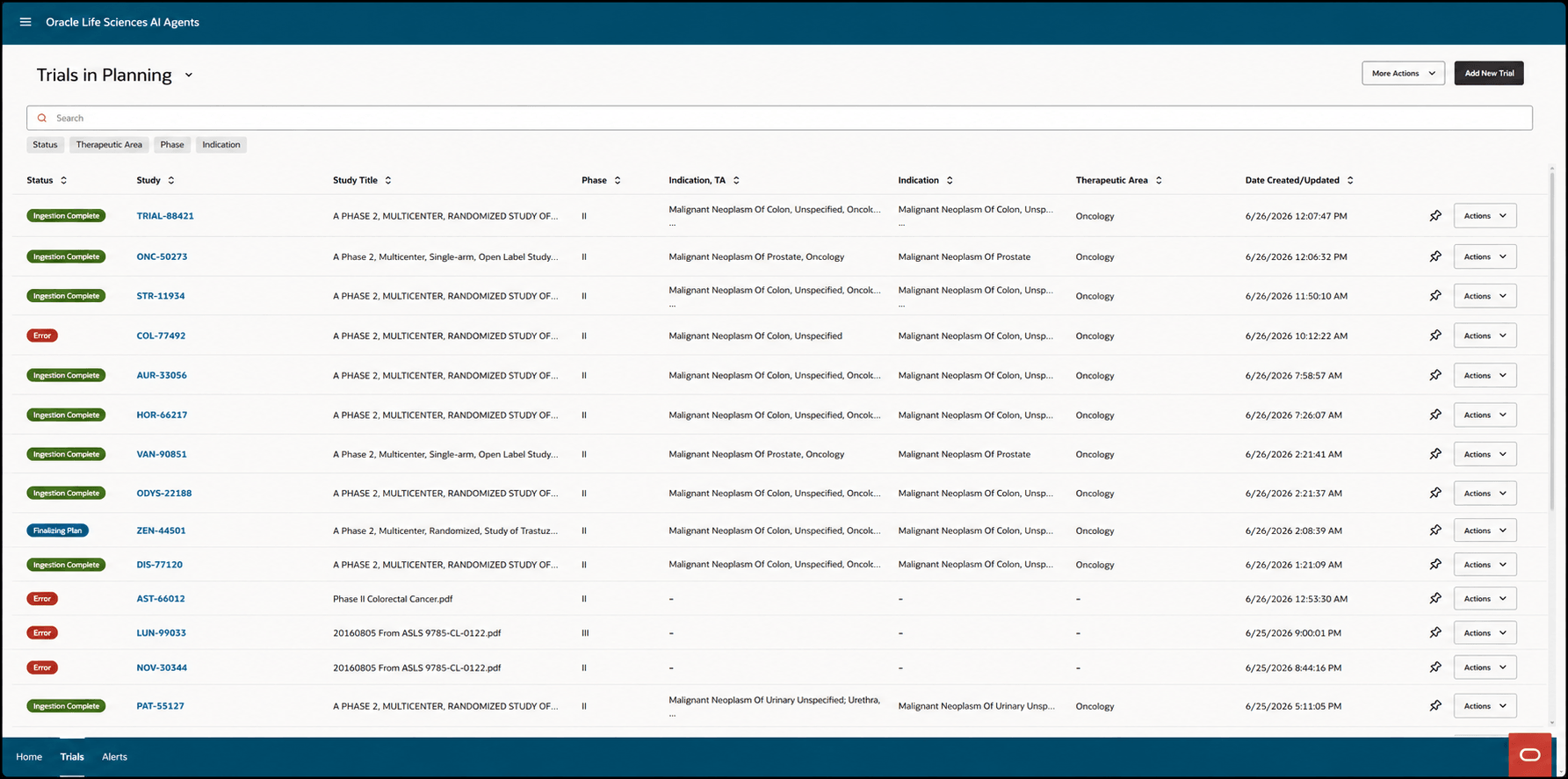
- In the Trials list, in the Status column, find a study with a status of Finalizing Plan, and in the Study column, select the name of the trial you want to review the plans for. The [Protocol Name] panel opens. For example:
Note:
The version of the protocol appears at the top right of the panel and above the [Protocol Name].pdf link. Select the link to download the protocol, if needed.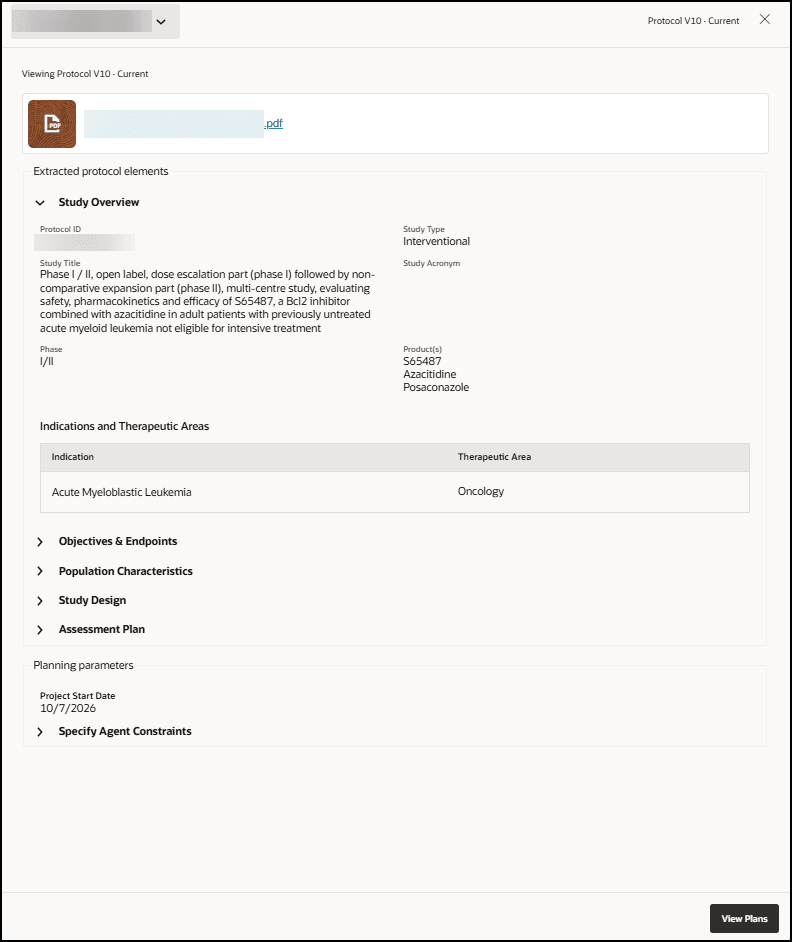
- Select View Plans. The Plan Recommendation page opens. For example:
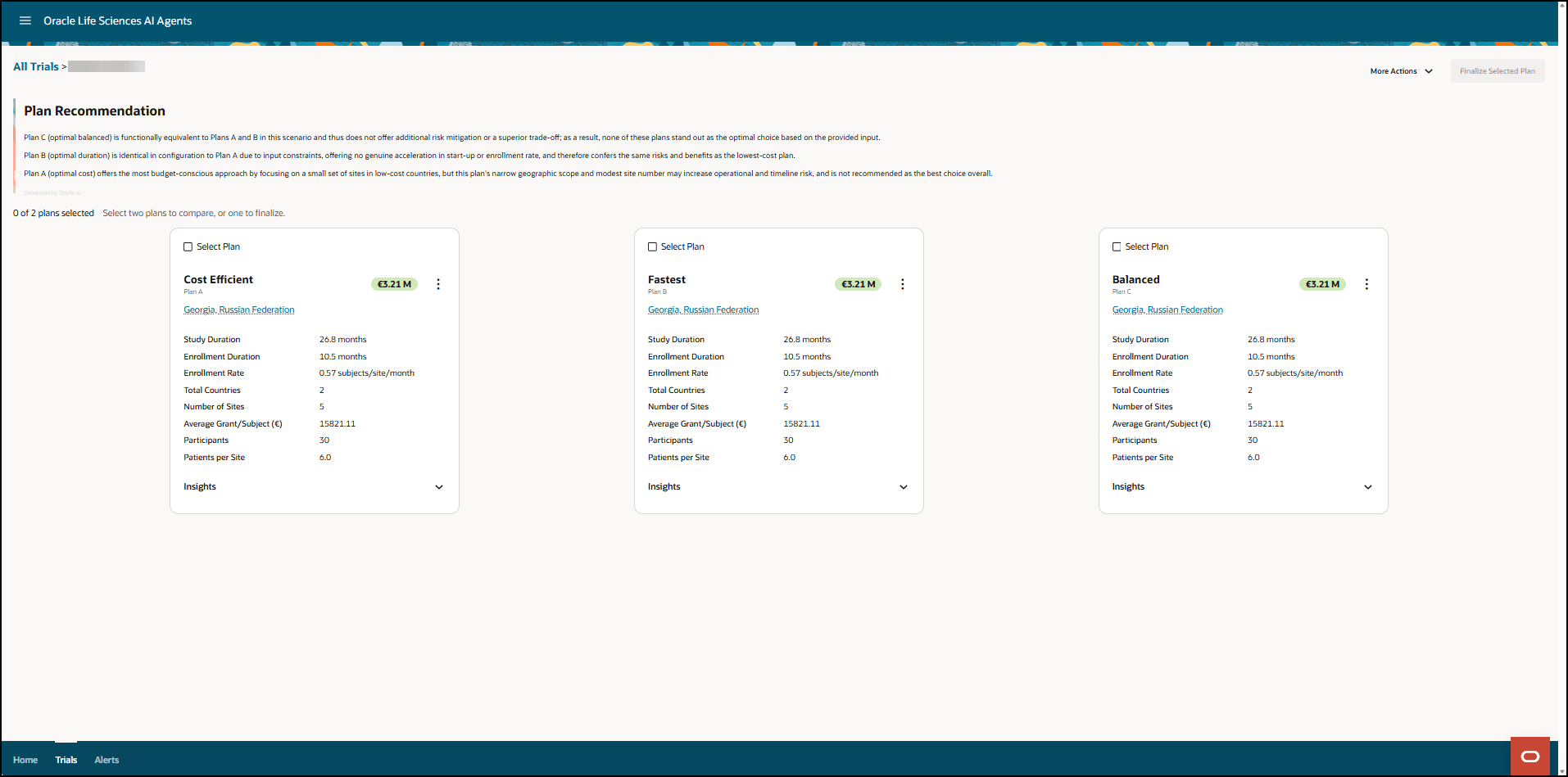
Note:
Alternatively, you can open the Plan Recommendation page directly by selecting Go To Study from the Actions drop-down menu on the right. - To view the insights used to generate each plan, select the down arrow at the bottom right in each tile. The tile expands to show the insight details. For example:
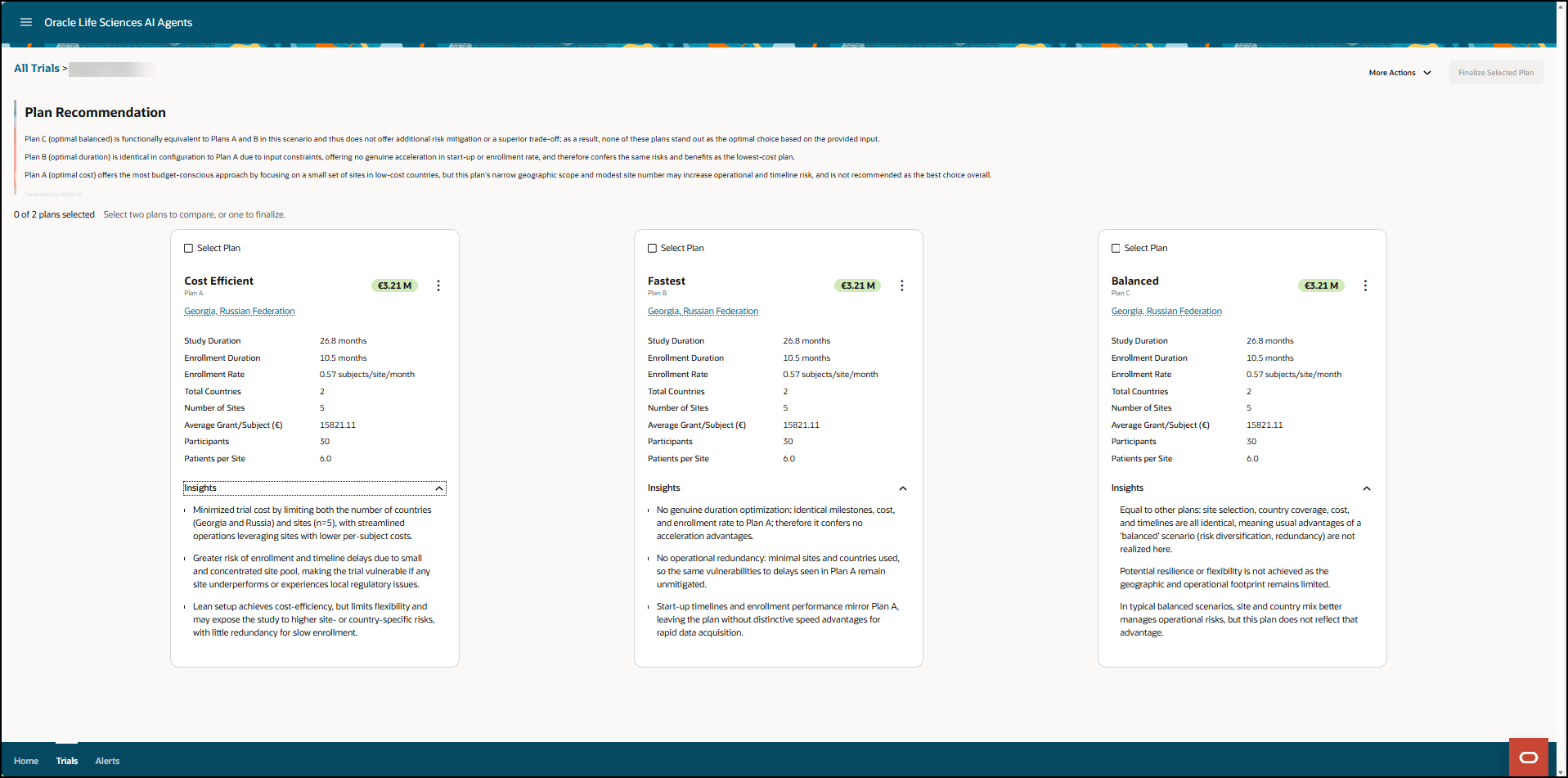
Parent topic: Review the AI-generated trial plans