Customize the columns in the Trials list

In all of the Trials list views (All Trials, Ongoing Trials, Other Trials (trials that are completed, suspended, or terminated), and if you have access, Trials in Planning) you can customize the columns that appear on the page and rearrange their order to optimize your view.

Note:

Any customizations you make apply to all of the Trial list views (All Trials, Ongoing Trials, and if you have access, Trials in Planning).
To customize the columns in a Trials list view:
  1. Open the list of trials you can access, and filter the list by operational lifecycle (All Trials, Ongoing Trials, Other Trials, or Trials in Planning) as needed as described in View the list of trials you can access.
  2. In the Trials list (filtered to All Trials, Ongoing Trials, Other Trials, or Trials in Planning), select Manage Columns from the More Actions drop-down menu at the top right of the page as highlighted in the following example:


    Ongoing Trials list view - More Actions drop-down menu with the Manage Columns option highlighted

    The Manage Columns panel opens. For example:
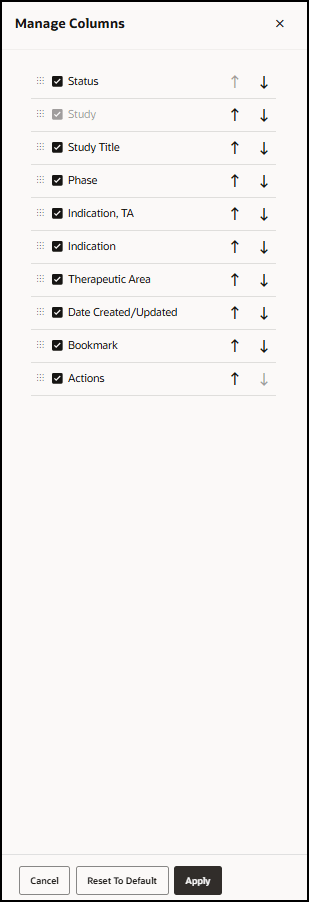

    Manage Columns panel

  3. Select the checkbox next to the columns you want to appear on the Trials list page.
  4. Deselect the checkbox next to the columns you do not want to appear on the Trials list page.
  5. Optionally, for each column you select in step 3, use the up or down arrows to set the order you want the columns to appear on the Trials list page.
  6. Do one of the following:
    • To save your changes and close the panel, select Apply.
    • To close the panel without saving your changes, Cancel.
    • To clear any previous customizations you made to the page columns, select Reset to default and then select Apply.