View the list of trials you can access
You can use the Trials list to view lists of all the trials you can access and to easily navigate between the Trials list and trial details.
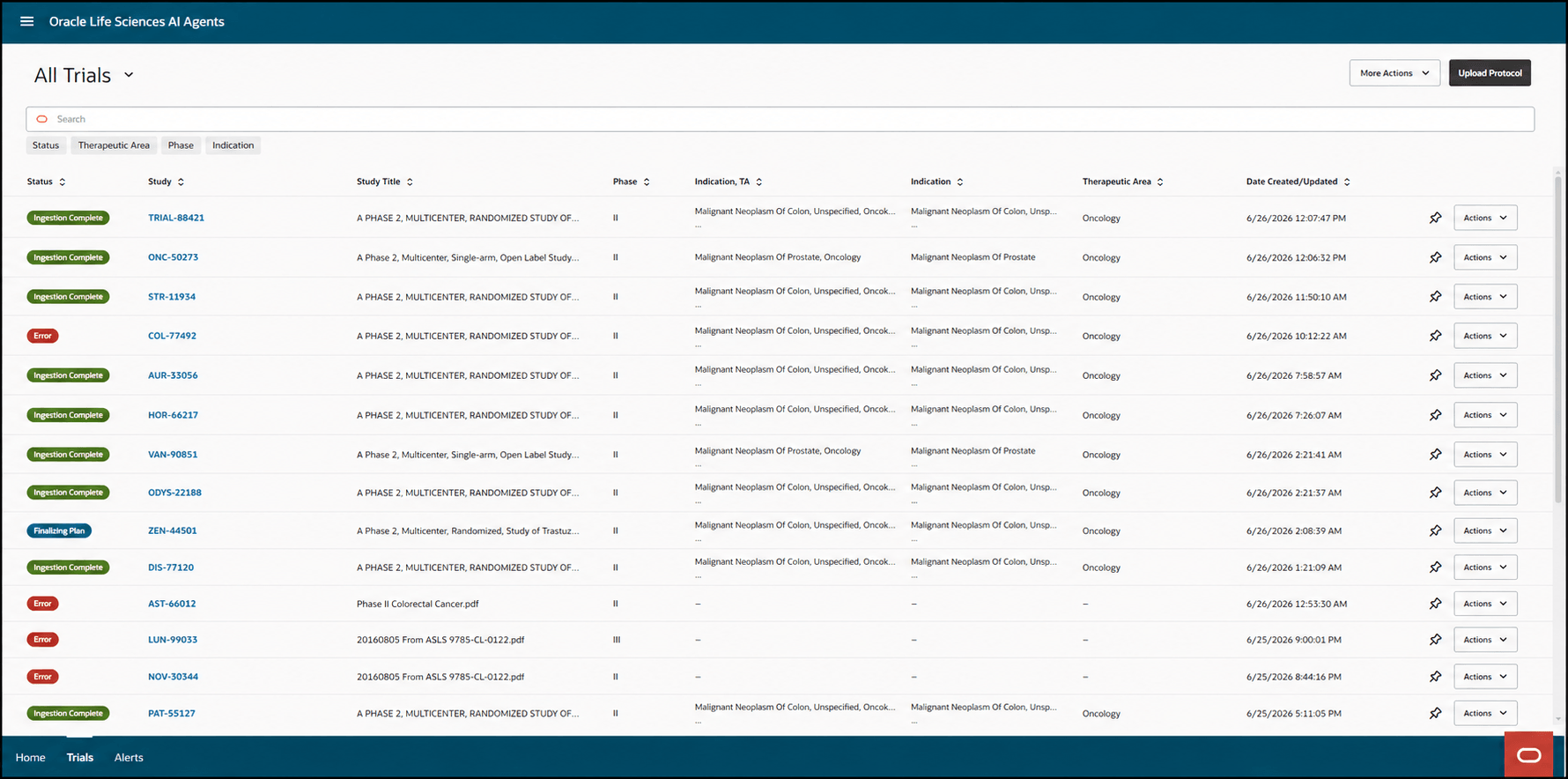
- Select the Trials tab at the bottom of the Life Sciences AI Agents Trials interface window. The Trials list opens. The first time you open the Trials list it defaults to the All Trials view. For example:
Note:
- To resize a column, move your pointer to the border between two column headers. When the pointer changes to the resize cursor
 , select and drag the border left or right to decrease or increase the column width.
- You can also customize the columns that appear on the page and rearrange their order to optimize your view. For more information, see Customize the columns in the Trials list.
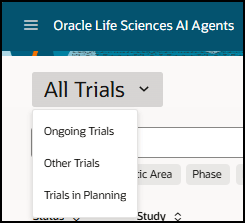
You use the drop-down menu at the top of the page to filter the list by the operational lifecycle stage (All Trials, Ongoing Trials, Other Trials, or Trials in Planning). For example:
- To resize a column, move your pointer to the border between two column headers. When the pointer changes to the resize cursor
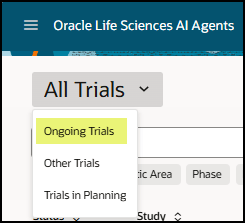
- To filter the list to show only Ongoing Trials, use the drop-down menu next to the page title to select Ongoing Trials as highlighted in the following example:
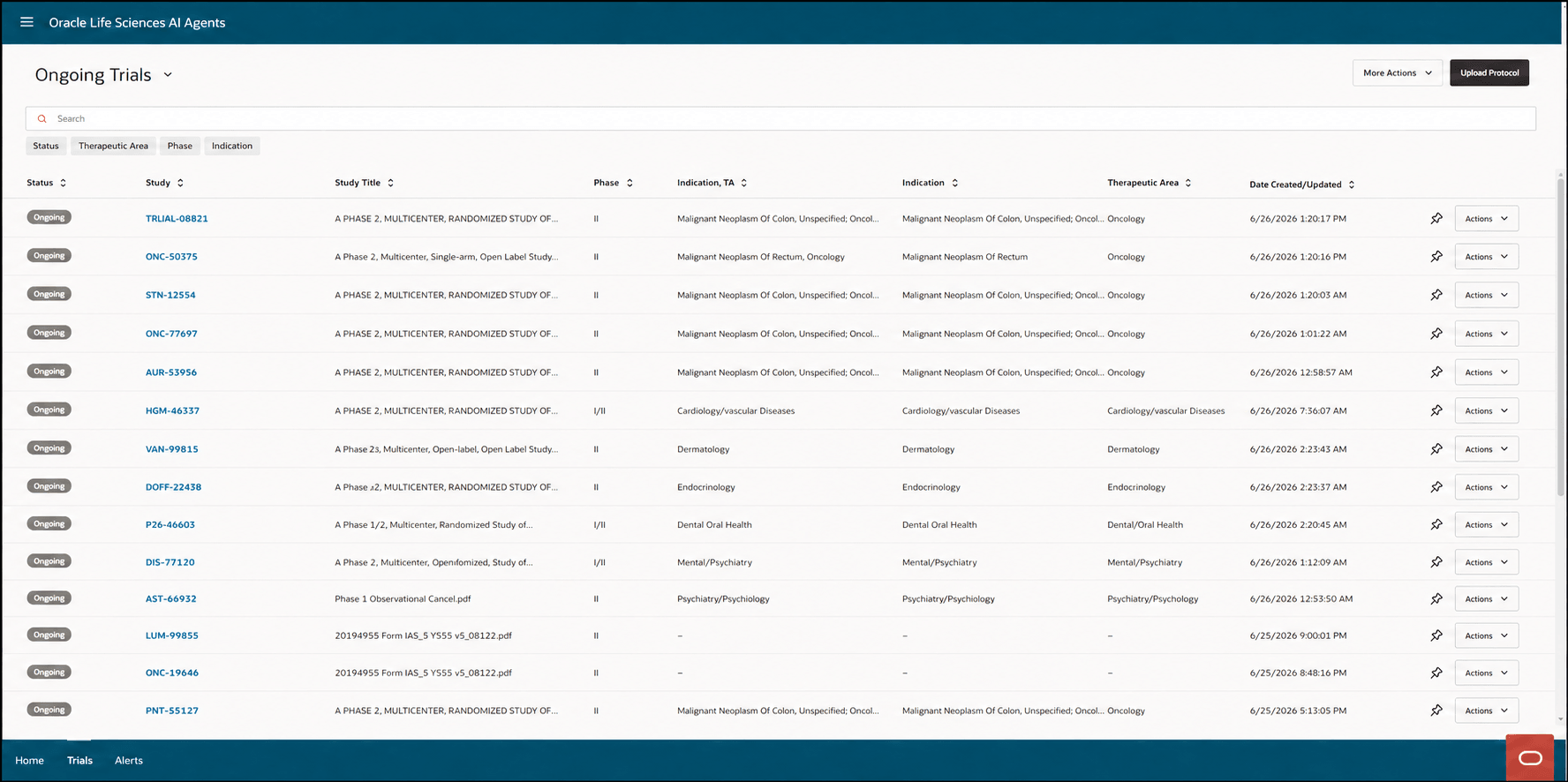
After you select the Ongoing Trials drop-down menu option, the Ongoing Trials list view opens. For example:
- To filter the list to show only Other Trials, use the drop-down menu next to the page title to select Other Trials as highlighted in the following example:
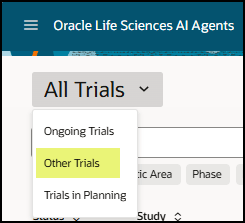
After you select the Other Trials drop-down menu option, the Other Trials list view opens. For example:
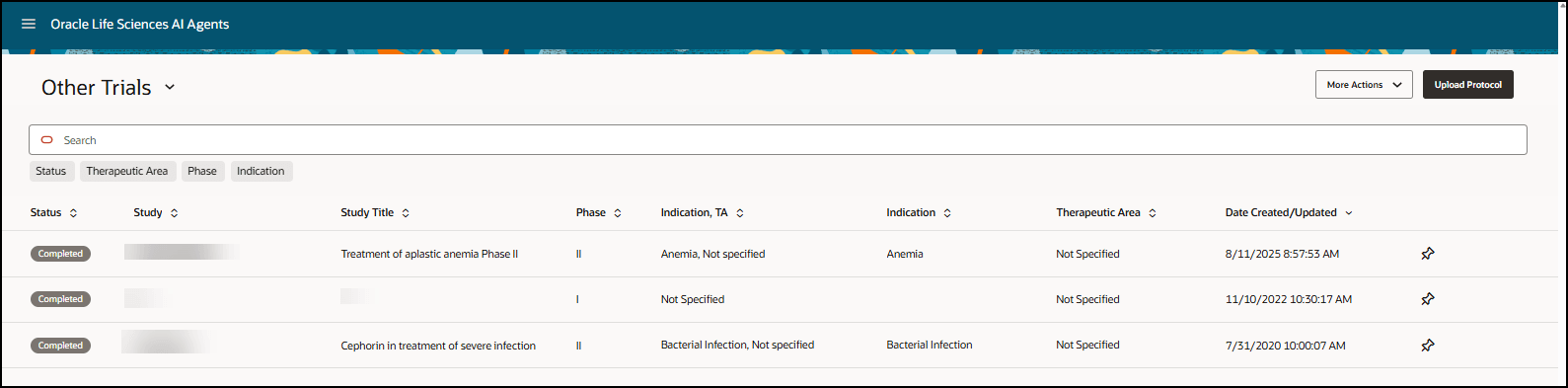
Note:
Actions are not available in the Other Trials list view. - To filter the list to show only Trials in Planning, use the drop-down menu next to the page title to select Trials in Planning as highlighted in the following example:
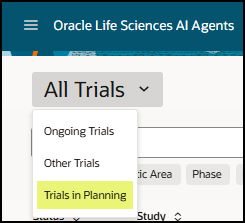
If you do not have access to Trials in Planning, the option does not appear in the drop-down menu. After you select the Trials in Planning drop-down menu option, the Trials in Planning list view opens. For example:
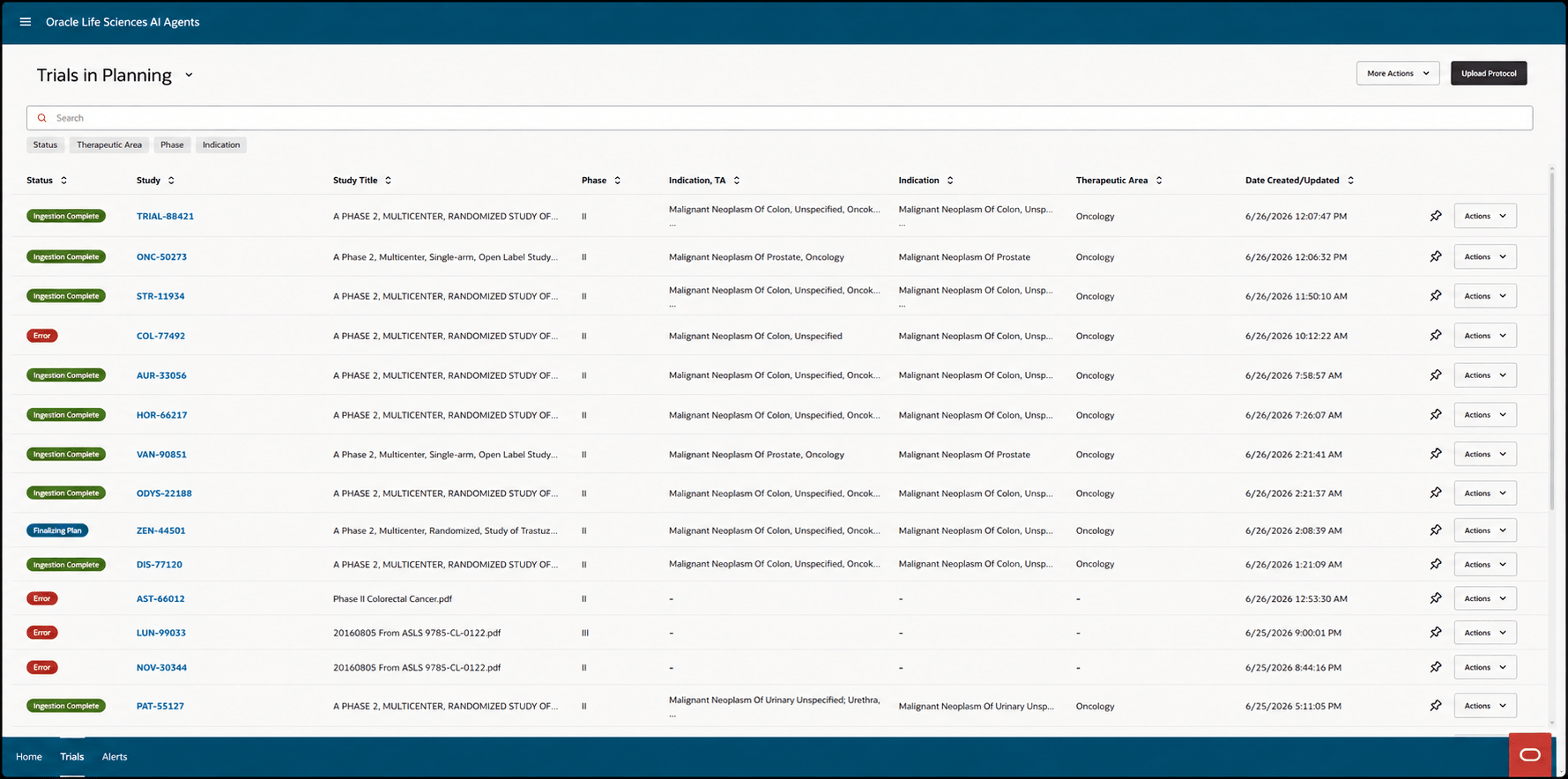
- Select the Pin (
 ) icon if you want the trial name to remain at the top of the list. Pinned items adjust based on the filter selections, but they remain at the top of the filtered list.
Note:
The next time you select the Trials tab, the last view you selected will open (All Trials, Ongoing Trials, or Trials in Planning).
- Customize the columns in the Trials list
In all of the Trials list views (All Trials, Ongoing Trials, Other Trials (trials that are completed, suspended, or terminated), and if you have access, Trials in Planning) you can customize the columns that appear on the page and rearrange their order to optimize your view.
Parent topic: Manage all trials