Navigation and search
Life Sciences AI Agents provides multiple options for navigating through the interface.
| Item | Description | Details |
|---|---|---|
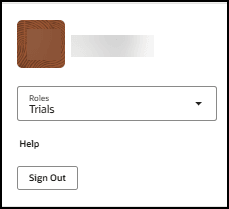
| Oracle icon |
Appears at the bottom of every page. For example:
Opens the Profile dialog box from which you can access product documentation on Oracle Help Center and to sign out. If you are an administrator you can also use the Profile dialog box to open the User Management interface to manage user accounts and set trial access. For example:
|
|
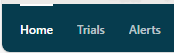
| Tabs |
Provide access to features in Life Sciences AI Agents based on your permissions. The tabs appear at the bottom of the Trials interface window. The active tab is highlighted. For example:
|
|
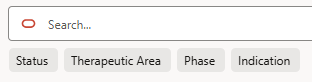
| Search field |
A search feature appears on most list pages. To search for a specific item or to filter a list, you can enter text or select one or more of the filter options that appear (on some pages) below the Search field and are specific to the page. For example:
|
In the Search field, do one or both of the following, and then select Enter:
|
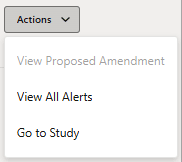
| Actions drop-down menu |
Actions drop-down menu options initiate an action. The Actions drop-down menu options show only the options you have rights to access or are relevant to the stage of the item you want to perform the action on (options not available appear inactive). For example:
|
|
| Navigation Menu icon |
Appears at the top left of the banner. For example:
Opens the Connected Applications panel that you use to access the source Oracle Life Sciences applications you have access to. For example: 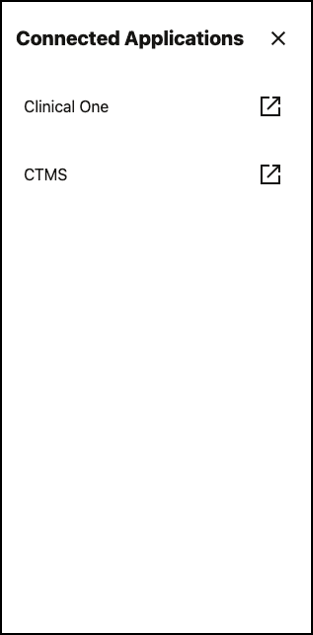 |
|


Parent topic: Introduction to Oracle Life Sciences AI Agents