Document (Record) management
Now you can generate placeholders in the TMF Viewer, drag and drop files, rename files, capture the reason for document rejection, and more.
Add new documents
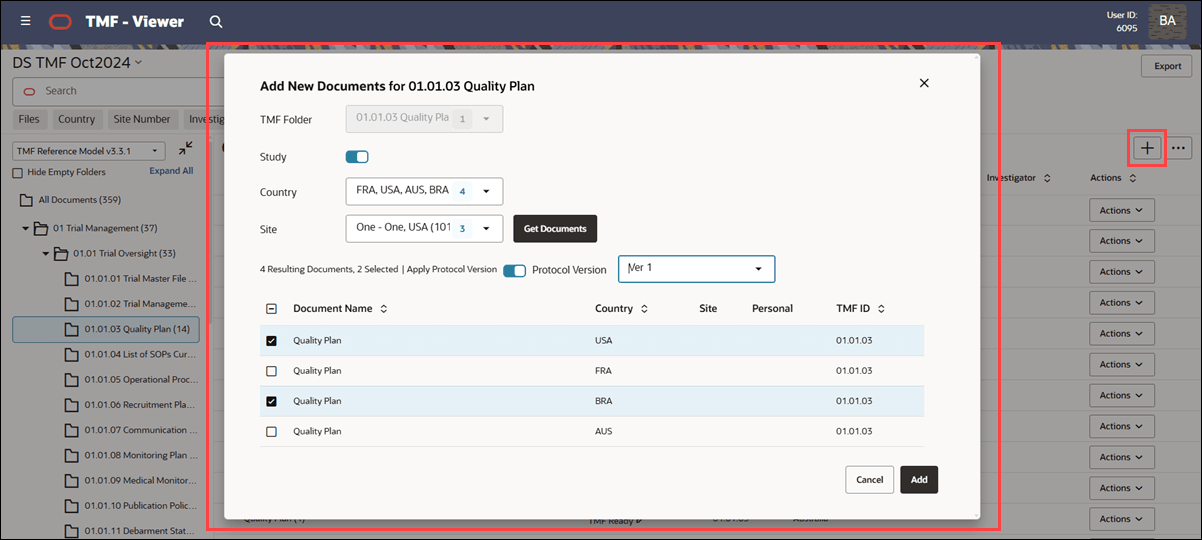
eTMF users can now generate placeholders while navigating the TMF Viewer, making it easier to manage documents directly from the folder structure. From within a defined folder (for example, 01.01.01), you can click the new plus (+) icon at the far right to add a placeholder. When you select this option, a modal appears with the following fields:
- TMF Folder – Read-only field displaying the TMF Artifact and ID
- Study toggle – Enable to include study-level items in the document list
- Country – Multi-select field showing current countries in the study
- Site – Multi-select field showing current sites within the selected country or countries
After selecting the country and site, click the 'Get Documents' button to create a list of available placeholders based on artifacts mapped to the TMF ID of the selected folder and your chosen country or site. Select one or more available artifacts, and you'll see both the number of items found and the number you've selected above the table. Above the table, you'll also see an Apply Protocol Version toggle. Apply the protocol to your selected documents by enabling the toggle and choosing a protocol from the drop-down. Below the table, click the “Add” button; the placeholders will be generated and added to the TMF folder, following existing artifact versioning rules. If no placeholders are available based on your selections, you will see the message “No placeholders available based on your selection.”
When you add new documents, you’ll see one of the following feedback messages depending on the outcome:
- Documents added: New activities for the workflow you ran are being generated. Please refresh the page to check status.
- This message shows for as long as the jobs are in progress. It displays even after a page refresh, if jobs are still in progress.
- Document added, with some failures: New activities for the workflow you ran are being generated. Please refresh the page to check status. Documents for <x> and <y> are not added. Activities are already being generated. Please wait a few minutes and try again.
- This message indicates both success and failure and remains displayed, including after page refresh, as long as the jobs are in progress.
- Documents are NOT added: Activities are already being generated. Please wait a few minutes and try again.
- The failure message displays once and can be closed manually. It will not display after page refresh since no jobs are triggered.
Drag and drop files
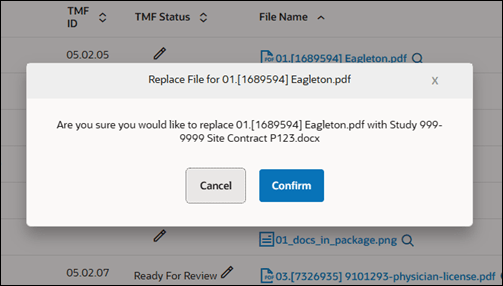
With this release, you can now drag and drop files directly from your desktop into a document in the TMF Viewer, provided the open activity allows file uploads and you have permission to work on the item. This functionality also allows you to replace files for documents that already have an attachment. If you attempt to replace a file, you’ll be prompted to confirm the change before the file is replaced. Please note that this new drag and drop upload functionality applies only to the TMF Viewer's Document Name, File Name, and Activity columns.
You can continue uploading additional files even while one or more files are processing, but if you attempt to drag and drop multiple files into a single document, no action will occur. Once uploaded, the file is saved automatically to the item, so you won’t need to take further steps. If you drop a file in an unsupported format or one that exceeds size limits, an error message displays, and you'll need to modify the file type or file size in order to proceed.
Document rejection reason
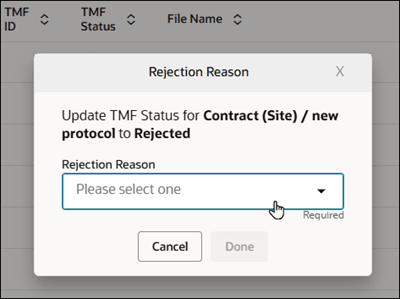
With release 25.1, you can now capture the reason for rejection when a document’s eTMF status is set to “Rejected.” You’ll be required to specify a rejection reason if the “Collect reason when marking a document with eTMF status Rejected” feature is enabled for your organization’s account.
You’ll select a reason from the list configured for your account before you can save the status as Rejected. The reason you select from the list will be captured and stored, and the rejection reason will also be included in the audit trail when the eTMF status is changed.
Note:
Please contact your Oracle project manager to discuss requirements for enabling rejection reason functionality for your organization’s account.
Rename files
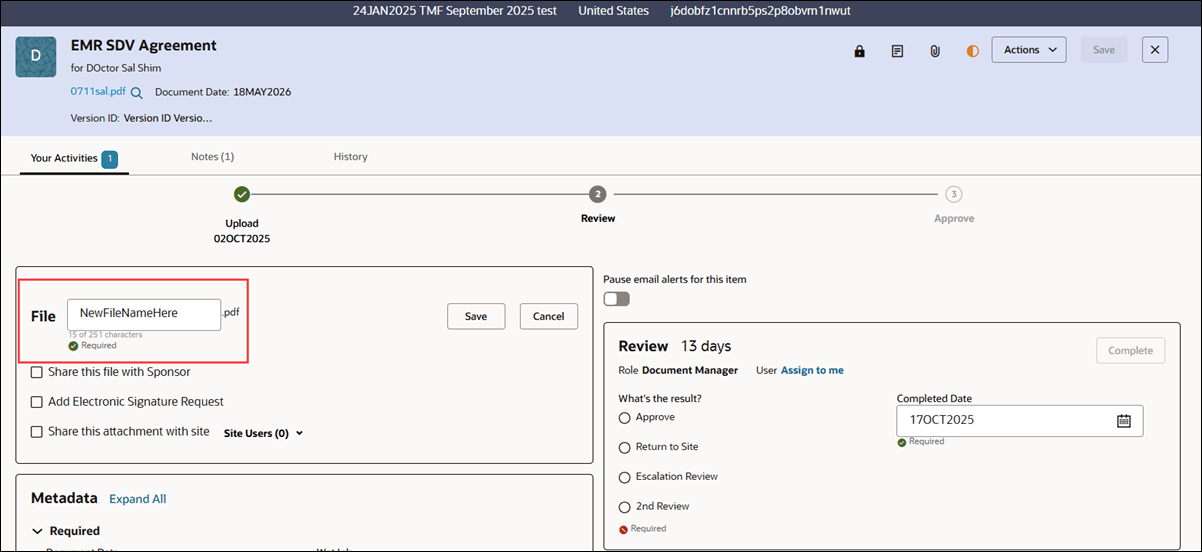
You can now rename files on open activities to help ensure file names accurately reflect their contents and comply with study naming conventions. When you upload a file and save the item, an edit  icon appears next to the file name if the activity is still open and you have the necessary permissions to edit. You cannot rename files if the activity is closed or completed, and only users who can act on the activity are allowed to edit the file name.
When you select the edit option, a text field lets you enter a new file name, excluding the extension, with the total file name and extension limited to 254 characters. A character counter shows how many characters you have left after accounting for the extension. Click Save to update the file name in real-time. When you rename and save an existing file, a new file version is created, showing who renamed it and when. The previous version appears in the file history. An audit record is also created for each rename action to ensure a clear version history.
Unblinded value carryover
Currently, when you create a new version or an associated version of an item with Unblinded (Restricted)=False, this status is carried over to the new item. With release 25.1, we've extended the same behavior to items marked as Unblinded (Restricted)=True, so that when you upversion or associate a restricted item, the new version will also retain its restricted status.
For restricted items, unauthorized users will not be able to open the new version, and all users will see a lock  icon next to it in the document list. This ensures that both restricted and non-restricted statuses are consistently preserved across new and associated versions.
TMF ID
You can now optionally include a TMF ID in ad-hoc document metadata. When this feature is enabled for your organization’s account, a new 'TMF Reference ID' field will be available when you add an ad-hoc document at the Study, Country, or Site level. The field has a searchable drop-down list that includes values from the TMF reference model version tied to the study’s configuration. Once you select a TMF Reference ID, it will display on the confirmation screen and remain associated with the document when reusing it. Additionally, eTMF event messages will include the TMF Reference ID (e.g., 01.02.05) under the TMF Artifact section.
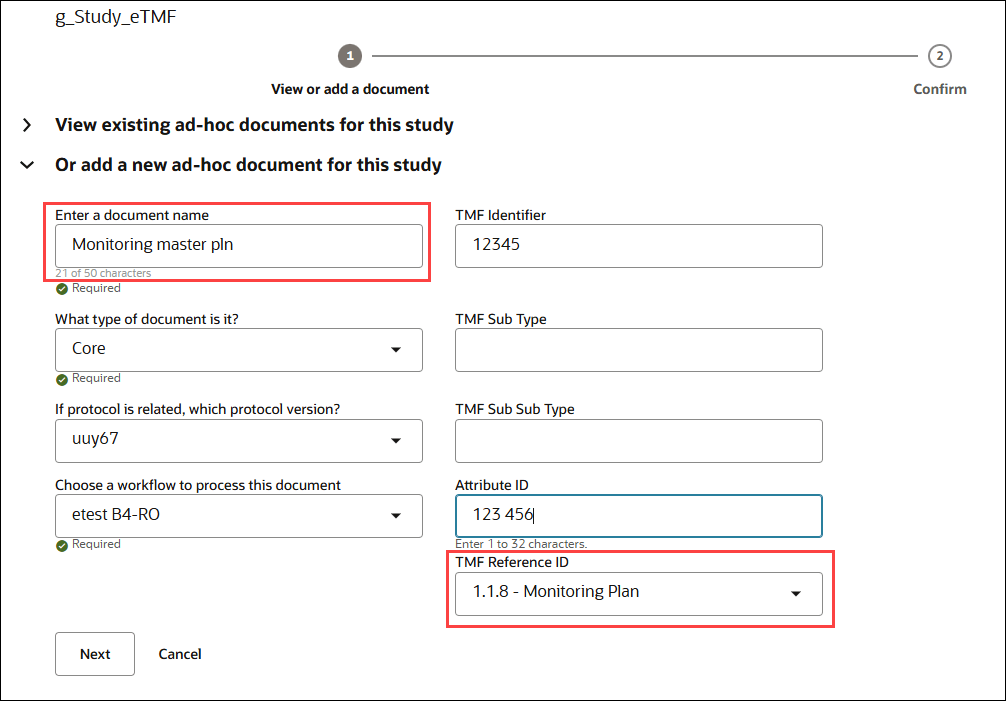
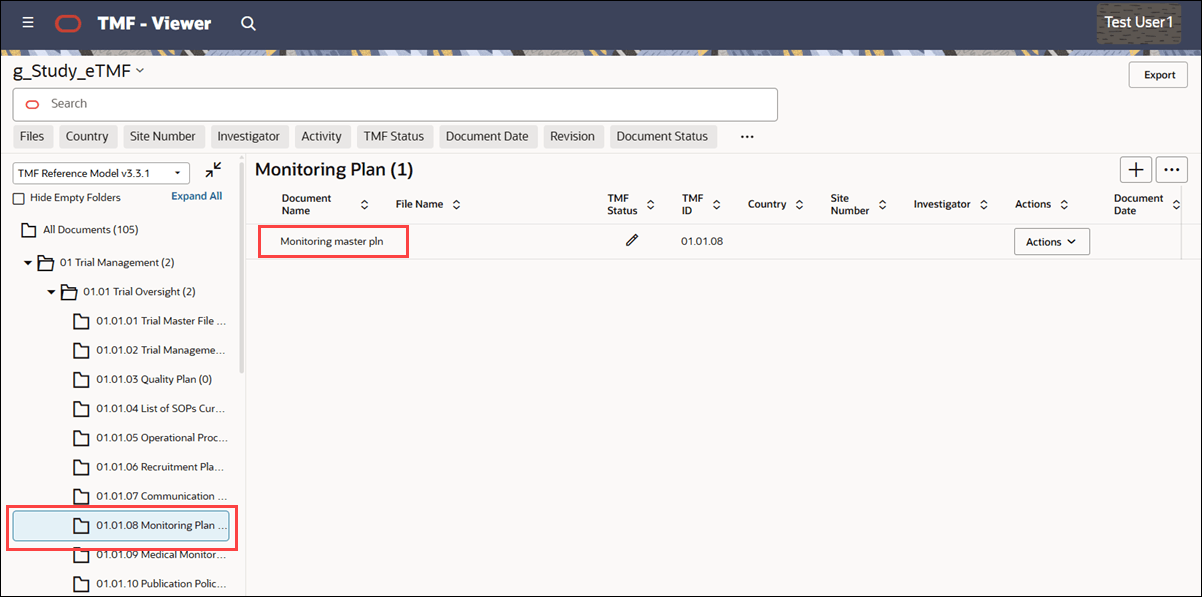
When you create an ad-hoc document with a TMF Reference ID value, it will be displayed in the appropriate section of the TMF Viewer. If no TMF ID is set, the document will instead be placed in the TMF Viewer's generic ("All documents") folder.
Note:
If no TMF version is configured for the study, the TMF Reference ID field will not be available when adding an ad-hoc document. Please contact your Oracle project manager to discuss requirements for enabling this functionality for your organization’s account.
Parent topic: What's new