TMF Viewer
This release includes multiple usability enhancements that make it easier to interact with the TMF Viewer and new features that improve document management activities.
Country site view
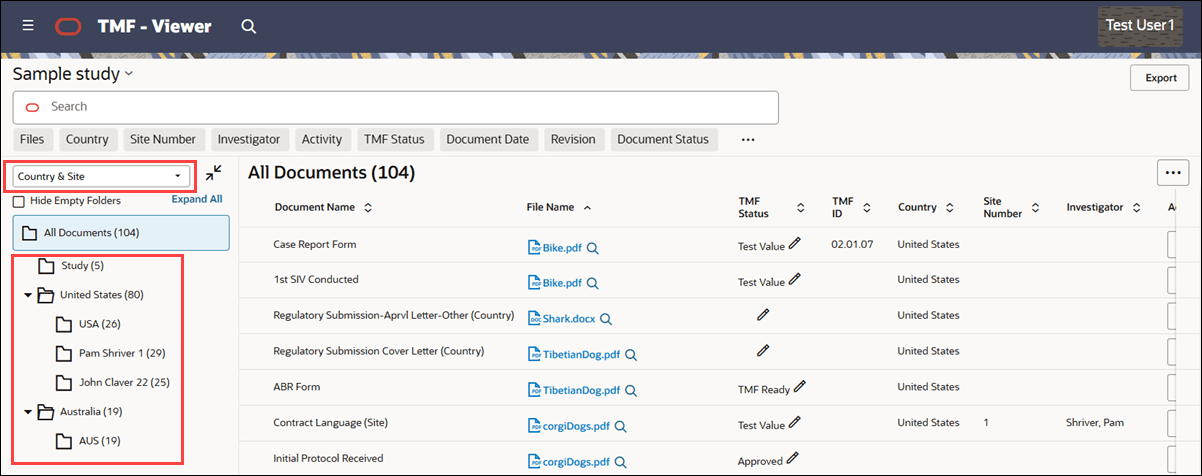
The TMF Viewer now lets you switch between the standard TMF Reference Model v3.3.1 view and a new Country & Site view using a drop-down control above the folder structure. When you change to Country & Site view, the folder structure under "All Documents" updates to display study, country, and site-level folders.
When you change the view, you’ll always land on the "All Documents" folder regardless of your previous location. The folder naming conventions include study documents; country and site documents with the full country name; country-level only documents listed by country code; and site-level folders identified by the PI's name and site number.
Any smart search filters you’ve applied will remain active after switching views, and all filter and column options (including default and your selected columns) are available in both views. You can change the Country & Site view back to TMF Reference Model v3.3.1 view at any time.
Column enhancements
In this release, you’ll see enhancements that make document actions and activities in the TMF Viewer more accessible and intuitive. You’ll also see changes to the TMF Viewer default columns and column ordering.
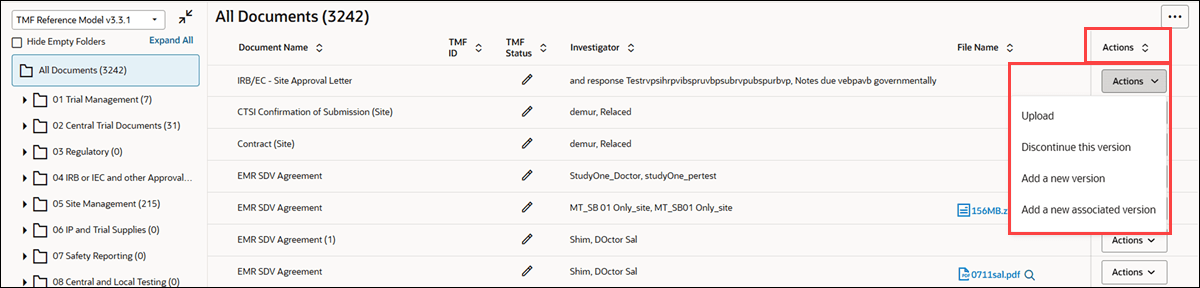
A new Actions column now appears in the TMF Viewer, showing an Actions button for each document. When you click this button, you’ll see options specific to that document like Activity name, Activity name – Blocked, View Document – Completed, or View Document – Read only. Each option opens the item drawer, giving you direct access to view or manage the document. After clicking the Actions button, you may also see actions like Discontinue/Reinstate this version, Add a new version, or Add an associated version after clicking the Actions button. The additional actions available to you are based on your permissions and the item's settings, so you may see none, some, or all of them.
When there is a revision version of a document, the Document Name column now displays the name as “Document Name (#)” to ensure consistency with the document list.
You will also notice a new edit  icon in the TMF Status column. Double click the icon to edit the document’s status, if necessary.
The new Actions column described above has replaced the Activity column in the TMF Viewer’s default columns list. The Activity column is still available in the Manage Columns tool but isn’t shown by default or when you restore the default view. The Actions column is pinned as the last column and remains visible as you scroll, although you may choose to hide it.
Additionally, the "Revision" and "Last Updated" columns have been removed from the default columns list but are still available for you to select. The updated default columns in the TMF Viewer are now:
- Document Name
- File Name
- TMF status
- TMF ID
- Country
- Site Number
- Investigator
- Actions
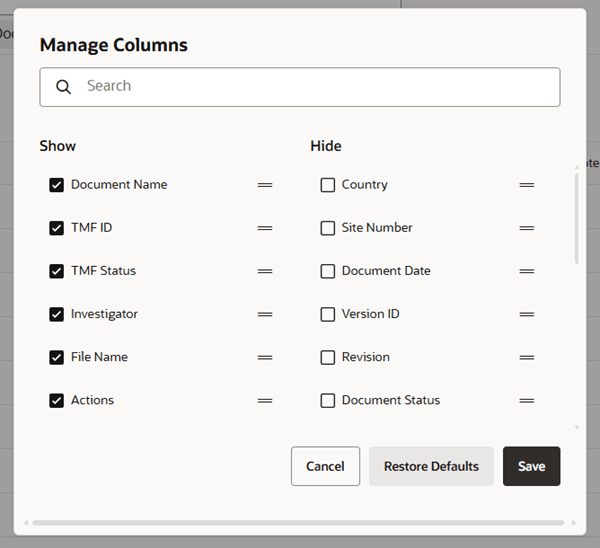
With release 25.1, you can now reorder columns in the TMF Viewer. This option allows you to define the order in which columns appear to best suit your workflow. Your selected column order is user-specific and will be saved across all studies.
Optionally use the search field at the top of the Manage Columns modal to find column titles with matching text. To reorder columns, click and hold the column’s handle  icon, then drag and drop it into the preferred order in the modal's Show or Hide column. If you select and place the new Actions column (described above) as the last column in the Show column, Actions will remain pinned to the right side of the document table.
If you make changes to the column order and then attempt to close the Manage Columns modal or cancel, a confirmation window will prompt you to stay or discard your unsaved changes.
Finally, we added three new columns in this release that you can select in the Manage Columns modal:
- TMF Zone (e.g., 01 Trial Management)
- TMF Section (e.g., 02 Trial Team)
- TMF Artifact (e.g., 01.02.01 Trial Team Details)
The new columns/fields are also available as options under the more filters menu  in smart search, allowing you to search and filter by trial management details, trial teams, and specific artifact information.
Smart search
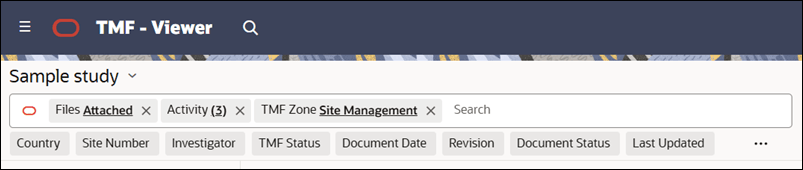
For the TMF Viewer’s smart search field, we enhanced the following multi-select filters so that if you select only one value, the selected value will display in the smart search bar, and If you select multiple values, you'll see a count of the total values you selected:
- Activity
- TMF Status
- Country
- Site Number
- Investigator
- TMF Zone
- TMF Section
- TMF Artifact
- Document Status
- Revision
You can still use free text search to narrow down the available options, and when you search, only one input field will be used to display both the selected values and your search text. We removed the redundant input field in this release.
Discontinued document filter
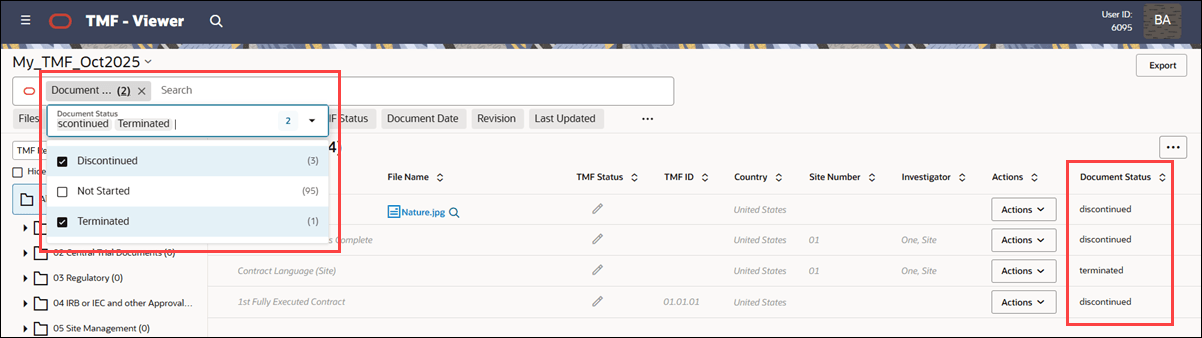
Discontinued documents are now clearly distinguished in the TMF Viewer to help you avoid confusion with active items. Discontinued, Terminated, and On hold documents appear in gray, italicized text. You can still preview or download these files directly from the table and open the item drawer as usual.
Document status search filters let you include or exclude Discontinued, Terminated, and On hold items. By default, these statuses are excluded from the results. The Document Status column reflects all applicable statuses if you add it to the table. If there are no documents with a specific status, that status will not be shown in the filter options. Additionally, for discontinued items, the Actions option in the TMF Viewer is now labeled Reinstate.
Live refresh
To make sure you see the most up-to-date information in the TMF Viewer document grid, the page now automatically refreshes when you open or close the item drawer, update document or item metadata (such as TMF status), change folder locations, or adjust filters. You no longer need to manually refresh the page, as these actions will automatically update the displayed values.
Parent topic: What's new