TMF Viewer
This release enhances TMF Viewer with a new Staging Area for managing files before document assignment, streamlined navigation between documents in the artifact drawer, a default sortable Type column in All Documents, and consistent study favorites behavior between TMF Viewer and Oracle Site Activate.
Staging Area in TMF Viewer
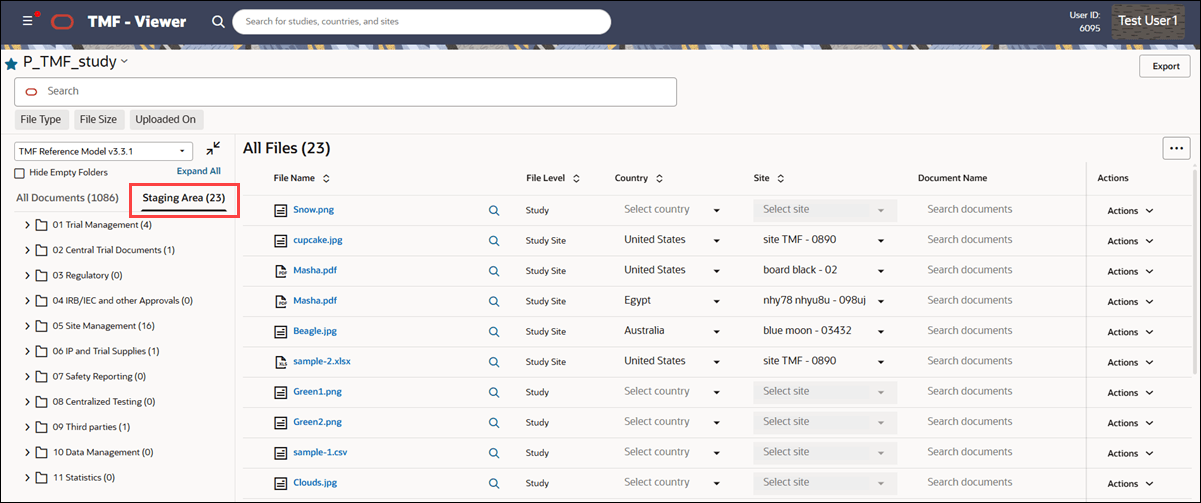
Release 26.1 introduces a new Staging Area in the TMF Viewer, giving you a dedicated place to upload, review, organize, and manage files before they’re attached to documents. This provides a single workspace for files that have been added to a study but aren’t yet associated with a document, so you can prepare them for assignment without uploading them again later.
The new Staging Area tab appears next to All Documents in the TMF Viewer. Switch between the TMF Reference Model v3.3.1 folder structure and the Country & Site folder structure to work with unassigned files in the context that best fits your workflow. Only files that aren’t attached to documents appear in the Staging Area.
By default, the table includes File Name, TMF ID, File Level, Country, Site, Document Name, Uploaded On, and Uploaded By columns. Use the Manage Columns control to show, hide, or reorder available columns. Your Staging Area column preferences are saved separately from your All Documents preferences. Most columns also support sorting, and Smart search lets you search by file name or uploader and filter by file type, file size, or upload date.
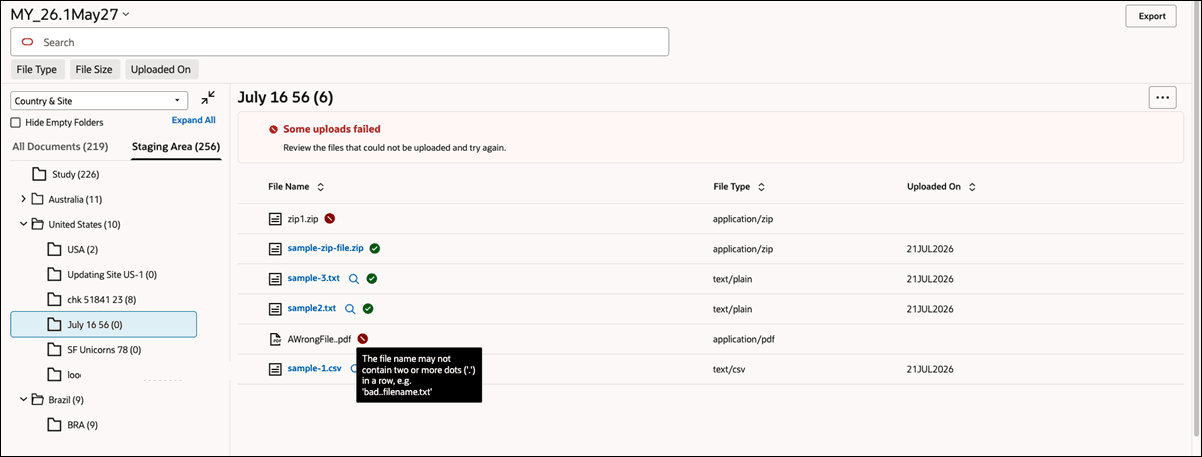
To add files, drag and drop multiple files into supported TMF, study, country, or site folders. During an upload session, status icons indicate whether each file is Queued, In Progress, Failed, or Completed. Hover over a failed upload to see additional information, or cancel an individual upload while it’s still queued.
While uploads are in progress, a warning reminds you to keep the page open because leaving or refreshing will cancel incomplete uploads. When the session finishes, the message changes to indicate whether all uploads completed successfully or whether some files failed. If you leave or refresh during an active upload session, incomplete uploads are canceled, while successfully uploaded files remain available in the Staging Area.
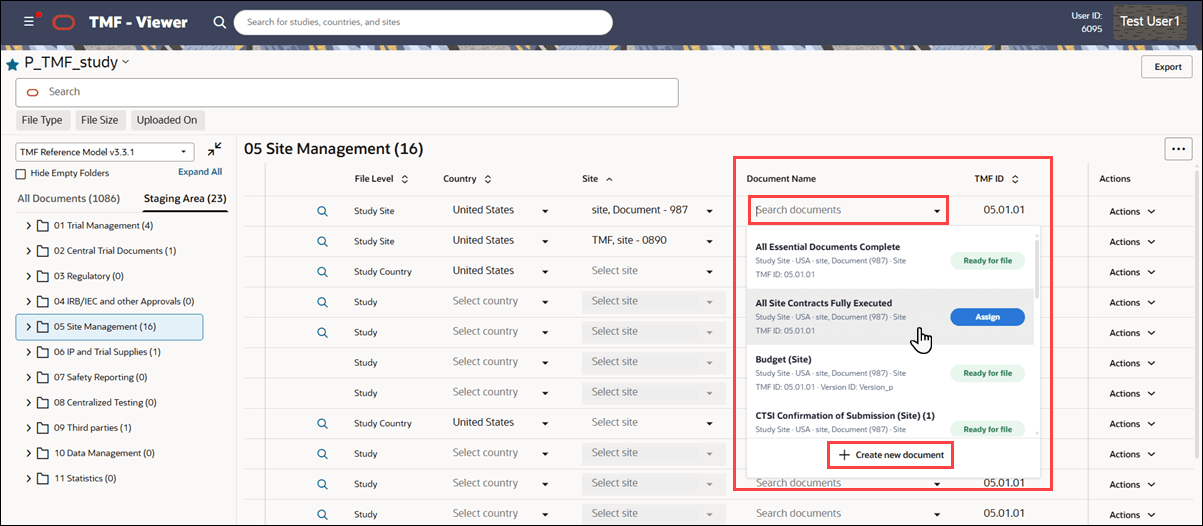
Before assigning a file to a document, use the Staging Area to organize its filing information. Files added through the TMF folder structure initially use the Study file level. For unassigned files, selecting a country or site updates the file level and places the file in the corresponding folder. The TMF ID is also editable through a searchable list of available TMF IDs. Updating it moves the file to the applicable TMF folder and affects the documents available for assignment or creation.
When a suitable document placeholder already exists, the Document Name column provides a searchable list of eligible documents that don’t have a file attached. Results are narrowed using applicable information such as TMF ID, file level, country, and site, and additional metadata helps you identify the correct document. After you select and confirm the assignment, the file is removed from the Staging Area and appears with the selected document in All Documents.
If a document doesn’t already exist, select + Create new document at the bottom of the Document Name control or use the corresponding option from the Actions menu. This option is available when the staging file has a TMF ID. The create flow uses information from the file to identify applicable document options. After the document is created, it appears as the selected document so you can review the association before completing the assignment.
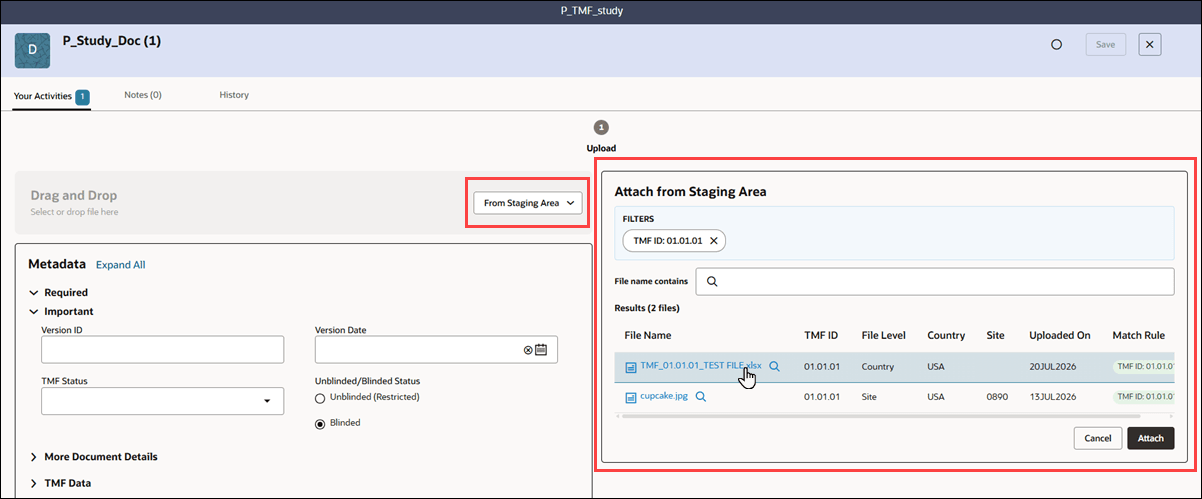
The artifact drawer also supports attaching a Staging Area file to a document that doesn’t yet have a file. The Attach control lets you choose from From your computer and From Staging Area. Selecting From Staging Area opens a file picker where you can search and filter available files, review why each file matched the current document, and select one file to attach. The attachment remains an unsaved change until you select Save. After a successful save, the file is assigned to the document and no longer appears as unassigned in the Staging Area.
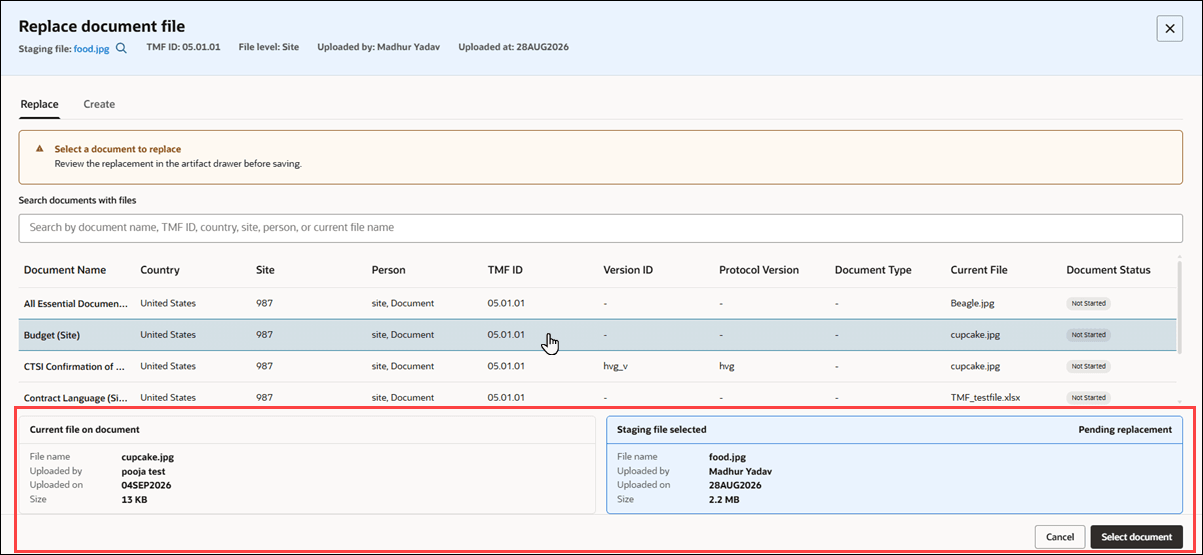
For documents that already have a file, you can use the Replace document file option in the Staging Area Actions menu if you need to correct or update a document file without creating a duplicate document. Search for an eligible document, review its current file and document information, and select the document you want to update. The artifact drawer then opens with the staging file loaded as a pending replacement. Nothing is replaced until you select Save in the artifact drawer. After a successful save, the previous file continues to follow existing file history and audit behavior, and the staging file is removed from the Staging Area. If you cancel or discard the change, or if the save fails, the existing document file remains unchanged, and the staging file stays available.
Staging files are also available for preview before assignment, provided they are of a previewable file type. Click preview  to view the file in a new tab, or click the file name to download it.
If you have the Allow removing files from TMF staging area permission, the Actions menu also includes Remove for files that were uploaded accidentally or are no longer needed. Removing a file requires confirmation and a reason, and the file is permanently deleted after you confirm the action. Without this permission, the Remove option isn’t available.
Staging Area activity is recorded for traceability. Upload sessions and individual file status changes are tracked, and assignments, replacements, and removals are recorded in audit history with the applicable file, document, person, date and time, and action details.
Epic: CHK-50117
Document forward and back navigation
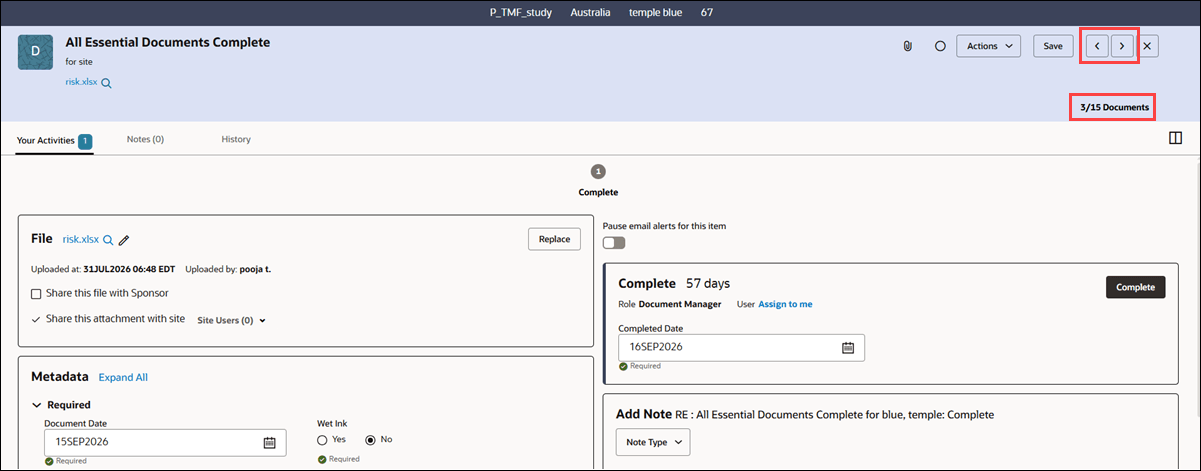
You can now move between documents directly from the artifact drawer in the TMF Viewer while keeping track of your position in the current document list. This navigation is available in both filtered and unfiltered views.
Use the new previous  and next
  buttons to move through documents. A document counter, such as "1/20 Documents" or "3/15 Documents", shows which document you’re currently viewing out of the total number included in the list. The previous button is disabled for the first document, and the next button is disabled for the last document.
If you have unsaved changes and click previous or next, you’re prompted to save or discard your changes before moving to another document.
This release also updates the document grid in the TMF Viewer to load a maximum of 1,200 rows. You can continue moving through documents in the artifact drawer even if a folder contains more documents than the TMF Viewer grid can display. This update ensures you can access documents using the previous and next buttons even when they’re not displayed in the TMF Viewer.
If a folder contains more than 1,200 documents and you try to load additional rows in the grid, you’ll see the message, “No more than 1200 results may be shown, please change search criteria to filter the list further.” You can refine your search criteria to reduce the displayed results, or keep using the previous and next buttons in the artifact drawer to move from the first document to the last, including documents beyond the 1,200-row grid limit.
Epic: CHK-50117
Type column displays Document and Contract Type
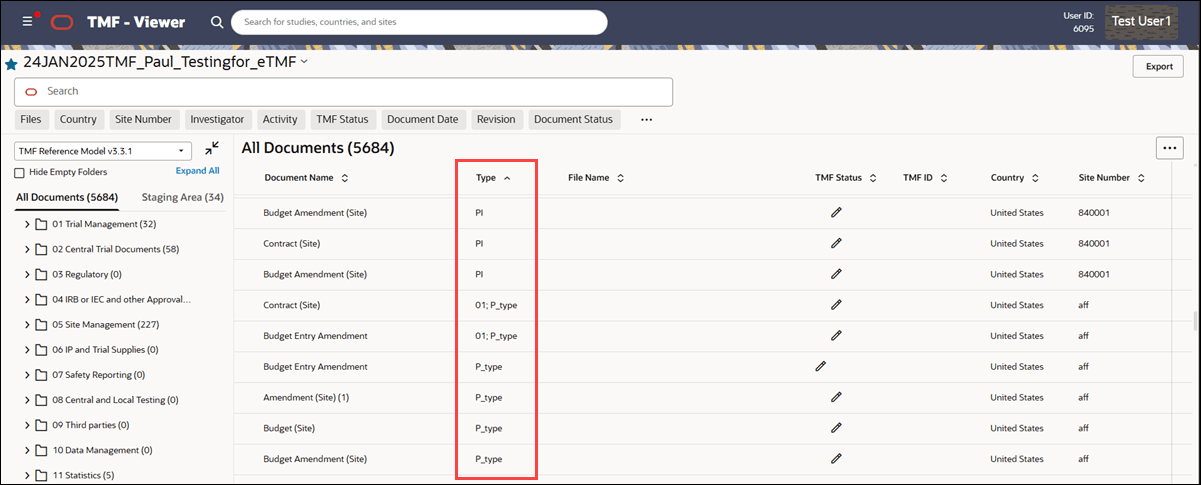
The All Documents view in TMF Viewer now includes a default, sortable Type column that displays the document type or contract type associated with each item. If both types are available, the column displays the document type first, followed by the contract type, separated by a semicolon.
The new Type column displays to the right of the Document Name column. You can show or hide the Type column as preferred and it is included if you make changes to the displayed columns in the All Documents view and then restore the defaults.
Epic: CHK-50117
Study selector uses shared favorites
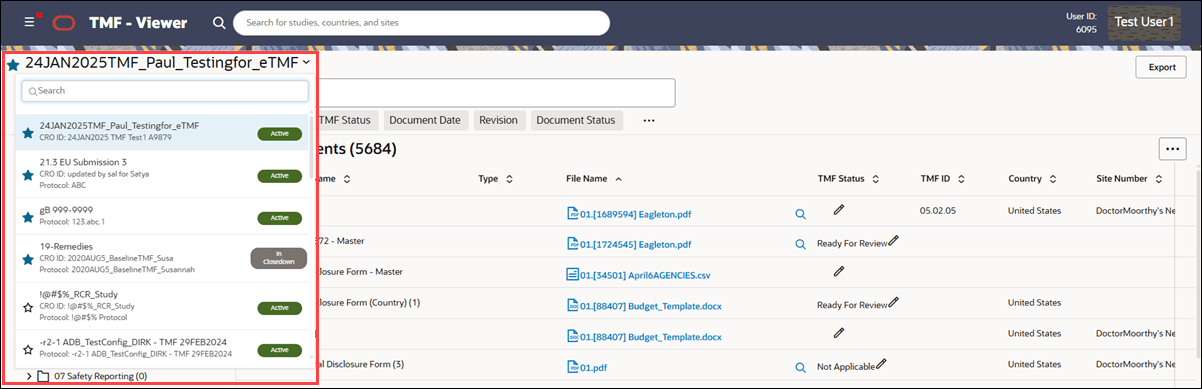
The TMF Viewer study selector now uses the same favorite behavior as the Oracle Site Activate study selector. Favorite studies display a blue star and sort to the top of the list, while non-favorite studies display a hollow star.
You can favorite or unfavorite a study from either selector, and your saved favorite selections are shared between Oracle Site Activate and TMF Viewer. Existing search, study status, study selection, access, and permission behavior remain unchanged.
Epic: CHK-50117