Document management
In this release, you’ll see significant user experience enhancements to file management and the artifact drawer that improve navigation and simplify your work.
Artifact drawer split view
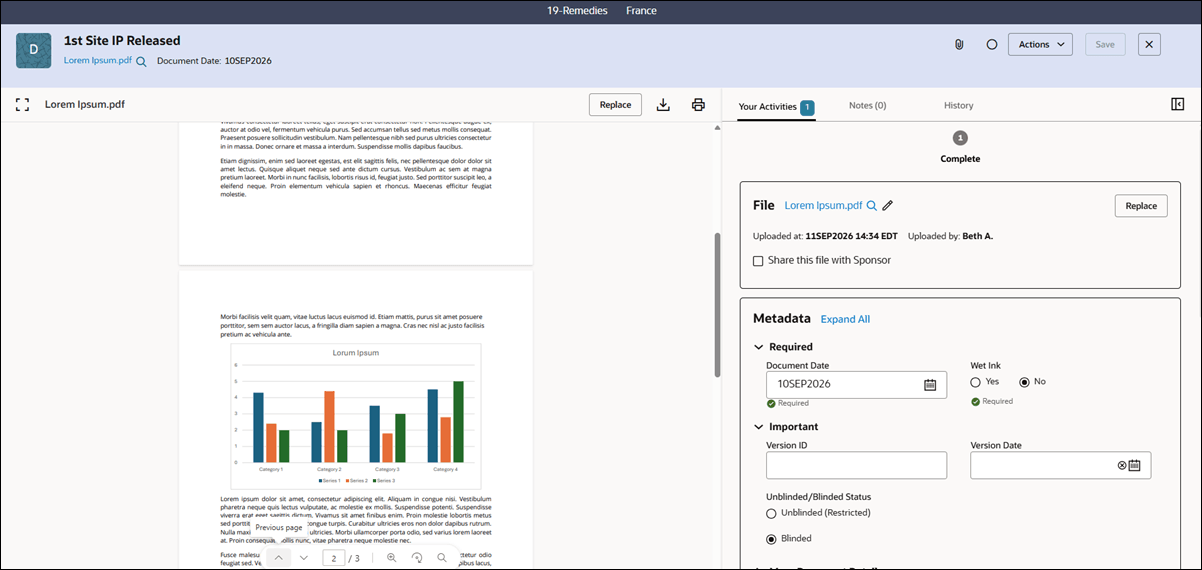
A new split view option in the document artifact drawer lets you view an attached file alongside artifact details and activity information. Click the new split view icon  at the drawer's upper right to split the drawer's lower section and display the file on the left and other activity panels on the right. If an attached file can’t be previewed (e.g., a ZIP format file), or if no file is attached, the drawer will not include a split view icon.
In split view, you can replace, download, and print the attached file using the action options displayed above the file. Below the file, you'll see navigation options for pagination, search, zoom, etc.
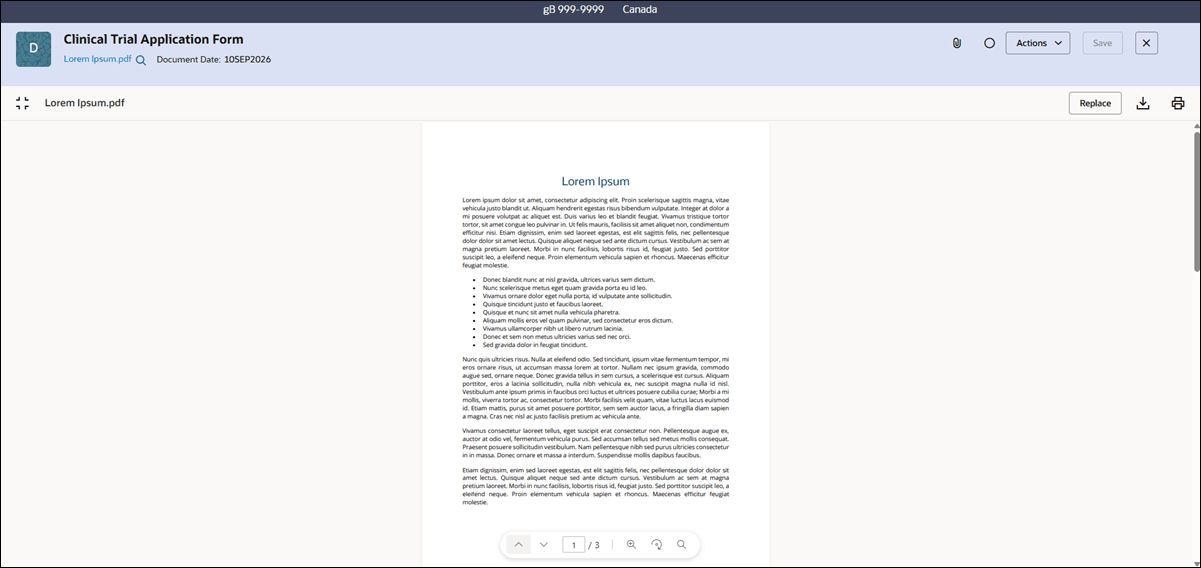
Above the file, at the far left, click maximize  to open full file preview mode, then click minimize
  to return to split view. Click the Full details icon
  at the drawer's upper right to close split view and return to the full tab view.
Epic: CHK-51233
Full window width file preview
Release 26.1 replaces the existing artifact file preview page with a new full file view. When you click  to preview files from Study, Country, and Site artifact lists or the eTMF Viewer, the full file view opens in the same window with the artifact context. From the Corrections tab and Submission or IP package workflows, preview opens in a new window or tab.
Study Library files and non-artifact files attached to notes for milestones, studies, countries, or sites still use the legacy preview page style.
Epic: CHK-51233
File renaming from naming convention template
Release 26.1 introduces the ability to automate file naming based on an account-level template applied at the study level. This helps you apply configured naming conventions more consistently and reduces the need to rename files manually.
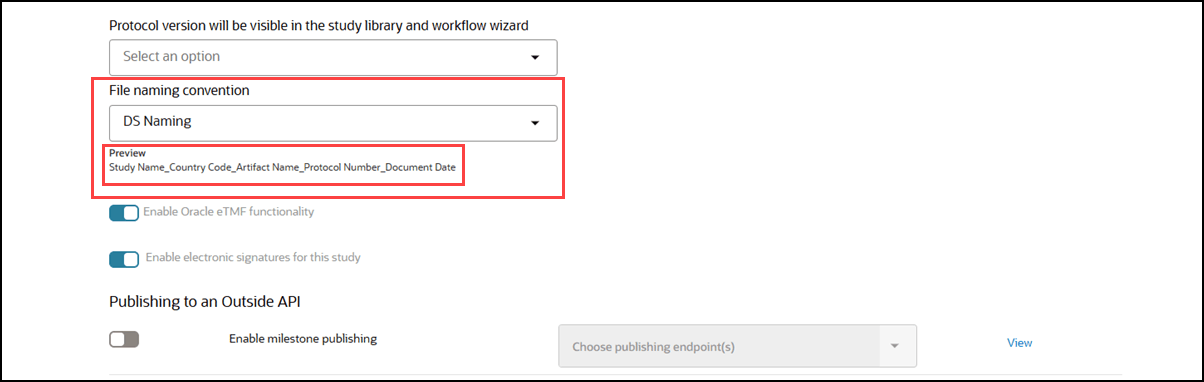
- Study Name
- Study ID
- Protocol Number
- Country
- Country Code
- Institution Name
- Site Number
- PI First Name
- PI Last Name
- Artifact Name
- Artifact ID
- Version ID
- Document Type
- Contract Type
- TMF ID
- Protocol Version
- Document Date (Formatted as YYYY-MM-DD)
- Upload Date (Formatted as YYYY-MM-DD)
- Language
When the “Enable automatic file rename” setting is enabled and one or more conventions are configured for your account, an optional File naming convention setting is available on the study create and edit pages. If your account has a default naming convention configured, it’s populated automatically. Otherwise, you can select any one of the account's configured conventions or leave the field blank. When the File naming convention drop-down has a selected value, you'll see a Preview below the field that shows the configured metadata tokens and separators for that selection.
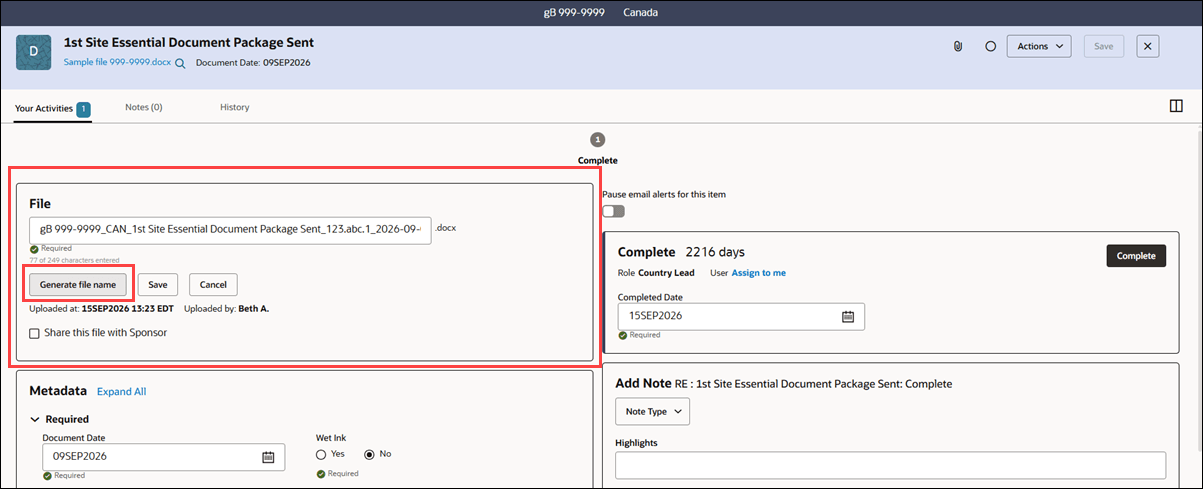
When a study has a file naming convention set, you can click Generate file name when editing a file name. The generated name follows the same validation, versioning, history, and audit behavior as manual renaming. If the generated name contains invalid characters, an error banner appears, and you must update the name before you can save it.
Note:
Please contact your Oracle services representative to discuss requirements for enabling the new automatic file rename setting for your organization's account.Epic: CHK-50117
File upload details
The File panel in the artifact drawer now includes Uploaded by and Uploaded at information, giving you the file details previously available in the legacy file preview’s details tab. You can view the file upload information in both the regular artifact drawer view and split view.
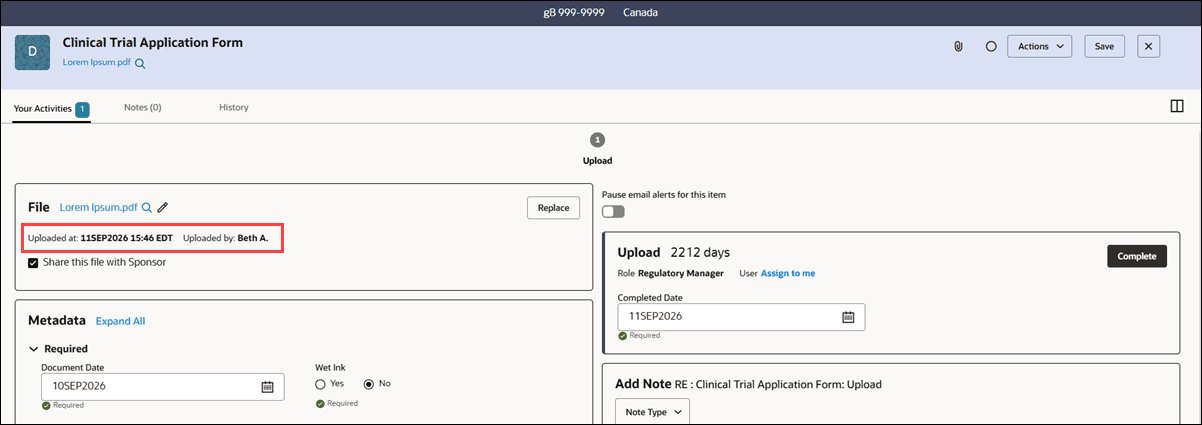
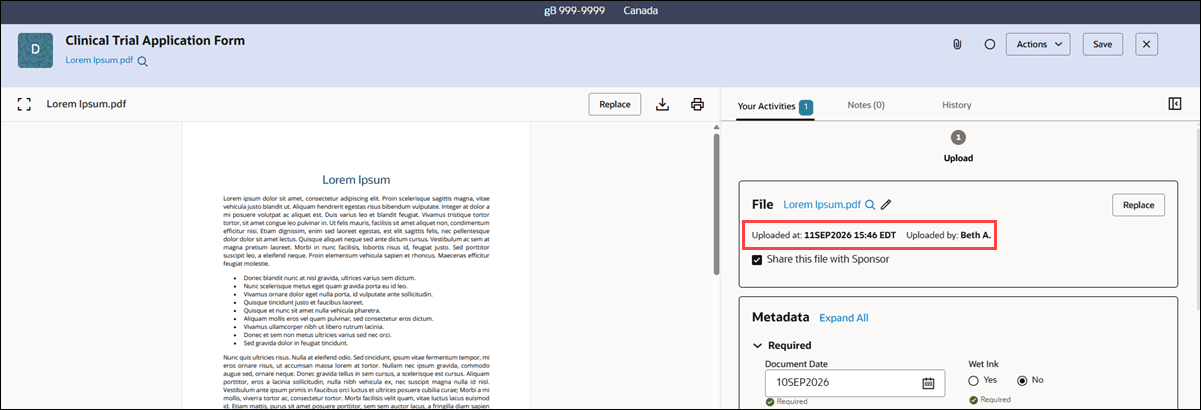
Epic: CHK-51233
Completed activity decisions
The artifact drawer now makes completed activity decisions easier to find. When a completed activity includes a recorded decision, you can hover over or focus on the activity step in the train to view “Decision: <selected decision>” text as a tooltip. No decision tooltip appears when the activity did not record a decision.
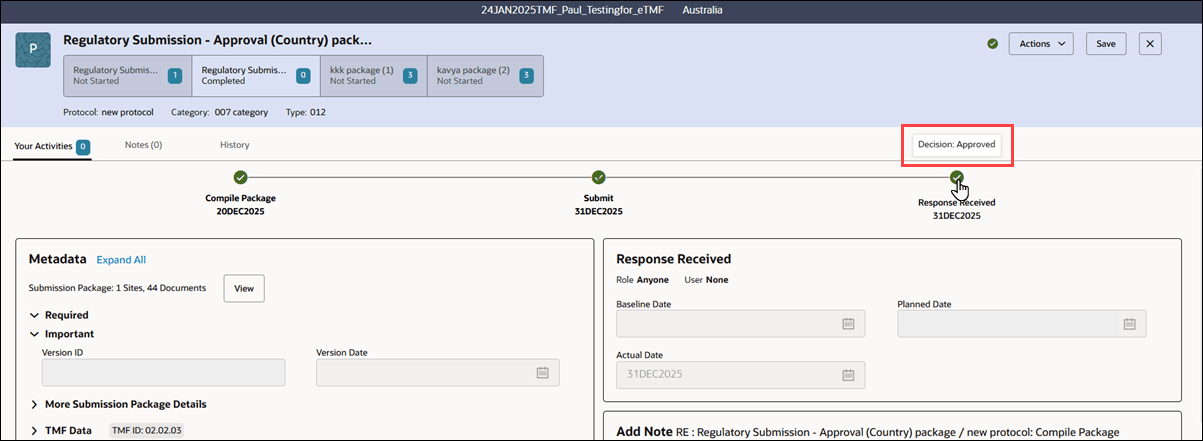
We also made minor interface updates. To make it easier to identify the primary work area for items that are not yet complete, the activity panel for the current step now has a bold left border. Additionally, an enabled Complete button in the activity panel now uses the standard primary dark button style, while the Save button in the drawer's header uses the standard secondary button style. Disabled buttons retain the standard disabled appearance. These visual updates apply wherever the standard artifact drawer appears. The updates also do not change existing workflow behavior or the rules that control when the Complete and Save buttons are enabled.
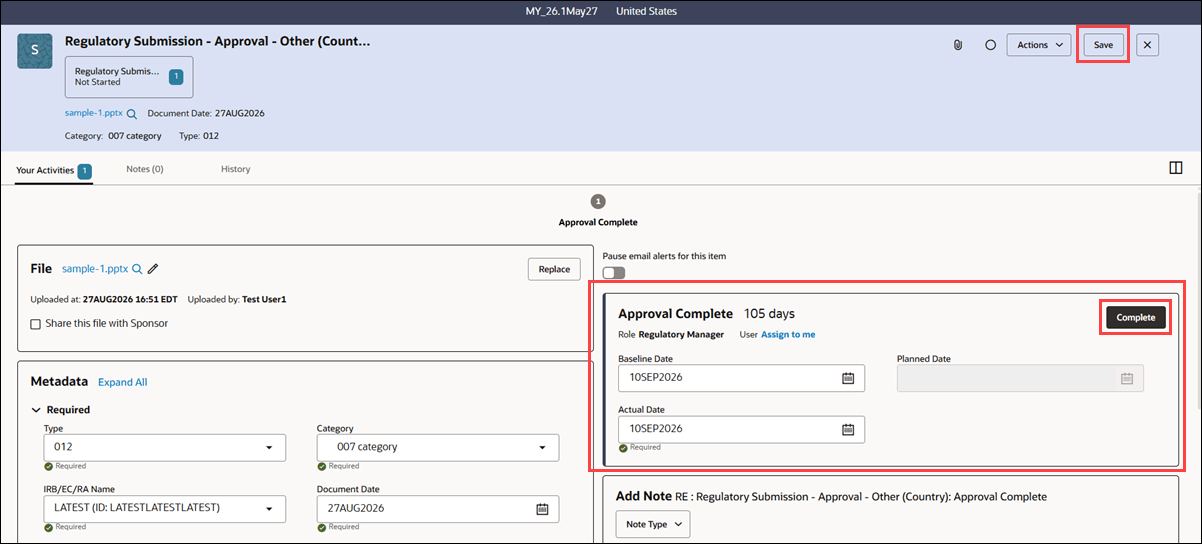
Epic: CHK-51233
Version Date field
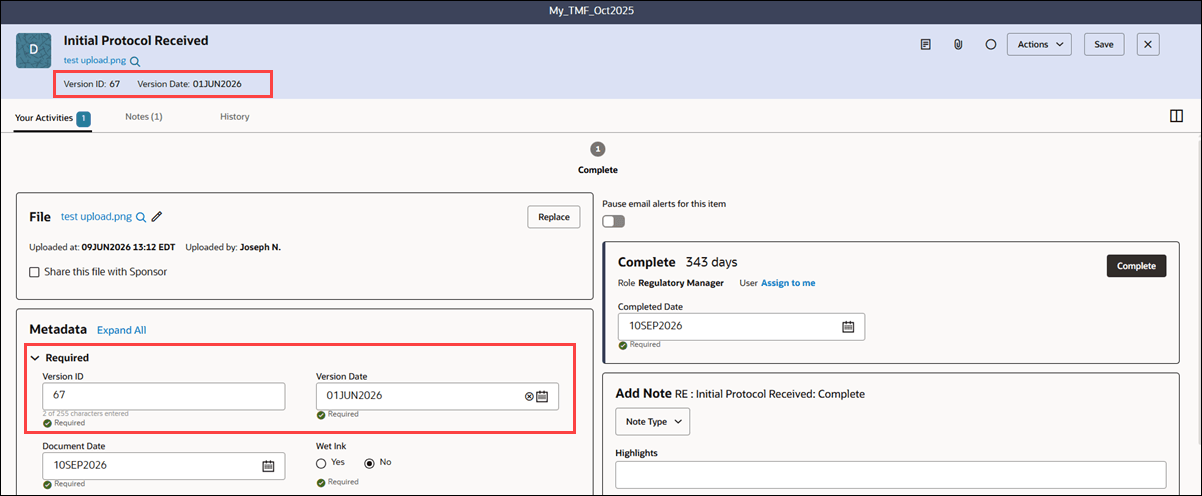
Using a new field added in this release, you can enter the Version Date for an artifact when “Enable Version Date Field” has been enabled for your organization’s account. The field appears wherever the existing Version ID field is available (i.e., Artifact Drawer, Corrections > Items > Edit, Bulk work, and the Overview page). If preferred, your organization can assign a custom field name of up to 25 characters. If no custom name is assigned, the field displays with the label "Version Date." When populated, the date value appears in the artifact list on the Study, Country, and Site work tabs.
- If Version ID is required, Version Date is also required.
- If Version ID is optional, Version Date is optional.
You can save a Version Date only when Version ID is populated. If you enter a Version Date, Version ID becomes required regardless of the account or artifact settings.
In Corrections > Items > Edit, Version ID remains optional unless you enter a Version Date. In that case, the Save button remains disabled until you enter a Version ID.
Note:
Please contact your Oracle services representative to discuss enabling the Version Date field for your account.Epic: CHK-51233
File name character limit validation
As in prior releases, file names have a maximum allowed length of 254 characters or bytes. In this release, real-time file name validation now includes the period before the file extension and the file extension itself when calculating the character limit.
We also clarified the error message you see when a file name exceeds the limit. The error message now states the required maximum: “Please shorten the file name (including the file extension) to 254 characters or less and try again.”
Epic: CHK-51233
Document sub-status for Oracle Site Activate and Oracle eTMF items
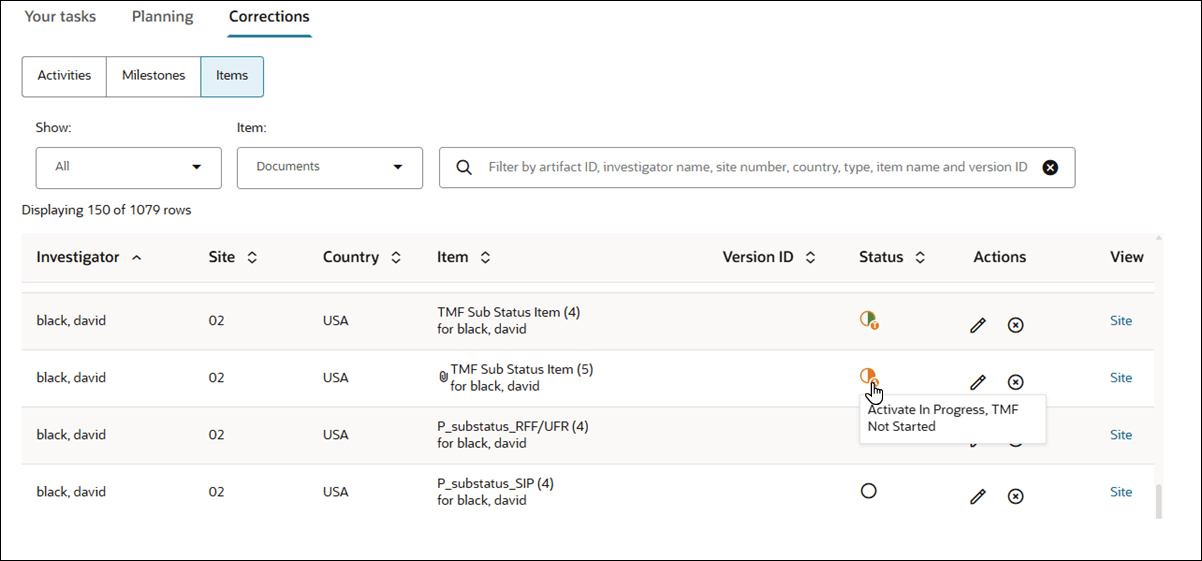
If you use both Site Activate and Oracle eTMF, you can now more easily distinguish progress on study start-up work from filing and review work for the same item. A new combined sub-status uses existing lifecycle activity data to add context while preserving the existing overall artifact status.
 Activate In Progress, TMF Not Started
 Activate Complete, TMF Pending
 Activate Complete, TMF In Progress
If start-up work is reopened after filing or review has begun, the combined sub-status returns to show that start-up work is in progress again.
You can see the new icons and hover text in supported Site Activate lists (e.g., study, country, site task lists), artifact drawer headers, tables, rows, cards, package planning, and IP package review views where status is shown. The existing overall artifact status remains the primary status you see. If you work with Site Activate-only or TMF-only items, their existing status behavior remains unchanged. Existing status filters, sorting, exports, and TMF Status also remain unchanged.
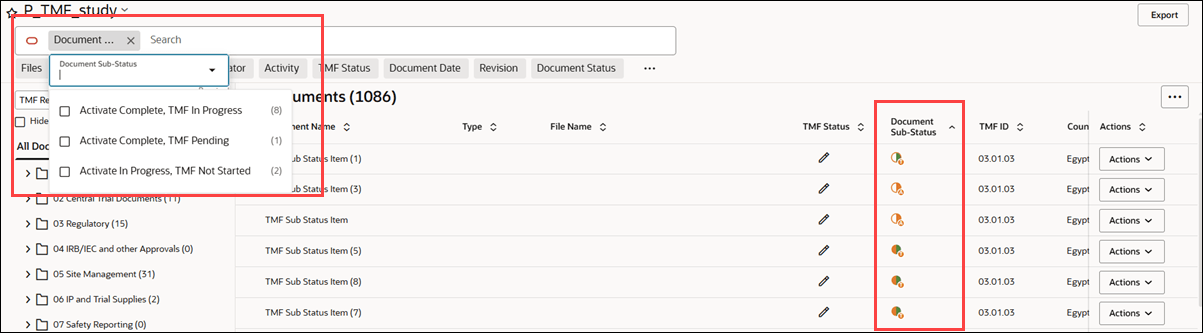
If your account is configured for both Site Activate and Oracle eTMF, you can also add the optional Document Sub-Status column to the eTMF Viewer’s All Documents view. The column isn’t displayed by default, but when you add it, you can see the new document sub-status values. You can also search by document sub-status using Smart Search or use the new Document Sub-Status filter to narrow the documents you see.
Epic: CHK-50117