User experience
This release introduces significant user experience improvements that enhance navigation and accessibility.
Usability and navigation
With release 25.1, Configuration Designer introduces a redesigned user interface that reflects Oracle design standards throughout. We also updated the user experience with navigation and accessibility enhancements.
Common design updates include:
- Oracle’s standard logo, color palette, font, icons, and input controls
- Browser tabs that show the page name
- Enhanced color contrast to improve readability
- Ability to keyboard tab and control every page
- Consistent design principles to ensure ease of navigation and predictable layout
Note:
These release notes spotlight key updates but are not an exhaustive list of every change to the user interface. Some updates in this release changed the appearance of certain features (such as colors, fonts, or icons) without affecting how they work. Those visual-only changes are not included in these release notes.
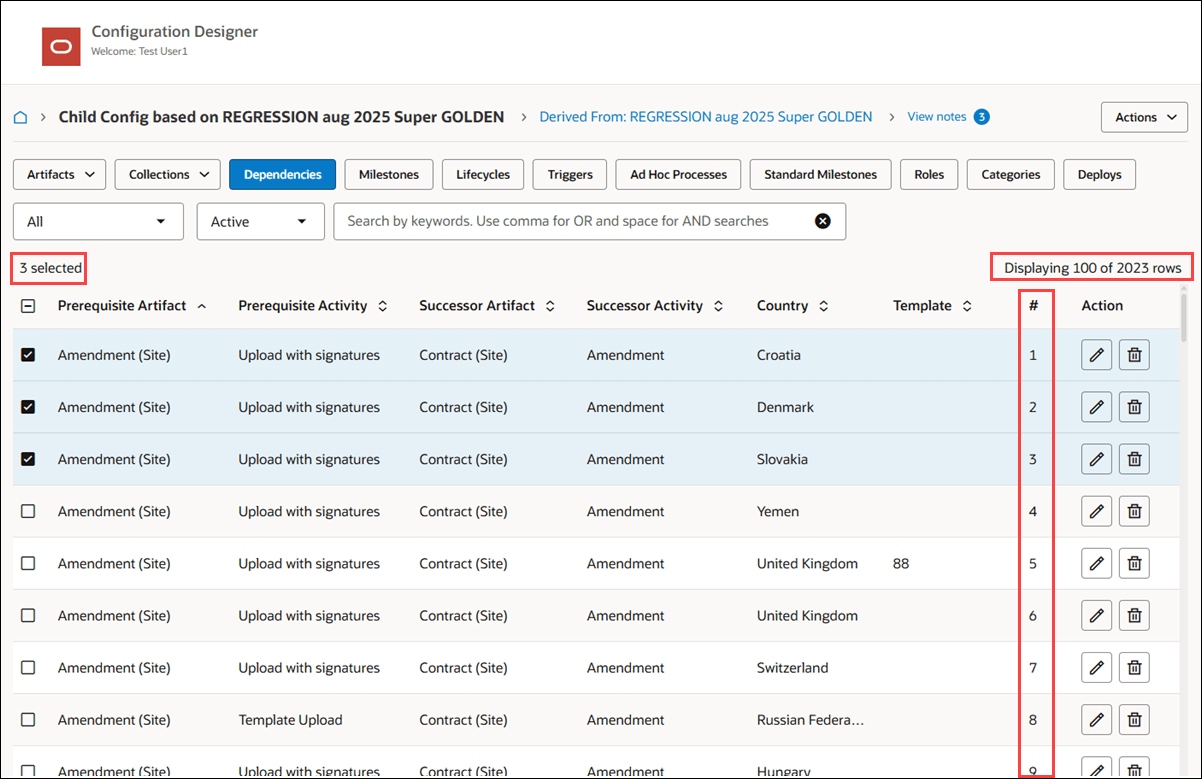
You'll see usability updates to tables in this release. To help you keep track of progress when working with large sets of items, a new number ("#") column shows each item's row number. Each table under every tab will display the total number of rows with a "Displaying x of y rows" message, and the new # column will provide row numbers for easy reference, so you can pause and resume your work more efficiently.
When you select a table row, it appears with a blue background. If you use the "select all" check box at the table's upper left, all visible rows are selected, and as you scroll down, the item count automatically updates to include the newly visible rows, all of which are selected by default. If you're working on the Artifacts tab and you select all for a bulk delete operation, the confirmation window will show the number of rows included in the bulk delete. Be sure the number matches your expected total; if necessary, you can return to the Artifacts tab and scroll down the list to ensure you select all items.
For tables with expandable rows, such as those in the Deployment tab and Lifecycle Edit modal tree view, as much information as technically possible will be displayed, and any truncated data (indicated with an ellipses ...) will be fully viewable on hover via tool tip.
Parent topic: What's new