Contract management
This release introduces a new drawer layout for contract artifacts.
Contract artifact drawers
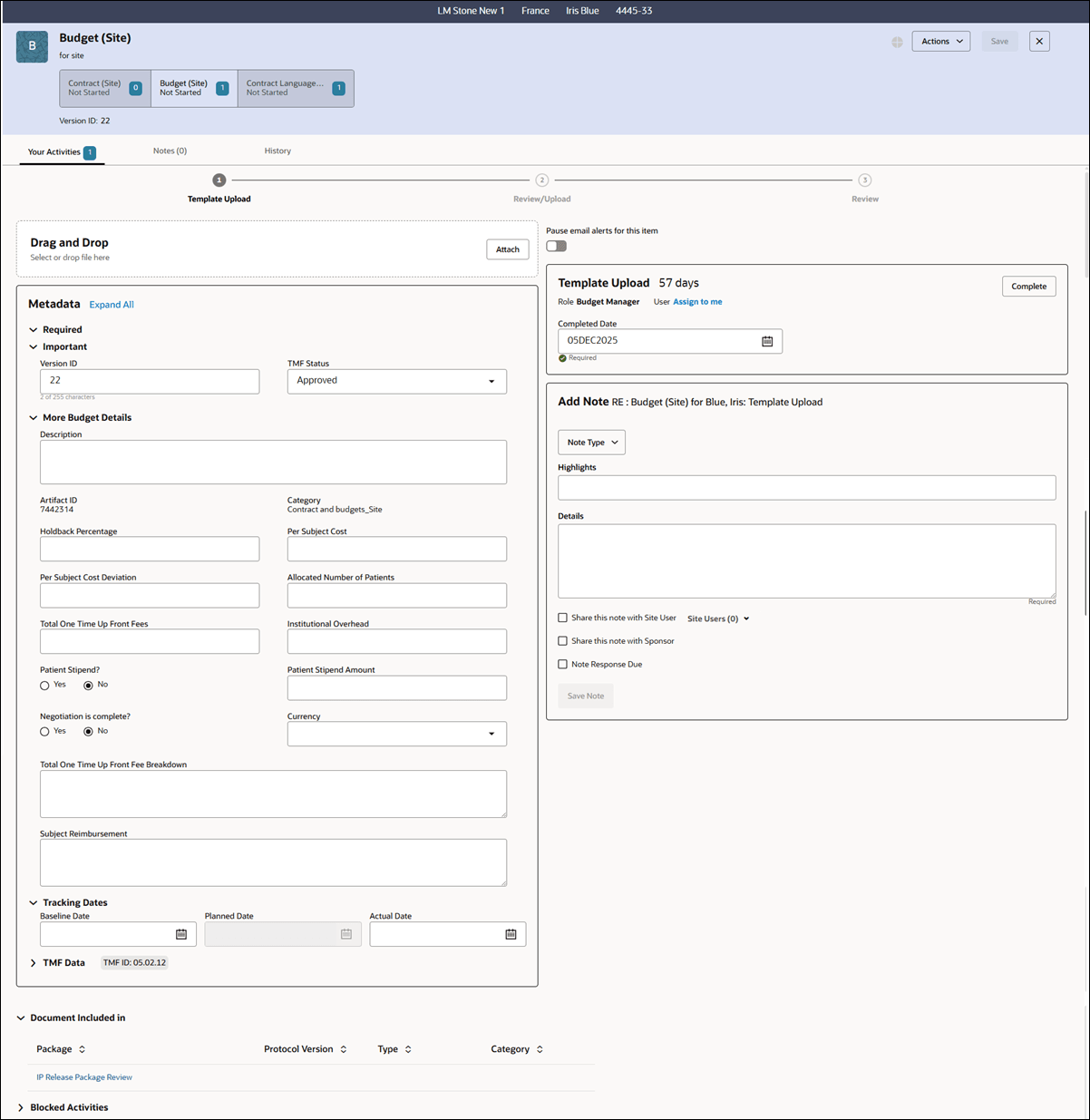
Contract drawer layout and navigation
When you open the artifact drawer for contracts, a button set shows below the contract name in the artifact header, which makes it easy to navigate directly to available budget and contract language artifacts under the main contract. Each button shows the subcontract name, its version number when applicable, the open activities count, and the current subcontract status.

Metadata and activity panels
Within the Metadata panel on the drawer's left side, you’ll find general details like the document description and version ID at the top, followed by contract-specific metadata. Some fields, such as contract type, may be set as required according to customer preference. These fields are prominently displayed under Metadata details, and for the final activity, required fields move to the Required section to ensure accuracy when the artifact is finalized.
A Tracking Dates section will be included in the Metadata panel whenever scheduled activities are present. It provides fields for baseline, planned, and actual dates and remains visible regardless of which activity is currently open. Completed artifacts lock these fields unless you have correction permission.
The activity panel on the right side of the drawer contains the activity-specific metadata and attributes, including the activity name and age, assigned role, and a link to assign the activity to yourself. The activity panel also includes a Completed date field and the Complete button.
Amendment management
When you work with amendment artifacts, you’ll see the artifact title and button name based on the defined artifact configuration (e.g., “Amendment,” “Budget Amendment,” etc.). Relevant metadata sections, such as “More Amendment Details,” “More Budget Amendment Details,” or “More Contract Language Amendment Details,” appear depending on the contract type. Only one of these amendment metadata sections is displayed for each artifact.
Contract and subcontract actions
You can click the Actions button in the artifact header to: discontinue or reinstate a contract or its subcontracts, put items on hold, terminate them, add a new budget when enabled, or create a new amendment. Actions available to you are the same actions available in the legacy contract modals and they depend upon you having the appropriate user role permission and the artifact's configuration.