IP release package
This release introduces a new drawer layout for IP release packages.
IP release package drawers
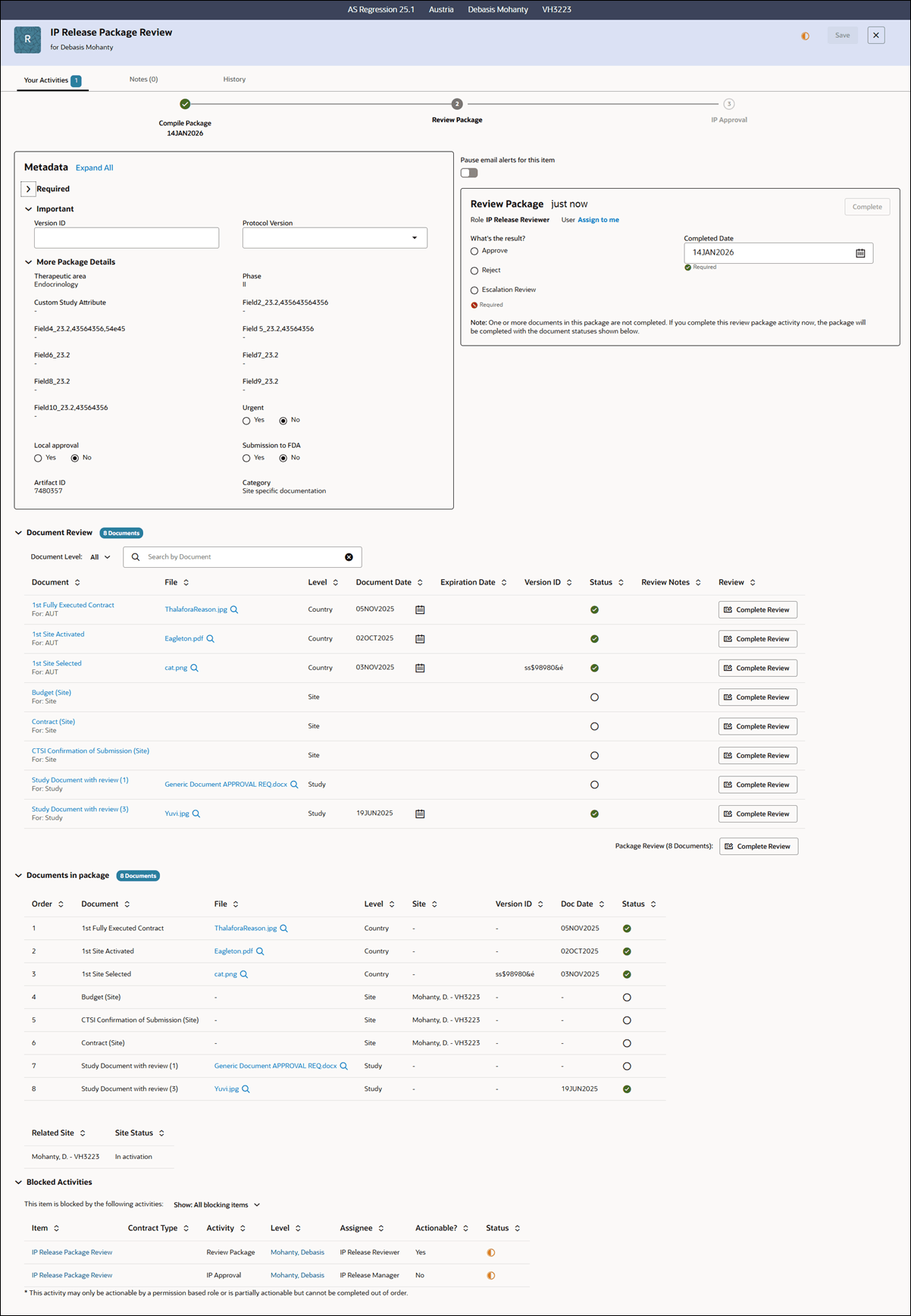
IP review package header and activities
When you access the artifact drawer for an IP package, you'll see the activity train at the top of the Your Activities tab shows the activities applicable to the artifact, and it updates as the package progresses from compile, to review, to approval.

Compile package activity flow
If the open activity is Compile Package and you have the appropriate user permission, click the "Plan package" button in the Metadata panel. You can select documents to include in the package using the package planning wizard; all previously available package compiling functionality remains. With release 25.1 you'll see new columns we added in the PI/Site Documents tab for PI (lastname, firstname) and Site number.
Review Package activity and initial review management
When the Review Package activity is open, you may edit all relevant metadata, preview or download files, open artifact drawers for included documents, and make review decisions on both documents and the package. Additional features include the ability to add or view dependency notes and manage expiration dates, if these settings are enabled for your account. Completion of the review activity moves the workflow forward to the next stage.
Manage rejected packages and corrections
If the initial IP package is rejected, the artifact drawer opens a new Compile Package activity. You need to confirm corrections for all rejected documents before completing compilation. The Document Review section switches to Document Correction, displaying only those documents that still need attention. Marking documents or the package as corrected updates their status, and you can add or review notes for each item. The Edit IP Package button allows you to manage package contents in real time, reflecting document status and counts, and tracking new or removed items. Once you complete compilation, all documents become visible in the Review Package section for further evaluation.
Track document corrections and approvals
Within subsequent review cycles, you’ll see each document’s review and approval state, and you'll use Edit and Complete Review controls. The drawer always displays the number of documents included, helping you keep track as you update the package.