6 Resource Allocation
Workbook synopsis
The Resource Allocation report, helps managers track and manage assignment of Oracle Site Select user roles, business permissions, and study level access.
Dashboards and sheets
Users and Roles dashboard
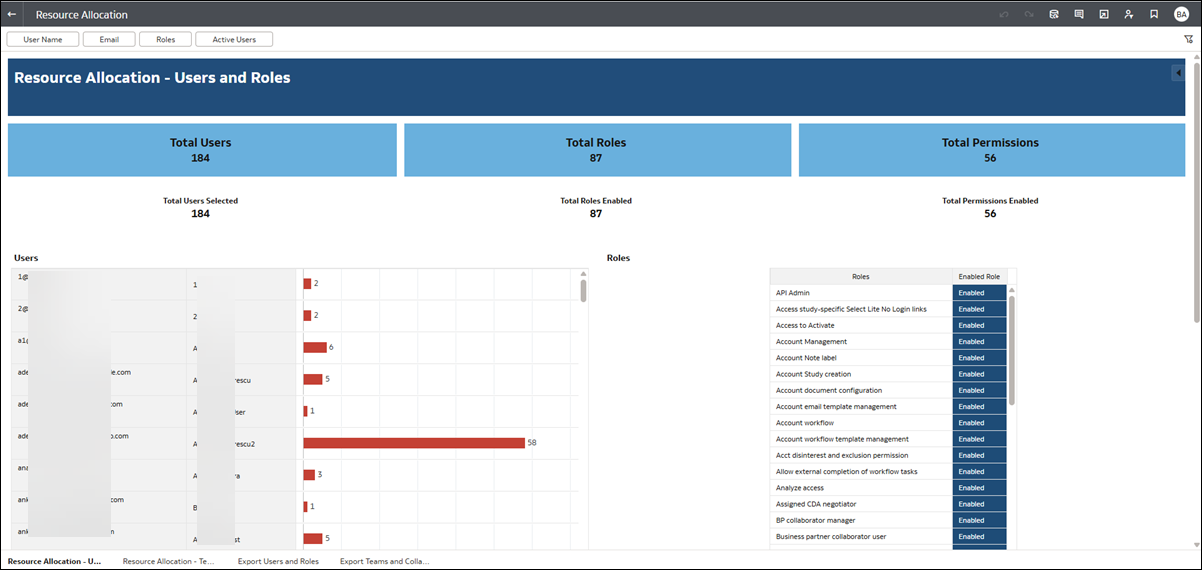
The Users and Roles dashboard allows managers to easily view how business roles are defined in Oracle Site Select and which permissions are enabled/disabled for each business role. To help manage permissions across Oracle Site Select, you can also view all roles enabled for any individual user.
- Total Users/Total Users Selected
- Total Roles/Total Roles Enabled
- Total Permissions/Total Permissions Enabled
- Users – Includes the individual user’s email, name, and enabled permissions count.
- Roles – Shows each role with “Enabled” (blue).
The dashboard includes multiple filter options at the top of the worksheet that let you subset users and roles data to your preferred view. User Name, Email, Roles, and Active Users apply to the dashboard as a whole, while those in the “Grid Filters” section (Permission Group and Permission Name) apply only to the Permissions table at the bottom of the worksheet.
Please note that the report automatically filters out permissions that are not enabled and account user roles. Additionally, the report does not automatically filter out users who do not have any roles or teams assigned.
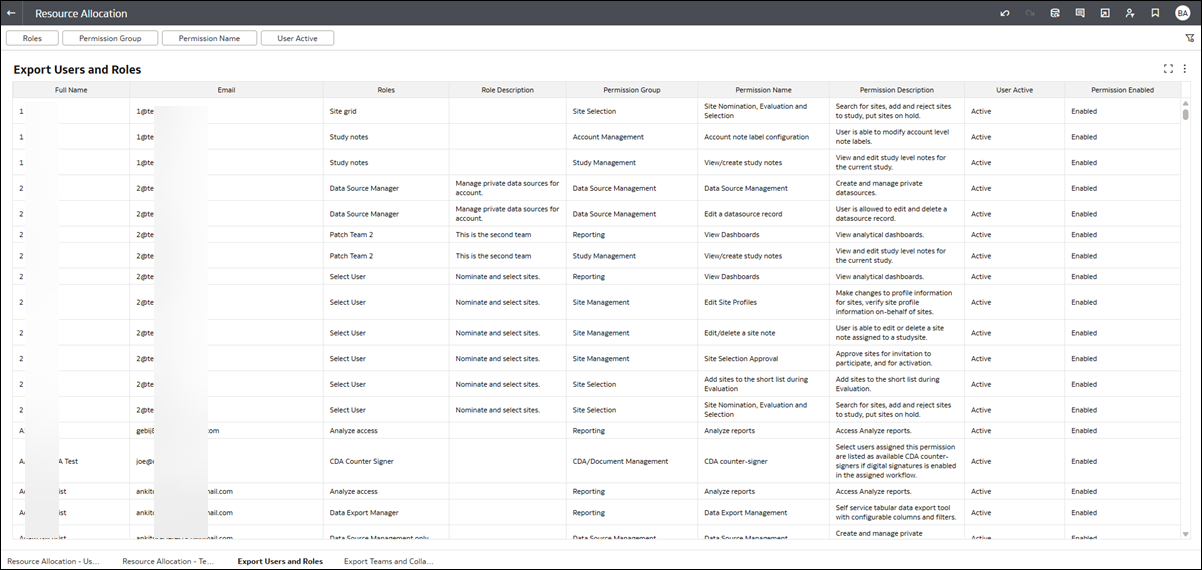
By default, filters specified on the Users and Roles Dashboard are automatically applied to the export sheet; however, you can adjust the export sheet filters (or remove them) as desired. You can also navigate directly to the Export Users and Roles worksheet to create an export, if preferred.
Teams and Collaboration
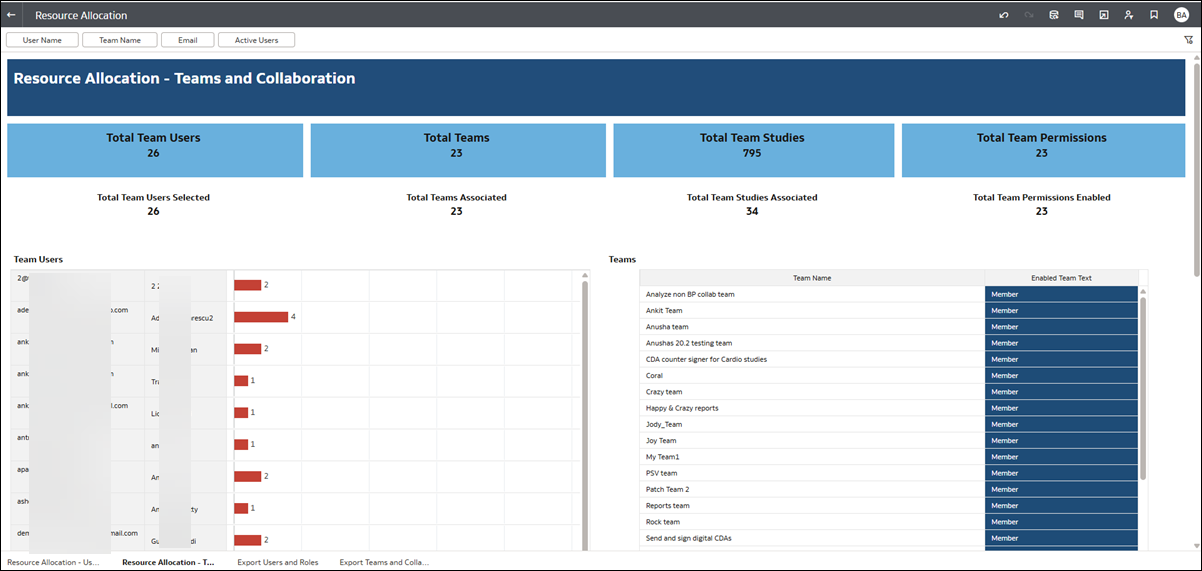
- Total Team Users/Total Team Users Selected
- Total Teams/Total Teams Associated
- Total Team Studies/Total Team Studies Associated
- Total Team Permissions/Total Team Permissions Enabled
The dashboard includes multiple filter options at the top of the worksheet that let you subset users and teams data to your preferred view. User Name, Team Name, Email, and Active Users apply to the dashboard as a whole, while those in the “Grid Filters” section (Permission Group and Permission Name) apply only to the Permissions table at the bottom of the worksheet.
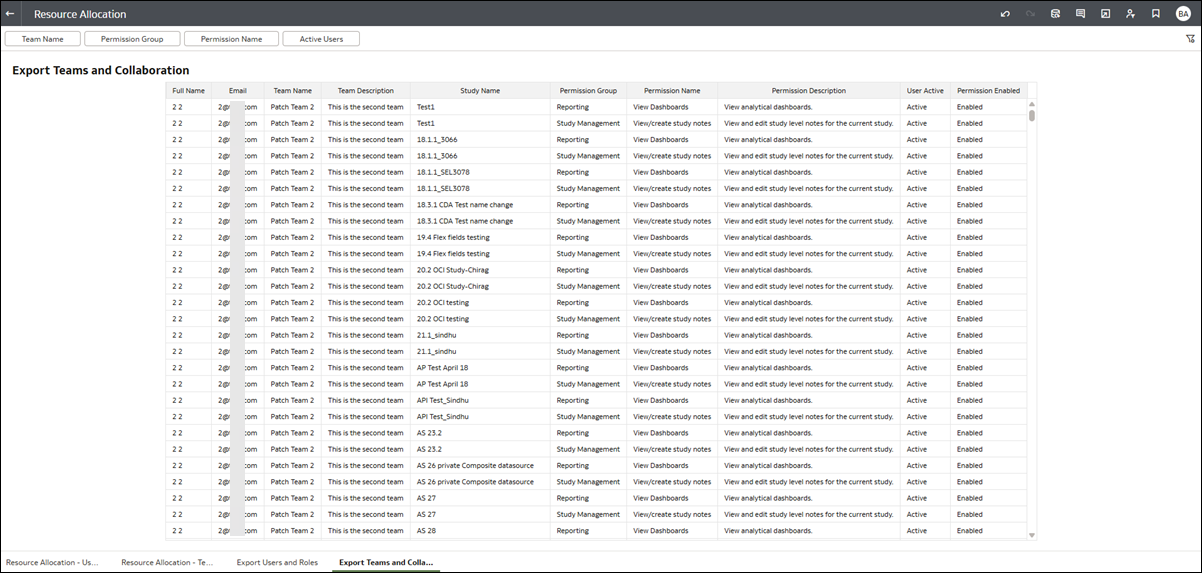
By default, filters specified on the Teams and Collaboration dashboard are automatically applied to the export sheet; however, you can adjust the export sheet filters (or remove them) as desired. You can also navigate directly to the Export Teams and Collaboration worksheet to create an export, if preferred.